Game Card Monitor
Keep a live battle's current state and execution history in one window, so every content change can be checked against runtime evidence
Open the window from this menu:
Tools > TinyGiants > GCS > Game Card Monitor
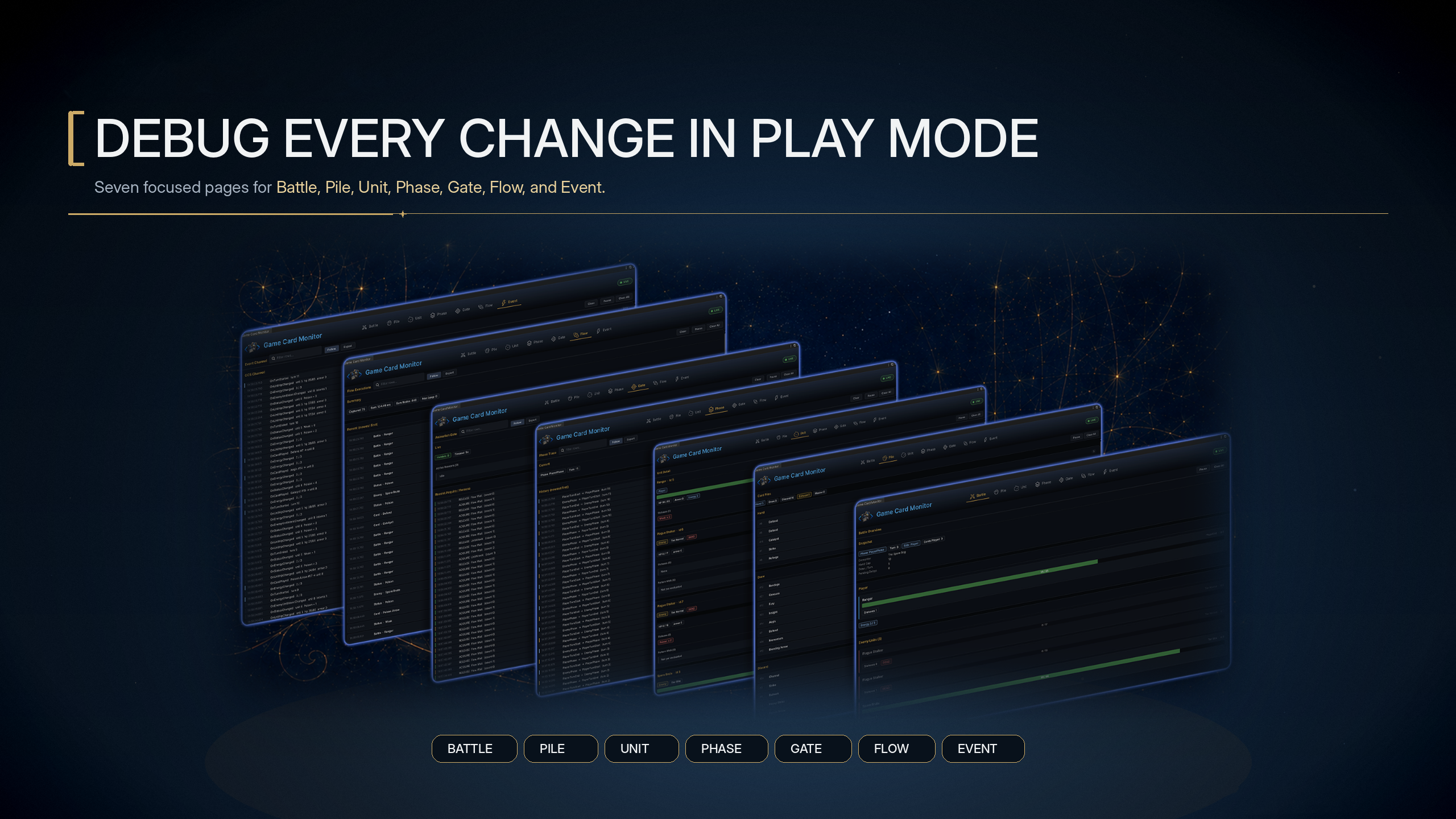
The image above places Battle, Pile, Unit, Phase, Gate, Flow, and Event in one Play Mode diagnostic process. The first three tabs provide current battle snapshots. The remaining four record phases, waits, behavior-graph execution, and event activity, so diagnosis can move from a visible result to the runtime boundary that produced it.
After system initialization, you can open the same window from the Editor & Monitor card on the Game Card System Dashboard.
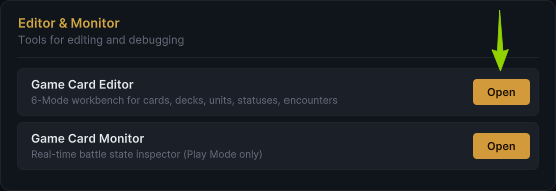
The dashboard enables these two buttons only after the initialization state passes its checks. The menu entries themselves have no such gate.
After completing static structure checks in FlowGraph Editor, place the same Card, Status, or Enemy in a real battle. Game Card Monitor turns its triggers, resolution, state changes, and event notifications into runtime evidence you can inspect layer by layer.
Open Monitor before reproducing the action
Game Card Monitor can remain open in Edit Mode, but it shows runtime content only after entering Play Mode and starting a battle.
Capture scope
-
The window subscribes to Flow, Phase, Gate, Event, and detailed event channels only while it is open. Executions completed before it opens are not reconstructed.
-
Battle,Pile, andUnitread the current runtime state directly. Even if the window opens late, they still show the battle snapshot at that moment.
| Header state | Current meaning |
|---|---|
INACTIVE | The Editor is not currently in Play Mode |
LIVE | Refreshes the interface every 0.3 seconds and continues receiving runtime samples |
PAUSED | Pauses automatic refresh and Phase, Gate, Flow, and Dispatcher Probe sampling. The battle itself continues running |
The window clears its captured history when you leave Play Mode or return to Edit Mode. A reliable reproduction sequence is to open Monitor first, enter or restart the smallest relevant battle, then perform the action you need to inspect.
Seven tabs provide two kinds of evidence
| Tab | Main evidence | Current boundary |
|---|---|---|
Battle | Phase, Turn, Side, Cards Played, Encounter, pending Choice, Gate, player, enemies, Pending Intents, and raw rule values | The Energy denominator, Hand Cap, and Draw / Turn do not represent effective limits after every Hook modification |
Pile | Individual card instances in Hand, Draw, Discard, and Exhaust, plus the Master count | Master shows a count only. Only Hand shows the current effective cost |
Unit | HP, armor, current player energy, status stacks, alive state, and enemy Pattern Walk | Does not show the current Intent. Inspect Intent under Battle |
Phase | Current Phase, Turn, Choice Pending, and phase-transition history | Keeps only the latest 256 transitions captured after subscription |
Gate | Current holders, configured TimeoutSeconds, Active Reasons, and Acquire and Release history | Keeps only the latest 256 changes and does not record a separate timeout event |
Flow | Owner, trigger location, visited node count, and duration for the current synchronous execution segment | Keeps only the latest 256 executions and does not show the per-node path or later asynchronous continuation |
Event | Readable detail for 21 fixed subscriptions among 43 built-in events, plus dispatch probes captured during sampling | Detailed events retain 1000 records but display only the latest 200; probes retain 256 records |
Use these two evidence groups in order. Confirm the current result under Battle, Pile, and Unit first, then trace how it was produced through Phase, Gate, Flow, and Event.
- Battle
- Pile
- Unit
- Phase
- Gate
- Flow
- Event
Battle opens by default and shows whether an active battle exists, its current phase, and the current player and enemy state.
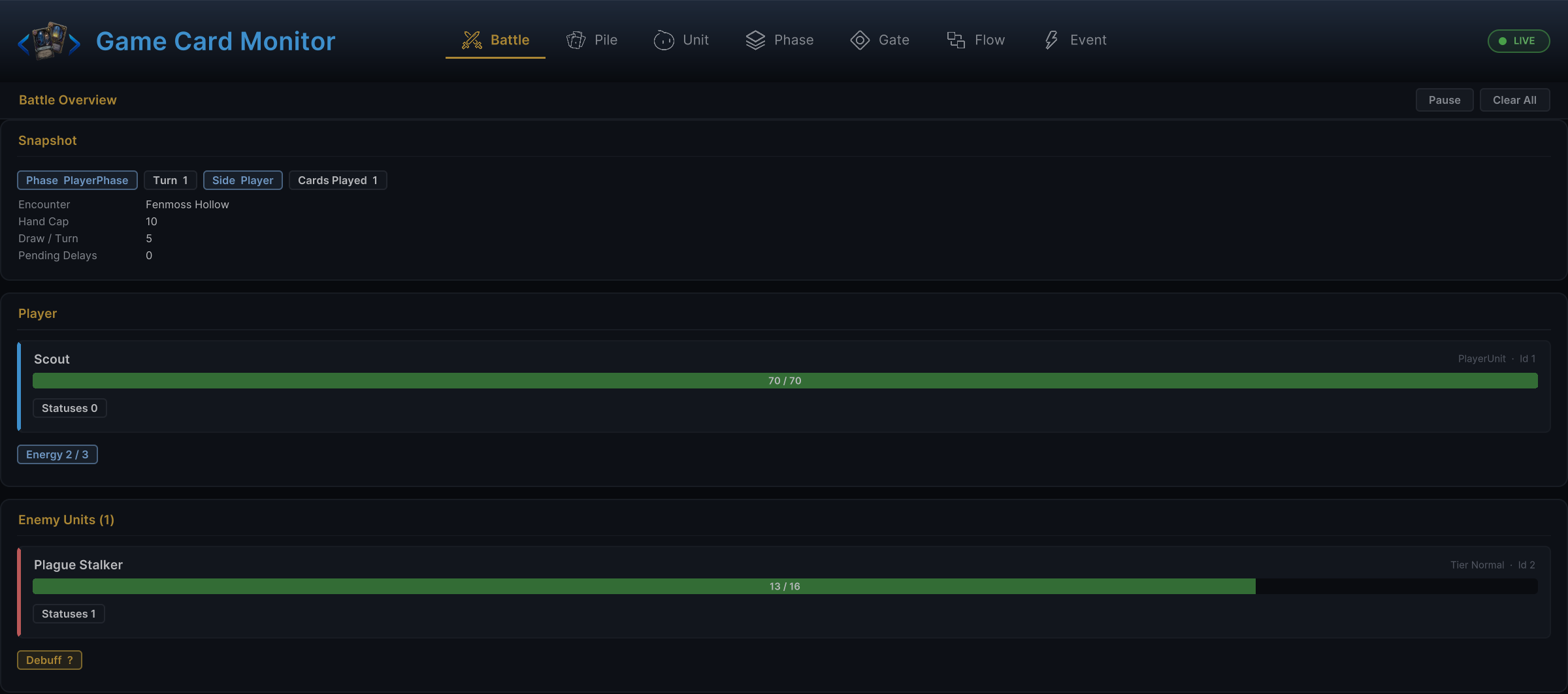
The Snapshot above shows a Fenmoss Hollow battle in PlayerPhase:
-
It is turn 1 on the player side, with 1 card played this turn.
-
In the same snapshot, player
Scouthas70 / 70HP and2 / 3Energy, while enemyPlague Stalkerhas13 / 16HP remaining. -
The player area shows HP, armor, status count, and current energy. The enemy area shows Tier, alive state, and Pending Intents.
-
Debuff ?means that this Intent has no available preview value, but the system has already generated one pending action for the enemy.
Battle, Phase, and Gate reflect the same battle state machine. See Battle State Machine for the complete phase relationships.
After confirming that the battle is valid, Pile separates runtime card instances into Hand, Draw, Discard, and Exhaust lists and summarizes the Master count at the top.
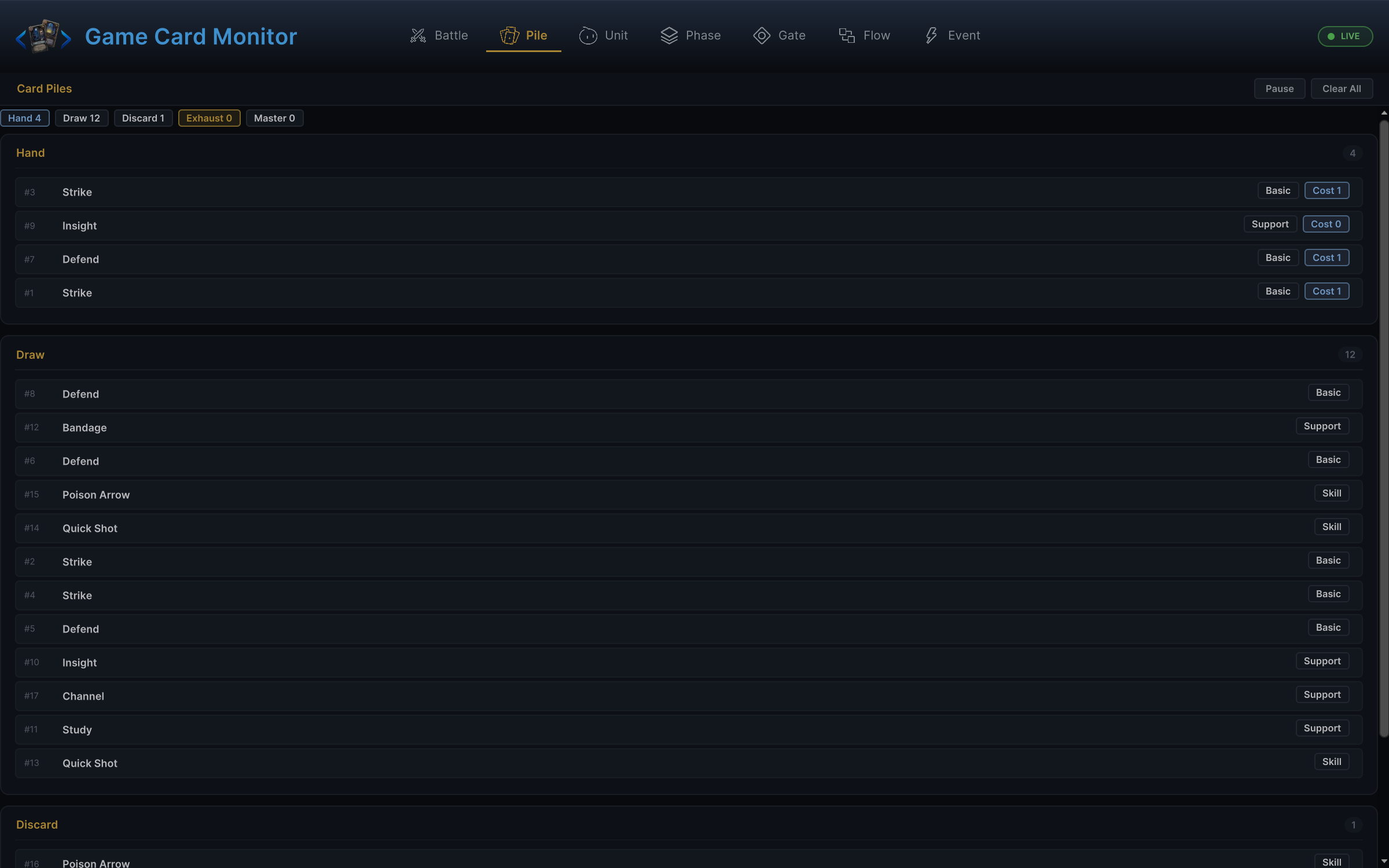
The Snapshot above shows Hand 4, Draw 12, Discard 1, Exhaust 0, and Master 0:
-
Every row contains an Instance ID, card name, Type, and optional Upgraded marker.
-
Hand also displays the current Cost after Hooks and cost modifiers.
Cards usually enter Discard after resolution, while cards with the Exhaust Keyword enter Exhaust.
See Cards, Hand, and Piles for the rules across all four piles.
After Pile confirms card locations, Unit expands the runtime state of the player and every enemy. Player cards show HP, armor, current energy, and status stacks. Enemy cards show HP, armor, alive state, status stacks, and persisted Pattern progress.
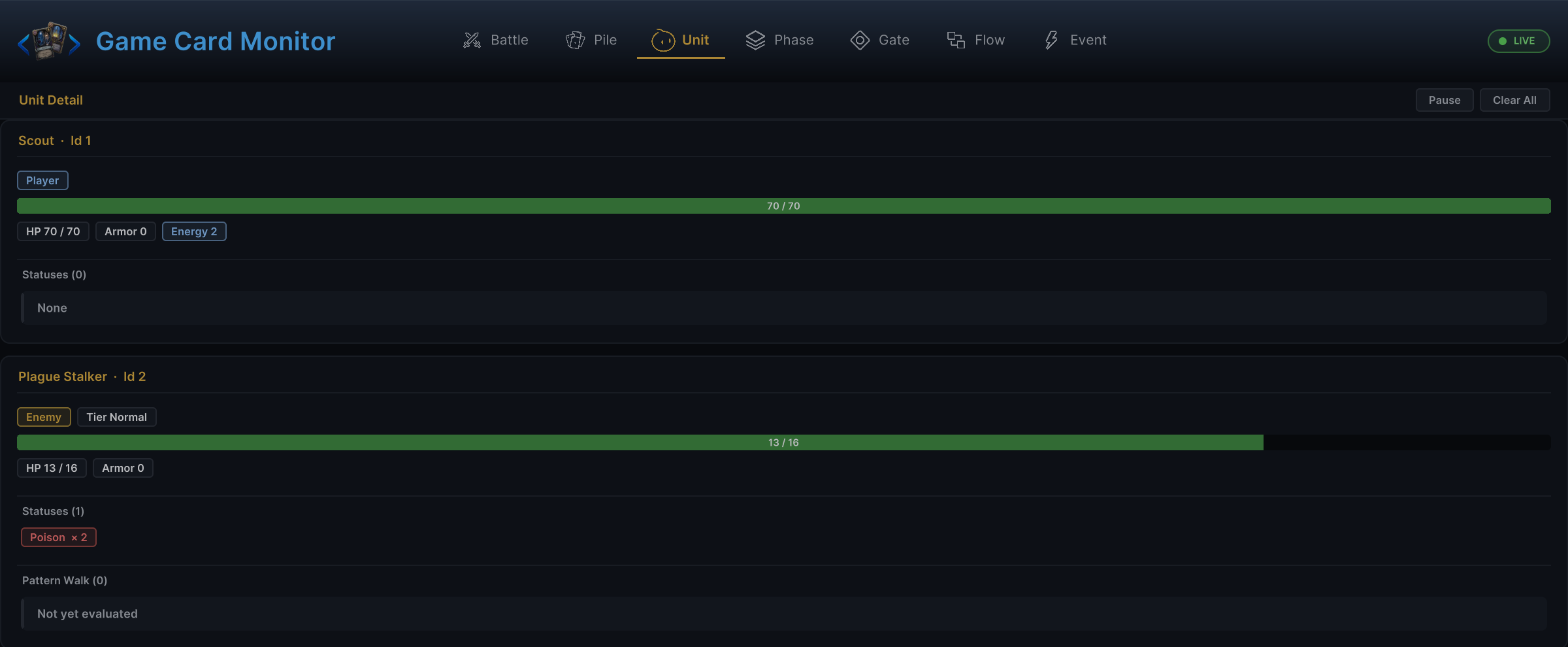
The Snapshot above shows Scout, Plague Stalker, and Poison:
Scoutremains at70 / 70HP, whilePlague Stalkeris at13 / 16HP withPoison × 2.- Battle already shows the
Debuff ?Pending Intent. This means that a stateless Weighted Random Pattern selected a Leaf Intent without writing toPatternState.
See Status System for status stacks, Buffs, Debuffs, and Hooks, and Target Selection for unit teams and alive conditions.
Phase reads the current Phase and Turn at the top. Its history lists OldPhase → NewPhase transitions and their turns with the latest entry first.
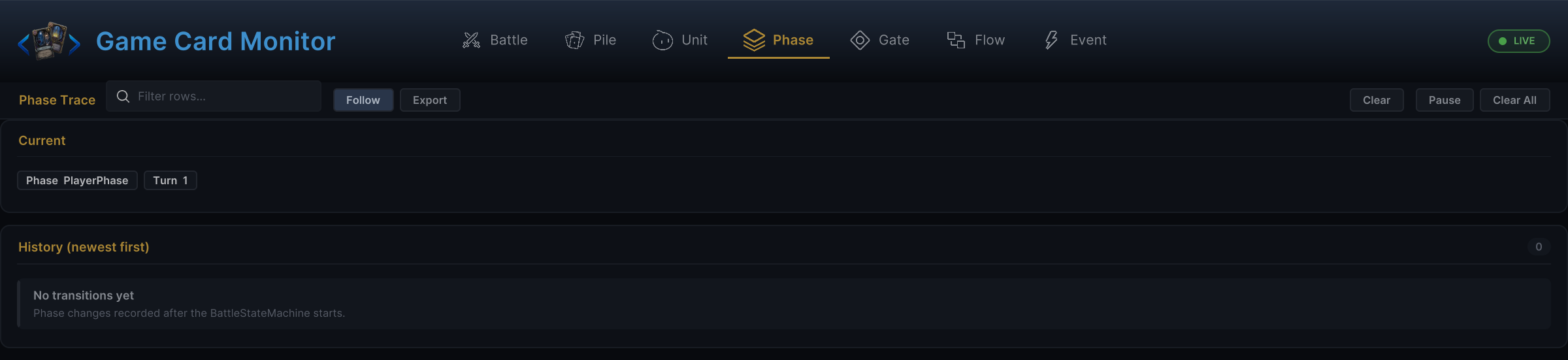
The Snapshot above shows PlayerPhase and History:
-
The current state is
PlayerPhaseon turn 1.Historyis 0 and showsNo transitions yet, meaning that Monitor has not captured a phase transition since subscribing. -
After later transitions occur, the newest remains at the top. When turn-start, turn-end, or enemy-phase behavior does not trigger, confirm here whether the corresponding phase was actually reached.
When Phase stops advancing, Gate shows the current Animation Gate holder count, configured TimeoutSeconds, hold reasons, and recent Acquire and Release activity.
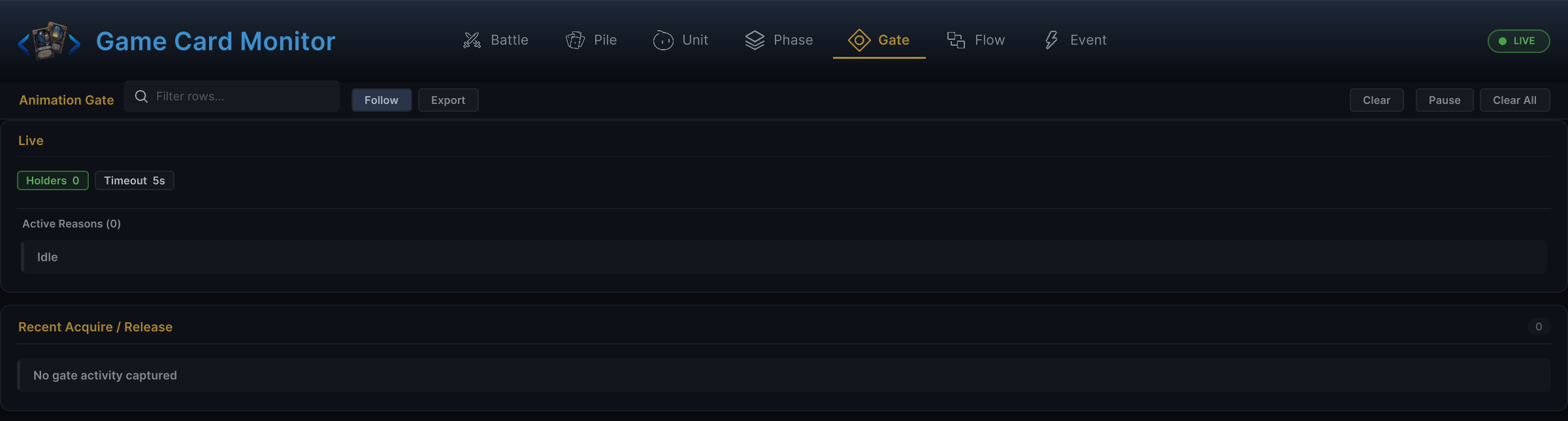
Holders 0, Active Reasons (0), and No gate activity captured above show that Gate is idle:
-
Timeout 5sshows only the current configured value. -
When the Gate is held, Live groups the current count by reason, while History records
ACQUIRE,RELEASE, the reason, and the holder total after each change.
Flow receives behavior-graph summaries reported by the executor. Use it to confirm that the expected Card, Status, Enemy, or Battle branch reached the executor.
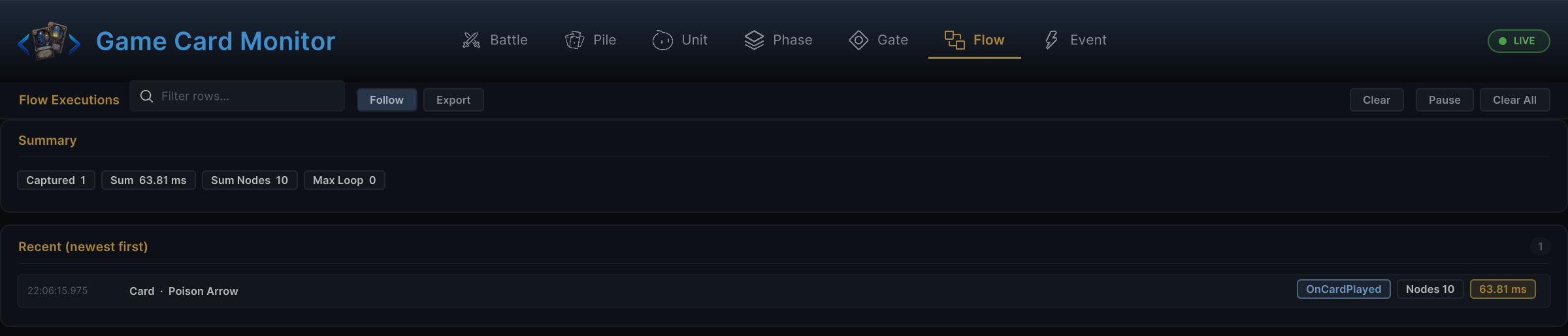
The image records one Poison Arrow run from OnCardPlayed. This synchronous execution segment visited 10 nodes in 63.81 ms. Summary aggregates the capture count, total duration, and total visited nodes for synchronous segments in the current buffer. A duration badge uses a warning color when one synchronous execution exceeds 8 ms:
-
Max Loopis fixed at 0 and cannot indicate actual loop depth. -
A continuation that resumes after Wait or Choice is not appended to the original record.
-
Flow does not expose per-node names, branch paths, port values, or breakpoints.
To inspect those details, return to FlowGraph Editor. See the FlowGraph Execution Model for how control and data flow complete one runtime execution.
Event combines the GCS broadcasts subscribed to directly by Monitor with raw Dispatcher Probes from the event channel.
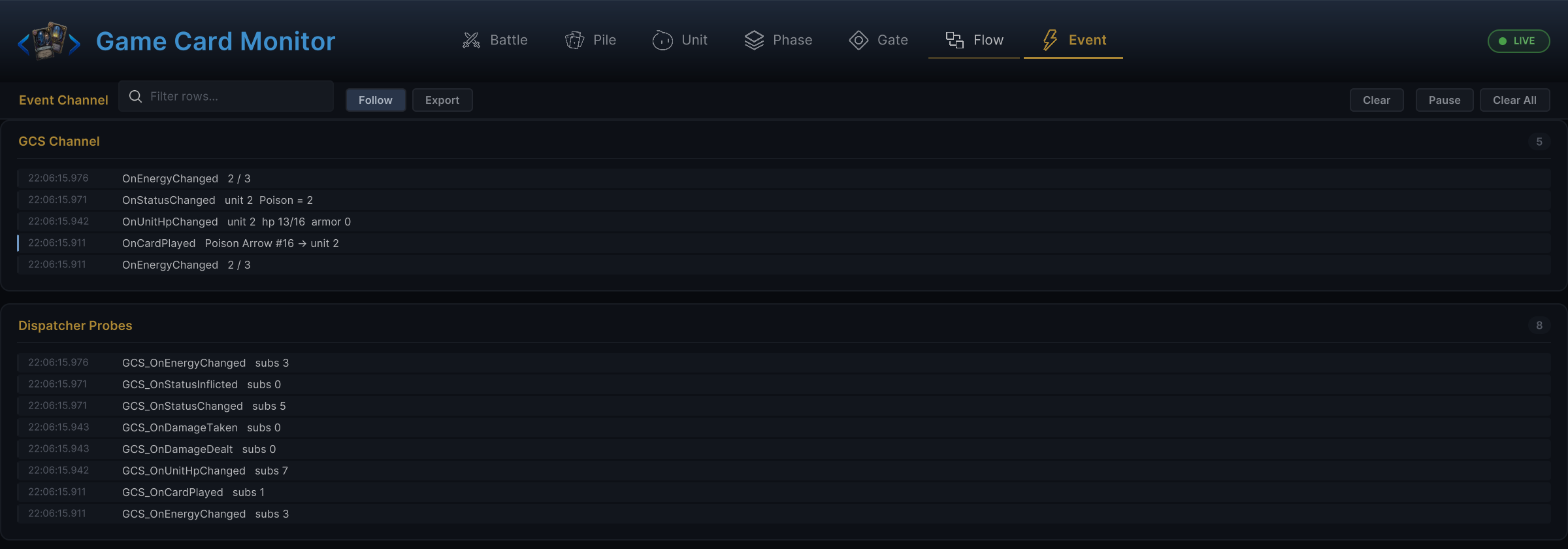
GCS Channel above shows energy, status, HP, and card-play broadcasts with the latest first. OnCardPlayed Poison Arrow #16 → unit 2 proves that Monitor's fixed subscription received this card-play event:
-
Dispatcher Probes below record the event name and
subscount for each internal dispatch. -
A probe with
subs 0means that dispatch occurred with no subscribers at that moment. -
subs > 0means only that at least one subscriber existed. Monitor's own detailed-event subscription can be included in that count, so it does not prove that the intended external listener is connected.
GCS Channel produces readable detail for only 21 of the 43 built-in events. Dispatcher Probes cover every dispatch that occurs during sampling and can include custom event names.
See Event Reference for every event name and argument, and Event Integration for subscription patterns.
Diagnose by symptom
Start with the current prerequisites, then narrow the problem through execution timing, event boundaries, and the final result.
No active battle
- When
BattleshowsNo active battle, it confirms only that no readableGameCardManager.Viewcurrently exists. - If
Eventcontains noOnBattleStarted, clear Filter first and confirm that Monitor was open before reproduction. - Exclude Clear, Clear All, leaving Play Mode, and record eviction after capacity is exceeded.
- Only after excluding these capture boundaries does a missing
OnBattleStartedshow that the detailed subscription did not receive this startup broadcast. - If Monitor opened after battle startup, an empty Event history does not prove that the startup broadcast never happened.
- Return to Starting a Battle to check Bootstrap, Manager, and Encounter, then continue from the first Unity Console error.
A card cannot be played
- Under
Battle, check the current Phase, player Energy, and whether the target unit remains on the battlefield. - Under
Pile, confirm that the card instance is in Hand and that its current effective Cost is expected. - Under
Unit, check the candidate target's team, alive state, HP, and statuses. Unit does not record which target the player actually clicked. - If
Eventdoes not showOnCardPlayed, the current filtered and retained records provide no evidence of a successful card-play broadcast. They do not reveal the specific reasonTryPlayCardwas rejected.
See Target Selection for target scope and team rules. Return to Game Card Editor for static authoring problems. Runtime rejection still requires the call result and Console evidence.
A card was played, but the result is wrong
OnCardPlayedunderEventproves that the card-play broadcast occurred.- A matching Owner and Trigger under
Flowproves that the corresponding behavior graph was invoked by the executor. The node count covers only this synchronous segment and does not prove that every expected node ran. - Check HP, armor, and statuses under
Unit, then check whether the card ended in Discard or Exhaust underPile. - If runtime state is correct but the screen did not update, inspect Prefabs, UI, animation, audio, and VFX next.
The battle stops advancing
- Under
Phase, confirm where the last transition stopped. - Under
Gate, check the current holders, Active Reasons, and latest Acquire and Release. - If a reason has an Acquire without a Release, trace the completion callback for the corresponding presentation request.
- Normal phase progression does not time or release a Gate holder automatically.
- Only code that enters an explicit wait path can write a warning to the Unity Console according to
TimeoutSeconds.
An enemy does not act
- Under
Phase, confirm whether EnemyPhase was reached. - Under
Battle, inspect the enemy's Pending Intent. UnderUnit, inspect its alive state, Skip count, and Pattern Walk. - Under
Flow, inspect the Enemy Owner andLeafIntentexecution summary. - If neither Intent nor Flow records exist, return to Enemy Authoring and inspect the
Pattern → Leaf Intent → Actionchain.
A status does not update at the expected timing
- Under
Unit, confirm that the target unit carries the status and inspect its current Stacks. - Under
Event, checkOnStatusChangedand the related dispatch probe. - Under
Phase, confirm that the turn or phase required by the status was reached. - Under
Flow, check the Status Owner and the execution summary for the matching Entry or Hook.
See Status Authoring for the responsibilities of status fields and behavior entries. If the problem remains, continue with Runtime Error Diagnosis.
Separate mechanic problems from presentation problems
After checking current state, execution timing, and event history, use whether runtime state changed as expected to choose the next inspection path:
"The state write occurred" in the diagram confirms only the observed runtime result. It does not prove that every branch in the Behavior is correct. Continue through the bindings under Runtime state is correct, but the screen does not update when inspecting presentation.
| Evidence combination | Direction to inspect first |
|---|---|
| Flow has a record, but runtime state did not change | Inspect the specific node path, input ports, target resolution, and Hook write |
| Runtime state changed correctly, but no feedback appeared | Inspect UI, Prefabs, animation, audio, and VFX references first |
An Event probe exists with subs 0 | Dispatch occurred with no subscribers at that moment |
An Event probe shows subs > 0, but the external system did not respond | Confirms only that at least one subscriber existed, not that the intended listener was connected |
| A Gate holder does not return to zero | Check whether the corresponding presentation flow calls Release on every branch |
Monitor's own subscriptions to 21 detailed event types can be included in the subs count. If an external system does not respond, continue checking the intended listener's subscription timing, argument type, callback logic, and disposal. Once the failing layer is identified, return to the corresponding Editor, correct it, and re-enter Play Mode to verify the result.
See Database management for how the six content types form a battle through Database and Encounter. Runtime overview defines the responsibility boundary between the public API, runtime state, and presentation.