Database management
Control which cards, decks, units, statuses, and encounters GCS can discover by registering databases and setting their Active state
Configure the content discovery scope
A card, deck, or encounter asset does not enter the current scene's authoring and query scope just because it appears in the Project window. Game Card Editor and GCSApi discover its content actively only when its database is registered with GameCardManager and remains Active.
When starting from an empty scene, open Game Card System dashboard and click Initialize System.
Tools > TinyGiants > GCS > Game Card System
The first initialization creates GameCardManager and GameCardEncounterBootstrap, then registers all six preset databases as Active. Running initialization again adds missing preset entries but does not remove project databases or re-enable a preset that was set to Inactive.
Select GameCardManager in the Hierarchy. Its Inspector shows the registered databases, Active count, and content count for all six types.
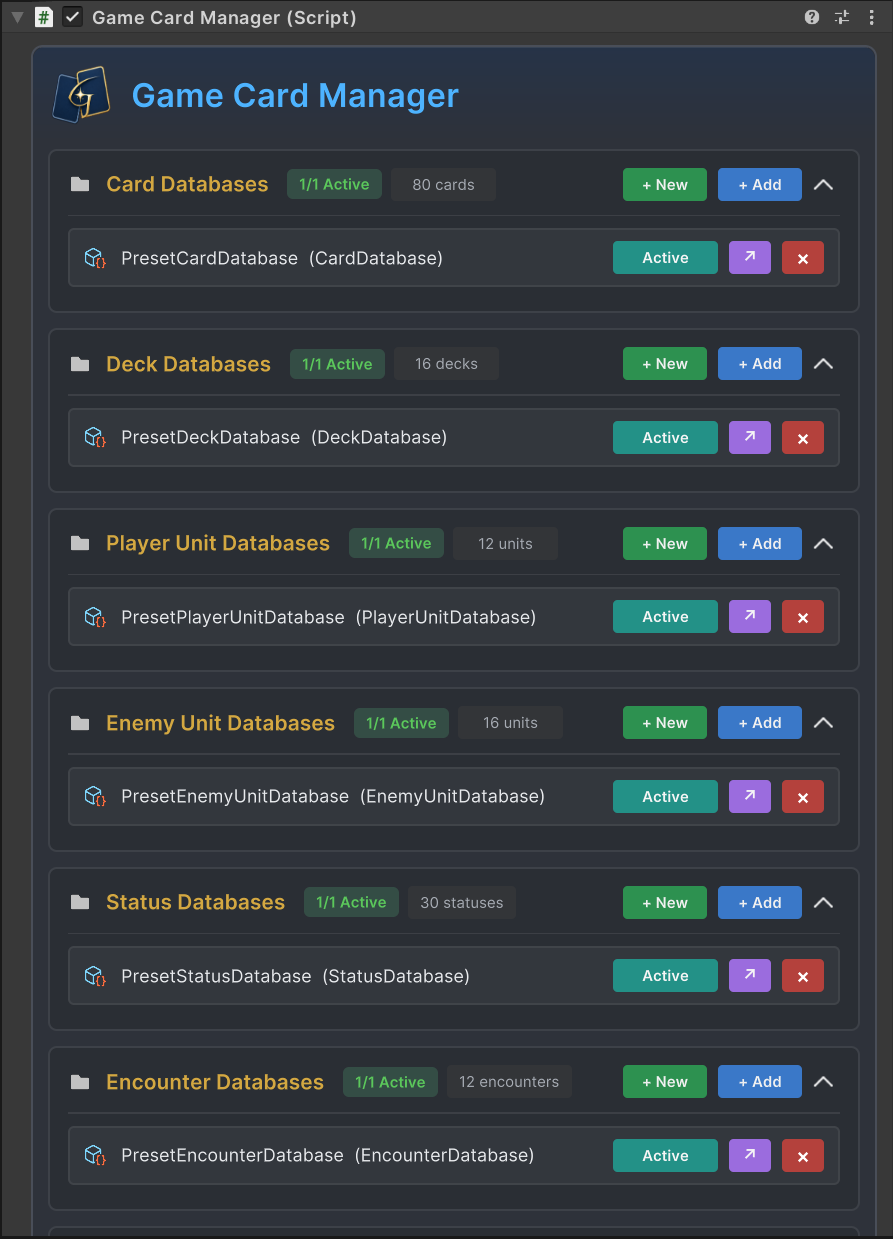
The six sections above manage Card, Deck, Player Unit, Enemy Unit, Status, and Encounter databases. 1/1 Active means that the type has one registered database and it is active. Every section also provides create, register, activate, locate, and remove operations.
The diagram above separates Active state from direct Unity references. Active controls whether GCS can discover database content actively. Existing direct references continue to connect decks, players, and encounters, so Inactive content can still enter a battle through a saved reference.
Understand entity-selector fallback
The Database dropdown at the top of Game Card Editor lists only Active databases. Entity selectors for cards, units, statuses, and encounters also prefer Active content. However, if the scene has no Manager, or if all Active databases contain no entries of the requested type, a selector falls back to a project-wide search. Seeing an item in a selector does not prove that its database is Active. Check the actual state in the GameCardManager Inspector.
How the six database types connect
After a database is registered and Active, it appears in the matching Game Card Editor mode. Content membership comes from the entries recorded inside the database. Moving an asset into a folder with a matching name does not add it to the database.
| Database | Editing mode | Stored content | Responsibility in battle |
|---|---|---|---|
GameCardDatabase | Card | Cards | Cost, target, tags, upgrades, and Card Behavior |
GameDeckDatabase | Deck | Decks | Card entries, copy counts, starting decks, and reward pools |
GamePlayerUnitDatabase | Player | Player units | Health, energy, starting deck, and player presentation assets |
GameEnemyUnitDatabase | Enemy | Enemy units | Health range, Tier, Intent, Behavior, and enemy presentation assets |
GameStatusDatabase | Status | Statuses | Buffs, Debuffs, stacking, decay, Hooks, and Status Behavior |
GameEncounterDatabase | Encounter | Encounters | Player, enemy lineup, Battle Rules, and reward deck |
These six content types are not isolated lists. A battle normally expands downward from GameEncounter. The Encounter selects the player, enemies, rules, and reward deck. The player connects to a deck through Starting Deck, and deck entries connect to cards. FlowGraphs on cards, enemies, and statuses then execute in the same battle.
The databases store content definitions. The runtime creates independent instances only after a battle starts. Definitions and runtime instances explains this boundary, while FlowGraph basics explains how Behaviors read and mutate instances.
When you select a database asset in the Project window, its custom Inspector displays statistics for the content it owns. For example, GameCardDatabase combines total card count, types, and rarities in one Summary.
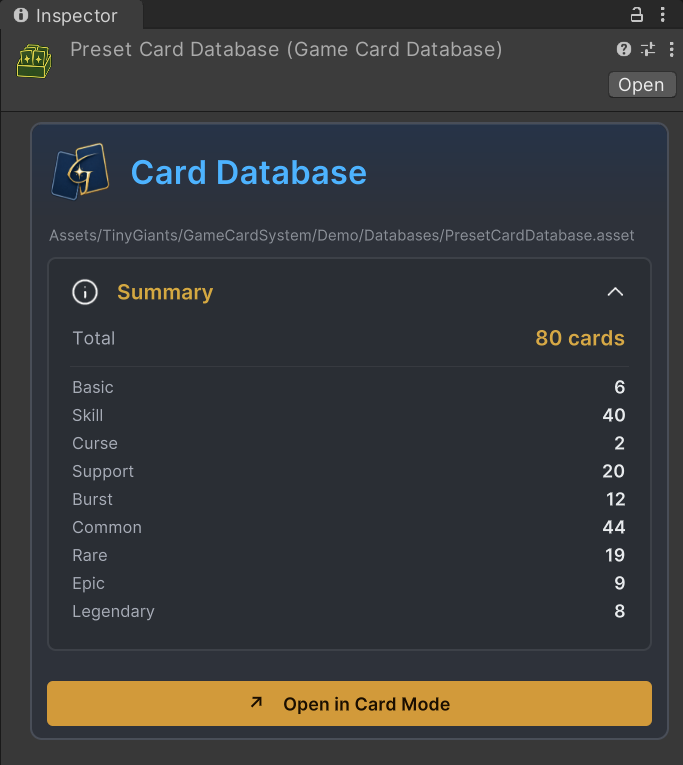
Click Open in Card Mode above to open the current card database directly in Game Card Editor. The Inspectors for other database types provide matching shortcuts. All six show the asset path and total content count. Enemy Database also groups counts by Tier, Status Database separates Buffs and Debuffs, and only Card Database includes type and rarity statistics.
Create project databases
Preset databases are useful for inspecting runnable content. Project-owned databases should live outside the plugin directory. When you create one with + New, the default root is Assets/TinyGiantsData/GameCardSystem/.
| Type | Default directory for + New |
|---|---|
| Card | CardDatabases/ |
| Deck | DeckDatabases/ |
| Player Unit | PlayerUnits/ |
| Enemy Unit | EnemyUnits/ |
| Status | StatusDatabases/ |
| Encounter | EncounterDatabases/ |
Every database section in the Manager Inspector provides the same operations.
| Operation | Result |
|---|---|
| + New | Creates a database in the matching project data directory, registers it immediately, and sets it Active |
| + Add | Lists project databases of the same type that are not registered. Selecting one registers it immediately and sets it Active |
| Drag and drop | Registers one or more databases of the same type from the Project window. The same asset is not added twice |
| Active | Controls whether the database belongs to the current Manager's active discovery scope |
| Locate | Locates the database asset in the Project window |
| Remove | Unregisters the database from the current Manager without deleting the asset on disk |
| Double-click name | Renames the database asset file directly |
You can also create a database directly in its target directory from the Project window, then return to the Manager and register it with + Add or drag and drop.
Assets > Create > TinyGiants > GCS > Card Database
After registration, open Game Card Editor, switch to the matching mode, and select the Active database from the Database dropdown at the top.
A complete project database workflow follows this order:
- Use
+ Newin the matchingGameCardManagersection, or register an existing database with+ Add. - Confirm that the database row is Active and check the Active count in the section title.
- Open Game Card Editor and switch to the matching content mode.
- Select the target database from the Database dropdown.
- Create content and confirm in the database Inspector or Editor list that the entry was written to the correct database.
-
The remove button on a Manager row only unregisters the database. Delete in the Project window removes the database file and its content sub-assets.
-
After a database is deleted, direct references from a deck, player, or encounter can become Missing. Check references before deleting it.
Manage Active databases per scene
Active state belongs to the current GameCardManager, not the database asset. The same database can be Active in a Demo scene, remain registered but Inactive in a production scene, or be enabled only in a dedicated test scene.
| Split dimension | Database example | Active strategy |
|---|---|---|
| Content source | Preset and project databases | Enable project databases in production scenes, then temporarily enable presets only when comparing them |
| Class | Warrior, Mage, Hunter, Priest | Enable only the class content required for the current authoring or query task |
| Chapter | Act 1, Act 2, Boss | Expose the content set required by the current scene or game mode |
| Test scope | Mechanic verification and production databases | Enable test databases only in verification scenes so they do not enter production queries |
When Active sets are maintained per scene, the selectable databases in Game Card Editor, content returned by GCSApi, and GUID lookup scope all change with the scene. Demo, production flows, and test scenes no longer share the same active discovery results.
-
GCSApimerges all Active databases of a type, but the current battle execution context resolves status, card, and enemy IDs only from the first Active database in Manager registration order. -
Change StatusandSpawn Unitboth follow this boundary.Transform Cardfollows it only when resolving itsNew Cardfield.Add Cardsfollows it when itsCardsinput does not receiveCardInstancevalues and the node uses its inlineCardsselector instead. -
When these nodes use inline content fields, place the target status, card, or enemy in the first Active database of the corresponding type. The nodes do not search all enabled Card, Status, or Enemy Unit databases automatically.
Code queries use the same scope
The Database dropdown in Game Card Editor and GCSApi use the same Active databases from the current Manager.
| Query purpose | API form |
|---|---|
| Read enabled databases | ActiveCardDatabases(), ActiveDeckDatabases(), and the other Active*Databases() methods |
| Enumerate content in databases | Cards(), Decks(), PlayerUnits(), EnemyUnits(), Statuses(), Encounters() |
| Find content by GUID | FindCard(), FindDeck(), FindPlayerUnit(), FindEnemyUnit(), FindStatus(), FindEncounter() |
When a Manager exists, all six Active*Databases() methods and all six content-collection methods create a new list on every call. Cache the result for high-frequency reads instead of calling them in Update or on every UI refresh.
See GCSApi guide and API reference for complete examples and signatures.
Diagnose missing content
Database problems are easy to mistake for card, FlowGraph, or battle-startup problems. First determine whether the feature depends on Active enumeration or a direct Unity reference, then inspect the matching path.
| Symptom | Check first | Continue checking |
|---|---|---|
| The target database is absent from the Database dropdown in Game Card Editor | Confirm that the current scene has a GameCardManager and that the database is registered and Active | Confirm that the database type matches the current editing mode |
| The Database dropdown contains the database, but the content list is empty | Confirm that the target database is selected and check Total in its Inspector | Check whether the new content was written to another Active database |
| Entity selectors still show Inactive content | Check whether every Active database has zero entries of this entity type, triggering project-wide fallback | Check the real Active set in the Manager instead of inferring it from selector results |
GCSApi.Cards() or another collection method returns an empty collection | Confirm that the Manager is valid and at least one database of the type is Active | Check whether the Active database actually contains content |
GCSApi.Find* returns null | Confirm that the content belongs to an Active database and verify the supplied GUID | Check duplicate GUIDs and the first match in Manager registration order |
Change Status, Transform Card, Spawn Unit, or Add Cards with the inline Cards selector has no effect | Confirm that the target content belongs to the first Active database of its type | Confirm that FlowGraph reaches the node, then check its inputs and target |
| Cards in a deck can still be drawn after the card database becomes Inactive | This occurs because Starting Deck and Deck Entry preserve direct references | If code must enumerate or find the card by GUID, enable its database again |
| Bootstrap Inspector warns that Default Encounter is not in an Active database | Register and activate the database that stores the Encounter to restore Ready | The warning does not prevent Bootstrap from starting the direct reference. Continue by checking the player, enemies, rules, and reward-deck references on the Encounter |
When checking the complete content chain for an encounter, start from GameEncounter and inspect the player, Starting Deck, cards, enemies, reward deck, and FlowGraph usage in order. See Common symptoms, Authoring errors, and Runtime errors for deeper diagnosis.