Game Event System
Store Unity events as assets, configure callbacks and flows in the editor, or connect game logic through typed C# APIs.
Developers who need to raise events from a scene or script and see what responds.
The editor, Inspector, FlowGraph, and Monitor in the image work with the same event assets. Select an event from a database, configure its callbacks and follow-up steps, then observe the result in Play Mode.
Connect an event asset to a scene
Store events in a ScriptableObject database. A raising script and the receiver can reference the same event asset. When the script calls Raise(), GES invokes the configured callbacks.
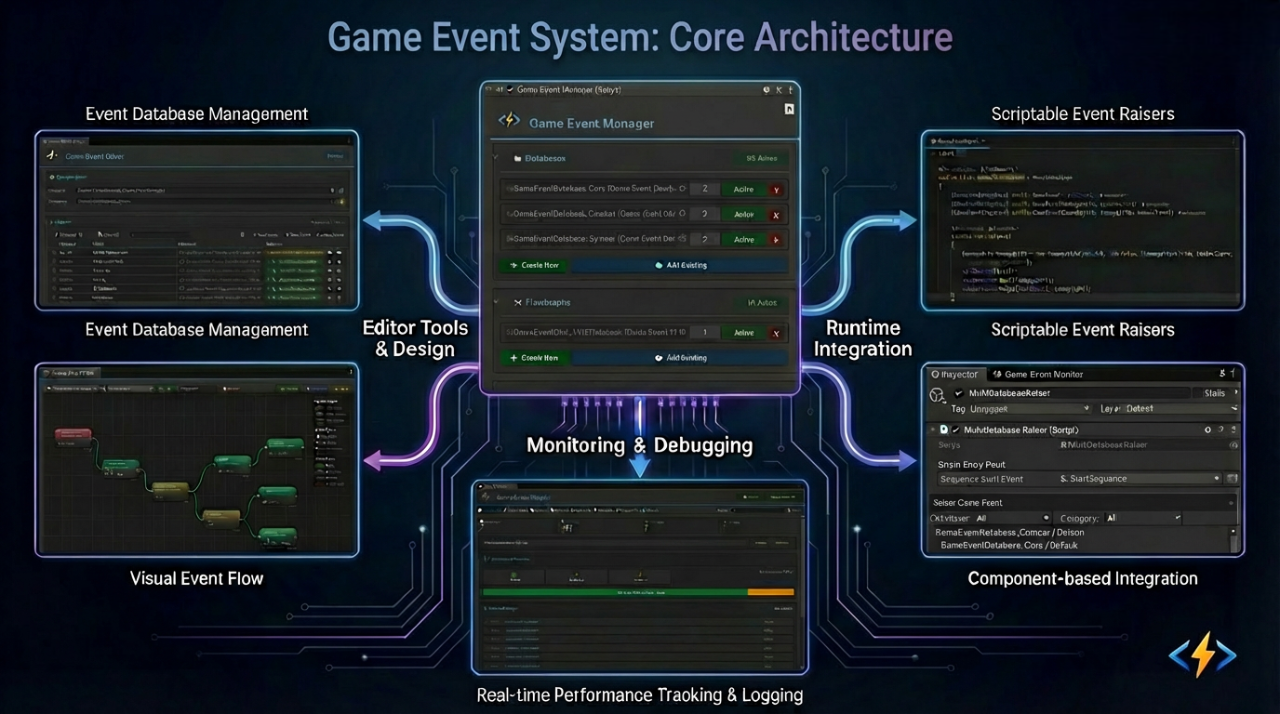
Game Event Manager connects the databases and FlowGraphs in the center. The tools on the left create and configure events. Components and C# scripts raise events on the right, and the Monitor shows what ran.
- Select a database in Game Event Editor. Use Game Event Creator to create a parameterless, single-argument, or Sender + Args event.
- Bind UnityEvent callbacks through the manager in Game Event Behavior, or configure Receiver Action Conditions in a component's Inspector.
- Raise the event with a Game Event Raiser or a call to
Raise(). Open Game Event Monitor to check the callbacks, execution time, and flow nodes.
The script below keeps references in event fields. The Unity Inspector filters the available events by the field type.
// Events are assets, not magic strings
[GameEventDropdown] public GameEvent onPlayerDeath;
[GameEventDropdown] public Int32GameEvent onScoreChanged;

void Die() {
    onPlayerDeath.Raise(); // Type-safe, asset-referenced
}
Renaming or moving a database through Unity keeps the asset file GUID in its .meta file. Each event within the database also has an internal GUID you can use for runtime queries.
# PlayerDeath.asset.meta
guid: a7f3c21e9b4d8f6e2d1a9c8b7e6f5a4d
The .meta fragment illustrates a Unity file GUID. The internal event GUID distinguishes events within that database.
Configure how events lead to other events
When one event needs to start several follow-up actions, connect Trigger nodes in FlowGraph and give each branch a condition and priority.

The source in the diagram connects to several targets. When it fires, the eligible branches start in priority order.
Connect Chain nodes to run steps in a defined sequence.

Each node leads to the next step. Set a delay or condition to determine when execution can continue.
Combine Trigger and Chain nodes in one graph when branches need their own timing.
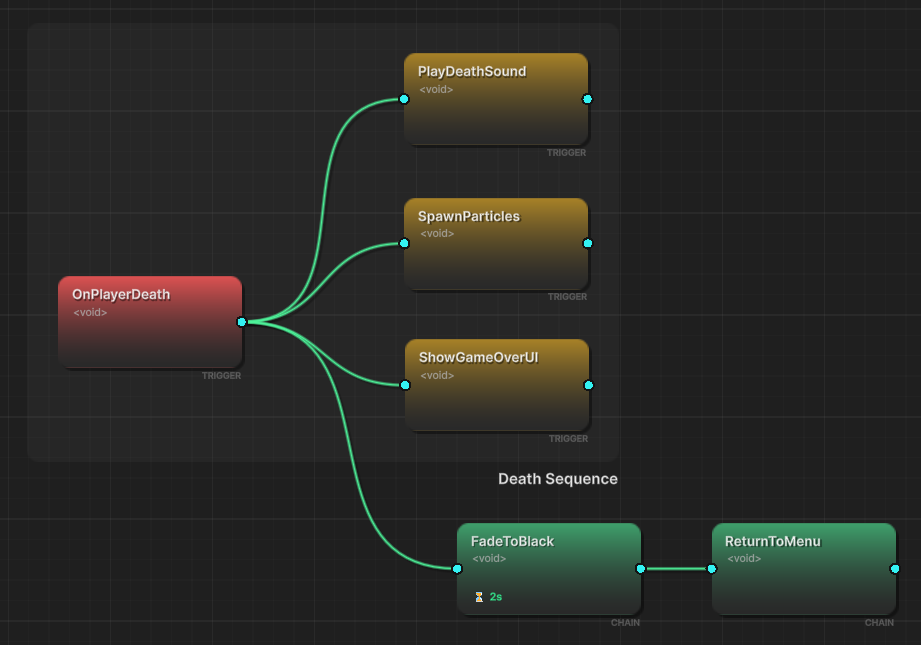
One branch in the diagram continues through a sequence. Follow its progress in the Monitor's Automation view.
Bind typed arguments in the Inspector
When you create an event for a custom argument, CodeGen supplies a concrete GameEvent<T> subclass. The Inspector uses that type to offer compatible event assets and native UnityEvent callbacks.
// ❌ Unity can't serialize this
[SerializeField] private GameEvent<PlayerData> onPlayerDataChanged;
After creating an event for PlayerData in the Creator, declare the generated type directly in your script.
// ✅ Auto-generated concrete class
[GameEventDropdown] public PlayerDataGameEvent onPlayerDataChanged;

// Generated code (automatic):
[Serializable]
public class PlayerDataGameEvent : GameEvent<PlayerData> { }
Generated event actions use typed dispatch. Run Bake AOT Conditions before an IL2CPP build so the Player can resolve condition evaluators by ID.
Load and inspect events at runtime
Register databases for dynamically loaded content through the Database and Query API, then find events by internal GUID, name, category, or type. Projects with Addressables can load a database by address or GUID and hold it with a lease.
Use Listening Strategies for basic, priority, conditional, and persistent listeners. Raising and Scheduling covers delay, repeat, and cancellation. Programmatic Flow covers Trigger and Chain relationships created at runtime.
To investigate dispatch costs, open Game Event Monitor in your project's Play Mode and compare invocation counts, listeners, and execution times. The times depend on your environment and the bound actions.
"I built this system because I was tired of battling 'invisible spaghetti code' in my own projects. As an indie developer, I needed a tool that balanced visual clarity with raw coding power—without performance trade-offs. TinyGiants is my commitment to professional-grade tools that I use in my own games every day." — [TinyGiants] from China
Navigation Roadmap
Open Quick Start for your first setup. Use the tool and example pages below when you need a specific editor or runtime workflow.
1. Introduction
Foundational setup and core philosophy of the event-as-asset architecture.
| Page | Description |
|---|---|
| Project Structure | Understanding directory layout, folder protection, and modular organization. |
| Installation | Initializing the plugin and setting up the automated static reset pipeline. |
2. Visual Workflow
Management tools designed to transform invisible code into a tangible visual dashboard.
| Page | Description |
|---|---|
| System Dashboard | Overview of the asset-based workflow and GUID identity system |
| Database & FlowGraph | Handling multi-database and multi-flowgraph setups and database health maintenance |
| Edit Game Event | Using the Dashboard for batch editing, search, and categorization |
| Create Game Event | Rapidly generating event assets using the fuzzy-search batch wizard |
| Configure Game Event | Mastering Inspector binding with visual status markers and type safety |
| Raise Game Event | Learn how to call events and enhance inspectors using the built-in GameEventDropdown Attribute |
| Find Game Event | Scanning scenes to locate component-level event dependencies. |
| Visual Condition Tree | Learn how to control the logic execution of event action through condition tree configuration |
3. Flow Orchestration
Visualizing and building complex multi-step logic sequences using nodes.
| Page | Description |
|---|---|
| Node Editor | Managing the GraphView canvas, groups, and snapshot-based Undo/Redo |
| Node Connector | Rules for hybrid execution modes and real-time connection validation |
| Node Behavior | Configuring node-level delays, loops, and argument transformation logic |
| Advanced Logic Patterns | Building no-code nested logic groups and conditional execution gates |
4. Scripting & API
The developer's guide to high-performance C# integration and lifecycle management.
| Page | Description |
|---|---|
| Raising & Scheduling | Programmatic firing, delayed execution, and Task Handle management |
| Listening Strategies | Implementing prioritized, persistent, and source-aware (Sender) listeners |
| Programmatic Flow | Using typed predicates for runtime logic filtering |
| Database & Query | Runtime database lifecycle and locating events by GUID / Name / Category / Type |
| Best Practices | Architectural tips for clean decoupling and preventing data pollution |
| API Reference | Detailed technical documentation for all core classes and attributes |
5. Tools & Support
Automation and monitoring utilities for professional production environments.
| Page | Description |
|---|---|
| CodeGen & Cleanup | Using the Tri-Mode Generator and compilation pipeline automation |
| Runtime Monitor | Real-time performance profiling, deep logging, and warning systems |
| AOT Condition Baking | Update the condition registry used by Player builds |
| Addressables | Load event databases on demand and manage their leases |
| Community & Support | Accessing updates, reporting bugs, and getting technical assistance |
6. Examples
GES 2.3.0 includes 29 Unity scenes across these 15 demo topics.
| ID | Example Page | Key Learning Point |
|---|---|---|
| 00 | Quick Start | The minimal workflow for creating, raising, and binding an event |
| 01 | Void Event | Using parameterless signals for global triggers like "Level Start" |
| 02 | Basic Types Event | Passing primitive data (int, float, string) through events |
| 03 | Custom Type Event | Leveraging CodeGen for serialized custom data classes and structs |
| 04 | Custom Sender Event | Using source-aware events to identify which entity raised the signal |
| 05 | Priority Event | Precisely controlling the execution order of multiple listeners |
| 06 | Conditional Event | Using predicates to execute callbacks only when criteria are met |
| 07 | Delayed Event | Managing timed logic and using Task Handles for cancellation |
| 08 | Repeating Event | Creating recurring pulse signals and automated logic loops |
| 09 | Persistent Event | Handling events during scene transitions (DontDestroyOnLoad) |
| 10 | Trigger Event | Bridging Unity's Physics system with Game Event assets |
| 11 | Chain Event | Building visual sequential logic using the Flow Orchestration graph |
| 12 | Multi Database | Isolating events into different assets for modular project organization |
| 13 | Runtime API | Registering and unregistering listeners dynamically via C# scripts |
| 14 | Runtime Monitor | Using profiling tools to debug execution timing and GC allocations |
For a hands-on start, follow Example 00 (Quick Start) first, then explore the Visual Workflow section to see how the editor tools speed up your development.