Game Event Creator
Create parameterless, single-parameter, and sender Game Events in batch, then follow code generation and compilation until their assets are ready.
For developers setting up the event catalog for a project or a new feature.The Creator is where you generate events in bulk. It handles batch event queuing, automatic code compilation, and ScriptableObject creation in one workflow.
Opening the Creator
The Creator only opens from the Game Event Editor:
Game Event Editor → Click "+ New Event" button (top-right)
The Creator needs to know which database to add events to. Opening from the Editor ensures proper context.
Interface Zones
The window is organized into four functional areas:
| Zone | Location | Purpose |
|---|---|---|
| A. Event Mode Tabs | Top | Switch between Void, Single Parameter, or Sender events |
| B. Configuration Area | Middle | Select types and configure event details |
| C. Events Queue | Bottom | Review pending events before creation |
| D. Status Badge | Top-right | Shows total queued count (e.g., "7 Queued Total") |
Three Event Modes
Choose the architecture that fits your need:
- 1. Parameterless
- 2. Single Parameter
- 3. With Sender
Parameterless Events
Type: GameEvent (Void)
The simplest signal—no data, just notification.
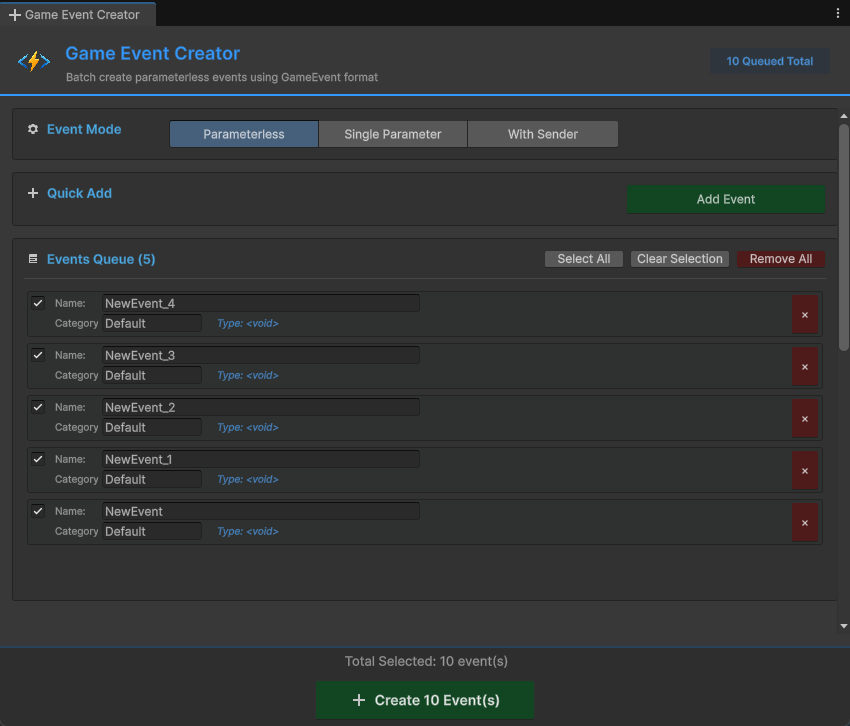
Best For:
🖱️ UI Triggers ➔ OnPauseButtonClick, OnMenuOpen
🌍 Global States ➔ OnGameStart, OnLevelComplete
🏃 Simple Actions ➔ OnJump, OnFire, OnInteract
How to Use:
- Click "Add Event" button
- Event appears in queue with default name "NewEvent"
- Rename it in the queue (e.g., "OnGameStart")
- Set category if desired (e.g., "Core")
- Click "Create X Event(s)" at bottom
No Type Selection Needed: Since it's parameterless, you just click and add.
Single Parameter Events
Type: GameEvent<T>
Carries one piece of data with the notification.
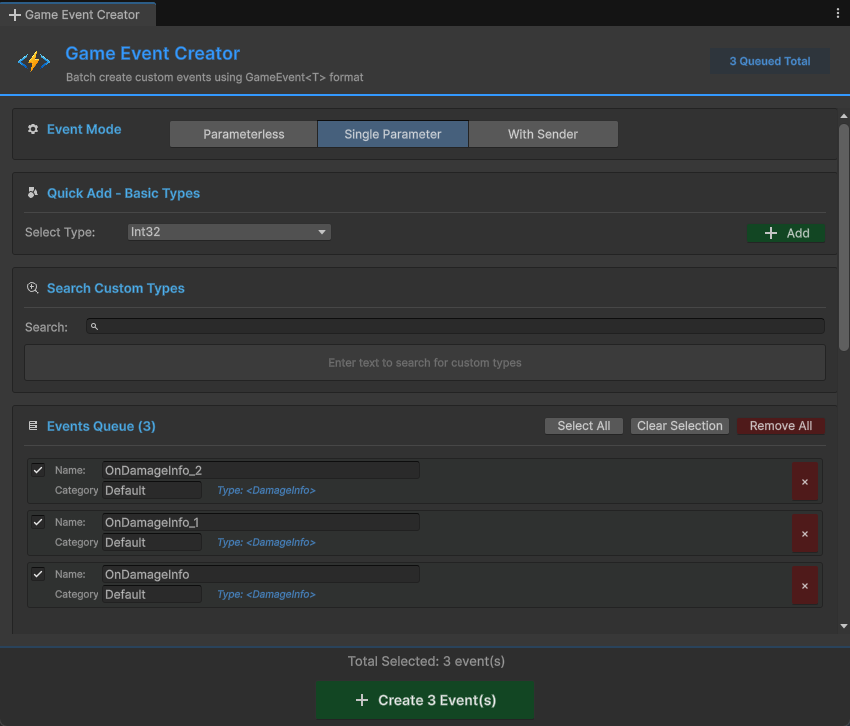
Best For:
📈 Value Changes ➔ OnHealthChanged(float), OnScoreUpdated(int)
🔄 State Updates ➔ OnGameStateChanged(GameState)
📦 Object Events ➔ OnEnemySpawned(GameObject)
💾 Data Sync ➔ OnPlayerDataChanged(PlayerData)
Two Ways to Add:
Method 1: Quick Add - Basic Types
For built-in Unity types (int, float, Vector3, GameObject, etc.):
- Select Type from dropdown (shows all 32 basic types)
- Click "Add" button
- Event added to queue automatically
Available Basic Types:
- C# Primitives:
int,float,bool,string, etc. - Math Types:
Vector2,Vector3,Quaternion,Color, etc. - Components:
GameObject,Transform,Rigidbody, etc. - Assets:
Sprite,Material,AudioClip, etc.
Method 2: Search - Custom Types
For your own C# classes:
- Type in search bar (e.g., "PlayerData")
- System searches all serializable types in your project
- Click "Add" next to your type
- Event added to queue
Search Features:
- ✅ Fuzzy matching (type "plr" finds "PlayerData")
- ✅ Shows namespace for disambiguation
- ✅ Badge shows how many events of this type are queued
- ✅ Green flash effect when adding
Requirements for Custom Types:
// ✅ This works
[System.Serializable]
public class PlayerData {
    public string playerName;
    public int level;
}

// ❌ This won't appear in search
public class NonSerializableClass { } // Missing [Serializable]
Sender Events
Type: GameEvent<TSender, TArgs>
Carries both who fired it (sender) and what happened (argument).
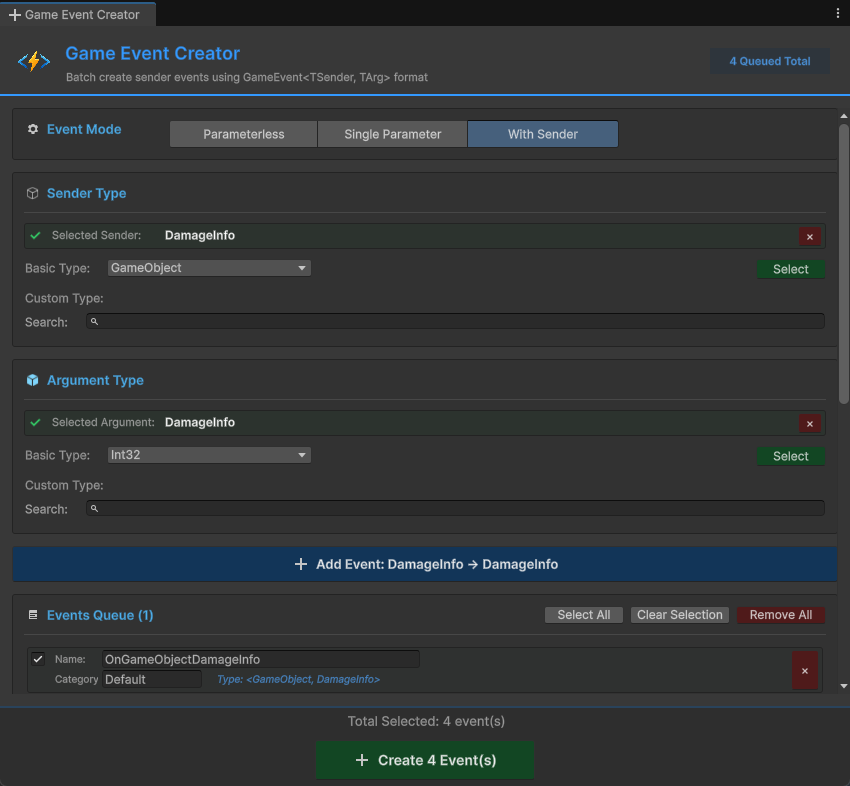
Best For:
⚔️ Combat ➔ OnDamageTaken(GameObject victim, DamageInfo damage)
🤝 Interactions ➔ OnItemPickedUp(Player player, ItemID item)
🌐 Networking ➔ OnPlayerJoined(NetworkPlayer sender, string playerName)
📜 Complex Events ➔ OnQuestCompleted(QuestGiver npc, QuestData quest)
Recommended Pattern:
- TSender = The actor/source (
GameObject,Player,Enemy) - TArgs = The data/payload (
int,DamageInfo,Vector3)
How to Use:
-
Select Sender Type:
- Choose from Basic Types dropdown, OR
- Search for custom type
- Click "Select" when ready
-
Select Argument Type:
- Choose from Basic Types dropdown, OR
- Search for custom type
- Click "Select" when ready
-
Add Event:
- Blue button appears: "Add Event: GameObject → int" (example)
- Click it to add to queue
Selected Type Display:
When you select types, they appear in green boxes:
✅ Selected Sender: GameObject <small>(UnityEngine)</small>
✅ Selected Argument: DamageInfo <small>(YourGame.Combat)</small>
Click the × to clear and choose different types.
Batch Creation Workflow
The Creator's power is batch processing—create many events at once instead of one-by-one.
Step-by-Step Process
1. Queue Events
Add multiple events across different modes:
🔘 Switch to Parameterless ➔ Add OnGameStart
🔘 Switch to Parameterless ➔ Add OnGamePause
🔢 Switch to Single Parameter(int) ➔ Add OnScoreChanged
🌊 Switch to Single Parameter(float) ➔ Add OnHealthChanged
👥 Switch to Sender <GameObject,int> ➔ Add OnEnemyDamaged

Total in Queue: 5 events pending creation
Visual Feedback:
- Top-right badge updates: "5 Queued Total"
- Each mode shows its own count: "Events Queue (2)"
2. Review & Configure
In the Events Queue section:
Per Event:
- ☑️ Checkbox: Toggle selection (only selected events will be created)
- Name Field: Rename event (default: "NewEvent", "OnInt", etc.)
- Category Field: Set category for filtering later
- Type Label: Shows event type signature
- × Button: Remove from queue
Bulk Actions:
- Select All: Check all events in current queue
- Clear Selection: Uncheck all events
- Remove All: Clear entire queue (with confirmation)
3. Execute Creation
Click the big green button at bottom:
+ Create 5 Event(s)
What Happens Next: See the next section ⬇️
Understanding the Creation Process
When you click "Create", a sophisticated automation pipeline runs. Here's what happens behind the scenes:
Scenario 1: Code Already Exists
Example: Creating an int event.
Speed: Instant (< 1 second)
No Compilation: You see the event in the Editor immediately.
Scenario 2: Code Needs Generation
Example: Creating a PlayerData event (your custom class).
Speed: 3-10 seconds (depends on project size)
You'll See:
- Creator window closes
- Unity compilation spinner appears
- Console logs appear
- Event appears in Editor automatically
For each custom type, the system creates one C# file containing:
// File: PlayerDataGameEvent.cs

// 1. The Event Class
public class PlayerDataGameEvent : GameEvent<PlayerData> { }

// 2. The Binding Field (for Inspector)
public partial class GameEventManager {
    public partial class EventBinding {
        public UnityEvent<PlayerData> PlayerDataGameEventAction;
    }
}
Why Both? The event class is for raising events. The binding field is for Inspector callbacks.
Mixed Batch Handling
What if you queue both existing and new types?
Your Queue:
1. OnGameStart (void) ✅ Code exists
2. OnScoreChanged (int) ✅ Code exists
3. OnPlayerDataChanged (PlayerData) ⚠️ Needs generation
4. OnQuestCompleted (QuestData) ⚠️ Needs generation
System Behavior:
Console Output:
✅ [Batch] Immediate events created successfully. (2 events)
⏳ Generated 2 script files. Triggering compilation to finish creation...
   (After compilation)
🎯 Batch Creation Complete: 2 events created.
Sender Events Special Case
Sender events (GameEvent<TSender, TArgs>) follow the same logic but generate more complex code:
// File: GameObjectDamageInfoGameEvent.cs

// Event class with TWO type parameters
public class GameObjectDamageInfoGameEvent
    : GameEvent<GameObject, DamageInfo> { }

// Binding field with TWO parameters
public UnityEvent<GameObject, DamageInfo>
    GameObjectDamageInfoGameEventAction;
Best Practices
DO
Pre-Generate Common Types: If you know you'll use certain types frequently, you can refer to Code Gen & Cleanup to pre-generate custom type classes and event binding code.
Use Meaningful Names
✅ Good Names:
  - OnPlayerHealthChanged
  - OnEnemySpawned
  - OnQuestCompleted
  - OnScoreUpdated

❌ Avoid:
  - NewEvent1
  - Test
  - Event_Copy
  - TempEvent
Organize with Categories
Use categories to group related events:
🟥 Category: "Combat"
  - ⚡ OnDamageTaken
  - ⚡ OnEnemyKilled
  - ⚡ OnWeaponFired

🟩 Category: "UI"
  - ⚡ OnButtonClicked
  - ⚡ OnMenuOpened
  - ⚡ OnDialogClosed

🟪 Category: "Player"
  - ⚡ OnPlayerJumped
  - ⚡ OnPlayerDied
  - ⚡ OnLevelUp
AVOID
Don't Close During Compilation
❌ WRONG:
1. Click Create
2. See "Triggering compilation..." message
3. Immediately close Unity or force-stop compilation

✅ RIGHT:
1. Click Create
2. Wait for compilation bar to finish
3. Events appear automatically
Why? Interrupting compilation may leave generated code files without corresponding assets.
Don't Manually Edit Generated Files
❌ WRONG:
Open: TinyGiants/GameEventSystem/Data/CodeGen/Events/PlayerDataGameEvent.cs
Edit: Add custom methods, change namespace, etc.

✅ RIGHT:
Let the system manage generated files.
Extend functionality through separate scripts.
Why? The system may regenerate these files, overwriting your changes.
Progress Indicators
During Creation
Immediate Creation (code exists):
✅ Events created successfully.
Code Generation (new types):
⏳ Generated 3 script files. Triggering compilation to finish creation...
After Compilation:
🎯 Batch Creation Complete: 1 events created.
Console Logs Explained
Detailed Generation Report:
━━━━━━━━━━━━━━━━━━━━━━━━━━━━━━━━━━
🧩 Event Code Generation Complete
━━━━━━━━━━━━━━━━━━━━━━━━━━━━━━━━━━

✅ Generated 3 event files (Type + Binding).

━━━━━━━━━━━━━━━━━━━━━━━━━━━━━━━━━━
What This Means:
- 3 new C# files created
- Each file contains event class + binding field
- Files are in
TinyGiants/GameEventSystem/Data/CodeGen/Events/andData/CodeGen/Components/ - Assets will be created automatically after compilation
Troubleshooting
Events Not Appearing After Compilation
Problem: Clicked Create, compilation finished, but events missing.
Solutions:
Check Console for Errors:
Look for red errors during compilation
Common issue: Type not serializable
Fix: Add [System.Serializable] to your class
Verify Database Selection:
1. Open Game Event Editor
2. Check which database is selected
3. Events are added to THAT database
Manual Asset Check:
1. Navigate to: TinyGiants/GameEventSystem/Data/Database/
2. Find your database asset
3. Expand it in Project window
4. Look for your event sub-assets
Compilation Takes Too Long
Problem: Stuck on "Compiling Scripts..." for minutes.
Causes:
- Large project with many scripts
- Other compilation errors blocking progress
- Unity Editor performance issues
Solutions:
1. Check Console for compilation errors
2. Fix any red errors first
3. Try: Assets → Reimport All (last resort)
4. Restart Unity if stuck > 5 minutes
"Type Not Found" After Generation
Problem: Console says type not found even after compilation.
Checklist:
✅ Is your type [Serializable]?
✅ Is your type public?
✅ Does Unity recognize your type? (check Inspector)
✅ Did compilation actually finish? (no spinner)
Fix:
// Make sure your class looks like this:
using System;
using UnityEngine;

[Serializable]  // ← Required
public class PlayerData  // ← Must be public
{
    public string playerName;
    public int level;
}
Duplicate Event Names
Problem: Two events with same name in queue.
Behavior: System auto-renames with suffix:
Queue:
- OnPlayerDeath
- OnPlayerDeath_1
- OnPlayerDeath_2
Better Practice: Rename manually in the queue before creating it.
First-Time Setup: Create all your common event types in one batch session. Wait for compilation once. From then on, event creation is instant since all code exists. This one-time investment saves hours over the project lifetime.
Generated files live in:
Assets/TinyGiants/GameEventSystem/Data/CodeGen/
├─ Events/        (event classes)
│  └─ Basic/      (pre-generated for int, float, etc.)
└─ Components/    (bridge components: Raiser / Receiver)
   └─ Basic/      (pre-generated for int, float, etc.)
These folders are safe to commit to version control—they're deterministic and won't cause merge conflicts.