Visual Condition Tree
Build a visual condition gate from event arguments, scene values, random rolls, and constants without writing code.
For developers who want runtime gating on their events and prefer a visual editor over hand-written if statements.Build boolean logic visually to control whether event actions should execute. You set up runtime checks through the editor, with no coding required.
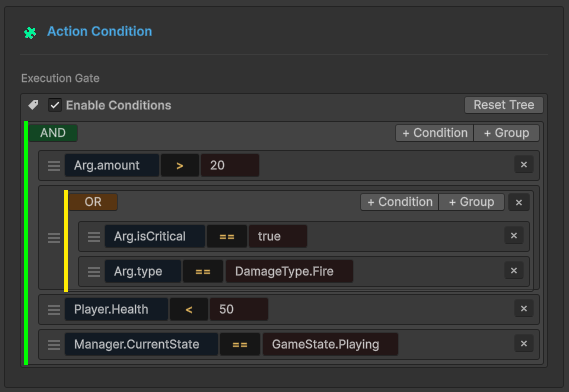
Overview
The Visual Condition Tree is a logic gate system that evaluates runtime conditions before executing event actions.
The Problem It Solves
Traditional Approach (scattered logic):
// Logic buried in scripts, hard to modify
if (damageInfo.amount > 20 &&
    (damageInfo.isCritical || damageInfo.type == DamageType.Fire) &&
    playerController.Health < 50 &&
    gameManager.IsInCombat()) {
    // Execute actions
}
Visual Approach:
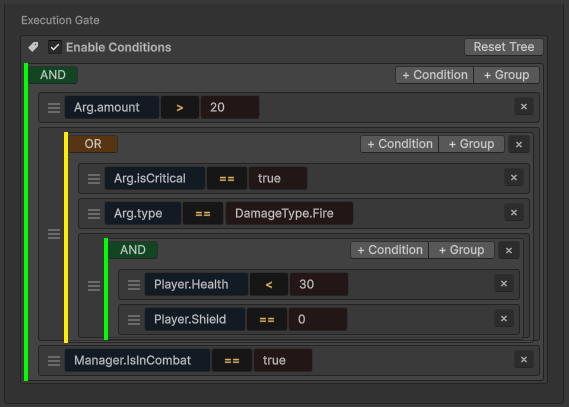
Build an example
Event: OnPlayerDamaged
Event Types:
GameObjectDamageInfoGameEvent(GameObject sender)PlayerStatsDamageInfoGameEvent(Custom sender)
Data Structures:
// Damage type enumeration
public enum DamageType {
    Physical,
    Fire,
    Void
}

// Damage information payload
public class DamageInfo {
    public float amount;           // Damage value
    public bool isCritical;        // Critical hit flag
    public DamageType type;        // Damage type
    public Vector3 hitPoint;       // Impact location
    public string attacker;        // Attacker name
}

// Custom sender type (alternative to GameObject)
public class PlayerStats {
    public string playerName;
    public int level;
    public int factionId;
}
Goal: Trigger warning effects when player takes significant damage under specific conditions.
Key Benefits
| Feature | Benefit |
|---|---|
| 🎨 Visual Building | Designers create logic without code |
| 🚀 AOT-Safe Runtime | Uses generated condition evaluators on IL2CPP |
| 🔄 Reusable | Same condition applies to all event actions |
| 🧪 Live Testing | Tweak values in Inspector, see results immediately |
| 🔒 Type-Safe | Auto-validates type compatibility |
Tree Structure
The condition tree is built from two node types:
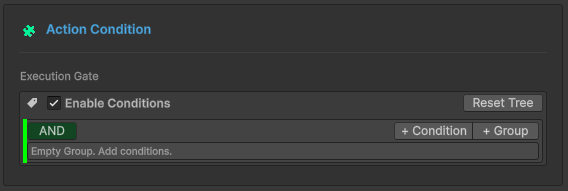
Group Nodes
Combine multiple conditions using AND/OR logic.
Logic Types:
- AND Logic
- OR Logic
All child conditions must evaluate to TRUE.
Visual: 🟢 Green border
Use: "Must satisfy ALL requirements"
Any child condition can evaluate to TRUE.
Visual: 🟠 Orange border
Use: "Satisfy ANY requirement"
Toggle Logic: Click the logic button (AND/OR) to switch.
Nesting: Groups can contain other groups—build complex logic with unlimited depth.
Add Nodes: Use + Condition or + Group buttons on each group.
Comparison Nodes
Comparison Nodes are the fundamental building blocks of your event logic. Each node performs a single boolean check (True/False) to determine if the event actions should proceed.
Anatomy of a Comparison
Every node follows a standard tripartite structure, making complex logic easy to read at a glance.
[ 🟦 Source(Left Operand) ] [ Operator ] [ 🟧 Target (Right Operand) ]
Practical Example: Imagine an event that only triggers if a hit is powerful enough: Argument.amount > 20.0
- 🔍 Source: Argument.amount — The raw damage value passed by the
SingleGameEvent - 📐 Operator: > — The logical rule (Greater Than)
- 🎯 Target: 20.0 — The constant threshold or another variable to compare against
View Modes
The editor UI adapts to your needs, balancing readability with precision control.
| View Mode | Visual Style | Best For... |
|---|---|---|
| 📖 Collapsed | Summary Text (e.g., Health < 50) | Quick overview of complex logic chains. |
| 🛠️ Expanded | Detailed Editor (Dropdowns, Fields) | Modifying specific parameters and sources. |
Simply Click on any comparison block to toggle between these two views. This allows you to keep your workspace clean while retaining the ability to deep-dive into settings.
Structure Configuration
📌 Source
- Event Argument
- Scene Type
- Random Type
Event Argument (Data Payload)
The Argument system allows you to drill down into the event's data payload to extract specific values for conditions and actions.
Data access is exclusive to typed events: GameEvent<T> or GameEvent<TSender, TArgs>.
Single Parameter Events
Signature: DamageInfoGameEvent
When an event carries a single object, you can access the object itself or any of its public members.
Data Structure Example:
📦 (this Argument)      ➔ Full DamageInfo object
├── 🔢 amount           ➔ float
├── ✅ isCritical       ➔ bool
├── 🏷️ type             ➔ DamageType (Enum)
├── 📍 hitPoint         ➔ Vector3
└── 👤 attacker         ➔ string
Sender Events (Context-Aware)
Sender events provide two distinct roots for data access: Sender (Who) and Argument (What).
Case A: GameObject Sender
Signature: GameObjectDamageInfoGameEvent
| Root | Path Example | Data Type |
|---|---|---|
| Sender | Sender.Transform.position | Vector3 |
| Argument | Argument.amount | float |
Visual Hierarchy:
👥 Sender
   ├── 🆔 tag           ➔ string
   ├── 🟢 activeSelf    ➔ bool
   └── 📐 Transform
       ├── 📍 position  ➔ Vector3
       └── 📂 childCount➔ int
🔢 Argument
   ├── 🔢 amount        ➔ float
   └── ✅ isCritical    ➔ bool
Case B: Custom C# Sender (Advanced)
Signature: PlayerStatsDamageInfoGameEvent
🚀 Why it's special: Unlike traditional systems, you are not tied to GameObjects. Use any Pure C# Class as a sender for decoupled, logic-first architecture.
- 💎 Pure Logic — Works with non-MonoBehaviour classes.
- 🌐 Network Ready — Ideal for PlayerData or NetworkAgent sync.
- 🤖 AI Agents — Track internal state without scene dependencies.
Deep Property Access
Precision Navigation. Navigate nested structures up to 5 levels deep with high-performance reflection.
Example: Directional Check
- Path: Argument.hitPoint.normalized.x
- Condition: > 0.5
- Result: 🎯 "Hit came from the right side."
Breadcrumb Logic: Argument (DamageInfo) ➔ hitPoint (Vector3) ➔ normalized (Vector3) ➔ x (float)
Supported Types
The system automatically supports the following types:
| Category | Supported Types |
|---|---|
| Primitives | int, float, double, long, bool, string |
| Math | Vector2, Vector3, Quaternion, Color |
| Unity | GameObject, Transform, Component references |
| Logic | Enums (with dropdowns), [Serializable] C# Classes |
Any public Field or Property in a [Serializable] class is automatically exposed in the deep-link picker.
Scene Type
Access runtime data from GameObjects or Components in the scene.
How to Use
Step 1: Drag GameObject or Component from Hierarchy into the object field.
Step 2: Click "Select Property..." to browse available members.
GameObject Example
Drag PlayerController GameObject:
📦 GameObject (Instance)
├─ 📦 (this GameObject)    ➔ The reference itself
├─ ✅ activeSelf           ➔ bool
├─ 🔤 tag                  ➔ string
└─ 🔢 layer                ➔ int

📐 Transform (Component)
├─ 📍 position             ➔ Vector3
├─ 📏 localScale           ➔ Vector3
└─ 📂 childCount           ➔ int

🧩 PlayerController (Script)
├─ 🔢 Health               ➔ float
├─ 🛡️ Shield               ➔ float
├─ 🏅 Level                ➔ int
├─ ✅ HasFireResistance    ➔ bool
│
├─ ⚡ IsInDangerZone()      ➔ bool (Method)
└─ ⚡ IsCriticallyWounded() ➔ bool (Method)
Usage:
Player.Health < 50                  → Health check
Player.Level >= 10                  → Level requirement
Player.IsInDangerZone() == true     → Complex check via method
Bool Method Support
Zero-parameter methods returning bool appear in the dropdown!
Example:
// In your component
public bool IsInDangerZone() {
    return Health < 20 && Shield == 0 && !IsInvincible;
}
In Condition Tree:
Player.IsInDangerZone() == true
This encapsulates complex logic in a single method call instead of building it visually.
Component Example
Drag GameManager Component:
🏛️ GameManager (Global System)
├─ 🔄 CurrentState        ➔ GameState (Enum)
├─ 🌊 CurrentWave         ➔ int
├─ 🏅 DifficultyLevel     ➔ int
│
├─ ⚡ IsInCombat()         ➔ bool (Method)
└─ ⚡ IsHardMode()         ➔ bool (Method)
Usage:
GameManager.CurrentState == Playing
GameManager.IsInCombat() == true
GameManager.DifficultyLevel >= 3
Important Limitation
⚠️ Scene Type requires objects to exist at scene load time.
✅ Works: Objects in scene hierarchy (exist at initialization)
❌ Fails: Runtime-instantiated objects (don't exist yet)

Solution: Use Event Argument for runtime objects
Random Type
Purpose: Generate random values at execution time.
Two Modes
Mode 1: Range
Generate random number within bounds.

Configuration:
- Min: Lower bound
- Max: Upper bound
- Integer: Check for whole numbers, uncheck for decimals
Mode 2: List
Pick random item from predefined values.

Configuration:
- Data Type: Choose type (int, float, string, bool, etc.)
- List Items: Add/remove values with +/- buttons
Use Cases
Critical Hit Chance:
Random(0~100) > 90 → 10% chance
Damage Variance:
Random(0~10) → Add random bonus damage
Dynamic Events:
Random List[Easy, Normal, Hard] → Randomize difficulty
📌 Operator
Available Operators
Numeric (6)
For numbers (int, float, double, long):
| Operator | Symbol | Example |
|---|---|---|
| Equals | == | Health == 100 |
| Not Equals | != | Health != 0 |
| Greater | > | Damage > 20 |
| Less | < | Health < 50 |
| Greater Or Equal | >= | Level >= 10 |
| Less Or Equal | <= | Shield <= 0 |
Auto-Conversion: Compatible numeric types convert automatically (int ↔ float).
String (5)
For text values:
| Operator | Symbol | Example |
|---|---|---|
| Equals | == | Name == "Hero" |
| Not Equals | != | Tag != "Enemy" |
| Starts With | Starts With | Name Starts With "Player_" |
| Ends With | Ends With | File Ends With ".png" |
| Contains | Contains (⊃) | Message Contains "error" |
⚠️ Case-sensitive: "Hero" ≠ "hero"
Enum Support
Full enumeration support with dropdown selection!
Example:
public enum DamageType { Physical, Fire, Void }
In Condition Tree:
Source: Argument.type (DamageType)
Operator: ==
Target: DamageType.Fire (dropdown shows Physical/Fire/Void)
With Lists:
Argument.type In List [Fire, Void]
Result: TRUE if type is DamageType.Fire OR DamageType.Void
Supported Operators: ==, !=, In List (∈)
Collection (1)
Check list/array membership:
| Operator | Symbol | Purpose |
|---|---|---|
| In List | ∈ | Check if value exists in list |
Structure:
Source: Single value
Operator: In List (∈)
Target: List/Array (matching type)
Examples:
Argument.attacker In List ["Dragon", "Demon", "Lich"]
Player.Level In List [10, 20, 30, 40, 50]
Argument.type In List [Fire, Void]
📌 Target
- Event Argument
- Scene Type
- Random Type
- Constant
Event Argument (Data Payload)
Works the same as Source. See the Source section above for configuration details.
Scene Type
Works the same as Source. See the Source section above for configuration details.
Random Type
Works the same as Source. See the Source section above for configuration details.
Constant
Fixed comparison value.
Note: Only available as Target (right side), not Source.
Two Modes
Mode 1: Single Value
Enter one fixed value.
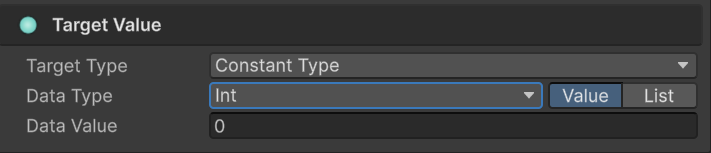
Data Types: Int, Float, Double, String, Bool
Mode 2: List
Define multiple acceptable values (for "In List" operator).
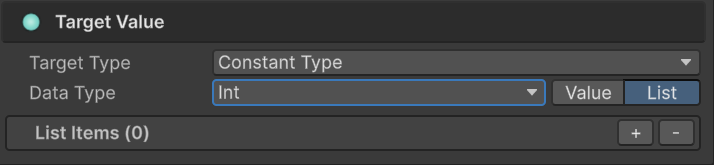
Configuration:
- Data Type: Type for all list items
- + / -: Add/remove items
Use Cases
Thresholds:
Health < 50.0
Exact Matches:
Name == "Hero"
Multiple Values:
Type In List [Fire, Void, Lightning]
Target supports one additional type: Constant (not available as a Source).
Some operators restrict target type:
-
Numeric operators (
>,<, etc.) require single values -
"In List" operator requires list types
Type Validation
The system automatically validates type compatibility.
Valid Comparisons:
✅ int == int
✅ float > int (auto-converts)
✅ string Contains string
✅ DamageType == Fire (enum)
✅ int In List<int>
Invalid Comparisons:
❌ string > int (incompatible types)
❌ bool Contains string (meaningless)
❌ float In List<string> (type mismatch)
Visual Feedback: Red outline + warning text on incompatible types.
Bool Methods vs Visual Tree
Two approaches to building conditions—when to use each?
Approach 1: Bool Methods
Best for: Complex multi-step logic.
Example:
public bool IsInDangerZone() {
    bool lowHealth = Health < 20;
    bool noShield = Shield == 0;
    bool hasEnemies = Physics.OverlapSphere(
        transform.position, 10f, enemyLayer
    ).Length > 0;

    return lowHealth && noShield && hasEnemies;
}
In Tree: Player.IsInDangerZone() == true
Pros:
- Encapsulates complexity
- Can use Physics, raycasts
- Unit testable
- Code reusable
Cons:
- Requires C# coding
- Designers can't modify
Approach 2: Visual Tree
Best for: Simple checks designers should control.
Example:
Pros:
- No coding needed
- Designer-friendly
- Visual representation
- Quick iteration
Cons:
- Can't use Physics/algorithms
- Large trees get complex
Hybrid Approach (Recommended)
Combine both for optimal results:
Guideline:
- Visual Tree: Thresholds, enums, simple properties
- Bool Methods: Physics queries, complex algorithms, cross-system checks
Drag & Reorder
Change execution order: Drag the handle (☰) on the left edge of any condition.
Why Order Matters:
AND Groups: Order doesn't affect result (all must pass).
OR Groups: Order affects short-circuit evaluation (stops at first TRUE).
Optimization Example:
❌ Slow:
OR Group
├─ ExpensivePhysicsCheck()  ← Runs first (slow!)
└─ SimpleBoolCheck          ← May never run

✅ Fast:
OR Group
├─ SimpleBoolCheck          ← Runs first (fast!)
└─ ExpensivePhysicsCheck()  ← Only if needed
Put cheap checks first in OR groups for better performance.
Performance
Bake and Execution Process
Editor bake
Visual Tree → Stable Condition ID → Generated Evaluator Registry
Runtime execution:
Event Fires → Resolve Baked Evaluator → Return TRUE/FALSE
Condition Execution and Build Checks
Generated Registry: Editor assigns stable condition IDs and generates evaluator registration source before Player Build
Build Checks: Missing or stale bake data stops Player Build and lists the assets and properties that need baking again
Unbaked Conditions: Mono and Editor can evaluate them directly, IL2CPP Player reports an error and returns false
Tree Management
-
Enable/Disable: Toggle checkbox to bypass all conditions (always TRUE).
-
Reset Tree: Click "Reset Tree" button to clear all nodes and start fresh.
-
Collapse/Expand: Click comparison blocks to toggle between summary and detail views.
Troubleshooting
Conditions Always Return False
Checklist:
- ✅ Is "Enable Conditions" toggle checked?
- ✅ Are there red type mismatch warnings?
- ✅ Are Scene Type references still valid (not destroyed)?
- ✅ Do bool methods return expected values? (add Debug.Log)
Property Not in Dropdown
For Event Arguments:
- Must be public field or property
- Must be supported type
For Scene Types:
- GameObject must exist in scene at Editor time
- Component must be enabled
- Property must be public
- Methods must: return bool, zero parameters, public, instance (not static)
For Runtime Objects: Use Event Argument instead of Scene Type.
Changes Not Saving
Common Causes:
- Multiple Behavior Windows open (close duplicates)
- Script compilation during editing (wait for completion)
- Unity didn't apply SerializedProperty changes (wait before closing)
Where It's Used
The Visual Condition Tree system appears in three contexts:
1. Event Behaviors → Game Event Behavior
Controls whether event actions execute:
Event Fires → Check Conditions → Execute/Skip Actions
2. Flow Nodes → Flow Node Configuration (future documentation)
Controls whether flow nodes execute:
Flow Reaches Node → Check Conditions → Execute/Skip Node
3. Receiver Components → Action Condition in the component Inspector
Each Receiver can check its own conditions before invoking On Triggered. A failed check skips only that component's actions; other Receivers and listeners subscribed to the same event continue independently.
Select a GameObject with a Receiver component, assign Game Event, and configure its On Triggered actions. Under Action Condition, turn on Enable Conditions and add comparisons or AND/OR groups with the same controls used in Event Behaviors. Conditions start disabled, so existing components keep responding as before.
| Receiver | Values available to its condition tree |
|---|---|
Parameterless GameEventReceiver | Scene values, constants, and random values |
Single-argument Receiver, such as Int32GameEventReceiver | The same sources plus the incoming argument and its members |
| Sender + Args Receiver | The same sources plus Sender and Argument members |
For example, set an Int32GameEventReceiver condition to Event Argument > 5. Raise its event with 3, then 8: that component invokes On Triggered only for 8. Another Receiver with conditions disabled responds to both raises. Disabling the condition gate bypasses its checks; an empty tree evaluates to true in the Editor and after AOT baking.
Generated and custom components derived from GameEventReceiver<TEvent, T> or GameEventSenderReceiver<TEvent, TSender, TArgs> inherit the runtime gate. The built-in Inspector exposes its editor without regenerating component code. Save the scene or Prefab, then run Tools & Utilities > Bake AOT Conditions before an IL2CPP build; Receiver trees participate in the same missing or stale bake checks as Behavior and Flow Node trees.
Simple Checks: Use Visual Tree for thresholds, enums, basic comparisons
Complex Logic: Use Bool Methods for Physics, algorithms, multi-step checks
Optimal Approach: Combine both—visual for simple, methods for complex
Performance: Put cheap checks first in OR groups for short-circuit optimization