System Dashboard
Use Game Event System to verify plugin health, open core tools, run code generation, inspect the environment, and locate project folders.
For developers who want a single place to open every GES tool and confirm the plugin is set up correctly in a scene.Open the Game Event System Window to check the current plugin state before entering an editor, monitor, code-generation tool, or project folder.
The dashboard brings every critical operation into one organized interface, so you do not have to hunt through project folders or menus.
Accessing the Dashboard
Open the dashboard via the Unity top menu:
Tools > TinyGiants > GES > Game Event System
If this is your first time opening the dashboard, you'll be guided through an automatic initialization process. See Installation for details.
Interface Overview
The dashboard is divided into specific functional zones. Below is a detailed breakdown of each section.
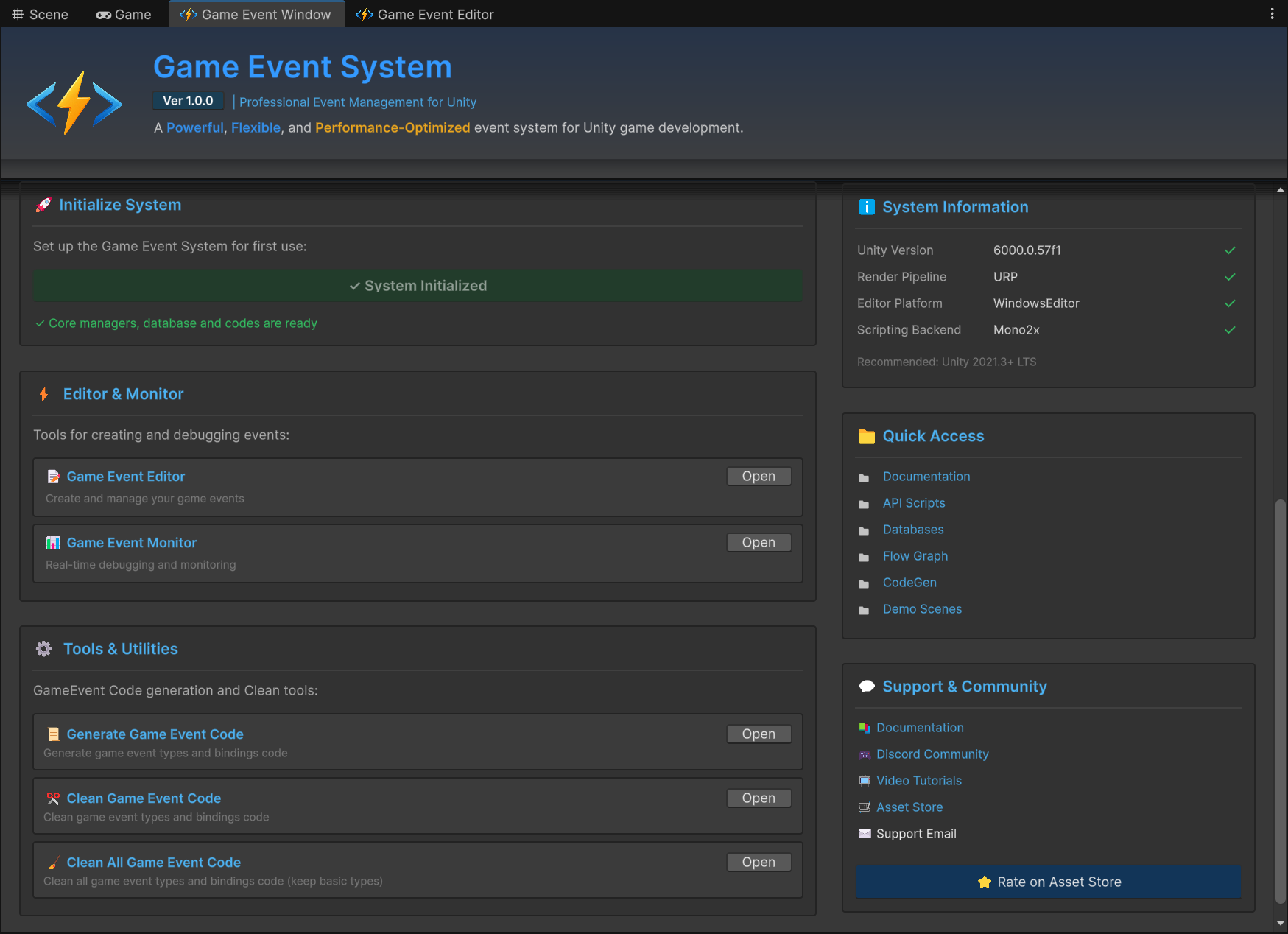
1. Initialization & Status
Located on the Middle-Left, this bar acts as the Global Health Indicator for the system.
- Green Check: The system is fully initialized. Core managers and databases are present.
- Blue Action Button: Critical components are missing (e.g., if the Manager object was accidentally deleted from the scene).
If this bar turns Blue during development, simply click it to Auto-Repair the scene dependencies immediately. For the initial setup guide, refer to Installation.
2. Core Workflow Tools
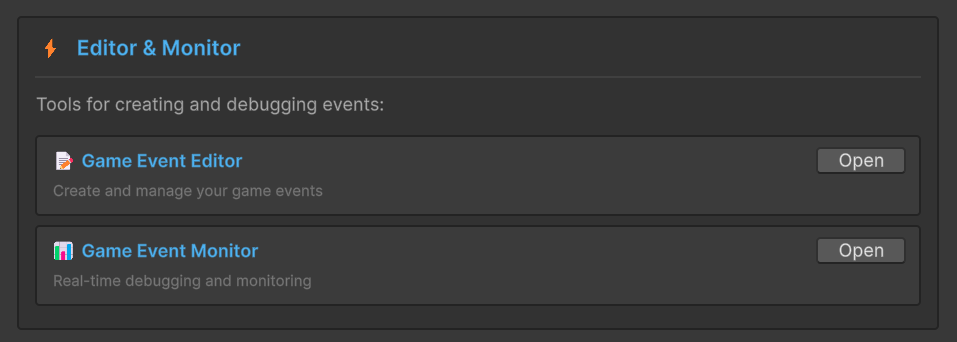
Located in the Editor & Monitor section, these are your daily drivers.
| Tool | Description |
|---|---|
| 📝 Game Event Editor | Opens the main management window to batch operations (create, delete, search, filter, and edit events). This is where you will spend 80% of your time. |
| 📊 Game Event Monitor | Opens the runtime debugger. Use this during Play Mode to watch event execution in real-time, inspect listener call stacks, profile performance bottlenecks, and visualize flow graph automation execution. |
3. Code Maintenance Tools
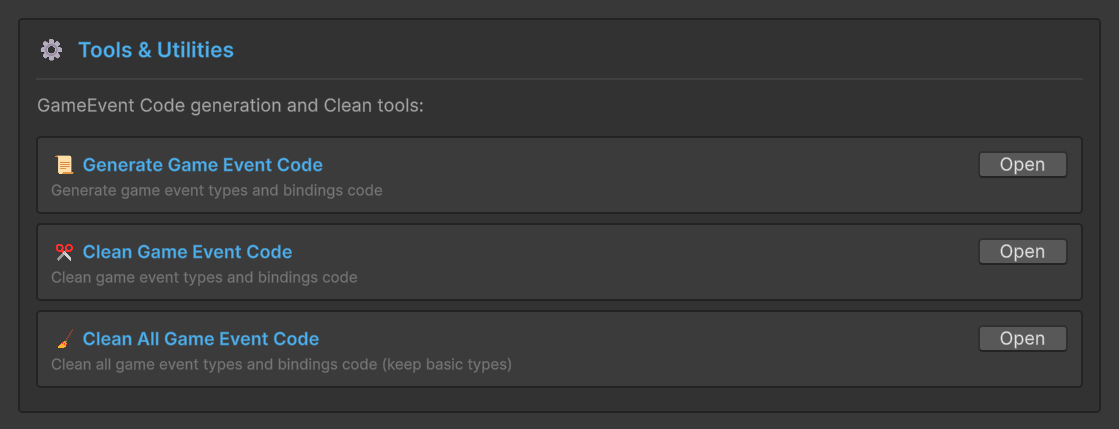
Located in the Tools & Utilities section, these utilities manage the underlying C# generation system.
| Tool | Description |
|---|---|
| 📜 Generate Game Event Code | Manually triggers the code generator. Use this if you have added a new custom type (e.g., MyCustomDataGameEvent) and need the concrete class generated immediately. |
| ✂️ Clean Game Event Code | Scan your project, find all GameEvent classes, and safely delete them to keep the project tidy. |
| 🧹 Clean All Game Event Code | A hard reset. Removes ALL generated code (except basic types). Use this only if you are reinstalling or refactoring significantly. |
The system is designed to auto-generate code when you create events via the Wizard. You rarely need to click "Generate" manually unless you are doing custom scripting work.
4. System Telemetry
Located on the Right, this panel monitors your project environment in real-time.
It automatically validates your Unity Version, Render Pipeline, and Scripting Backend compatibility.
For a detailed explanation of what these metrics mean and how they affect the plugin, please refer to the Automatic Environment Check section in the Installation guide.
5. Quick Access
Stop digging through the Project window. The Quick Access panel provides direct shortcuts to critical folders and assets.

| Tool | Description |
|---|---|
| 📘 Documentation | Opens this local documentation. |
| 📜 API Scripts | Selects the API folder in the Project View. |
| 🗄️Databases | Selects the folder containing default database asset files. |
| 🕸️Flow Graph | Selects the folder containing default visual-graph asset files. |
| ⚙️ CodeGen | Jumps to the generated code folder |
| 🎮 Demo Scenes | Quickly locate the examples folder. |
6. Support & Community
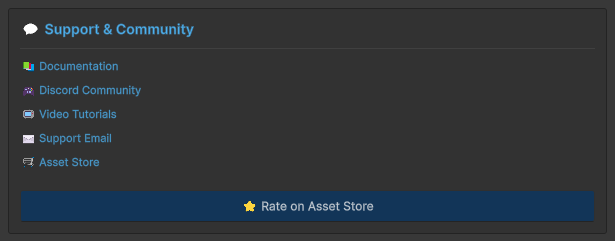
I believe in strong support. Use this panel to connect with TinyGiants.
| Tool | Description |
|---|---|
| 💬 Discord Community | Join the TinyGiants server for real-time help and showcase. |
| 📺 Video Tutorials | Watch step-by-step guides on YouTube. |
| 📧 Email Support | Include a complete description of the problem and detailed environment info. I reply within 24 hours whenever I'm available. |
| 🛒 Asset Store | If you enjoy the plugin, a 5-star review helps TinyGiants immensely! 🌟 |
Before emailing, check the Discord #faq channel—0% of common issues have existing solutions posted by the community!
Changelog
This panel shows the installed plugin's changelog, currently Game Event System v2.3.0, recent changes include
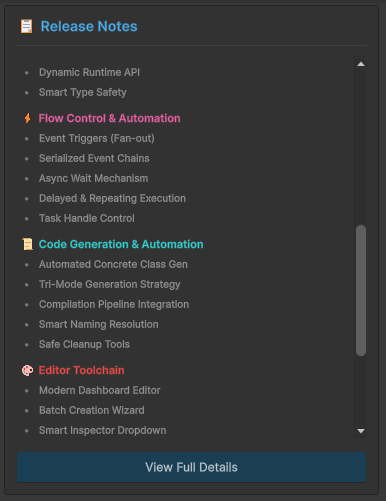
- Receiver Action Conditions (2.3.0): Configure independent conditions in each Receiver Inspector, including argument and Sender checks, a failed condition skips only that component's actions
- Scene Condition Validation (2.3.0): Changes to serialized condition node values invalidate scene bake data, re-run Bake AOT Conditions after upgrading
- FlowGraph Event Selector (2.2.0): Cancel with Esc or an outside click even when the database is empty, selectors also close on editor exit or script reload
- Unity 6.6 Compatibility (2.2.0): Verified compatibility with Unity 6000.6.0f1
- Unity 6.5 Compatibility: Object identity, Editor APIs, serialized data, and Demo input support Unity 2021.3 LTS through Unity 6.5
- AOT-Safe Runtime: Event Actions call strongly typed code directly, IL2CPP uses the generated condition evaluator registry
- Optional Addressables: Load
GameEventDatabasethrough Address or GUID, the core runtime needs no Addressables reference - UI Toolkit Editor: GES windows, custom Inspectors, and property drawers share the same UI and theme
Click "View Full Changelog" to read the complete version history, release by release.
Troubleshooting
Before troubleshooting, ensure there are no Red Compiler Errors in your Unity Console, as they will disable all editor-script functionality.
- ❌Dashboard Won't Open
- 🔵 Status Indicator Issues
- 🚩 Telemetry Alerts
Symptom: The menu item is grayed out or the window fails to appear.
| Solution | Action |
|---|---|
| Check Compilation | Fix all script errors in the Console first. |
| Clear Library Cache | Close Unity →Delete Library/ folder →Reopen project to force re-index. |
| Re-import Plugin | If scripts are missing, re-import the package from the Asset Store. |
Symptom: Clicking "Initialize" does not turn the status icon green.
| Solution | Action |
|---|---|
| Check Exceptions | Look for any "Initialization Failed" errors in the Console |
| Naming Conflicts | Ensure no other GameObject is named GameEventManager in your active scene |
| Prefab Overrides | If the manager is part of a prefab, ensure the instance isn't blocked by missing references. Delete the instance and re-initialize |
Symptom: System requirements show a Red Cross ❌in the telemetry panel.
| Issue | Fix / Requirement |
|---|---|
| Unity Version | Upgrade to Unity 2021.3 LTS or higher. |
| API Level | Switch to .NET Standard 2.1 or .NET 4.x in Player Settings. |
| IL2CPP Warning | Ensure "Stripping Level" is not set to "High" to avoid losing generic metadata. |