Game Card Editor
Manage Card, Deck, Player, Enemy, Status, and Encounter content in one window while checking fields, previews, references, and validation results together
Open Game Card Editor from this menu:
Tools > TinyGiants > GCS > Game Card Editor
The window uses a fixed three-column layout. Switch content types at the top. Use List on the left to select a database and entry, Inspector in the center to edit the current content, and Preview on the right to inspect static results and references. All three regions stay synchronized around the same entry.
After system initialization, you can also open the window from the Editor & Monitor card in Game Card System dashboard.
The dashboard enables its button only after initialization checks pass. The direct menu entry does not use that gate.
Select a content type and database
The six modes at the top correspond to the six GCS content types. Switching modes changes List, Inspector, and Preview to the matching type together.
- Card
- Deck
- Player
- Enemy
- Status
- Encounter
Card mode edits Cost, Target, Keywords, Upgrade, the card face, and Behavior on a GameCard. Preview shows a data summary, rendered card face, main behavior path, and direct references.
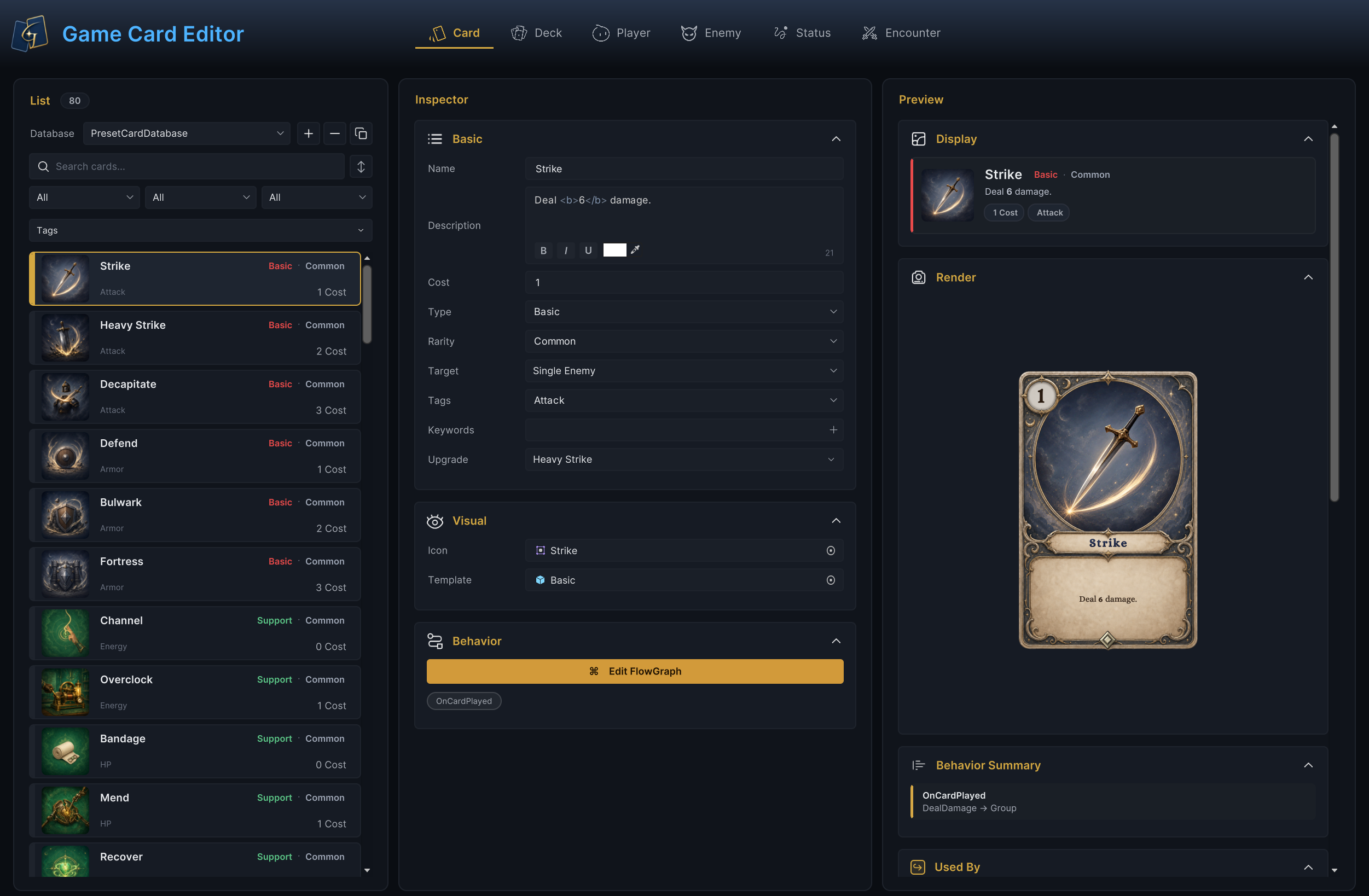
See Card authoring for the complete workflow from creating a card through Play Mode verification.
Deck mode assembles a GameDeck from card entries and Copies. Preview summarizes card copies, types, rarities, tags, and cost distribution.
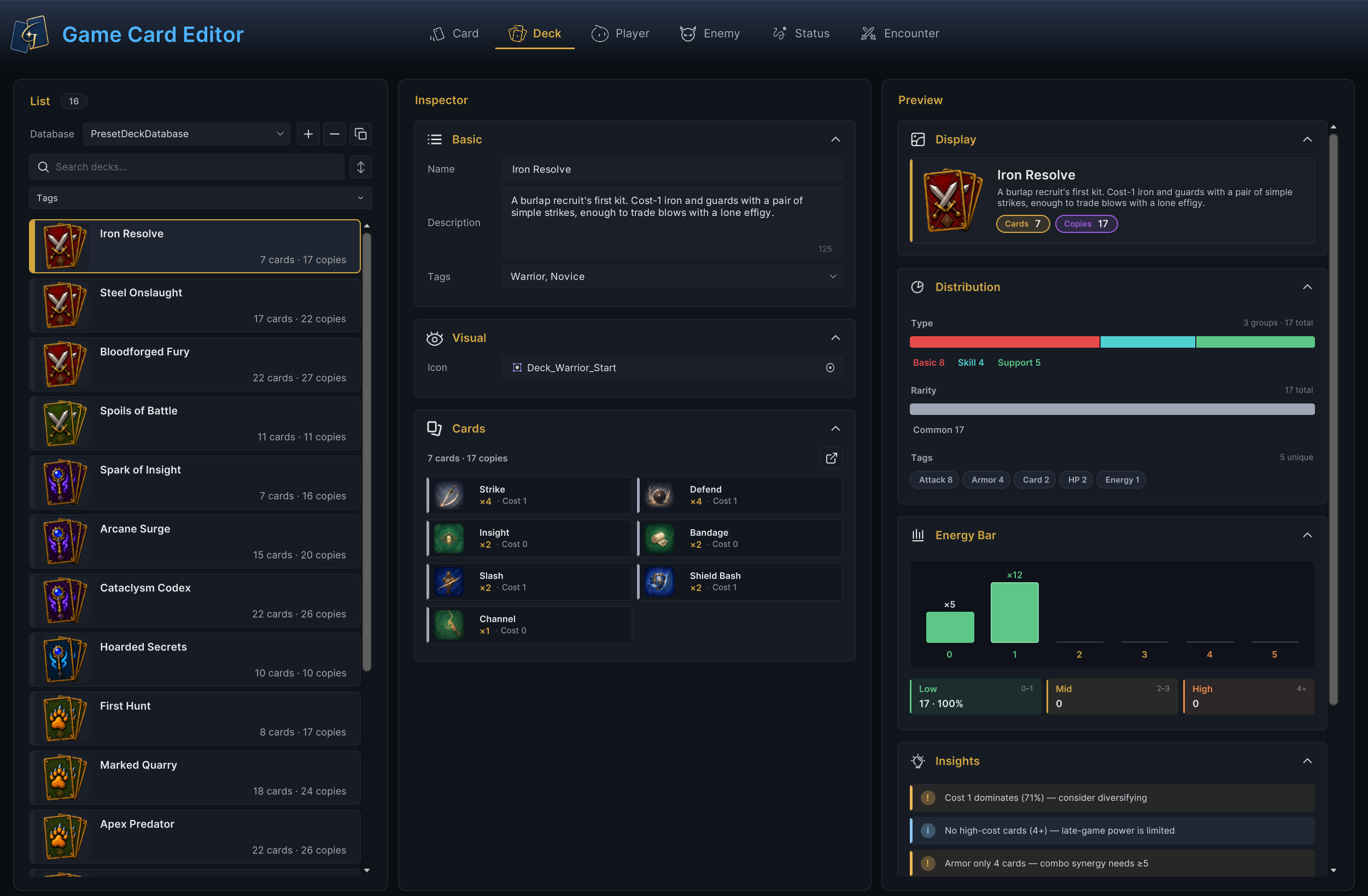
See Deck authoring for starting-deck and reward-pool assembly.
Player mode edits the profile, Max HP, Base Energy, Starting Deck, Energy Display, and battle Prefab for a GamePlayerUnit. Preview checks the character appearance, energy definition, and Encounter references.
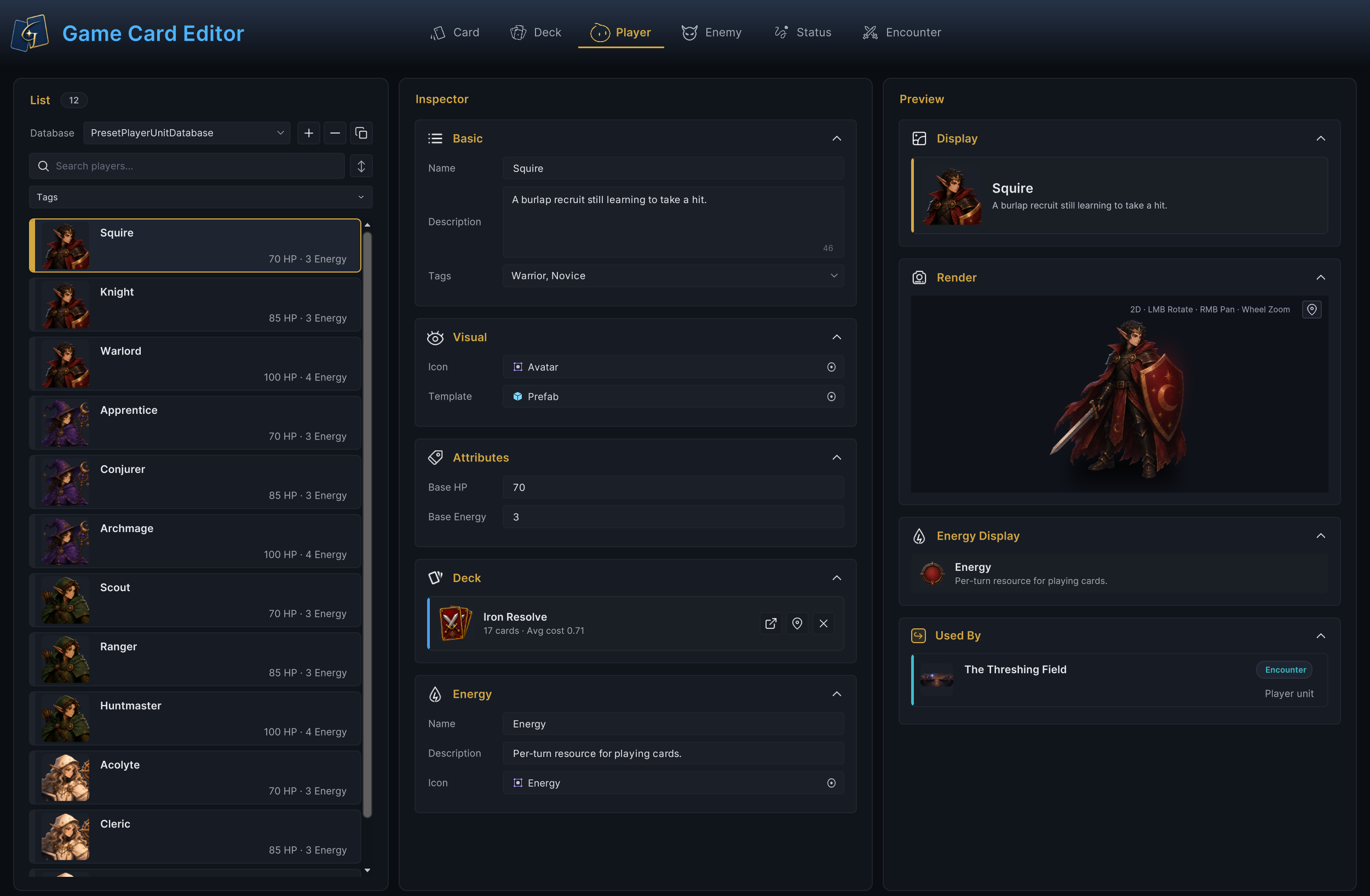
See Player authoring for character attributes, starting decks, and energy display.
Enemy mode edits Tier, HP Min, HP Max, the battle Prefab, and Behavior for a GameEnemyUnit. Preview summarizes character rendering, Behavior entries, Intent distribution, and Encounter references.
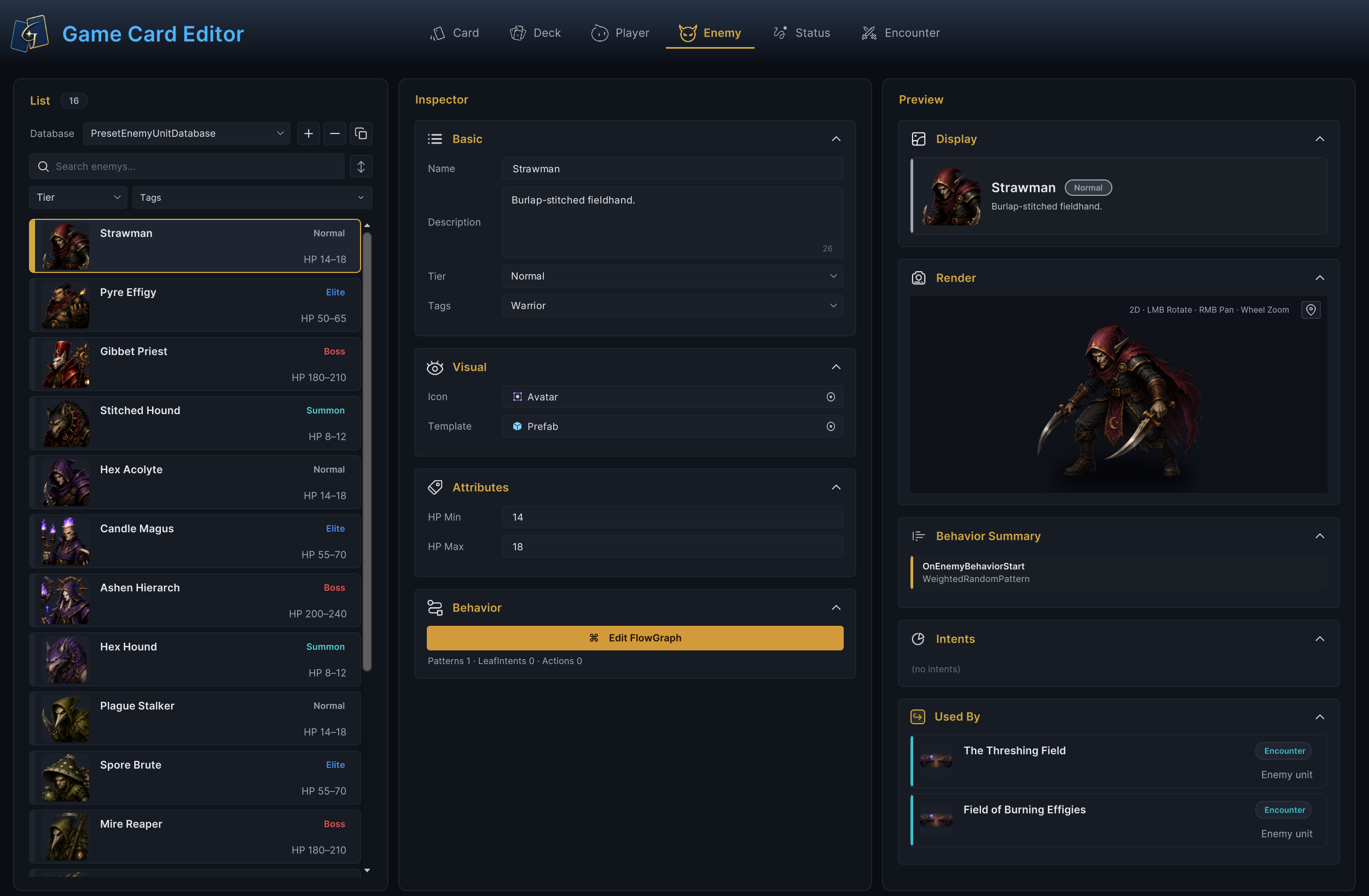
See Enemy authoring for enemy attributes, action logic, and runtime verification.
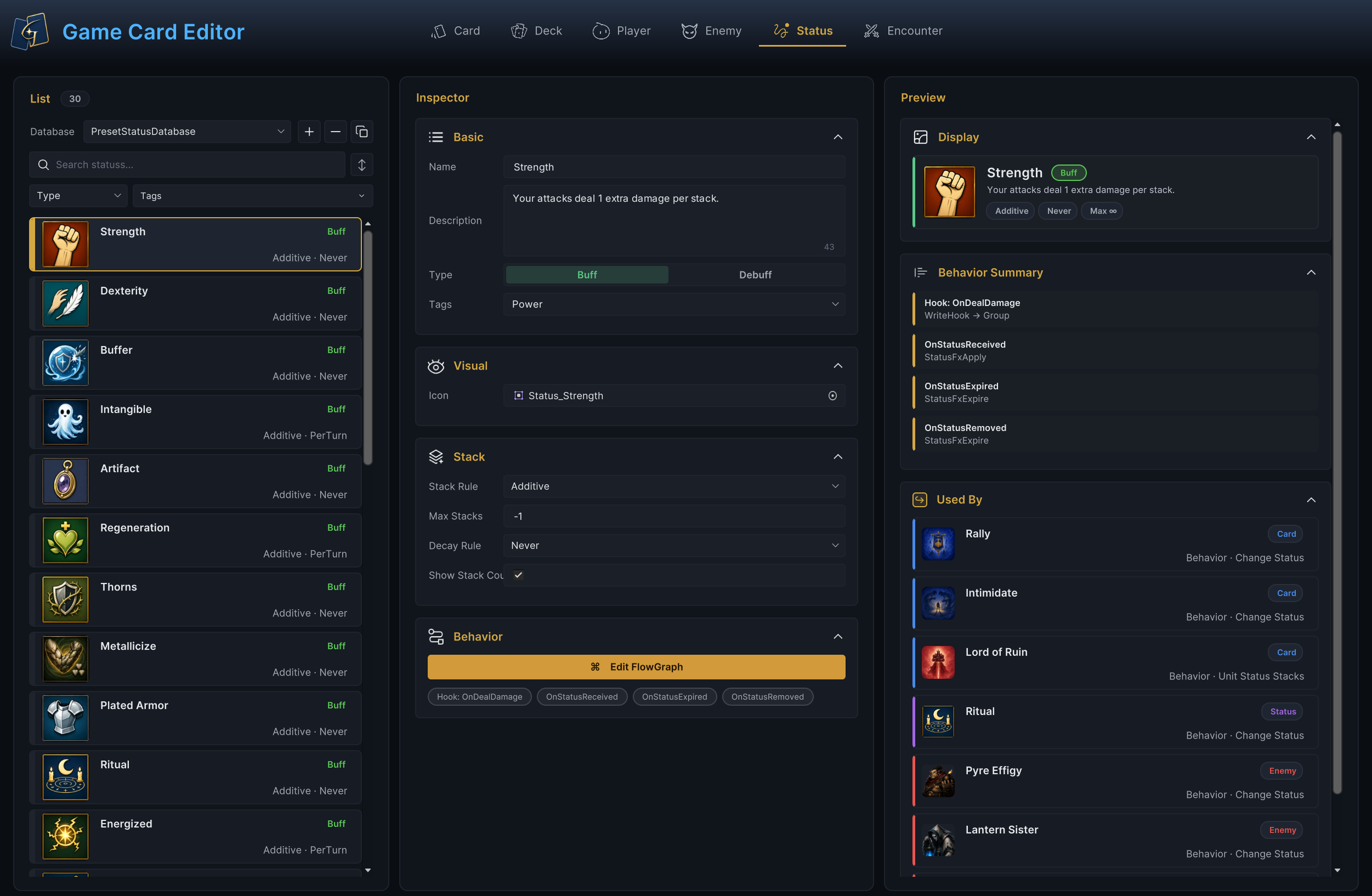
Status mode edits Type, Icon, Stack Rule, Max Stacks, Decay Rule, and Behavior for a GameStatus. Preview shows static information, Behavior entries, and content that references the current status.
See Status authoring for stacking, decay, Hooks, and Play Mode verification.
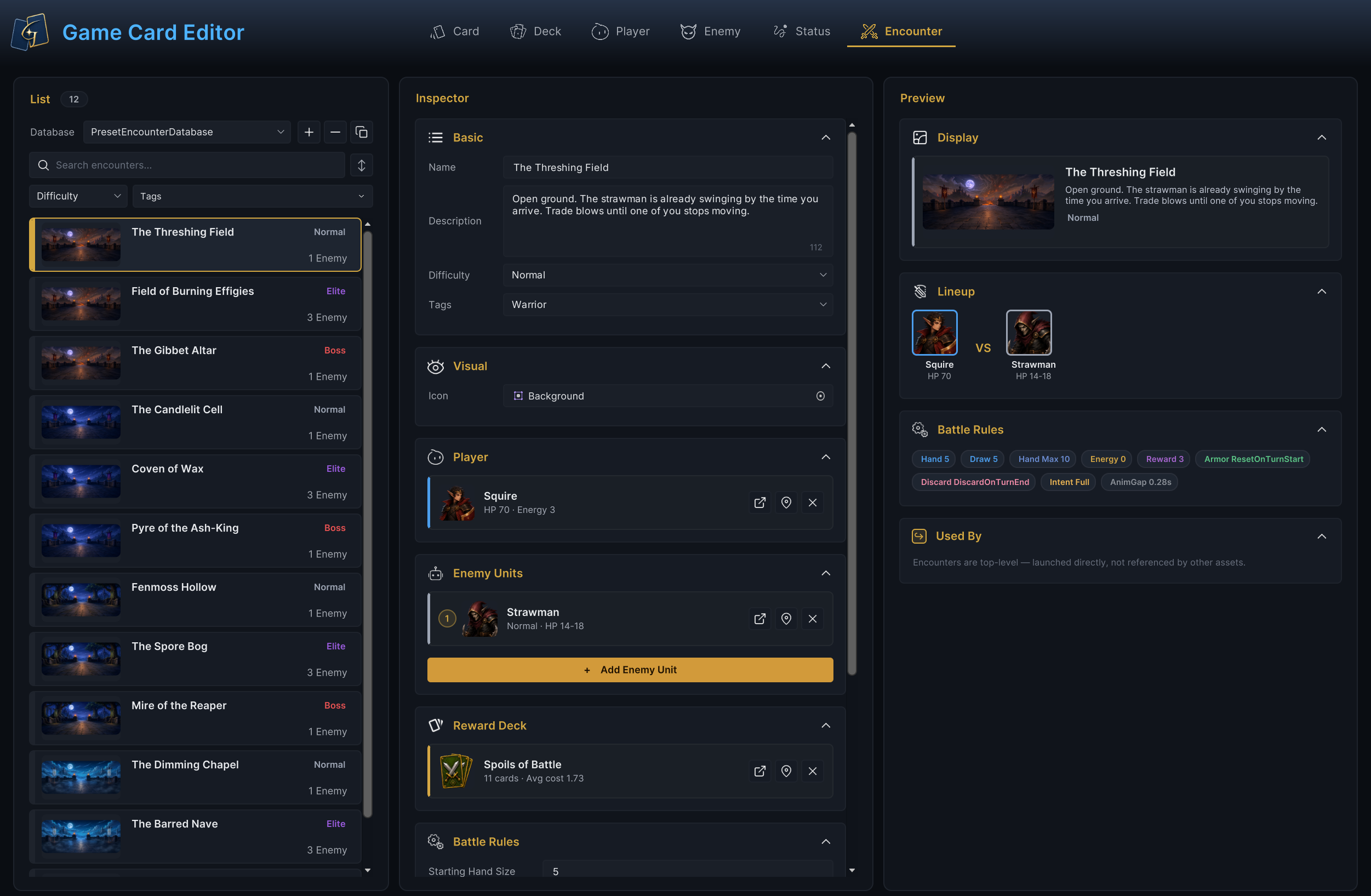
Encounter mode stores Player, Enemy Units, Reward Deck, and Battle Rules in a GameEncounter. Preview checks the lineup, rules, and content references before battle startup.
See Encounter authoring to assemble and start a complete battle.
The Database dropdown at the top of each mode lists only Active databases of that type on the current GameCardManager. If the target database is missing, register and activate it on the Manager first. See Database management for the exact operations.
Manage content with List
List displays content according to the current mode, database, search, filter, and sort settings. Selecting a row switches Inspector and Preview to the same entry immediately.
| Operation | Method and result |
|---|---|
| Create | Click + to create a sub-asset of the current type in the current database |
| Copy | Use the inline copy button, or press Ctrl/Cmd + C followed by Ctrl/Cmd + V |
| Delete | Click −, or press Delete / Backspace, then confirm to delete the selected content |
| Move selection | Press ↑ / ↓ to cycle through the current visible list |
| Switch mode | Press ← / → to cycle through the six modes |
| Undo and Redo | Use Unity's global Undo/Redo. The window refreshes from the resulting asset state |
Each mode supports its built-in base type and derived project types in runtime assemblies, use top-level public concrete classes derived from GameCard, GameDeck, GamePlayerUnit, GameEnemyUnit, GameStatus, or GameEncounter
When several types are available, + opens a type picker before creating the sub-asset, existing assets retain their types, see Inspector extensions for type and field configuration
Shift-click selects a continuous range in the current visible list. Ctrl-click, or Cmd-click on macOS, adds or removes individual entries. The multi-selection bar can copy, add or remove existing Tags, or delete all selected content.
Duplicate and Paste preserve the concrete type and all serialized fields, assigning a unique name and new GCS identity, pasting does not convert base assets into derived types
Ctrl/Cmd + C stores the source reference in Workbench Clipboard for the current Unity Editor domain, copy again after restarting the editor or a Domain Reload
Delete removes the content sub-asset from the database instead of hiding it from the list. Used By checks only the references in its documented scope. Before deleting an asset, also confirm that no other scene, Prefab, or project code still uses it.
Edit content with Inspector
Inspector groups fields by content type and saves changes to database sub-assets with Unity Undo support, set field references to connect content, such as Player Starting Deck and Encounter Player Units, Enemy Units, and Reward Deck, moving asset folders does not create these references
Derived fields follow Unity serialization and declaration order, Runtime attributes set groups and GCS controls while Editor registries replace controls or add validation, the normal Unity Inspector also displays these fields, see Inspector extensions and Inspector controls
List summaries and Preview refresh after edits.
Open Behavior
The concrete effects of Cards, Enemies, and Statuses are stored in their Behaviors. Click Edit FlowGraph to open the graph embedded in the current asset.
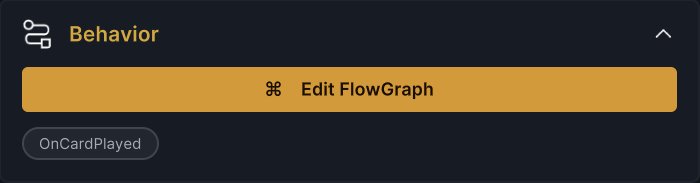
The entry summary above comes from static analysis of the current Behavior. It confirms which trigger entries exist but cannot prove that every branch reaches an Action. Inspect the complete connections in FlowGraph Editor.
Add GCSFlowGraphAttribute to a direct graph field on a derived Card, Enemy, or Status to use the same graph editor, execute and validate extra graphs through project code
Inspect static results with Preview
The exact Preview tabs change with the content type. They cover four main checks.
| Check type | What it confirms |
|---|---|
| Appearance | Static display for a card, character, enemy, status, or encounter |
| Composition | Deck distributions, Encounter lineup, and Battle Rules summary |
| Behavior | Entry summary, enemy Intent categories, and main paths |
| References | Direct references to the current asset from Active content |
Preview does not run a real battle. Dynamic cost, current HP, live stacks, actual targets, random Intents, and phase state still require Play Mode and Game Card Monitor.
List, Preview, Used By, and card-face layouts continue to read built-in GCS fields, read derived fields in the corresponding UI or presentation code to display them
Used By scope
Used By locates saved direct references between GCS content assets. Clicking a result switches to the corresponding mode and entry. It does not scan every scene, Prefab, project script, or indirect runtime reference, and it does not protect a referenced asset from deletion.
Handle the Issue Badge
The Issue Badge at the top of the window counts validation problems across the current selected database, not only the entry being viewed. Click an issue to locate the matching asset or field.
-
Error means that a required name, reference, range, or FlowGraph structure is missing.
-
Warning means that descriptive text, presentation assets, or recommended configuration is incomplete.
-
Issues do not repair assets automatically or prevent saving, deletion, or entering Play Mode.
Each content-authoring page documents the exact conditions for its type. See Content authoring errors for cross-type problems and repair paths.