Card authoring
Configure card data, the card face, and Behavior in one GameCard asset, then verify the actual result in battle
For a card to enter decks, request the correct player input, and resolve as intended in battle, keep its data, card face, and Behavior in one GameCard asset. Before authoring, the scene needs at least one Card Database enabled by GameCardManager. Database setup determines which databases Game Card Editor can list and edit.
Open Game Card Editor:
Tools > TinyGiants > GCS > Game Card Editor
Select Card at the top. The project's card assets, editing fields, and inspection results enter the same three-column workspace.
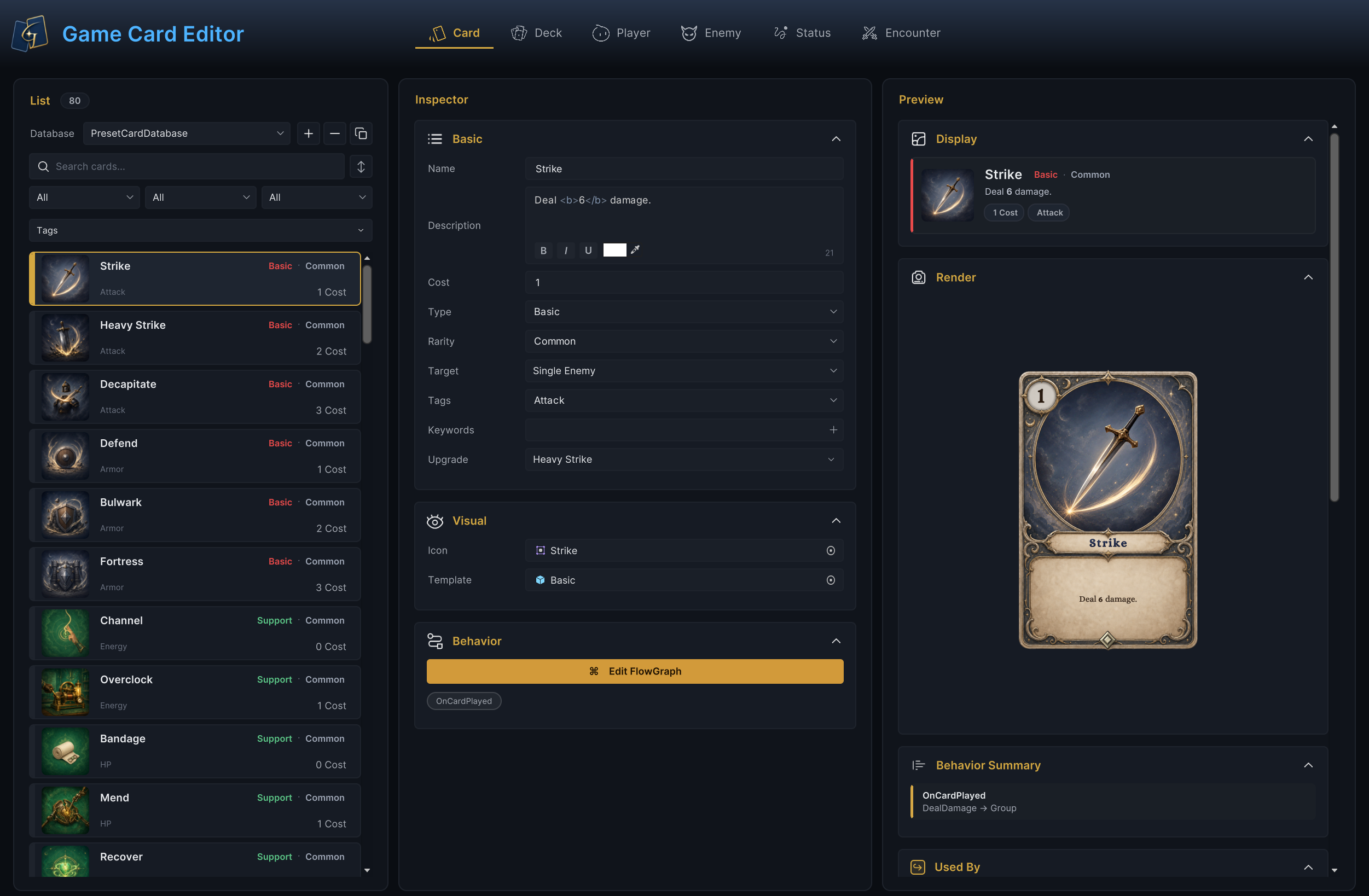
The window above combines card location, rule editing, and result checks. List on the left selects the current asset. Inspector in the center stores Basic, Visual, and Behavior. Preview on the right follows the current selection and displays a data summary, template rendering, main behavior path, and external references. Every later operation begins from the current List selection, so first confirm the Card Database, then create, copy, or locate the asset.
Select the card to edit
List operations
| Operation | Method and result |
|---|---|
| Select database | Select a Card Database at the top of List. Later creation, paste, and sorting operations affect this database |
| Create | + creates a GameCard sub-asset in the current database with NewCard as the base name. A number is appended when the name exists. Defaults are 1 Cost, Common, and Target = None |
| Copy | The copy button duplicates the complete card. When similar cards share classification, a visual template, or a Behavior structure, edit the copy and preserve the confirmed base setup |
| Delete | − deletes the selected asset after confirmation |
| Search and filter | Search filters by display name. It uses Name when nonempty and falls back to the asset name. Type, Rarity, Keywords, and Tags narrow the result further |
| Sort and drag | The sort button cycles through database order, name ascending, and name descending. Dragging a card row changes only authoring order in the database, not opening-hand or draw order |
| Batch operations | Select several cards with Ctrl/Cmd or Shift, then use Duplicate, Tag +, Tag −, or Delete |
| Copy across databases | Press Ctrl/Cmd+C with one card selected, switch to another enabled Card Database, then press Ctrl/Cmd+V to paste a copy |
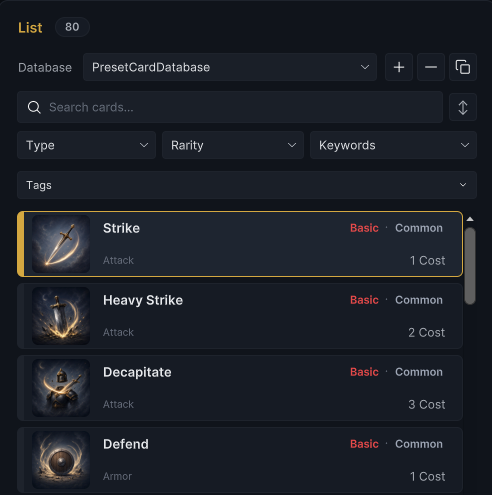
PresetCardDatabase contains 80 single-character cards, 5 Templates, 5 built-in keywords, and 4 direct upgrade relationships, PartyCardDatabase contains Strike, Defend, and four ally-targeting cards, see Demo content index for representative content
Configure the card's basic rules
Basic keeps the player-facing information, card-play interaction, and project classification together.
| Field | Configuration |
|---|---|
| Name | Player-facing name. A nonempty value also becomes the card sub-asset name |
| Description | Rule text used by the card face and Display. Type { for registered Description Tokens or @ for Keyword and Status references. The final text must match the Behavior |
| Cost | Base energy cost, limited by the Editor to 0 or higher. Effective cost in battle still comes from Hooks and cost rules |
| Type | Classification used by color, filters, and project logic. Select an existing project value or enter a custom one |
| Rarity | Select an existing project value or enter a custom one. An empty value falls back to Common |
| Target | How card-play UI collects a target. It must match the range that the Behavior resolves |
| Tags | Project-defined labels with no built-in gameplay. They affect rules only after FlowGraph or code reads them |
| Keywords | Registered keywords from CardTagRegistry. The five built-in entries have runtime rules. Custom entries need project logic that consumes their IDs |
| Upgrade | Direct upgraded form of the current card. None means there is no upgrade relationship |
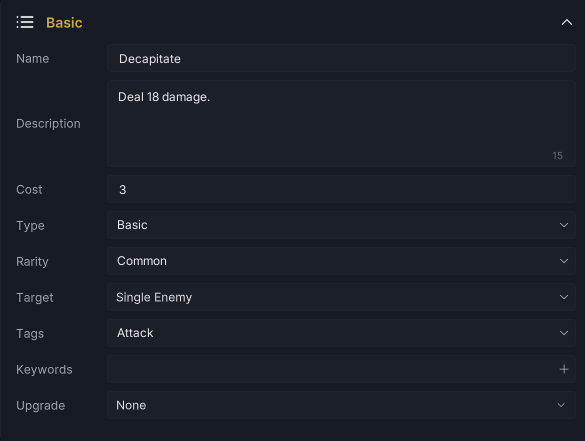
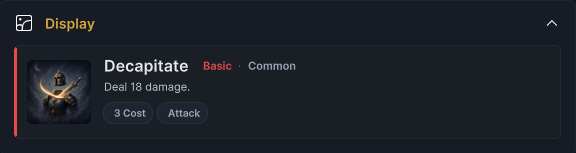
With this setup, Decapitate is a 3-cost Basic, Common, Attack card. The player must select one enemy to play it. Behavior still determines the actual resolution.
Keep Target and Behavior in the same range
Target determines how card-play UI collects targets, while Behavior determines who receives the effect, configure both for the same result, for example, Single Ally uses Target to read the selected ally and All Allies uses AllAllies to read the party
Other effects can use Self, AllOpponents, or another UnitSource, see Target selection for Target modes, connected Target Ports, Card Source, Selectors, and empty results
Format Description and add Tooltip references
Once Target and Behavior agree, write the player-facing rule in Description
Double-click a word and use B, I, U, or the color field in the lower-left corner, click an active button again to remove its format, controls show the current selection's format and tags can also be edited directly
| Result | Short tag | Long tag |
|---|---|---|
| Bold | <b>text</b> | <bold>text</bold> |
| Italic | <i>text</i> | <italic>text</italic> |
| Underline | <u>text</u> | <underline>text</underline> |
| Color | <c=#RRGGBBAA>text</c> | <color=#RRGGBBAA>text</color> |
Click the color field to open Unity's Color Picker, which also accepts hexadecimal input, GCS converts short and long tags to TMP rich text for Display, Render, and runtime, wrap dynamic Tokens in bold tags to emphasize them, such as <b>{Damage}</b>
Type { for Token completion or @ for the reference selector, choose Keyword or Status, then an entry, Keywords come from CardTagRegistry and Statuses from project GameStatus assets, entries without a display name or description are excluded
Deal <b>{Damage}</b> damage. Apply <b>{Stacks:Poison}</b> <color=#C75050FF>@Poison</color>.
Workbench saves @Poison as authored, the source editor shows valid @Name references in blue and dims formatting delimiters, Display, Render, and runtime still use the surrounding <color> tag
Display and Render hide @ and apply the text formatting, hovering the linked word Poison shows its title, Description, and optional icon, moving away closes the Tooltip, bold, italic, underline, and color do not affect link hit testing
Unresolved @Name references stay visible and produce validation warnings, referenced Statuses must be in an active Status Database at runtime or their @Name remains visible without a Tooltip
Status Tooltips read GameStatus.DisplayName, GameStatus.Description, and GameStatus.Icon, while Keyword Tooltips read the matching CardTag fields, custom Keywords need both DisplayName and Description to be referenced in card text
using TinyGiants.GCS.Runtime;

[CardTag]
public sealed class VolatileCardTag : CardTag
{
    public override string Id => "Volatile";
    public override string DisplayName => "Volatile";
    public override string Description => "Exhaust this card at the end of the turn.";
}
Keyword Description supplies Tooltip content, while FlowGraph or project code implements gameplay through Id, card text uses @DisplayName, so update existing references when the display name changes, see Card types, tags, and description tokens
Configure card keywords
After the card-play interaction is set, Keywords determine how the card moves through the opening hand, hand, resolution, and turn end.
| Keyword | Runtime rule |
|---|---|
Exhaust | After active play and On Card Played execution, moves to Exhaust and raises On Card Exhausted |
Ethereal | If still in hand at turn end, Exhausts before other hand handling. When combined with Retain, Ethereal takes priority |
Retain | When rules would discard the hand at turn end, keeps the card and raises On Card Retained. If Encounter rules already retain the whole hand, cards without this keyword also remain |
Innate | Enters the opening-hand range first after shuffle. When Innate cards exceed opening-hand capacity, the system chooses randomly among them |
Unplayable | Cannot be played actively, but can still be drawn, retained, and execute Behavior from other lifecycle Entries |
The Keywords selector reads CardTagRegistry. A project can register a new Card Tag and make it appear in the same menu. See Card types, tags, and description tokens for the extension contract.
After the basic rules are ready, bind Icon and Template under Visual for List, Preview, and the project presentation layer.
Configure card-face assets
After assigning an artwork Sprite and the Basic Template to Decapitate, Game Card Editor can inspect both the compact information card and the complete face.

Icon appears in List and Display. Template determines which card-face structure Render instantiates. Without a Template, Render shows only a binding prompt and does not generate a usable placeholder card.
Render checks only direct children of the Template root with the expected names.
| Child object and component | Preview behavior |
|---|---|
Artwork + SpriteRenderer | Receives the current Icon |
Energy, Type, Name, Description + TMP_Text | Receives the corresponding static text |
Glow + GameObject | Toggles while the pointer hovers over Render |
When an expected object or component is missing, Render skips it without reporting a validation issue. This contract controls only the static template preview in Game Card Editor. The project or Demo presentation layer must still instantiate and bind runtime card faces. See Custom UI integration for that workflow.
With the static face ready, define the card's actual resolution rules under Behavior.
Author the card Behavior
Click Edit FlowGraph to open the Behavior embedded in the current card and edit the rules it owns.

The OnCardPlayed tag below the button confirms that the current Behavior contains at least one card-play Entry. Click the tag or button to open FlowGraph Editor.
In the example below, Poison Arrow extends one Entry into damage, hit feedback, a status change, and Poison feedback. Both rules in Description have matching nodes in Behavior.
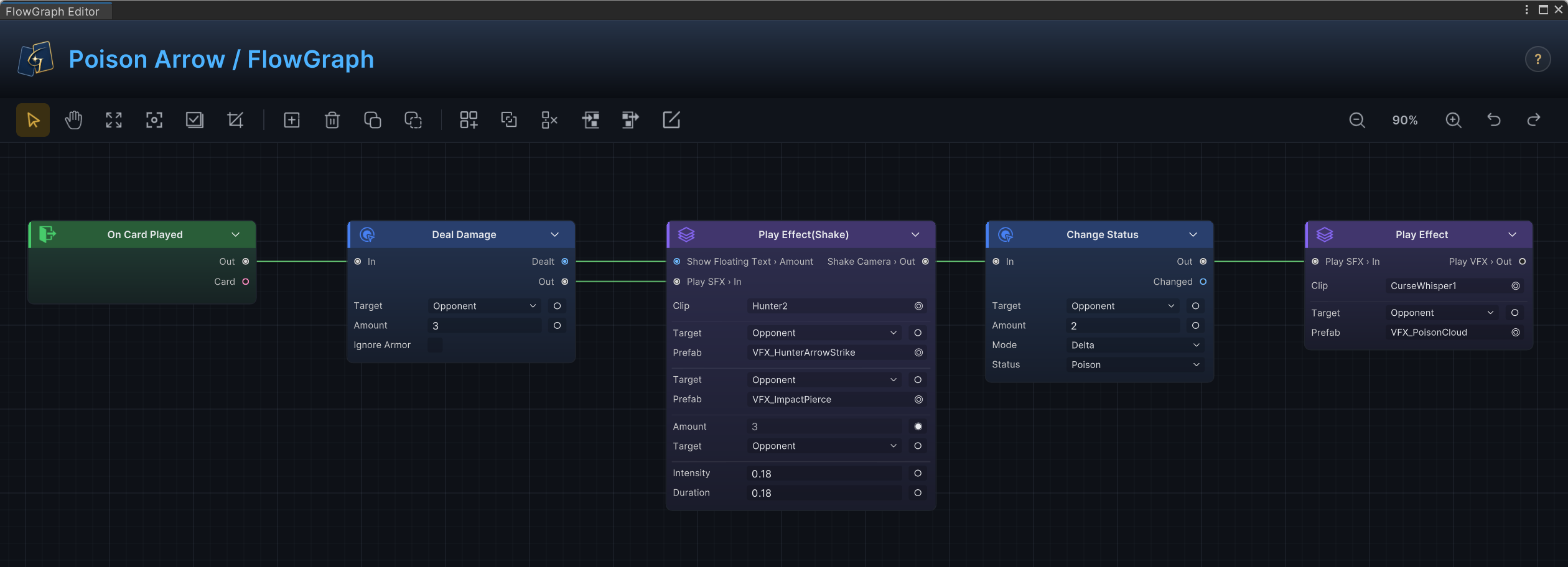
On Card Played executes Deal Damage first and deals 3 damage to the current Opponent. The first Play Effect plays hit feedback. Change Status applies 2 stacks of Poison, and the final Play Effect plays status feedback. Description should match this path, for example Deal <b>3</b> damage. Apply <b>2</b> <color=#C75050FF>@Poison</color>.
See FlowGraph model and Common card recipes for more complex branches, loops, and combinations.
After inspecting Behavior, return to Game Card Editor and select Decapitate again. Preview checks the card from three angles: static data, template structure, and the main Entry path.
Inspect the card preview
Display: check static data
Display combines Icon, Name, a formatting-aware Description preview, EnergyCost, Type, Rarity, Tags, and Keywords into a compact information card. It applies supported tags and hides @ for resolved references, but it does not resolve dynamic Tokens or effective cost in battle.
Render: check template structure
Display checks only the data summary. Render instantiates the Template in an isolated preview so you can inspect it directly in the window.
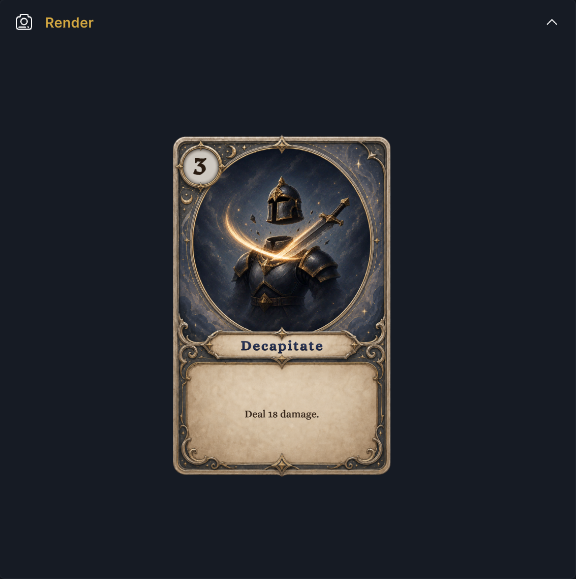
Cost 3, artwork, name Decapitate, and rule text now appear in the Basic Template. This confirms static structure and layout. For Description, Render replaces only {Damage}, {Block}, {Heal}, and {Stacks:Burn} with sample values. Check custom Tokens and actual battle values at runtime through GCSApi.FormatDescription.
Behavior Summary: check the main Entry path
After confirming the template structure, Behavior Summary follows one direct chain from the Out port of each top-level Entry and displays up to 8 nodes. This gives a quick view of the Entry and main path.

OnCardPlayed → DealDamage → Group shows that the card has a main path from the card-play Entry into damage and a presentation Group. Branches, other control ports, and internal Group details are not expanded here.
The three Preview panels confirm static data, template structure, and the main Behavior path. Before changing a shared card, also inspect where Active content references it.
Inspect asset references
Used By scans databases enabled on the current scene's GameCardManager and lists recognized deck entries, direct upgrade relationships, and some Behavior references.
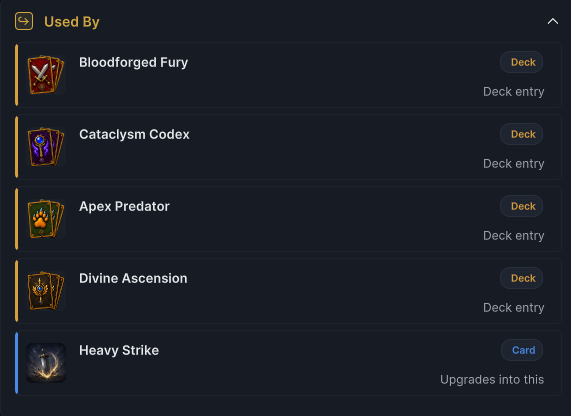
Above, Decapitate belongs to Bloodforged Fury, Cataclysm Codex, Apex Predator, and Divine Ascension. The direct upgrade of Heavy Strike also points to it. Changing or deleting this card affects all five sources.
- Deck references include copy counts. Card references show direct upgrade relationships. Behavior scanning checks public fields on enabled Cards, Statuses, and Enemies.
- Click an entry to open its owning asset in the matching Game Card Editor mode.
Used By is an auxiliary scan of currently enabled databases. It does not cover disabled databases, scenes, Prefabs, project code, private fields, runtime lookups, or custom indirect references, and it does not block deletion. Run a project-wide reference check for public assets or custom code.
Handle validation issues
| Level | Trigger |
|---|---|
| Error | Name is empty |
| Warning | Type is empty, Description is empty, Template is missing, Behavior has no nodes, or FlowGraph has a structural problem |
The Issue Badge in the upper-right corner counts every problem in the selected Card Database. Open it to jump to the relevant field or FlowGraph. Automatic validation does not check consistency between Target, Description, and Behavior, upgrade cycles, Template child-object contracts, or real battle results. Continue with manual review after clearing Issues.
Manual checklist
-
The List row identifies the card from its icon, name, classification, cost, and tags.
-
Target, Description, and Behavior describe the same resolution. -
Display data is complete, and Render has no missing art, layout errors, or missing text.
-
Behavior Summary contains the expected Entry, and the original graph's parameters and branches were reviewed.
-
Known Used By references are correct, and project-level indirect references were checked separately.
After static data, the template, Behavior, and references pass inspection, enter Play Mode and verify cost, target, values, statuses, and pile movement in a real battle.
Verify resolution in Play Mode
Play Poison Arrow in the included Demo's First battle. One card play spends 1 energy, deals 3 damage to Plague Stalker, applies 2 stacks of Poison, and moves the card into Discard.
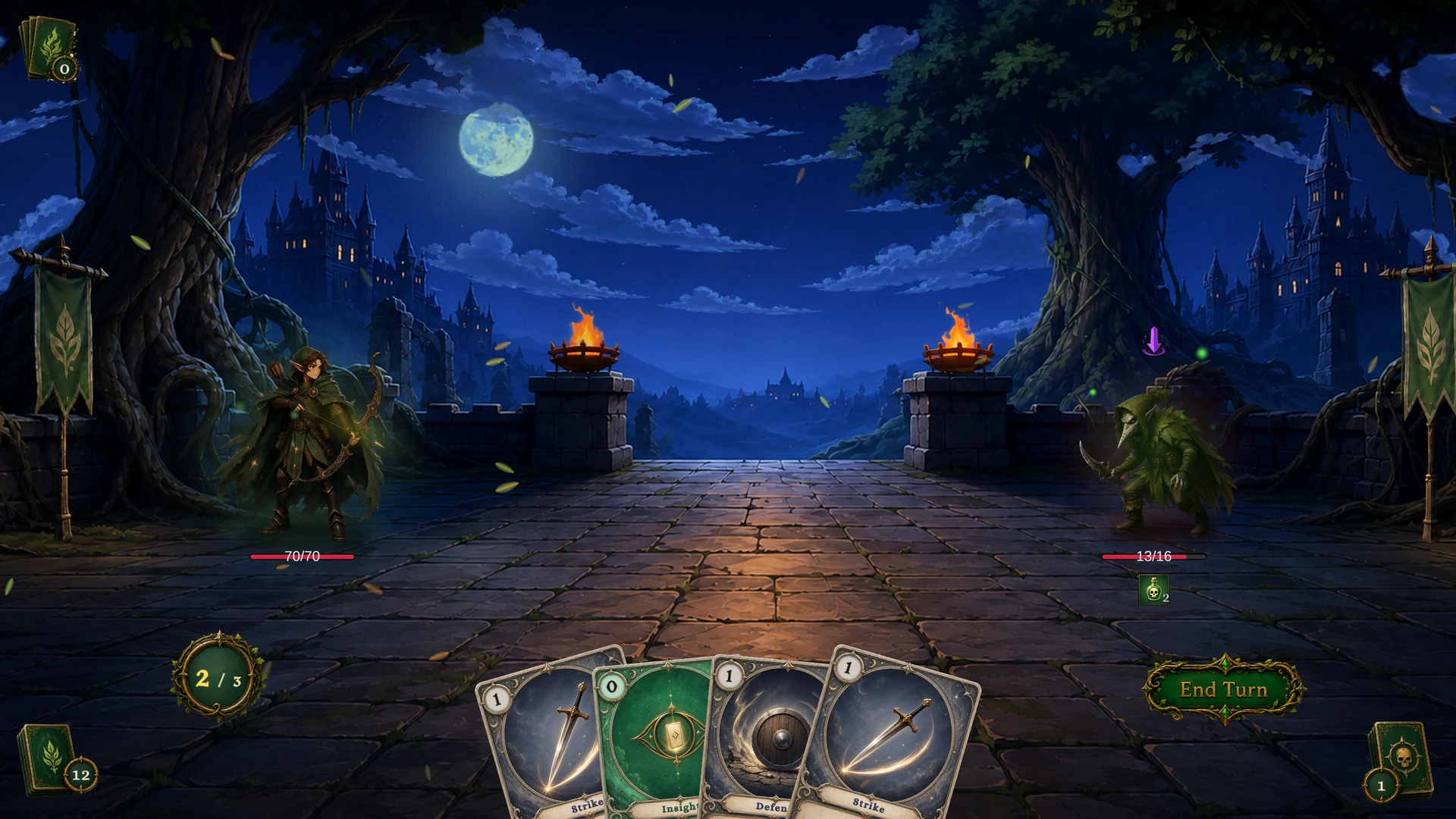
Enemy HP drops from 16 to 13, and Poison rises from 0 to 2, matching the damage and status nodes in Behavior. Player energy drops from 3 to 2, and Discard rises from 0 to 1, confirming cost payment and post-resolution card movement.
If the result differs, inspect the current hand, all four piles, phase, unit state, and event timeline together in Game Card Monitor, then return to the field or node that produced the difference.
Project UI should read the card face, effective cost, and formatted description from the live CardInstance, and mutate piles through supported APIs or FlowGraph nodes. See Card and pile lifecycle for pile behavior and API guide for code entry points.
After validation and Play Mode verification, the card has complete data, a visible face, an executable Behavior, and known references. Continue to Deck authoring to assemble cards and copy counts into a starting deck or reward pool.