Status authoring
Define what one stack represents, how stacks merge or decay, and which battle timings a status responds to
The Mire Reaper Behavior already applies Poison and Weak during enemy actions. The status assets then determine how those effects appear on a unit, stack, respond to battle timings, and end. Before editing, confirm that the scene's GameCardManager enables at least one Status Database. Database configuration determines which statuses the Game Card Editor and runtime can discover
Open the Game Card Editor
Tools > TinyGiants > GCS > Game Card Editor
Select Status at the top of the window, then find Strength in the list on the left
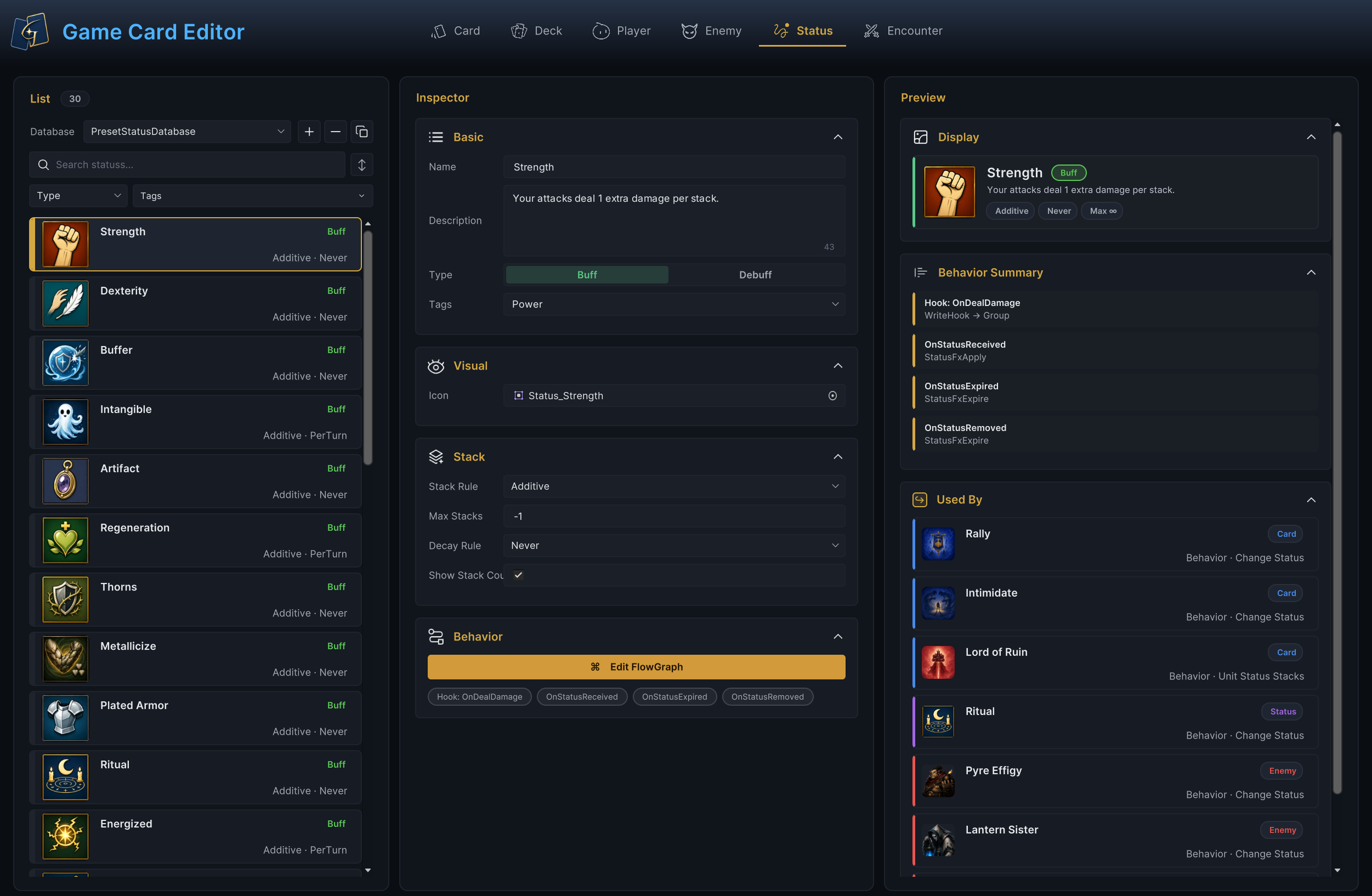
The image above places the Status List, Inspector, Preview, and Used By in one authoring path. The list selects the current GameStatus, the Inspector defines its player-facing identity, stack rules, and Behavior, and the right side checks the result and traces behavior-graph references. All four areas share the selected Strength asset, so once it is selected in List, its fields, behavior, preview, and references remain connected to the same data
Select the status to edit
Status mode lists only non-null statuses from the Status Databases enabled on the current GameCardManager. Each row shows the Icon, name, Buff or Debuff type, Stack Rule, and Decay Rule
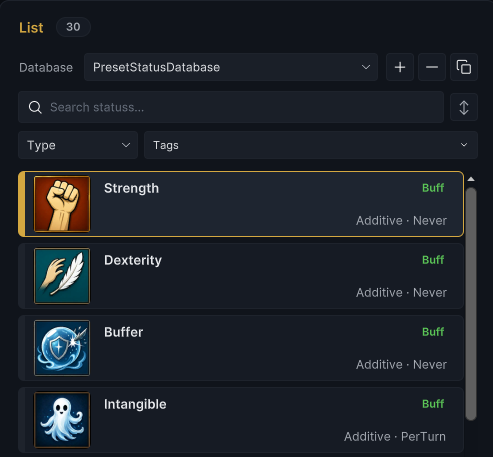
PresetStatusDatabase currently contains 30 bundled statuses: 15 Buffs and 15 Debuffs, with 14 using PerTurn and 16 using Never. All 29 statuses except Ritual display their stack count
The List also manages assets inside the current Status Database
List actions
| Action | How to use it and what happens |
|---|---|
| Select a database | Choose the target Status Database under Database. All subsequent creation, paste, and ordering operations affect that database |
| Create | + creates a sub-asset based on the name NewStatus. It defaults to Buff, Additive, Max Stacks = -1, Never, and a visible stack count. A Behavior is created without nodes or connections |
| Duplicate | Copies the current fields and Behavior into an independent asset |
| Delete | − deletes the selected status after confirmation. Existing behavior-graph references are neither protected nor migrated |
| Search and filter | Search reads the sub-asset name, Type filters Buffs or Debuffs, and Tags retains statuses that match any selected tag. Tag matching is case-sensitive |
| Sort and drag | The sort button cycles through database order, name ascending, and name descending. Dragging a row changes only its authored order in the database |
| Batch actions | Duplicate a multi-selection, add or remove Tags in bulk, delete in bulk, or use Ctrl/Cmd+C and Ctrl/Cmd+V to copy between active databases of the same type |
See Game Card Editor for window-level controls. Once Strength is selected, start by giving one stack a precise meaning
Configure status identity and numeric meaning
Basic
| Field | Configuration and responsibility |
|---|---|
| Name | The player-facing status name. A non-empty value also renames the sub-asset. When empty, List falls back to the sub-asset name, Display shows (unnamed), and Validation reports an error |
| Description | States what the status changes and whether one stack represents strength, duration, or a count. The text does not generate runtime rules |
| Type | Display classification as Buff or Debuff, also used by Filter nodes when filtering status collections. It does not determine whether the effect is beneficial or harmful |
| Tags | Used by List filters, Status Info, Filter nodes, and project-specific rules. Built-in unit targeting does not treat status Tags as unit Tags |
Set Name to Strength, keep the description Your attacks deal 1 extra damage per stack., choose Buff, and add the Power Tag
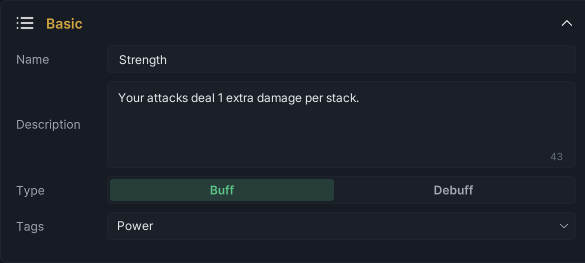
These fields establish that one stack of Strength adds 1 attack damage. The status still needs an Icon that players can identify
Visual
Icon appears in the Status List, Display preview, and the project's status badges. The bundled Demo also shows it in unit hover details
Choose the fist icon for Strength

Identity and icon determine what players see. Stack determines how another application of Strength merges, whether the value can grow without a cap, and when it decays
Configure stacking and decay
Set Stack Rule to Additive, Max Stacks to -1, Decay Rule to Never, and enable Show Stack Count
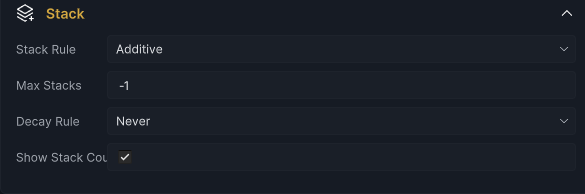
With these settings, every application adds to the existing value, the final stack count has no cap, and it does not decrease automatically at turn end. The badge number always matches the current damage bonus
| Setting | Runtime meaning |
|---|---|
Additive | Adds incoming stacks to the existing count |
Max | Keeps the larger of the existing and incoming counts |
Replace | Replaces the existing count with the incoming count |
Max Stacks | Only positive values cap the final count. 0 and negative values are both unlimited at runtime, but 0 produces an editor warning. Use -1 to state an unlimited count intentionally |
PerTurn | Removes 1 stack after the holder's own turn ends |
Never | Keeps the status until a behavior graph, GCSApi, or project logic changes it explicitly |
Show Stack Count | Controls whether the project's status badge displays a number without changing the actual count |
The same fields can express different stack semantics:
| Status | Stack Rule | Max Stacks | Decay Rule | Suitable result |
|---|---|---|---|---|
Stunned | Replace | 1 | PerTurn | A one-stack flag that remains at one when applied again |
Empower | Max | 1 | PerTurn | Keeps only a larger incoming value and disappears after the holder's turn |
Restricted | Additive | 3 | Never | Accumulates up to three stacks and remains until removed explicitly |
The current stack count of Strength now has a stable meaning. Its Behavior can read that runtime value and write it into the damage Hook
Author the status Behavior
The chips below Behavior list its top-level Entries. Strength currently shows Hook: OnDealDamage
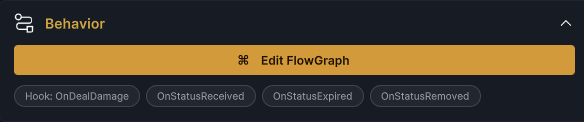
Click Edit FlowGraph to open the Strength behavior graph
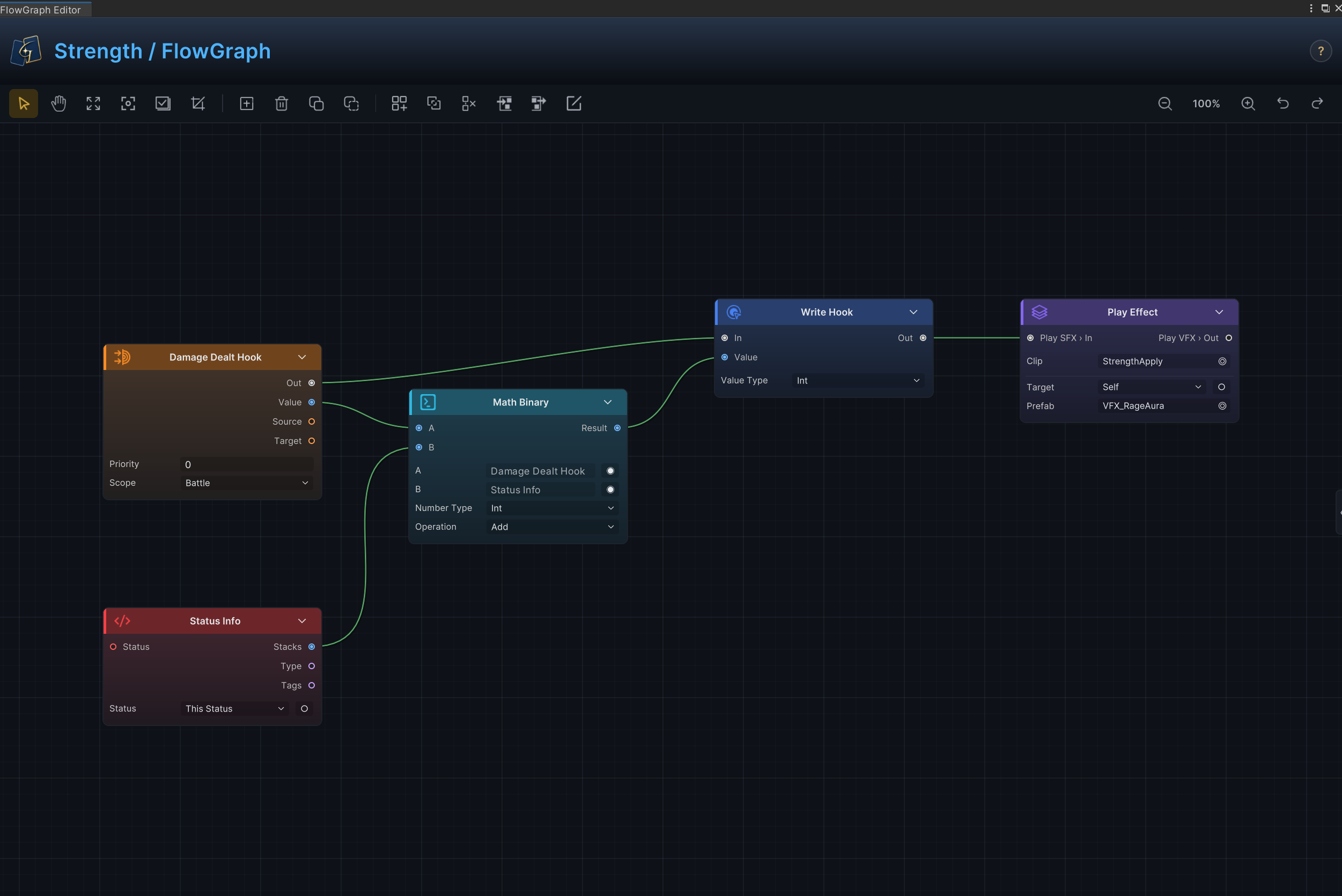
In the image above, the execution path reads the current damage from Damage Dealt Hook, gets the holder's Strength stacks through Status Info, adds the two values with Math Binary, and writes the result back into the damage chain through Write Hook. The final Play Effect provides presentation feedback for the bonus
This connection turns the Description's “1 extra damage per stack” into an executable rule. Max Stacks only caps the count; the actual calculation always reads the stacks currently held by the unit
A Behavior can contain turn entries, lifecycle entries, Hooks, and presentation nodes at the same time
It can also remain empty when a status does not need to respond to battle timings. An empty Behavior does not prevent the status from being saved, displayed, or stacked; it simply runs no turn or lifecycle rules of its own. These entries and nodes still follow the FlowGraph model. See Hook nodes and Get nodes for individual nodes, and status behavior recipes for reusable combinations
After finishing the graph, return to the Game Card Editor. Preview first checks the player-facing result, then confirms that its top-level entries appear in the summary
Inspect the status preview
Display information
Display shows the Icon, Name, Buff or Debuff type, Description, Stack Rule, Decay Rule, and Max Stacks
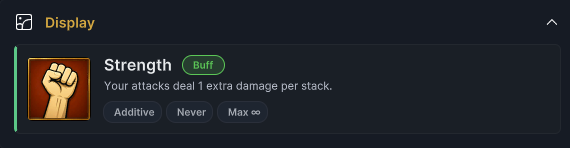
The icon, Strength name, Buff label, and Additive · Never · Max ∞ now match the fields above. Tags and Show Stack Count do not appear on this card, so enter Play Mode to verify whether the actual badge shows a number
Behavior Summary
Behavior Summary collects the Behavior's top-level EntryNode instances, then follows the first Out control connection from each entry for up to 8 nodes
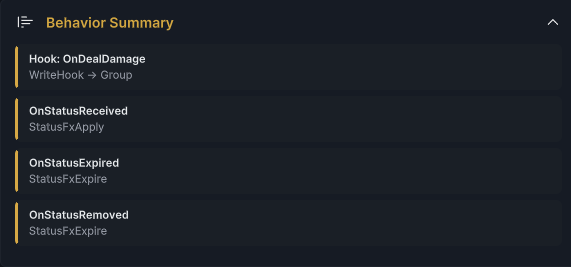
The four rows confirm that Strength has a damage Hook plus received, natural-expiration, and explicit-removal entries. The summary does not expand branches, traverse every Out connection, or prove that each path reaches an Action. Verify the complete structure in the FlowGraph Editor, then check the Issue Badge for the current Status Database
Resolve validation issues
Status mode scans every status in the selected Status Database, not only the open Strength asset
| Level | Trigger |
|---|---|
| Error | Name is empty |
| Warning | MaxStacks == 0 |
| Warning | Behavior is non-empty and FlowGraphValidator reports a structural issue |
The following boundaries are outside Validation and require a manual check
| Where to check | What Validation does not cover |
|---|---|
| Inspector and Display | Empty Description, Icon, or Tags; a Type that conflicts with the actual effect; Show Stack Count that conflicts with the meaning of its stacks |
| FlowGraph Editor | An empty Behavior, or entries and execution paths that do not implement the rule promised by the Description |
| Fields and Play Mode | MaxStacks < -1, or a mismatch between stack count, badge, and actual effect |
Click Ping on an Issue to locate its status, field, or FlowGraph. See authoring errors for common structural problems
Once the fields and behavior pass inspection, Used By reconnects Strength to the content assets that apply or read it
Inspect asset references
Used By scans the Card, Status, and Enemy Unit Databases enabled on the current GameCardManager, looking for direct references to the selected status in each asset's Behavior
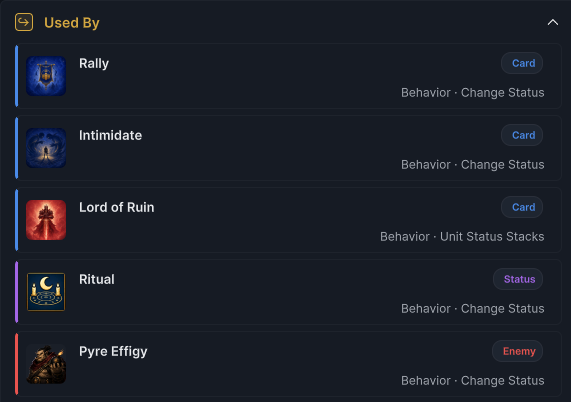
The visible area lists three cards, Ritual, and Pyre Effigy. Scrolling further also reveals Lantern Sister and Order Knight. The complete set of Strength references is:
| Asset | Type | First matching node |
|---|---|---|
Rally | Card | Change Status |
Intimidate | Card | Change Status |
Lord of Ruin | Card | Unit Status Stacks |
Ritual | Status | Change Status |
Pyre Effigy | Enemy | Change Status |
Lantern Sister | Enemy | Change Status |
Order Knight | Enemy | Change Status |
An asset appears once even when it references Strength multiple times, with its first matching node shown as context. Used By also scans Group Bodies recursively. Databases that are not enabled, other scenes, Prefabs, code, and GCSApi calls are outside its results
Click a result to switch to the corresponding Card, Status, or Enemy mode. See Action nodes for the target, mode, and value ports on Change Status
GameStatus stores the reusable definition. During battle, each unit records its own stack count and applier. See the status lifecycle for the complete order of stacking, removal, Hooks, events, and natural decay
Verify Poison in Play Mode
Strength uses Never and continuously modifies damage through a Hook. Poison instead uses Additive, unlimited stacks, and PerTurn; at the start of the holder's turn, it deals damage equal to the current stack count and ignores Armor
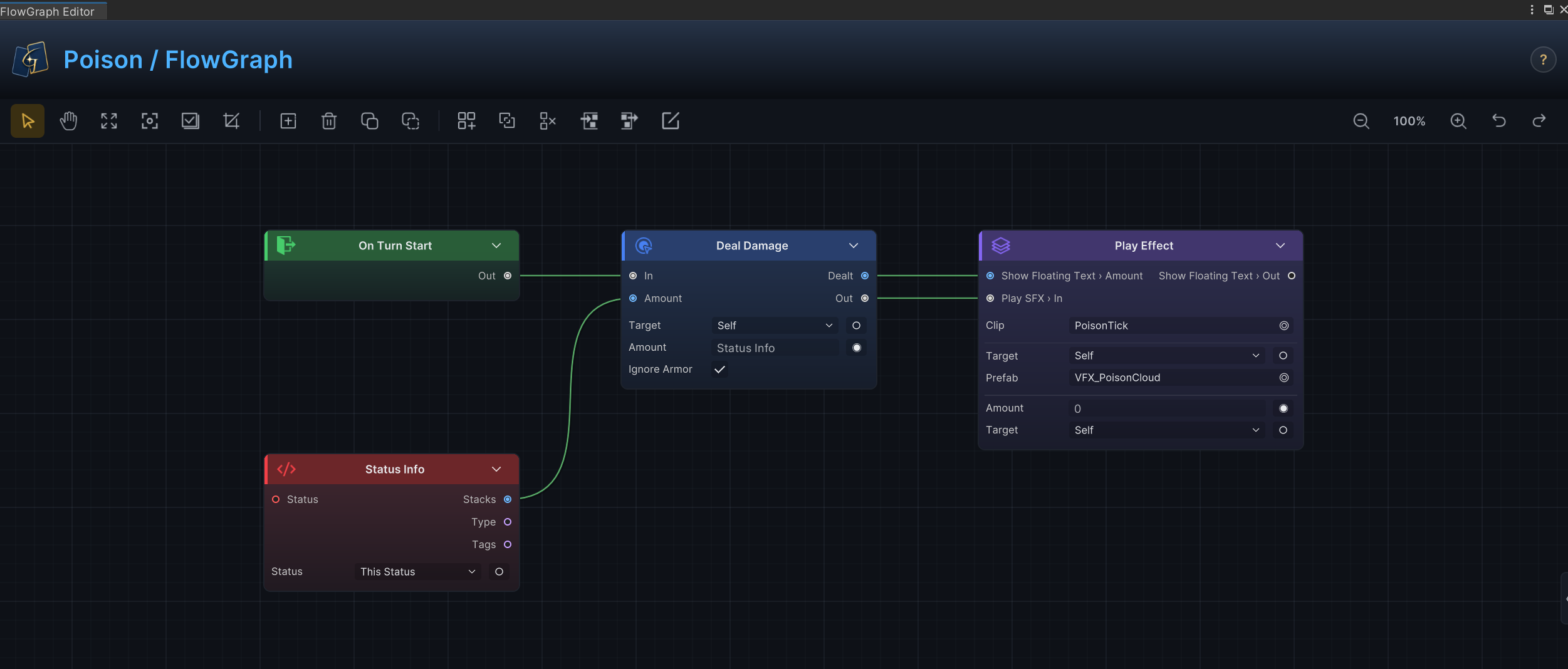
The execution path above enters through On Turn Start, passes the current Poison stack count from Status Info into the Deal Damage Amount, and enables Ignore Armor. The final Play Effect handles the floating number and poison presentation
There is no Action that reduces stacks in the graph because PerTurn automatically removes 1 stack after the holder's own turn. Player statuses decay after the player turn, while enemy statuses decay after that enemy finishes acting. See the status lifecycle for the full timing
When PerTurn naturally reaches 0, the status executes OnStatusExpired and sends the event of the same name. When RemoveStatus, a negative Delta, or Set explicitly reduces it to 0, the status instead executes and sends OnStatusRemoved. Every actual stack change sends OnStatusChanged
Open Single-Character/Hunter/1-Fenmoss Hollow.unity and hit Plague Stalker with Poison Arrow, the card deals 3 damage and applies 2 stacks of Poison
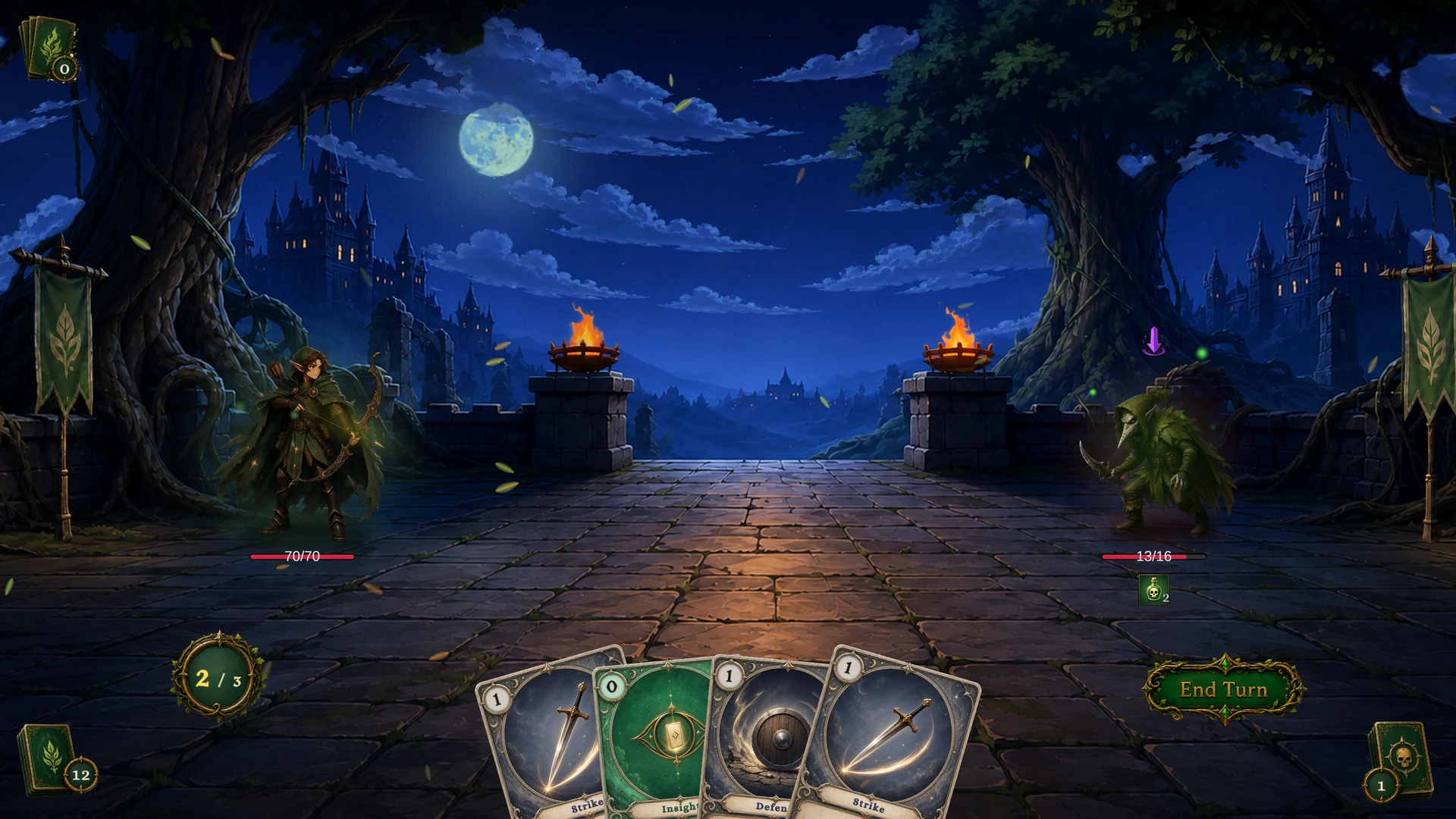
The 13/16 HP and two Poison stacks come from the same Poison Arrow resolution. End the player turn, and those stacks enter the On Turn Start path above when the enemy turn begins
After taking 2 damage that ignores Armor and completing its action, PerTurn reduces Poison from two stacks to one. Both results are visible when the second player turn begins
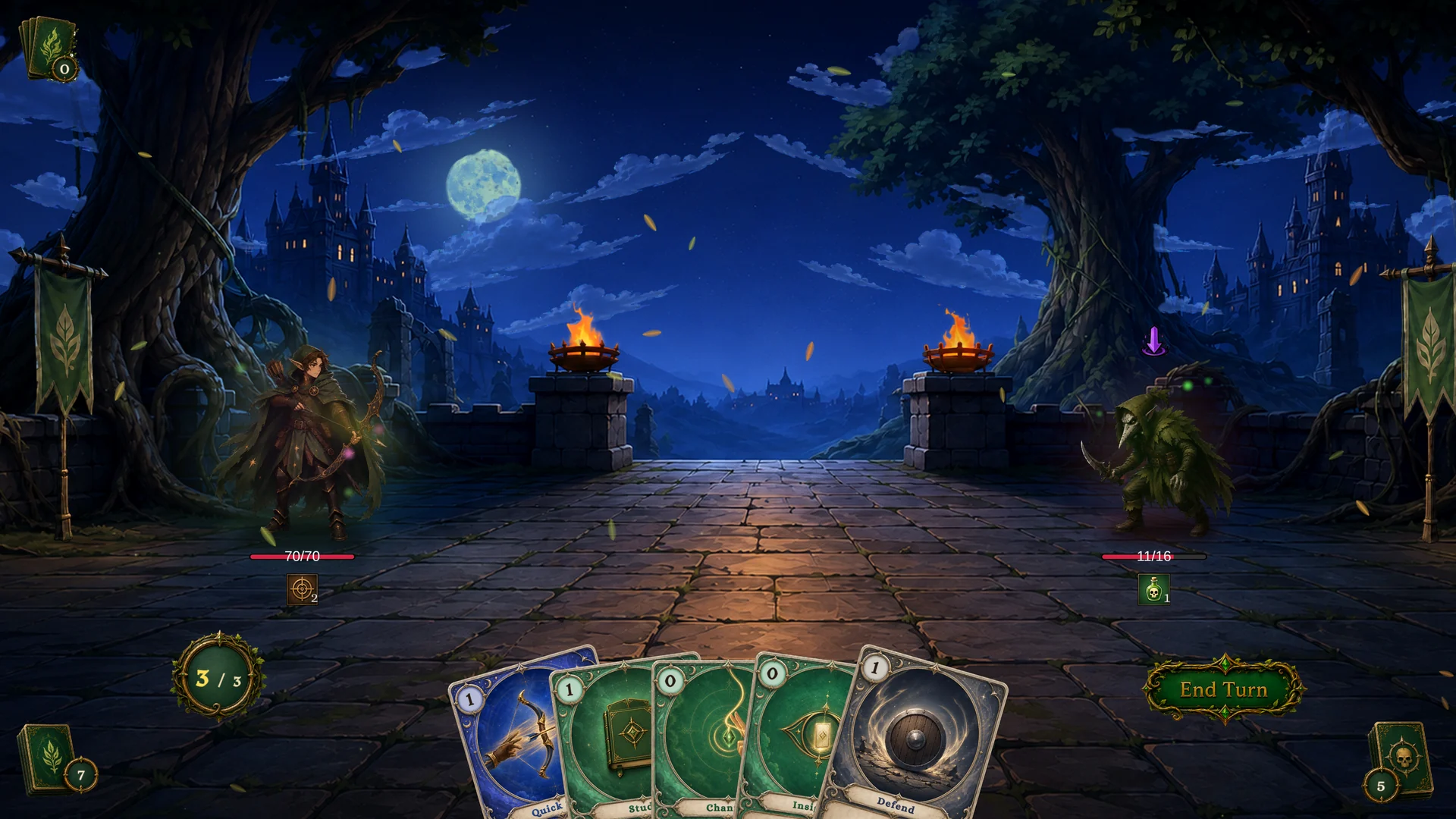
13/16 → 11/16 confirms that Poison dealt damage using its two-stack value, while 2 → 1 confirms that Decay Rule reduced the status after the same enemy turn. See your first battle for the complete procedure
The editor settings, FlowGraph, and Play Mode result now form one verifiable path. When project code needs to query stacks, apply or remove a status, or subscribe to its changes, use the GCSApi guide and event guide. With Strength and Poison connected to a live battle, the cards, deck, player, enemies, and statuses have all been verified. Switch to Encounter and use encounter authoring to assemble them into a battle that can start