Custom nodes
Learn how to create and use custom nodes, then implement project-specific FlowGraph nodes from the seven downloadable templates and complete examples
When the built-in nodes cannot fully express a project rule, you can follow the existing GCS node workflow and implement your gameplay logic as a custom node that works directly in FlowGraph
Choose one of the seven public base classes for the node's role, copy its template, and use the completed example to implement registration, ports, and execution, after Unity compiles, add the node from Add Node and save it in Behavior
Find the extension point by node category
Of the nine menu categories, Action, Event, Operator, Get, Flow, FX, and Intent can be extended through seven public base classes; Entry and Hook are driven by GCS lifecycle events and resolution points, so they do not expose general authoring base classes for project nodes:
| Add Node category | Responsibility in FlowGraph | Public extension base | Runtime entry point |
|---|---|---|---|
| Entry | Starts a Behavior after battle, turn, card, status, and unit events | No general extension | Registered and triggered by GCS |
| Hook | Enters a Hook path before a value or rule is committed | No general extension | Registered and triggered by the Hook system |
| Action | Changes HP, armor, energy, cards, statuses, variables, and units | MutatorNode | Execute(IExecutionContext) |
| Event | Publishes an event to GCS or GES | MutatorNode | Execute(IExecutionContext) |
| Operator | Calculates, compares, converts, and combines data | OperatorNode | Evaluate(IEvaluationContext, string) |
| Get | Reads data or selects unit and card references | SourceNode, SelectorNode | Evaluate(IEvaluationContext, string) |
| Flow | Organizes execution paths by condition | ControlNode | DecideNext(IExecutionContext) |
| FX | Requests prefab, audio, animation, camera, and UI presentation | VfxNode | Play(IExecutionContext) |
| Intent | Chooses the next intent for an Enemy | PatternNode | DecideNext(IExecutionContext) |
Groupis an editing structure that FlowGraph Editor uses to organize the canvas and reuse subgraphs; it is not a registrable runtime node family, and a menu Category is not the same thing as a base class[FlowNode("Event", ...)]can place aMutatorNodein the Event group, but it does not change the runtime contract that lets the node modify state throughExecute
Start project nodes only from MutatorNode, OperatorNode, SourceNode, SelectorNode, ControlNode, PatternNode, and VfxNode; do not inherit EffectFlowNode directly or treat Entry, Hook, or Group as custom node families
Start from the downloadable templates
Download GCS-Samples.zip and extract it outside Unity, the archive contains source and Assembly Definitions without .meta files and is not imported automatically with GCS, copy required templates or examples from Samples~ into a project runtime assembly under Assets/
GCS-Samples.zip
└── Samples~/
    └── CustomNodes/
        ├── Templates/
        │   ├── MutatorNodeTemplate.cs
        │   ├── OperatorNodeTemplate.cs
        │   ├── SourceNodeTemplate.cs
        │   ├── SelectorNodeTemplate.cs
        │   ├── ControlNodeTemplate.cs
        │   ├── PatternNodeTemplate.cs
        │   └── VfxNodeTemplate.cs
        └── Examples/
            ├── HealIfBelowHalfNode.cs
            ├── AddValuesNode.cs
            ├── UnitHealthNode.cs
            ├── LowestHealthUnitNode.cs
            ├── BranchByHealthNode.cs
            ├── PeriodicSpecialIntentNode.cs
            └── SpawnTargetEffectNode.cs
Templates/ provides one documented template per node family, and Examples/ provides one complete implementation per family
| Template | Matching example | Rule it is suited to express |
|---|---|---|
MutatorNodeTemplate.cs | HealIfBelowHalfNode.cs | Change battle state and publish the actual result |
OperatorNodeTemplate.cs | AddValuesNode.cs | Produce a calculated value for other nodes to pull |
SourceNodeTemplate.cs | UnitHealthNode.cs | Read objects and data from the context |
SelectorNodeTemplate.cs | LowestHealthUnitNode.cs | Return a unit or card reference from a candidate set |
ControlNodeTemplate.cs | BranchByHealthNode.cs | Select one or more execution branches by condition |
PatternNodeTemplate.cs | PeriodicSpecialIntentNode.cs | Select and advance a multi-turn intent pattern for an enemy |
VfxNodeTemplate.cs | SpawnTargetEffectNode.cs | Play presentation that does not affect rule resolution |
Choose the base class by runtime responsibility before copying the matching family template; do not copy MutatorNodeTemplate.cs and replace only its base class, because each family has a different override, control-port structure, evaluation timing, and state permission
Build a discoverable node class
After you copy a template into the project, its assembly, registration metadata, ports, and context together determine whether the node can be discovered, how it appears, and what logic it runs
Place it in a runtime assembly
The node assembly needs to reference only TinyGiants.GCS.Runtime, not TinyGiants.GCS.Editor; editor-only assemblies are excluded from player builds, so their nodes cannot execute at runtime
{
  "name": "YourGame.Cards",
  "references": [
    "TinyGiants.GCS.Runtime"
  ]
}
If the project scripts already belong to a runtime Assembly Definition, add the reference to that assembly; a project that does not use Assembly Definitions can place the node in a normal runtime script directory
Register a concrete node
The node class must be serializable, discoverable, and executable
using System;
using TinyGiants.GCS.Runtime;

namespace YourGame.Cards
{
    [Serializable]
    [FlowNode("Action", "Restore Armor")]
    public sealed class RestoreArmorNode : MutatorNode
    {
        public override void Execute(IExecutionContext ctx)
        {
        }
    }
}
[Serializable] lets Unity save the node instance in a Behavior; [FlowNode(category, displayName)] provides the Add Node group and node title; FlowNodeRegistry automatically discovers public, concrete subclasses of the seven base classes, so no manual registration call is needed
Class names, field names, and port names all become part of saved Behaviors; do not rename them after a node enters use, and preserve old fields, add a migration, or publish a new node type when the public contract must change
Turn fields into input ports
Public instance fields follow fixed inference rules; a node implements INodePorts only when inference cannot express an output or branch
| Field or declaration | Generated port |
|---|---|
public int Amount | Amount integer input |
public float Scale | Scale float input |
public bool Enabled | Enabled Boolean input |
public string Key | Key text input |
public UnitSource TargetSource | Target unit input |
public CardSource CardSource | Card card input |
NodePort.ResultOut(...) | Explicit data output |
NodePort.ControlOut(...) | Explicit control branch |
A value connected to a port must be read through ctx.PullInputOr(this, nameof(Field), Field); reading the field directly returns only the Inspector fallback value; unit and card references must likewise be resolved through ResolveUnit, ResolveUnits, ResolveCard, or ResolveCards; see custom ports for the complete declaration model
Use the context for each family
IEvaluationContext provides only read and evaluation capabilities for Operator, Source, and Selector; IExecutionContext adds Controller access, result storage, variables, Hooks, and the execution host for Mutator, Control, Pattern, and VFX
Route all state changes through ctx.Controller and publish all results through ctx.StoreResult; presentation nodes may read the model and find Views, but damage, healing, status changes, and turn advancement do not belong in Play; see execution context for context members and failure conventions
Seven complete implementations
The following code preserves the fields, ports, boundary handling, and execution logic from Examples/, omitting only the XML comments from the included files
- Mutator
- Operator
- Source
- Selector
- Control
- Pattern
- VFX
HealIfBelowHalfNode reads the target, heal amount, and filter condition; heals living units through the Controller; and writes the actual HP restored after the maximum-HP cap to Healed
A Mutator may change rule state but must not write UnitState fields directly; every early-return path must also account for whether downstream nodes will still read its result
using System;
using System.Collections.Generic;
using TinyGiants.GCS.Runtime;

namespace TinyGiants.GCS.Samples
{
    [Serializable]
    [FlowNode("Action", "Heal If Below Half")]
    public sealed class HealIfBelowHalfNode : MutatorNode, INodePorts
    {
        private const string HealedPort = "Healed";

        public UnitSource TargetSource = UnitSource.Self;
        public int HealAmount = 5;
        public bool OnlyBelowHalf = true;

        public IEnumerable<NodePort> DeclarePorts()
        {
            yield return NodePort.ResultOut(HealedPort, PortDataType.Int);
        }

        public override void Execute(IExecutionContext ctx)
        {
            int amount = ctx.PullInputOr(this, nameof(HealAmount), HealAmount);
            bool onlyBelowHalf = ctx.PullInputOr(this, nameof(OnlyBelowHalf), OnlyBelowHalf);
            int healed = 0;

            if (amount > 0)
            {
                foreach (var target in ctx.ResolveUnits(this, TargetSource, nameof(TargetSource)))
                {
                    if (target == null || target.IsDead) continue;
                    if (onlyBelowHalf && target.CurrentHp * 2 > target.MaxHp) continue;

                    int before = target.CurrentHp;
                    ctx.Controller.GainHp(target, amount);
                    healed += target.CurrentHp - before;
                }
            }

            ctx.StoreResult(this, HealedPort, healed);
        }
    }
}
AddValuesNode adds two connectable integers; the fields store fallback values for unconnected ports, while Evaluate only returns the calculation and does not change variables, battle objects, or presentation state
An Operator is evaluated when a downstream node pulls its result; an implementation with multiple outputs must return the matching type for each outPort, and edge cases such as division by zero, parsing failures, and overflow belong in the same pure calculation method
using System;
using System.Collections.Generic;
using TinyGiants.GCS.Runtime;

namespace TinyGiants.GCS.Samples
{
    [Serializable]
    [FlowNode("Operator", "Add Values")]
    public sealed class AddValuesNode : OperatorNode, INodePorts
    {
        private const string ResultPort = "Result";

        public int A;
        public int B;

        public IEnumerable<NodePort> DeclarePorts()
        {
            yield return NodePort.ResultOut(ResultPort, PortDataType.Int);
        }

        public override object Evaluate(IEvaluationContext ctx, string outPort)
            => ctx.PullInputOr(this, nameof(A), A) +
               ctx.PullInputOr(this, nameof(B), B);
    }
}
UnitHealthNode exposes current HP, maximum HP, missing HP, and percentage from one target, with four explicit outputs sharing the same read-only data source
A Source is cached within one evaluation cycle, so Evaluate must be repeatable and free of side effects; when the target is missing, every output must still return a fallback of the correct type
using System;
using System.Collections.Generic;
using TinyGiants.GCS.Runtime;

namespace TinyGiants.GCS.Samples
{
    [Serializable]
    [FlowNode("Get", "Unit Health")]
    public sealed class UnitHealthNode : SourceNode, INodePorts
    {
        private const string CurrentPort = "Current";
        private const string MaximumPort = "Maximum";
        private const string MissingPort = "Missing";
        private const string PercentPort = "Percent";

        public UnitSource TargetSource = UnitSource.Self;

        public IEnumerable<NodePort> DeclarePorts()
        {
            yield return NodePort.ResultOut(CurrentPort, PortDataType.Int);
            yield return NodePort.ResultOut(MaximumPort, PortDataType.Int);
            yield return NodePort.ResultOut(MissingPort, PortDataType.Int);
            yield return NodePort.ResultOut(PercentPort, PortDataType.Int);
        }

        public override object Evaluate(IEvaluationContext ctx, string outPort)
        {
            var target = ctx.ResolveUnit(this, TargetSource, nameof(TargetSource));
            if (target == null) return 0;

            switch (outPort)
            {
                case MaximumPort:
                    return target.MaxHp;
                case MissingPort:
                    return Math.Max(0, target.MaxHp - target.CurrentHp);
                case PercentPort:
                    return target.HpPercent;
                default:
                    return target.CurrentHp;
            }
        }
    }
}
LowestHealthUnitNode skips null references and dead units in a candidate set, then returns the living unit with the lowest current HP; when HP is tied, source order remains the stable tiebreaker
A Selector only returns a reference and does not apply an effect to the selected object; when no candidate is eligible, return null and let downstream nodes decide whether to skip, fall back, or take another path
using System;
using System.Collections.Generic;
using TinyGiants.GCS.Runtime;

namespace TinyGiants.GCS.Samples
{
    [Serializable]
    [FlowNode("Get", "Lowest Health Unit")]
    public sealed class LowestHealthUnitNode : SelectorNode, INodePorts
    {
        private const string UnitPort = "Unit";

        public UnitSource CandidatesSource = UnitSource.AllOpponents;

        public IEnumerable<NodePort> DeclarePorts()
        {
            yield return NodePort.ResultOut(UnitPort, PortDataType.UnitRef);
        }

        public override object Evaluate(IEvaluationContext ctx, string outPort)
        {
            UnitState selected = null;

            foreach (var candidate in ctx.ResolveUnits(
                this,
                CandidatesSource,
                nameof(CandidatesSource)))
            {
                if (candidate == null || candidate.IsDead) continue;
                if (selected == null || candidate.CurrentHp < selected.CurrentHp)
                    selected = candidate;
            }

            return selected;
        }
    }
}
BranchByHealthNode routes a resolved unit to one of three control outputs: at or below the threshold, above the threshold, or missing; a missing target is not misclassified as a zero-HP unit
The executor follows every name returned by a Control node; an exclusive condition returns one branch, while a node returns multiple declared names only when it must advance several paths in parallel
using System;
using System.Collections.Generic;
using TinyGiants.GCS.Runtime;

namespace TinyGiants.GCS.Samples
{
    [Serializable]
    [FlowNode("Flow", "Branch By Health")]
    public sealed class BranchByHealthNode : ControlNode, INodePorts
    {
        private const string AtOrBelowBranch = "At Or Below";
        private const string AboveBranch = "Above";
        private const string MissingBranch = "Missing";

        public UnitSource TargetSource = UnitSource.Self;
        public int ThresholdPercent = 50;

        public IEnumerable<NodePort> DeclarePorts()
        {
            yield return NodePort.ControlOut(AtOrBelowBranch);
            yield return NodePort.ControlOut(AboveBranch);
            yield return NodePort.ControlOut(MissingBranch);
        }

        public override IEnumerable<string> DecideNext(IExecutionContext ctx)
        {
            var target = ctx.ResolveUnit(this, TargetSource, nameof(TargetSource));
            if (target == null)
            {
                yield return MissingBranch;
                yield break;
            }

            int threshold = ctx.PullInputOr(
                this,
                nameof(ThresholdPercent),
                ThresholdPercent);

            threshold = Math.Max(0, Math.Min(100, threshold));
            bool atOrBelow = target.MaxHp <= 0 ||
                (long)target.CurrentHp * 100 <= (long)target.MaxHp * threshold;

            yield return atOrBelow ? AtOrBelowBranch : AboveBranch;
        }
    }
}
PeriodicSpecialIntentNode repeatedly selects a regular intent for an enemy, then switches to the special intent when the count reaches its interval; NodeId keeps progress separate for each enemy and node instance
Only a custom Pattern knows what its counter means, so it must advance PatternRuntimeState itself; do not store the count in a battle variable without enemy scope, or several enemies will share the same progress
using System;
using System.Collections.Generic;
using TinyGiants.GCS.Runtime;

namespace TinyGiants.GCS.Samples
{
    [Serializable]
    [FlowNode("Intent", "Periodic Special Intent")]
    public sealed class PeriodicSpecialIntentNode : PatternNode, INodePorts
    {
        private const string RegularBranch = "Regular";
        private const string SpecialBranch = "Special";

        public int Interval = 3;

        public IEnumerable<NodePort> DeclarePorts()
        {
            yield return NodePort.ControlOut(RegularBranch);
            yield return NodePort.ControlOut(SpecialBranch);
        }

        public override string DecideNext(IExecutionContext ctx)
        {
            var enemy = ctx.Host as EnemyUnitState;
            var state = enemy?.GetOrCreatePatternState(NodeId);
            if (state == null) return RegularBranch;

            int interval = ctx.PullInputOr(this, nameof(Interval), Interval);
            interval = Math.Max(1, interval);

            state.TurnCounter++;
            if (state.TurnCounter < interval) return RegularBranch;

            state.TurnCounter = 0;
            return SpecialBranch;
        }
    }
}
SpawnTargetEffectNode finds an optional UnitView for the target, spawns a prefab at an offset position, optionally parents it to the target Transform according to the input, and cleans up the instance after the specified time
Tests, previews, initialization, and teardown can all run without a View; VFX must safely skip missing presentation objects, and gameplay results must never depend on whether a prefab was spawned
using System;
using TinyGiants.GCS.Runtime;
using UnityEngine;

namespace TinyGiants.GCS.Samples
{
    [Serializable]
    [FlowNode("FX", "Spawn Target Effect")]
    public sealed class SpawnTargetEffectNode : VfxNode
    {
        public UnitSource TargetSource = UnitSource.Opponent;
        public GameObject Prefab;
        public Vector3 Offset;
        public float Lifetime = 2f;
        public bool ParentToTarget;

        public override void Play(IExecutionContext ctx)
        {
            if (Prefab == null) return;

            var target = ctx.ResolveUnit(this, TargetSource, nameof(TargetSource));
            if (target == null ||
                !UnitView.TryGet(target.UnitId, out var view) ||
                view == null)
                return;

            float lifetime = ctx.PullInputOr(this, nameof(Lifetime), Lifetime);
            bool parentToTarget = ctx.PullInputOr(
                this,
                nameof(ParentToTarget),
                ParentToTarget);

            var instance = UnityEngine.Object.Instantiate(
                Prefab,
                view.transform.position + Offset,
                Quaternion.identity);

            if (parentToTarget)
                instance.transform.SetParent(view.transform, worldPositionStays: true);

            UnityEngine.Object.Destroy(instance, Mathf.Max(0f, lifetime));
        }
    }
}
When replacing fields and method bodies from an example, preserve the permission boundary of the chosen base class; compare built-in node fields, ports, and trigger timing in the node library
Turn a template into a project node
- Copy the file from
Templates/whose responsibility matches the goal into a project runtime assembly - Change
namespace YourGame.Cardsto the project namespace - Rename the file and class together, keeping one public node type per file
- Change
[FlowNode(category, displayName)], reusing an existing menu group for Category or choosing a stable project-specific group - Replace the template fields with project fields, without redeclaring inputs that field inference can provide
- Keep only result outputs, named inputs, dropdown choices, and control branches in
DeclarePorts() - Implement
Execute,Evaluate,DecideNext, orPlayfor the base class - Define behavior for invalid values, null targets, dead units, missing Views, and empty candidate sets
- Keep class names, field names, port names, and port types stable after a Behavior starts using the node
When a node needs higher-level battle control, queries, or event subscriptions, use GCSApi as the public entry point; do not create a parallel interface from editor assemblies or internal managers
Verify the node in FlowGraph
Wait for Unity to finish compiling with no C# errors in the Console; open a compatible Card, Status, or Enemy Behavior in FlowGraph Editor, then search Create Node for the [FlowNode] Display Name; the node should appear under its Category with inferred inputs and explicit outputs
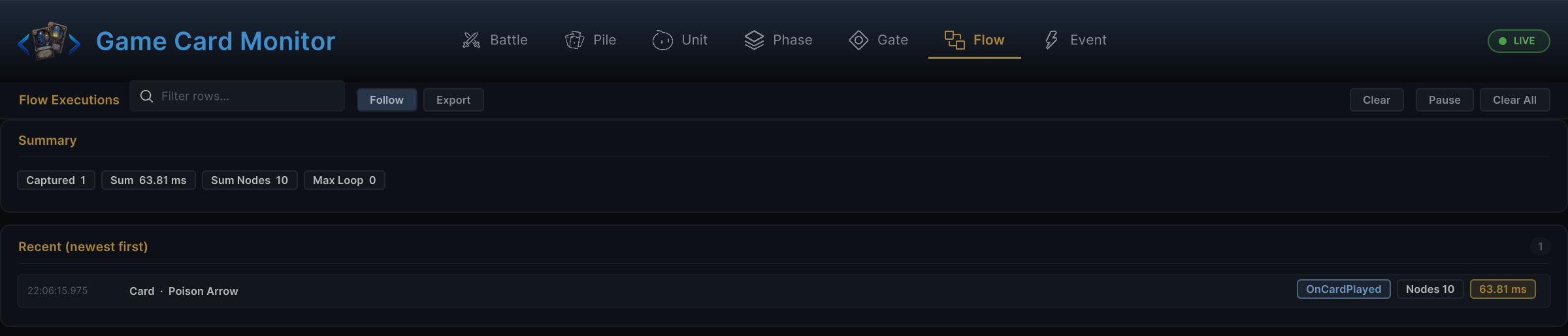
Connect its control and data ports, run the card, status, or enemy that owns the Behavior, then open the Flow tab in Monitor; a new record should show the trigger, total node count, and execution time
Troubleshoot common problems
| Symptom | Where to check | Fix |
|---|---|---|
| Node is missing from Add Node | Assembly, class, and attributes | Place it in a runtime assembly, confirm the class is public and concrete, and keep [Serializable] and [FlowNode] |
| Code fails to compile after changing the base class | Override and port structure | Copy the target family template again instead of replacing only the base-class name |
| Connected value is ignored | Scalar field read | Use ctx.PullInputOr(this, nameof(Field), Field) |
| Connected target is ignored | Unit or card resolution | Use the ResolveUnit(s) or ResolveCard(s) method that matches the field |
| Output cannot be connected | INodePorts.DeclarePorts() | Declare a result output or control branch with the correct PortDataType |
| Downstream node cannot read a Mutator result | Declared and stored names | Use one constant for both ResultOut and StoreResult |
| State change does not trigger events or Hooks | Mutator method body | Change battle state through ctx.Controller |
| Several enemies share Pattern progress | Pattern state location | Use GetOrCreatePatternState(NodeId) on the host enemy |
| VFX affects gameplay results | VfxNode.Play | Move rule changes into a separate Mutator and treat a missing View as a safe skip |
| Connections in a saved Behavior are lost | Renamed class, field, or port | Restore the old name, add a migration, or publish a new node type |