FlowGraph Editor
Use FlowGraph to connect trigger timing, battle resolution, data calculations, and presentation requests, then inspect the complete Behavior on one canvas
Behavior on a Card, Status, or Enemy defines its trigger timing, resolution, and final feedback in battle. All three content types share the same FlowGraph canvas, nodes, connections, and Group organization. They differ only in available Entries and owner context.
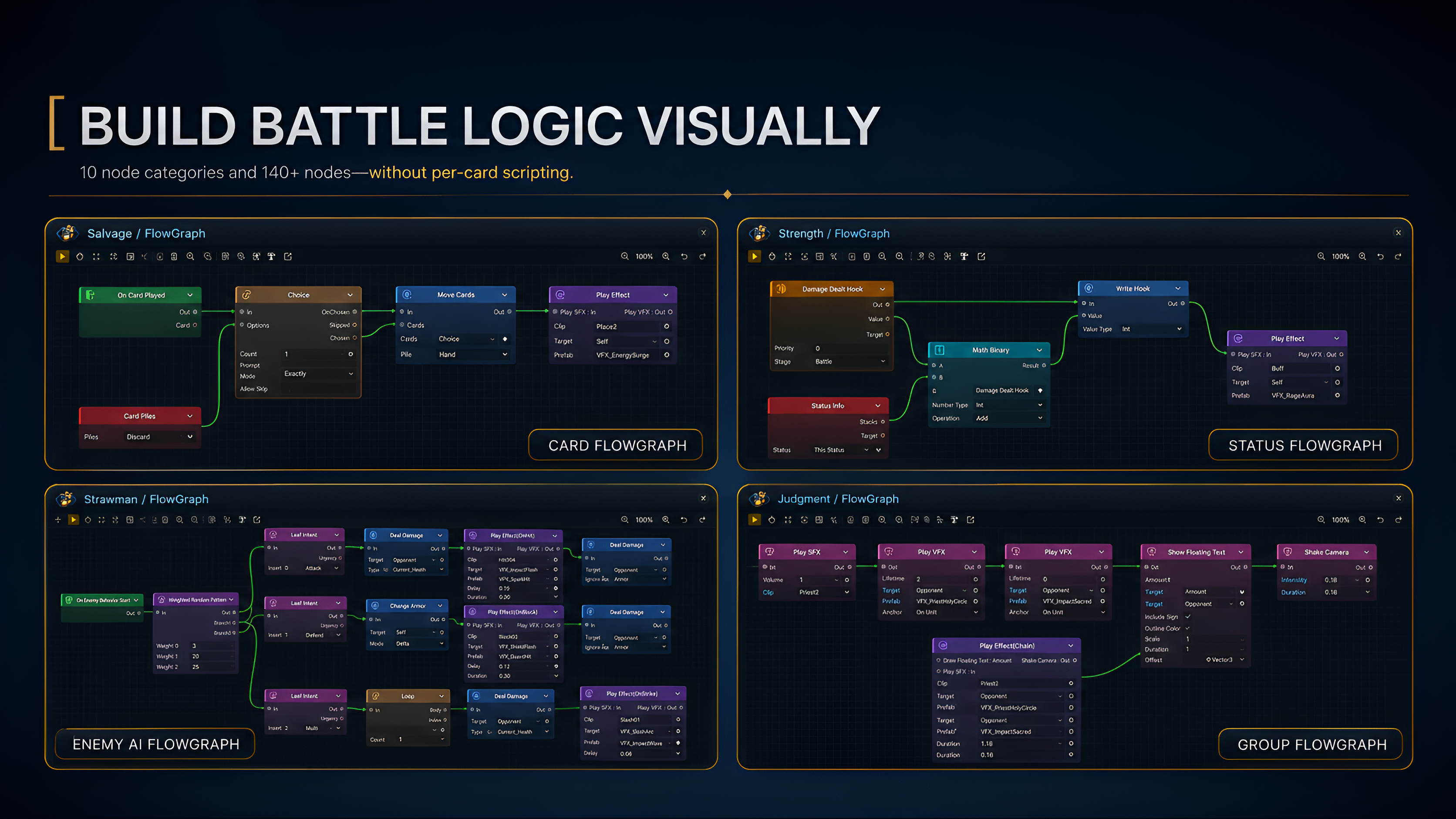
The image above places Card, Status, Enemy, and Group canvases in the same editing system. Node colors distinguish categories, control lines connect execution order, data lines pass targets and resolved values, and Groups place stable local flows into subgraphs. These relationships are the foundation for authoring and inspecting Behaviors.
Select the Card, Status, or Enemy to edit in Game Card Editor. The Behavior area shows its current summary and provides the Edit FlowGraph entry. Card and Status summaries list Entries in the root graph. Enemy summaries report Patterns, LeafIntents, and Actions.
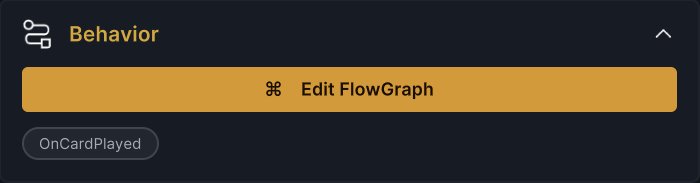
OnCardPlayed above is an Entry in the current Card root graph. Click Edit FlowGraph to open the behavior graph stored on that card. Every graph always belongs to one Card, Status, or Enemy.
Read a complete behavior chain
Open the included Poison Arrow card to see its complete path from card play through resolution and presentation feedback.
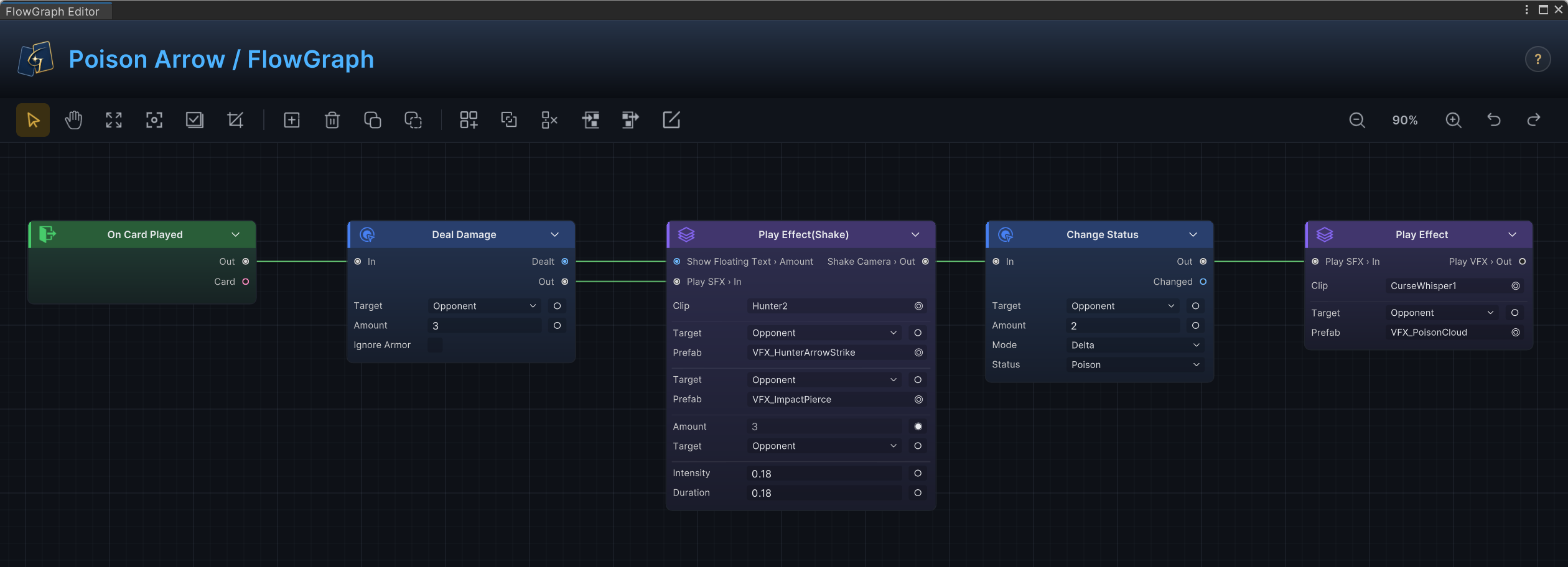
The graph above begins at On Card Played on the left and connects Deal Damage, Play Effect, Change Status, and a second Play Effect in order. Control connections define the actual execution sequence, while Deal Damage.Dealt supplies the real damage to floating text. Four kinds of information form a behavior graph.
| Canvas element | Responsibility | Role in Poison Arrow |
|---|---|---|
Entry | Starts behavior at a specific battle, turn, card, status, or event timing | On Card Played starts behavior after the card is played successfully |
| Control connection | Defines node execution order | Deals damage first, then presents feedback and applies the status |
| Data connection | Passes runtime objects and results to downstream nodes | Sends actual damage to the Amount input of floating text |
| Node field | Stores an authored value that does not change during this execution | Damage amount, status reference, and presentation type |
All four are connected and configured on the canvas. The header and toolbar locate assets, organize the canvas, and expose Issues. The reference drawer on the right explains the selected node's inputs, outputs, and fields. See FlowGraph basics for control flow, data flow, context, and evaluation rules.
Build the first executable path from an Entry
Double-click an empty area of the canvas, right-click and choose Create Node, or click the create button in the toolbar to open the Add Node menu. Search text filters by node display name, while category browsing shows the node families available to the current owner.
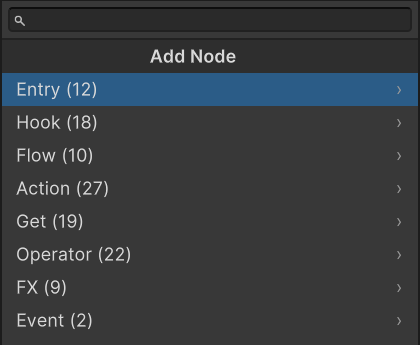
The image shows the Add Node menu for a Card Behavior. The eight categories below the search field are the families available to the current Card. Card and Status can use Hook; Enemy replaces Hook with Intent. Across all three owner types, the built-in node families are:
| Node family | Work performed in a behavior graph |
|---|---|
Entry | Starts behavior at battle, turn, card, status, damage, energy, event, or unit timing |
Hook | Starts a Hook path before GCS commits a result and outputs the current value |
Flow | Organizes execution with Sequence, Branch, Switch, Gate, Loop, While, Foreach, Wait, Choice, and Delayed Trigger |
Action | Changes battle state such as HP, armor, energy, cards, statuses, turns, variables, or units |
Get | Reads the current unit, target, card information, piles, event parameters, or variables |
Operator | Compares, calculates, filters, sorts, selects, converts, randomizes, or combines data |
FX | Requests VFX, SFX, animation, floating text, camera shake, slide, or flash feedback |
Intent | Selects and previews an Enemy's next action, then executes its behavior node chain |
Event | Raises a GCS internal event or an optional GES event |
Choose the correct node order
-
Normal Entry nodes and Hook paths can connect directly to Actions that change battle state, with the exception of Enemy
On Enemy Behavior Start. -
Enemy
On Enemy Behavior Startmust enter a Pattern orLeaf Intentfirst. After aLeaf Intentis selected, connect Actions and FX from itsOut. -
When dynamic calculation is required, connect Get and Operator before the Action. When visual or audio feedback is required, connect FX after resolution.
-
Hook nodes only start a path before a result is committed and provide the current value. To modify or cancel the result, continue to
Write HookorCancel Hookin the Action category.
Canvas operations
| Operation | Result |
|---|---|
| Drag from an output to an input | Creates a control or data connection |
| Start dragging from a connected input | Picks up the existing connection and reconnects it |
Click a connection and press Delete | Removes the current connection |
| Drag a node | Moves the node and shows alignment guides near adjacent nodes |
| Double-click a node title | Changes the display name of this node in the current graph |
| Click the fold arrow beside the title | Collapses or expands node fields |
Hold Shift and click or drag an empty area | Extends the selection or marquee-selects multiple nodes |
Port connection rules
-
A control output connects to only one next step, while a control input can merge several paths.
-
A data output can be read by several nodes, while a data input accepts only one source.
-
When port types are incompatible, the connection appears red with a warning. Hover it to see the reason. Invalid connections between normal nodes also enter Issues in the upper-right corner.
-
Fix Group boundary connections directly from the canvas warning.
Combine control and data paths
Rapid Fire shows how control and data paths cooperate in one graph.
-
One control path runs from
On Card PlayedintoLoop, executingDeal DamageandPlay Effecton every iteration. -
All OpponentsandRandom Elementssupply the random target used by both damage and floating text
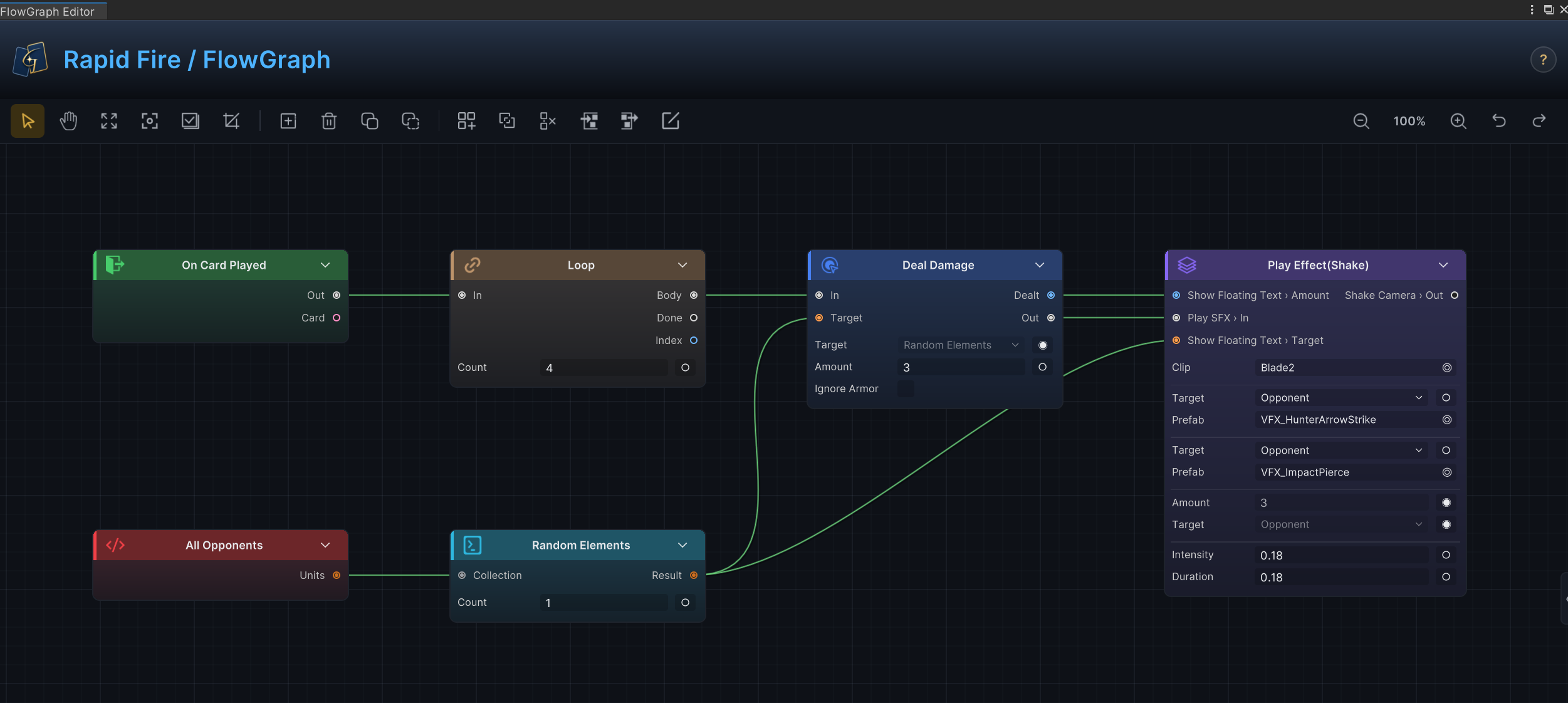
The Selector above is evaluated again on every data read, so the two reads can return different targets. To keep damage and presentation on the same unit, use Pick Element inside the loop body to resolve one unit, store it with Set Variable, then have both downstream nodes read the same Variable. See Card behavior recipes for common card-play, draw, discard, exhaust, choice, and delayed-trigger combinations.
Switch between fixed fields and input ports
Node fields store fixed authored values. Input ports receive dynamic values determined only during the current execution. In the image below, Deal Damage keeps Amount = 3 as a fixed field; when armor, status stacks, or another calculation must determine the damage, click ◉ or ○ on the right side of the field to switch it to an input port.
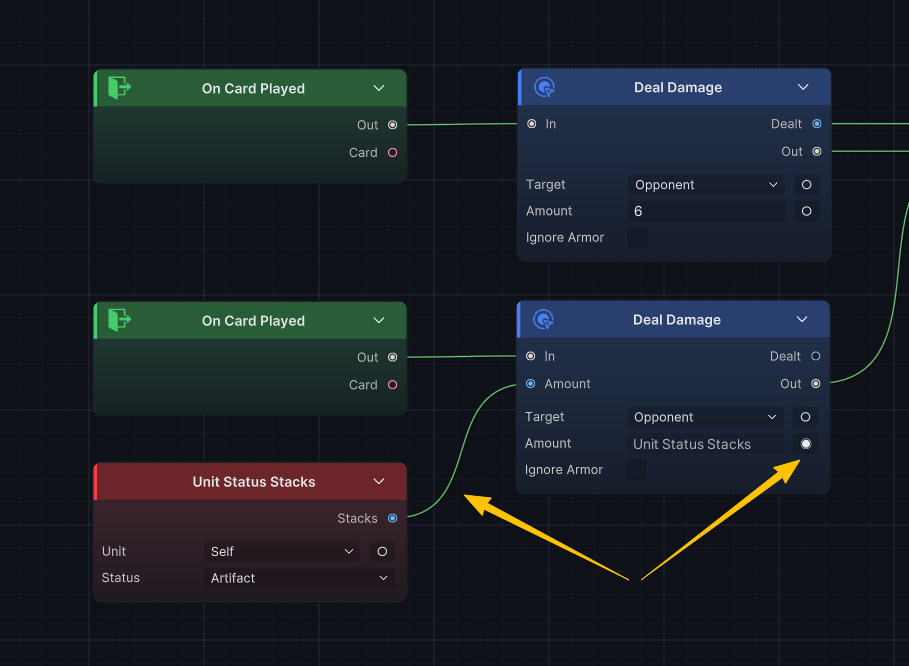
Only fields that support dynamic input show this control. After a fixed field becomes a port, the runtime value supplied by its connection overrides the authored value stored on the node.
Node cards also support these local organization operations:
| Operation | Use |
|---|---|
| Double-click a field label | Sets a field name shown only in the current graph |
| Double-click a normal node port name | Changes the port display label. Fixed In, Out, and Group boundary ports do not change |
| Drag a normal node port name up or down | Reorders ports on the same side to reduce crossing data lines |
| Edit a count field | Adds or removes dynamic ports such as Branch, Case, or Step |
| Read a result output | Passes the actual resolved result of an Action to later nodes |
The two nodes below use the same Deal Damage runtime type. The left node keeps the default title and port order. The right node is renamed to Status-Scaled Damage, gives Target, Amount, and Dealt graph-specific labels, and moves the input ports into an order that better matches this rule
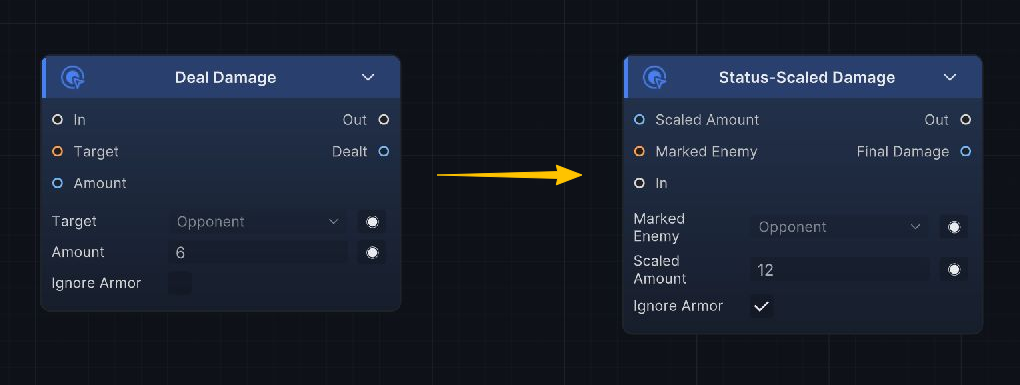
These edits change how the current graph communicates its rule without replacing the underlying node type or changing its execution
-
Deal Damage.Amountis the requested damage input, whileDeal Damage.Dealtis the actual result after armor, statuses, and Hooks. -
Floating damage text and later conditions should read
Dealt. ReusingAmountdirectly ignores changes that occurred during resolution.
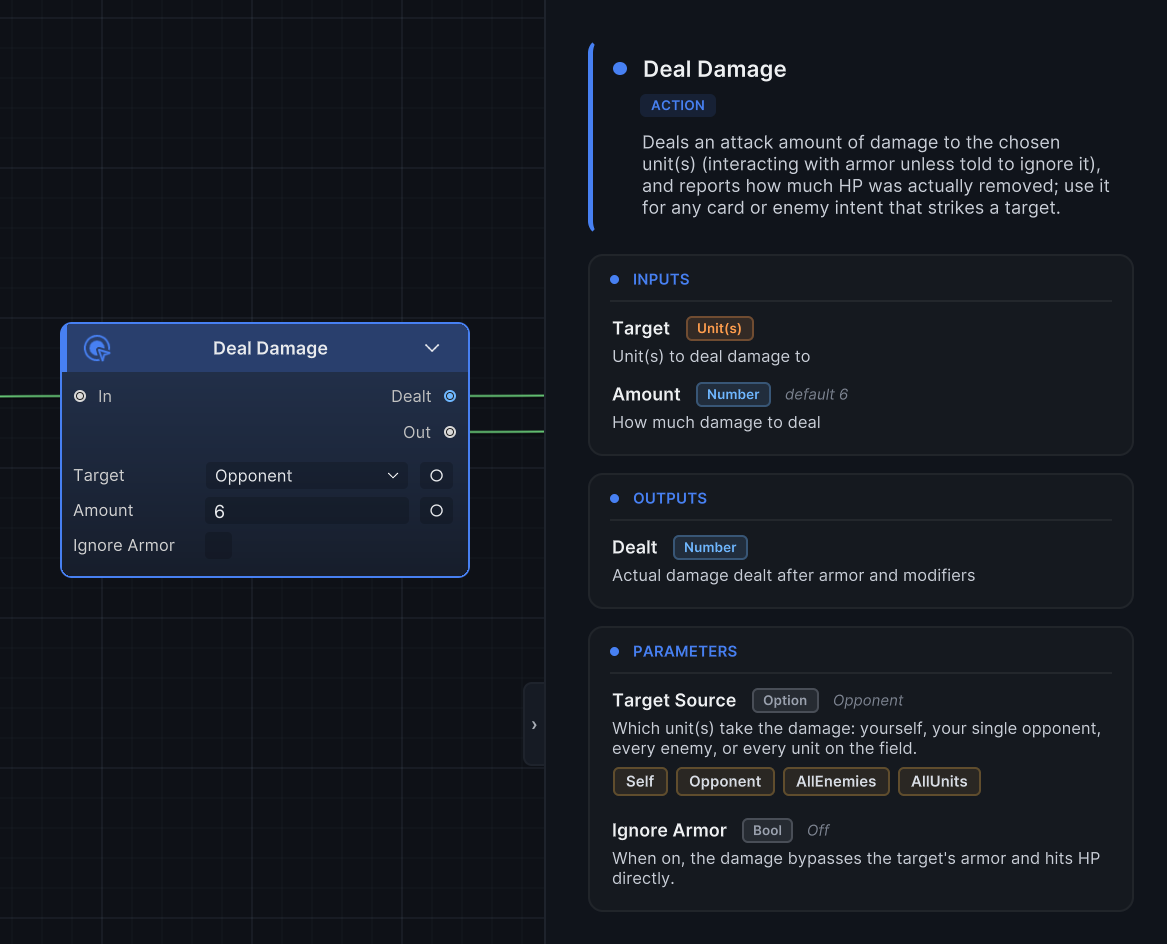
Press Tab to open the node reference drawer on the right. Select a node to inspect its purpose, inputs, outputs, fields, and related execution timing.
Organize the canvas with navigation and Groups
As the node count grows, use focus and zoom to control the visible range, then move stable local flows into Groups so the main control path remains readable from left to right.

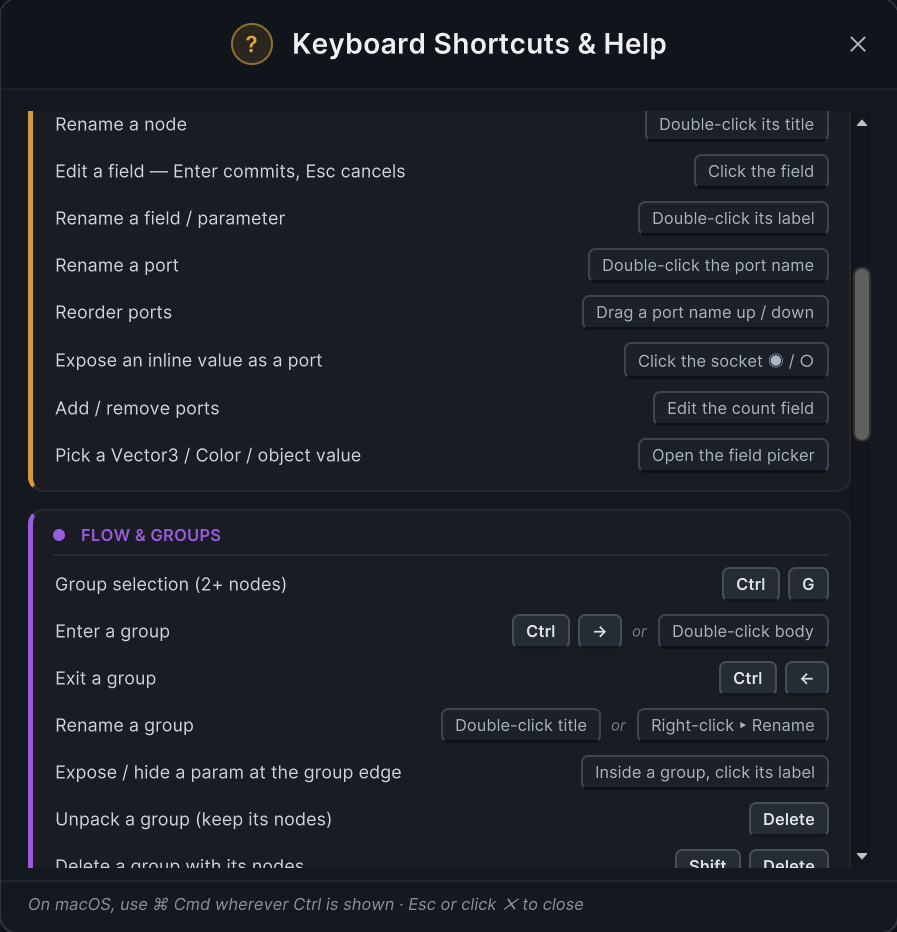
From left to right, the toolbar contains selection, panning, focus, node creation, Group, zoom, Undo, and Redo controls. Common gestures fall into four working groups:
| Scope | Goal | Gesture or key |
|---|---|---|
| Navigation | Pan the canvas | Middle-button drag, or drag after selecting the Pan tool |
| Navigation | Zoom the canvas | Mouse wheel, toolbar − and +, or double-click the percentage field and enter 25–200% |
| Navigation | Focus the whole graph | Space |
| Navigation | Focus the selection, or the whole graph when nothing is selected | Ctrl + F |
| Selection and editing | Select all nodes | Ctrl + A |
| Selection and editing | Copy, paste, cut | Ctrl + C, Ctrl + V, Ctrl + X |
| Selection and editing | Delete selected nodes or connections | Delete or Backspace |
| Selection and editing | Undo and Redo | Ctrl + Z, Ctrl + Y, or Ctrl + Shift + Z |
| Group | Put any two or more nodes into a Group | Ctrl + G |
| Group | Enter or leave the selected Group | Ctrl + →, Ctrl + ← |
| Group | Unpack a Group and preserve its internal nodes | Delete or Backspace |
| Group | Delete a Group with its internal nodes | Shift + Delete or Shift + Backspace |
| View | Toggle the node reference drawer | Tab |
| View | Open the complete shortcut reference | ? |
| View | Close the current help panel or window | Esc |
On macOS, use Cmd instead of Ctrl in this table.
Click ? on the right side of the header to open the shortcut help menu, which groups every gesture by navigation, selection, node editing, fields and ports, and Group operations.
Put a complete flow into a Group
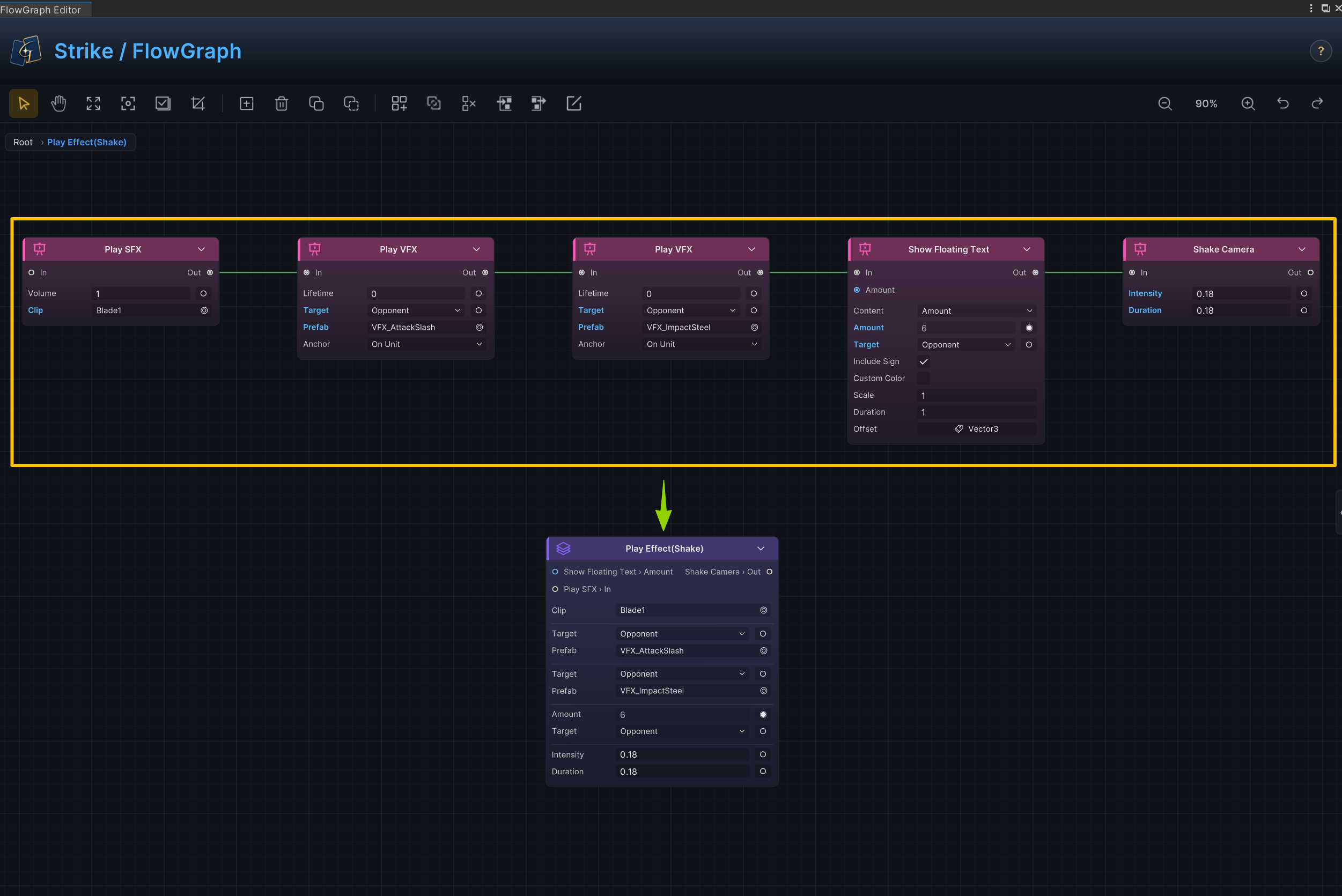
A Group combines several nodes into a subgraph you can enter. Use it to encapsulate target selection, repeated resolution, or a complete presentation flow while leaving only the most important execution relationship in the parent graph.
Create and edit a Group
- Select at least two nodes and press
Ctrl+Gto move all selected nodes into a new outer Group. Existing Groups can also be part of the selection. - Double-click the Group body or press
Ctrl+→to enter it. - Double-click the title or use the context menu to rename the Group.
- Use the breadcrumb in the upper-left corner or
Ctrl+←to return to the parent graph. - Select the Group and press
Deleteto unpack it while preserving its internal nodes. - Use
Shift+Deleteto remove both the Group node and its internal nodes.
-
After entering a Group, you can still change the field names, port names, and port order of its normal internal nodes.
-
Inputs and outputs that remain unconnected inside the Group become boundary ports automatically.
-
Click a field label to expose a frequently adjusted field on the Group face. Click it again to retract it.
-
Group does not decide which boundary ports are useful. To keep the parent graph clean, finish internal connections first and expose only fields that need frequent adjustment on the Group face.
-
Group is not available in the Add Node menu. Create it from the current selection.
-
When only one node remains inside, Group unpacks automatically to avoid an empty shell with no useful hierarchy.
-
Copying a Group copies its internal nodes and connections. The pasted result is an independent copy separated from the original Group.
-
A Card Group can be pasted only into a Card Behavior. Status Groups and Enemy Groups can likewise be copied only between matching owner types.
See Group nodes for Group boundary ports, face fields, and navigation.
Distinguish Card, Status, and Enemy Behaviors
Card, Status, and Enemy share the same node editing, connections, Groups, and validation. They differ only in the Entries they can receive, the owner context they can read, and the Intent family available only to Enemy.
| Owner | Typical Entry | Behavior organization specific to this content |
|---|---|---|
| Card | On Card Played | Organizes behavior around the current card, selected target, and actual resolved result |
| Status | On Turn Start | Reads the current Status Type, Tags, and Stacks and responds continuously at turn or resolution timing |
| Enemy | On Enemy Behavior Start | Uses Patterns and Leaf Intents to select, preview, and execute the next action |
Status Behavior
The included preset Status Poison starts damage from a turn Entry and reads the current status stacks directly as the resolved value.
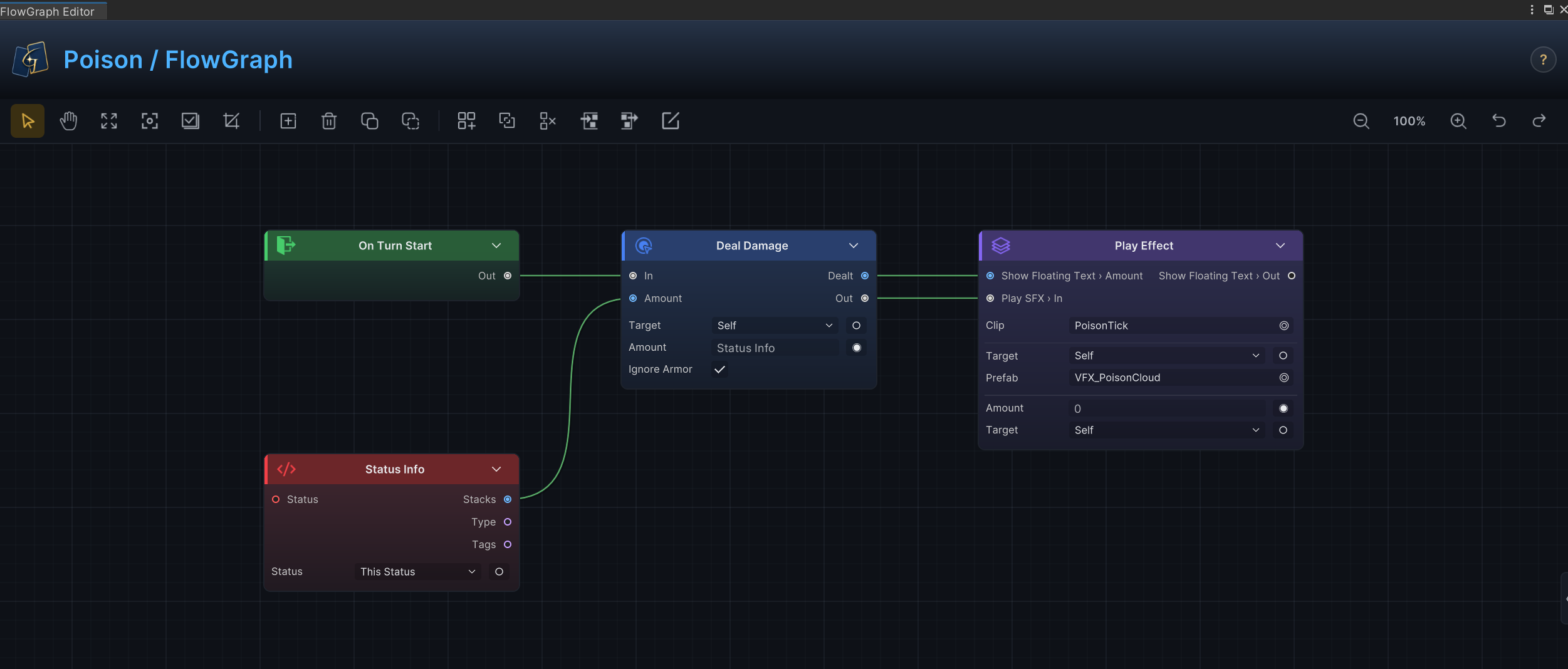
The graph moves from On Turn Start into Deal Damage. Status Info.Stacks supplies the damage through a data connection, and the result then enters Play Effect. One graph therefore expresses trigger timing, a dynamic value, battle change, and presentation feedback together.
See Status behavior recipes for turn reactions, stack reads, and damage modifications, and Hook nodes for timings that can intercept resolution.
Enemy Behavior
Enemy Behavior adds the Intent node family to the same canvas. A Pattern selects the next action, the Intent field on Leaf Intent defines its preview type, and the node chain after Out performs the actual action.
| Intent node | Action pattern it expresses |
|---|---|
Leaf Intent | Defines the intent type and uses the node chain after Out as the actual action |
Sequence Pattern | Cycles through actions in a fixed order |
Weighted Random Pattern | Selects from currently valid actions by weight |
HP Threshold Pattern | Switches action plans according to health thresholds |
Once Per Battle | Allows an action to be selected no more than once in the battle |
Every N Turns | Allows an action only at the specified turn interval |
-
After connecting
On Enemy Behavior Startto a Pattern, every selection path should end at aLeaf Intent. Set its Intent type, then connect damage, status, card, or presentation nodes fromOut. -
Preview values for Attack, Defend, and Heal are not entered on
Leaf Intent. At runtime, GCS extracts the first available value fromDeal Damage,Change Armor, or positiveChange HPalong the following control path.
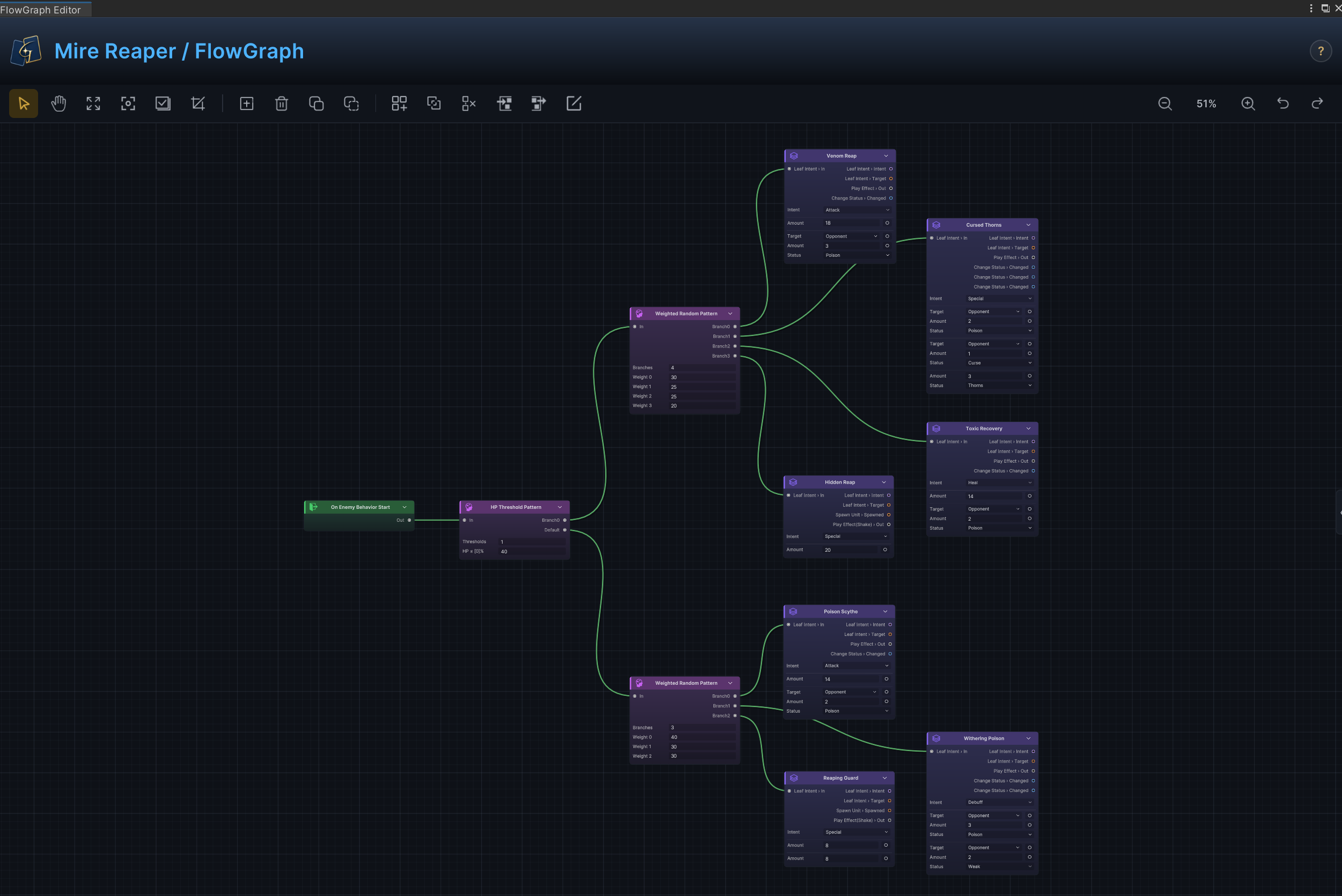
The graph uses HP Threshold Pattern to divide behavior by health, then Weighted Random Pattern to select among the currently valid Leaf Intent nodes. Each leaf continues into its own presentation path from Out, so the intent type, available preview value, and actual action all advance and resolve along the same branch.
Intent display level is configured once on the Encounter instead of repeated on every Intent node. Hidden shows no intent, IconOnly shows the icon only, and Full shows the icon with any available preview value. See Enemy behavior recipes for common Patterns and action bodies, Intent nodes for every leaf and Pattern, and Encounter authoring for display rules and battle configuration.
If the graph contains many nodes, use Ctrl + G to combine each branch into a Group. This keeps the graph easier to read. The graph above leaves them ungrouped so every node remains visible for the example.
Handle Issues
FlowGraph Editor continuously checks structural problems it can confirm statically. When an Issues badge appears in the header, open the problem list. Any problem with a Node ID provides Ping at the end of its row to locate the corresponding node.
| Problem scope | What Issues can detect |
|---|---|
| Node identity | Missing or duplicate Node ID |
| Owner boundary | A node not allowed by the current Card, Status, or Enemy |
| Event Entry | On Internal Event without an event name, or On GES Event without an event reference |
| Custom data node | A custom OperatorNode, SourceNode, or SelectorNode with no publishable data output |
| Normal-node connection reference | A connection that points to a node or port that no longer exists |
| Normal-node port contract | Incompatible input and output types, or a recorded connection Kind that disagrees with the output port |
| Group contents | Any of the structural problems above inside a nested Group |
-
Group boundary connections are not included in the connection checks above. When a boundary connection turns red or shows a warning icon, fix it from the hover message directly.
-
Issues does not check for an empty graph, a missing business-required Entry, unreachable nodes, unconnected inputs, or whether behavior results match the design.
0 Issuesmeans only that the current structural checks pass, not that the behavior executes correctly in battle. -
Problems inside nested Groups also enter the list. Clicking one from the root graph might not focus the internal node directly, so enter the corresponding Group before fixing it.
The same structural problems appear in Game Card Editor. See FlowGraph authoring errors for common fixes.