Deck authoring
Build a starting deck or reward pool from card references and copy counts, then verify every place that uses it
After Card authoring, add verified GameCard assets to a GameDeck. Before editing, enable at least one Deck Database on the current scene's GameCardManager. Database setup determines which decks Game Card Editor can list, create, and edit.
Open Game Card Editor:
Tools > TinyGiants > GCS > Game Card Editor
Select Deck at the top, then locate the deck in List.
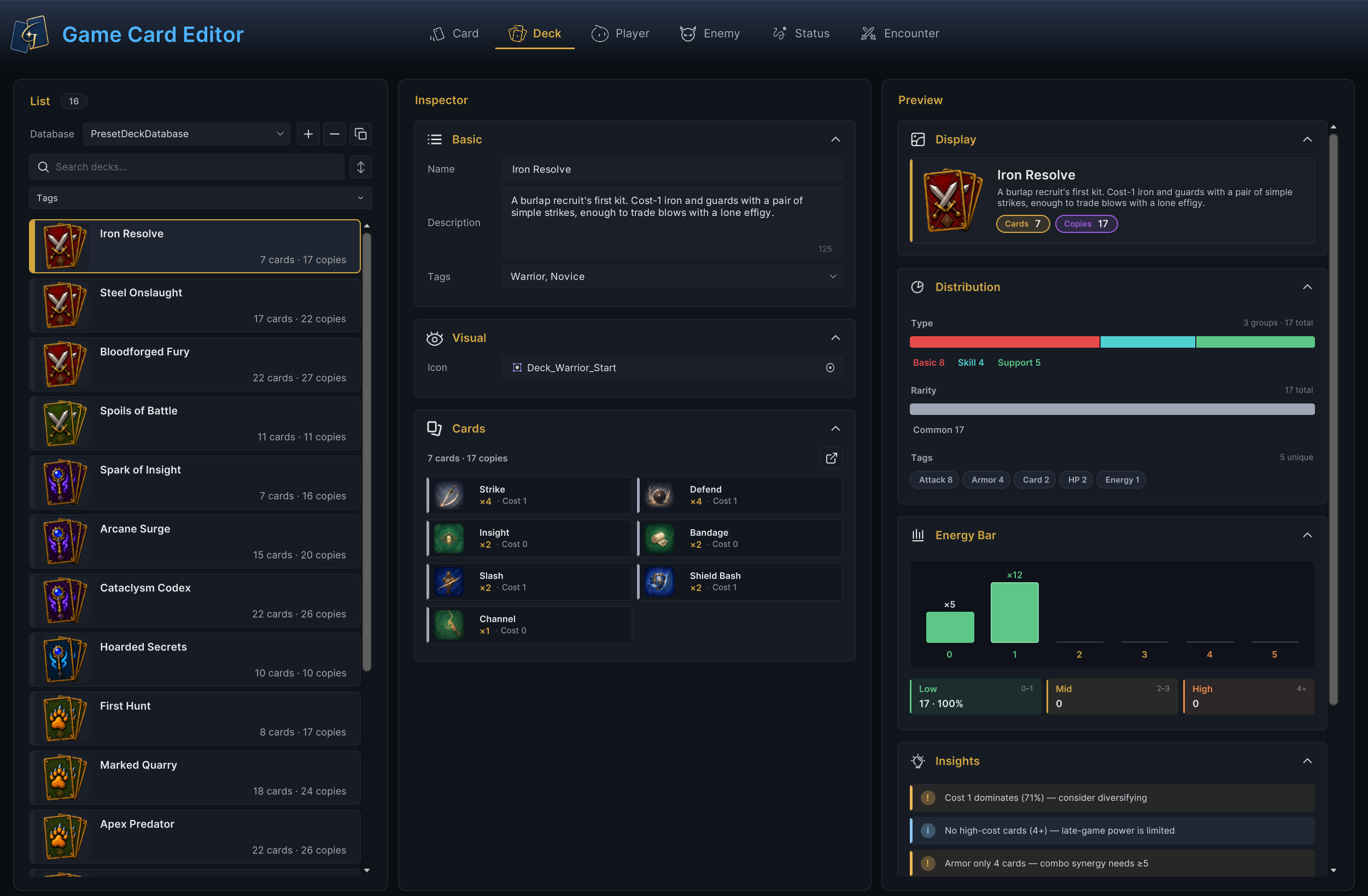
The window above shows the complete authoring view for Iron Resolve. List on the left selects the deck. Inspector in the center sets its identity and card composition. Preview on the right converts those entries into card counts, types, tags, and a cost curve. The same GameDeck can be a player's Starting Deck or an Encounter's Reward Deck. The runtime meaning of its copy counts changes with the reference field.
Select the deck to edit
List operations
| Operation | Method and result |
|---|---|
| Select database | Select the target Deck Database under Database. Later creation, paste, and sorting operations affect this database |
| Create | + creates a sub-asset with NewDeck as the base name |
| Copy | The copy button preserves all fields and card entries. The copy initially keeps the original Name. Setting a new nonempty name renames the sub-asset as well, updating the name used by List display, search, and sorting |
| Delete | − deletes the current deck after confirmation |
| Search and filter | Search and name sorting read the deck sub-asset name. Tags filtering reads GameDeck.Tags |
| Sort and drag | The sort button cycles through database order, name ascending, and name descending. Dragging a List row changes only authoring order in the database |
| Batch operations | Select several decks with Ctrl/Cmd or Shift, then use Duplicate, Tag +, Tag −, or Delete in the batch bar |
| Copy across databases | Press Ctrl/Cmd+C with one deck selected, switch to another enabled Deck Database, then press Ctrl/Cmd+V to paste a copy |
Each List row counts valid DeckEntry Card references and adds their Copies. You can compare unique entries and total copies without opening Inspector.
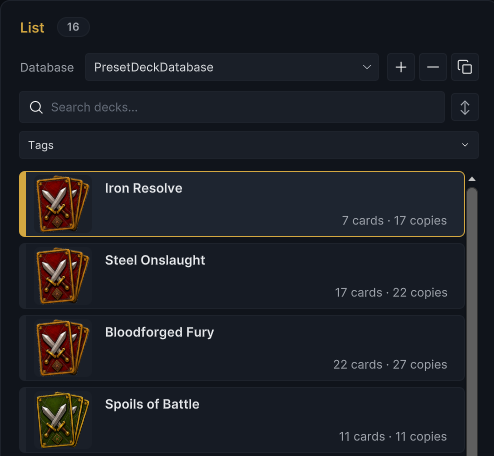
PresetDeckDatabase contains 16 included decks, and the selected Iron Resolve has 7 card types and 17 cards, PartyDeckDatabase contains Party Tactics for Party Showcase, see Game Card Editor for List operations and Demo content index for other decks and their uses
Configure deck identity
Basic
Basic stores the deck's own name, description, and project classification. This data identifies and locates the deck. It does not replace card entries or change draw behavior directly.
| Field | Configuration |
|---|---|
| Name | Display name used by List and Preview. A nonempty edit also changes the sub-asset name. Player deck selectors read the updated sub-asset name, while project UI can read this field directly |
| Description | Short text that describes the deck's role, expected play style, or reward purpose |
| Tags | Deck labels used by List filters and project classification. GCS does not attach battle rules to them automatically |
Set Name to Iron Resolve, keep the description for the novice starting deck, and add Warrior and Novice.
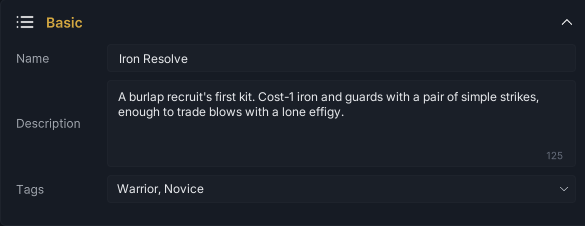
The name, description, and two tags now identify Iron Resolve as the Warrior novice deck. Use Visual to assign an icon that the Editor can display and project UI can read.
Visual
Icon appears directly in the Editor deck list, Display preview, and Deck card in Player mode. Project UI can read the field and display it itself. GCS does not draw it into custom UI automatically.
This icon presents the deck itself. It does not replace card backs, card Templates, or individual card artwork. If the game displays decks in its UI, read this asset field directly.
Select Deck_Warrior_Start for Iron Resolve.

With deck identity and Icon ready, List and Preview can display Iron Resolve consistently. The references and copy counts under Cards determine what the deck contains.
Set cards and copy counts
Click the edit icon beside the Cards heading to open the Edit Deck selector. Left-click a card to add one copy, and right-click to remove one. When Copies reaches 0, the entry is removed from the deck. The selector supports name search and places selected cards at the front of their database group. When several nonempty Card Databases are Active, cards are grouped by database. With one database, they appear in a flat list. Only when no database is available does the selector fall back to all GameCard assets in the project.
Back in Inspector, each card block shows its icon, name, Copies, and base EnergyCost. Left-click a card block to switch directly to Card mode and edit the asset.
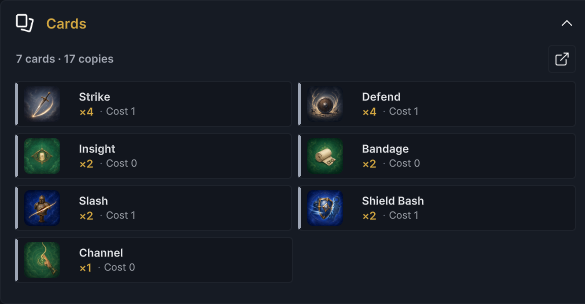
Iron Resolve contains 4 Strike, 4 Defend, 2 each of Insight, Bandage, Slash, and Shield Bash, plus 1 Channel, for 17 copies across 7 entries. Cards has no reorder control, and saved Entries order does not determine draw order. The draw pile is shuffled at battle start, then Innate cards receive opening-hand priority. See Cards, hand, and piles for opening-hand, draw-direction, and discard-reshuffle rules.
Distinguish starting decks from reward pools
Card references and copies are stored in the same GameDeck, but the field that references it determines the runtime meaning of Copies.
| Use | Copies and runtime result |
|---|---|
| Starting Deck | When Master Deck is empty, Copies sets battle card counts and Player Unit 1 supplies the deck to build and shuffle the shared Draw pile |
| Reward Deck | Copies is the draw weight of the corresponding DeckEntry. Candidates are drawn without replacement by entry, and the selected card adds 1 copy to the Master Deck |
GamePlayerUnit.StartingDeck sets a character's starting deck, a party battle uses only Player Unit 1, later members' decks do not merge into the shared piles but remain available for other battles
GameEncounter.RewardDeck sets the reward deck, and BattleRules.CardRewardCount sets the candidate count
BattleRules.CardRewardCount requests 3 candidates by default. The runtime treats the minimum as 1, and the final count cannot exceed the number of valid entries.
When the deck reference is missing, the deck is empty, or it contains no valid cards, the reward can contain 0 candidates.
Before referencing the deck, use Preview to check its static composition. See Player authoring and Encounter authoring for the fields that assign starting and reward decks.
Inspect the deck preview
Preview recalculates after card references or copy counts change. It shows the authored data currently stored in GameDeck. It does not simulate upgrades, cost modifiers, FlowGraph, Hooks, or actual draw results.
Display information
Display combines Icon, Name, and Description into a visible deck card. Cards shows the number of distinct GameCard references, while Copies adds the copies from every valid entry.
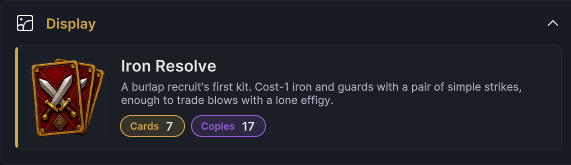
Cards 7 and Copies 17 match the composition above. The Edit Deck selector stores every copy of the same card in one entry.
If external serialization or an old asset leaves duplicate references, Cards in Preview deduplicates by GameCard. The List row still counts every entry with a valid Card reference.
After identity and totals match, Distribution shows the types, rarities, and card tags that make up these 17 copies.
Card distribution
Distribution reads Type, Rarity, and Tags from each card according to Copies. Four copies contribute four counts to the matching classifications. It does not read the deck's own GameDeck.Tags or count card Keywords.
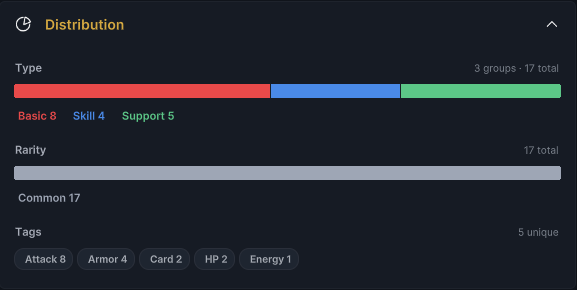
Iron Resolve contains Basic 8, Skill 4, and Support 5. All 17 copies are Common. Tags are Attack 8, Armor 4, Card 2, HP 2, and Energy 1.
These classifications explain what the deck contains. Whether the cards can be used each turn also depends on the distribution of their base costs.
Cost curve
Energy Bar counts each card's authored base EnergyCost according to Copies.
Costs 0 through 4 enter matching bars. Costs of 5 or higher all enter the last bar labeled 5. The summary below groups them as Low (0-1), Mid (2-3), and High (4+).
This statistic does not calculate upgraded forms, Master Deck CostDelta, effective cost after Hooks, or Encounter rules. Evaluate the curve together with the player's energy per turn and the actual battle flow.
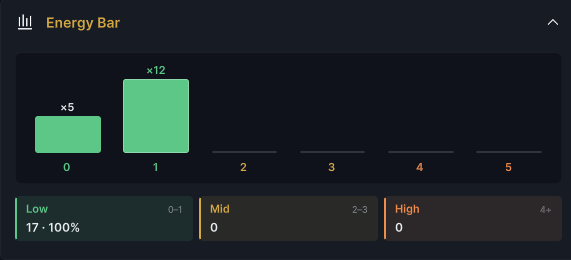
The deck contains five 0-cost copies and twelve 1-cost copies. All 17 are Low, and the share of 1-cost cards reaches the threshold used by Insights.
Composition insights
Insights checks the current static statistics against fixed thresholds. It does not read card Behaviors or evaluate real synergies in the project.
| Insight | Trigger |
|---|---|
Cost N dominates | Any cost bucket reaches 50% of total copies |
No low-cost cards | Total copies are at least 6, with no 0-1 cost cards |
No high-cost cards | Total copies are at least 6, with no 4+ cost cards |
Type-focused | One Type reaches 70% of total copies |
Tag only N cards | Any card tag appears 2-4 times. The panel treats 5 as its fixed target threshold |
Curve looks balanced | Total copies are at least 6, and no other insight applies |
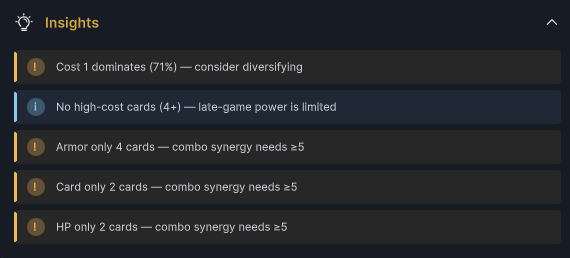
Cost 1 makes up 71% of Iron Resolve, and the deck contains no 4+ cost card. Those values produce the first two messages.
Armor 4, Card 2, and HP 2 all fall in the 2-4 range and produce three more tag messages.
The panel shows five heuristic observations in total. They help review design direction and are not structural validation errors. When total copies are below 6 and no other rule applies, Insights does not appear. After reviewing Preview, handle the data-structure problems from Validation.
Handle validation issues
The Issue Badge in Game Card Editor counts every deck in the selected Deck Database, not only Iron Resolve.
| Level | Trigger |
|---|---|
| Error | Name is empty |
| Warning | Description is empty |
| Warning | Entries is null or contains no entries |
| Error | A nonnull DeckEntry has an empty Card reference |
| Error | Any DeckEntry.Copies is less than 1 |
These problems do not block saving, deletion, or Play Mode. An Issue entry only locates the affected deck or field. Review responsibilities outside automatic validation separately.
| Unchecked scope | Manual check |
|---|---|
| Deck presentation | Icon and deck Tags follow project conventions |
| Card composition | There are no duplicate entries, and referenced cards are complete |
| Use | Starting Deck and Reward Deck assignments match their intended roles |
| Design result | The cost curve, actual draws, and battle result match the design |
See Game Card Editor for automatic-check boundaries and Issue navigation.
After clearing structural issues, open Used By and confirm whether the GameDeck is currently a Starting Deck or Reward Deck.
Inspect asset references
Used By scans the Player Unit and Encounter Databases enabled on the current scene's GameCardManager. Player results correspond to StartingDeck, while Encounter results correspond to RewardDeck.
This check does not cover disabled databases, other scenes, or Prefabs. It does not scan project code, private fields, runtime lookup, or custom indirect references, and it does not protect a deck from deletion. Check these project-level references before replacing or deleting an asset.
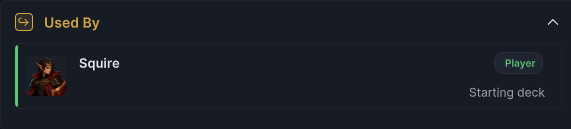
Squire above references Iron Resolve through StartingDeck. This reference determines the initial card source for battle, but the runtime does not modify the GameDeck asset.
Deck behavior after battle starts
GameDeck is a reusable content definition. A player can use it as a Starting Deck, and an Encounter can use it as a Reward Deck. After battle starts, GCS creates independent card instances from the persistent Master Deck or Starting Deck and places them in Draw, Hand, Discard, and Exhaust.
While editing a deck, confirm its cards, copy counts, and reference role. See Card and pile lifecycle for cross-battle initialization, battle-pile changes, and rewards entering the persistent deck. When project code needs to read decks or manage the Master Deck, see GCSApi guide.
You can verify the complete path from opening hand through post-battle rewards in First battle. To continue authoring, switch to Player at the top of Game Card Editor and select Squire. Keep Iron Resolve assigned, then use Player authoring to configure health, energy, the battle Prefab, and Encounter dependencies so the character can bring this deck into battle.