Status Quick Start
Create one status, decide what a stack means, apply it from a card, and watch its icon and stack count behave in battle.
For your first buff or debuff. Works best right after Card Quick Start, since a card is the easiest way to apply a status.Statuses carry everything in a GCS battle that outlives a single card play: buffs, debuffs, counters, and ongoing rules. A status definition owns its name, icon, stack behavior, decay behavior, and an optional behavior graph. This page creates one and applies it from a card, which exercises the whole loop.
Step 1: Open Status mode
Open the Workbench and switch to the Status tab:
Tools/TinyGiants/GCS/Game Card Editor
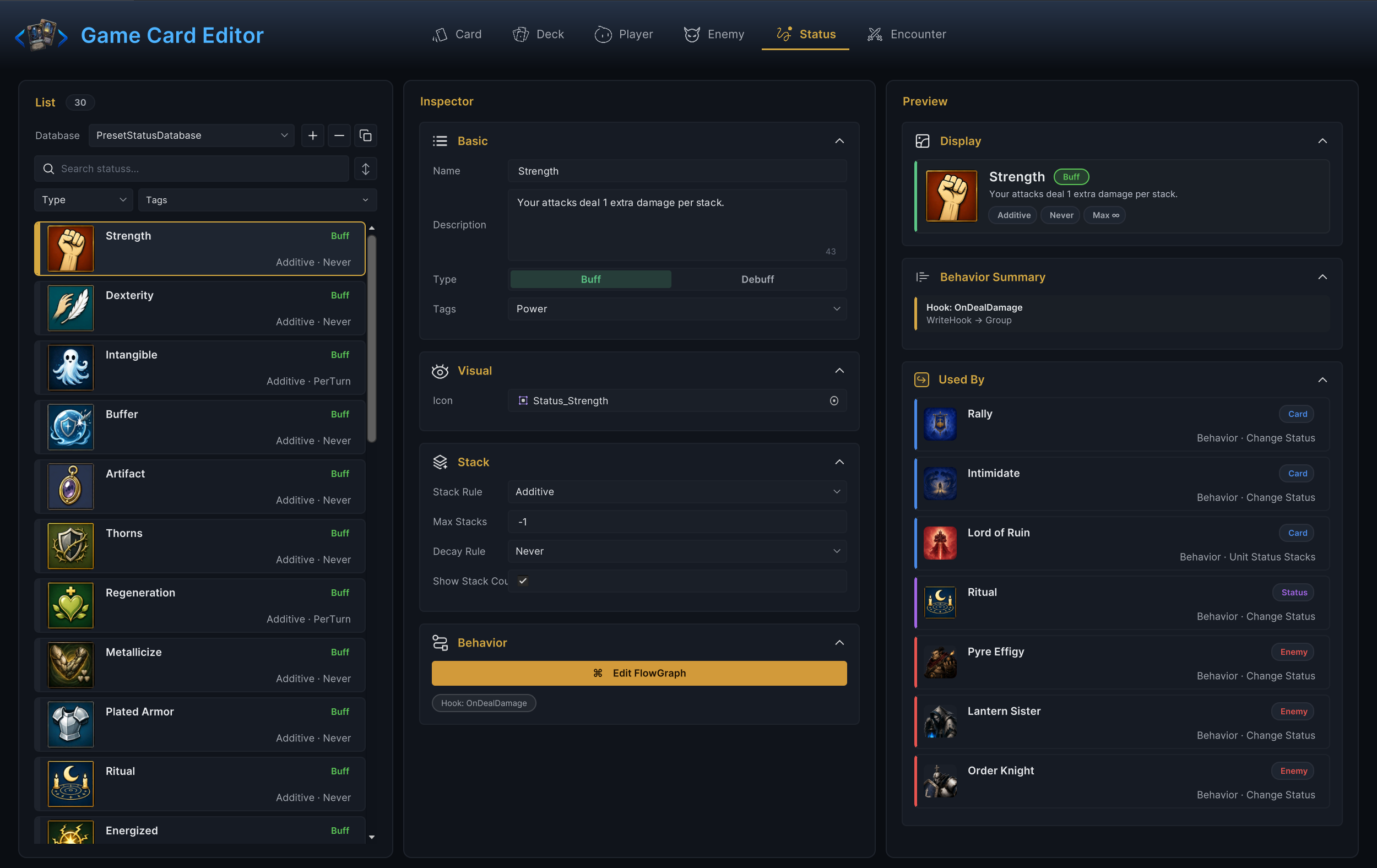
The list shows statuses from the active status databases. The demo ships 30 of them, from Strength and Poison to Holy Shield, and any one of them makes a good template to duplicate with the ⧉ button.
You should see the status list on the left and, for the selected status, its stack fields in the inspector and a preview on the right:
Step 2: Create the status and set its rules
Pick a purpose you can see on screen within one turn. A protection buff, a "takes extra damage" mark, or a stacking burn all qualify. Create the status with + (or duplicate a demo one), then fill the fields:
| Field | Guidance |
|---|---|
| Name | The name the player sees; it names the asset too. Exposed beats dmg_taken_up_2. |
| Description | What the status means to the player, in their words. |
| Type | Buff for helpful effects, Debuff for harmful ones. It drives how battle UI colors and presents the icon; it changes no math on its own. |
| Tags | Only if filtering, class identity, or project rules need them. |
| Icon | A temporary demo icon is fine for the first pass. |
| Stack Rule | How a new application combines with existing stacks: Additive adds them, Max keeps the higher value, Replace overwrites. |
| Max Stacks | The stack cap. -1 means uncapped; a small cap is easier to observe in a first test. |
| Decay Rule | PerTurn removes one stack at the end of the holder's own turn; Never keeps the status until something removes it. Use Never for the first visibility test. |
| Show Stack Count | Keep it on whenever the number matters to the player. Turn it off for on/off flags where a count would wrongly imply a countdown. |
One timing detail is worth pinning down now, because it decides what you will see in the test: PerTurn ticks on the holder's turn, not yours. A debuff on an enemy loses a stack after that enemy acts. A buff on you loses a stack when you end your turn.
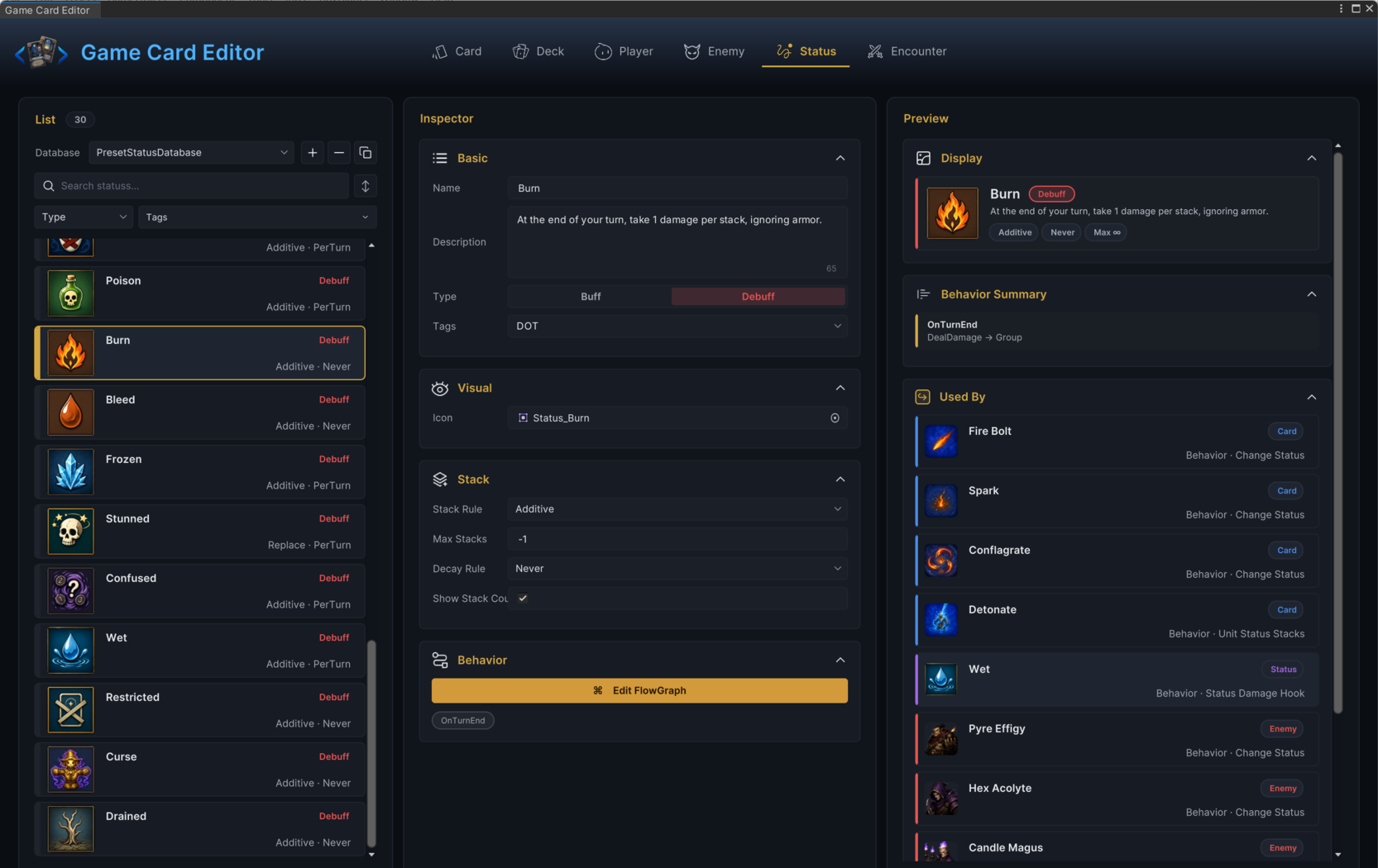
With the rules set, the inspector's Stack foldout should spell out your choices at a glance: rule, cap, decay, and the stack count toggle.
The demo's Burn is that state in shipped form:
Step 3: Say what a stack means
Before touching the graph, write one plain sentence that defines a single stack. For example:
Scorched: each stack marks the unit for burn-related cards.
It does not deal damage by itself.
That sentence is cheap insurance against the most common status mistake: a strong name with no defined behavior. If the status is only a marker, the description should admit it. If a stack should deal damage, grant armor, or draw cards, the status graph has to contain nodes that actually do that. The name alone does nothing.
Step 4: Apply it from a card
Open a simple card in Card mode (the one from Card Quick Start works) and extend its graph with one node:
On Card Played → Change Status
On the Change Status node, pick your status in Status, keep Mode on Delta and Amount at 1, and choose the Target: Opponent sends the status to the enemy the card was aimed at, Self puts it on the player. For a debuff test use a single-target attack card with Opponent; for a buff test, Self works from any card.
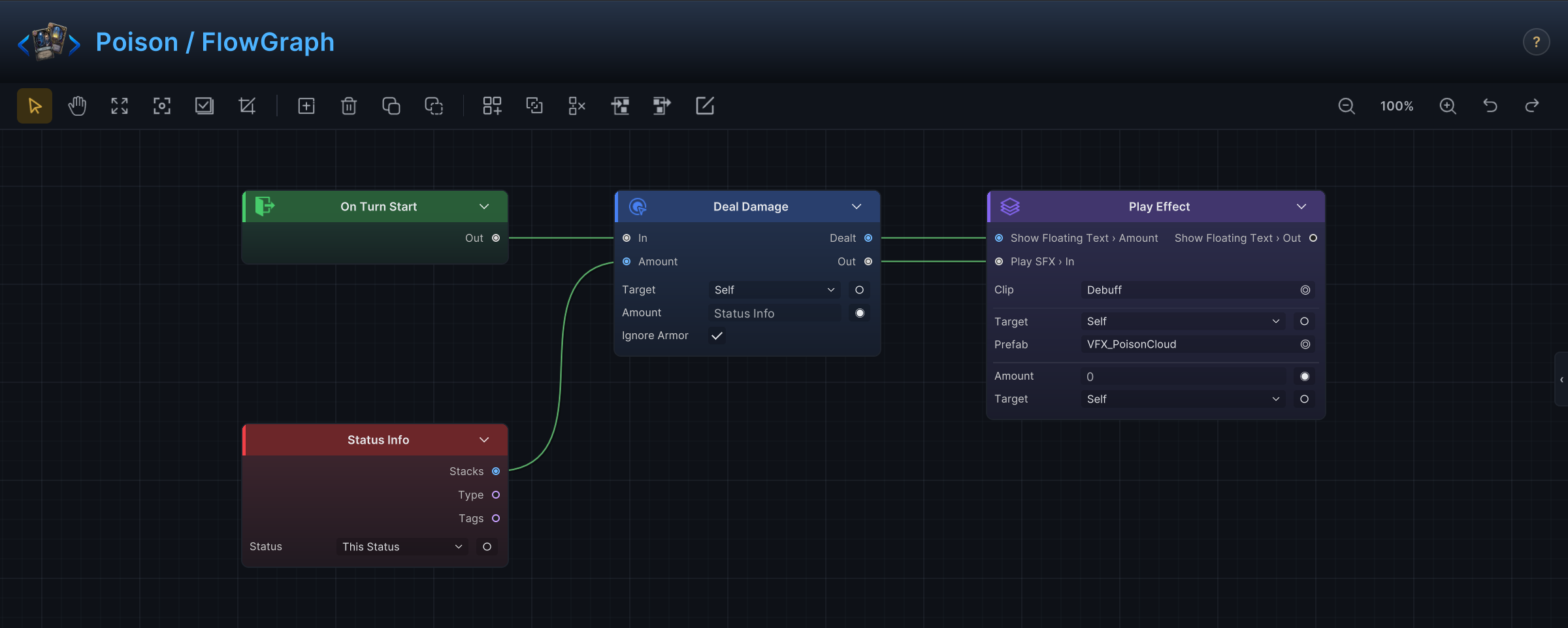
The demo's Poison is the shipped reference for this pattern. Poison Arrow applies it through a Change Status node, and the status itself owns a graph you can open from Status mode with Edit FlowGraph:
Close the graph. The card's Behavior foldout should now list its entry chip, and the card is ready to deliver your status.
Step 5: Test in battle
Put the card in the player's deck and start a fight. Then verify each rule you chose:
- The intended unit receives the status and its icon appears.
- The stack count shows when Show Stack Count is on.
- Playing the card again follows your Stack Rule: two
Delta 1applications read2underAdditive, stay at1underMaxorReplace. - The decay follows your Decay Rule at the holder's turn end, not before.
First Battle shows this from the player's side: Poison Arrow leaves the enemy with a Poison icon at 2 stacks. Your status should read just as clearly.
Common mistakes
| Symptom | Likely cause |
|---|---|
| Status never appears | The status database is not active, the graph applies a different status, or the target resolves to no unit. |
| Stack count is wrong | Stack Rule or Max Stacks does not match the intended math. |
| Status disappears too early | Decay Rule is PerTurn when you meant Never. |
| Status lands on the wrong side | The Change Status node's Target is Self when you meant Opponent, or the other way around. |
| Players cannot read it | The name and description never say what the status does or whether it helps or hurts. |