Game Card Editor
One window, six modes: author cards, decks, player units, enemies, statuses, and encounters without leaving the Workbench.
For anyone making or editing GCS content in Unity. If you touch card data daily, this is your home window.The Game Card Editor (the Workbench) is where GCS content gets made. Every card, deck, unit, status, and encounter in the demo was authored here, and your own content follows the same path. Open it from the Unity menu:
Tools/TinyGiants/GCS/Game Card Editor
It is also one click away from the Game Card System dashboard once the system is initialized.
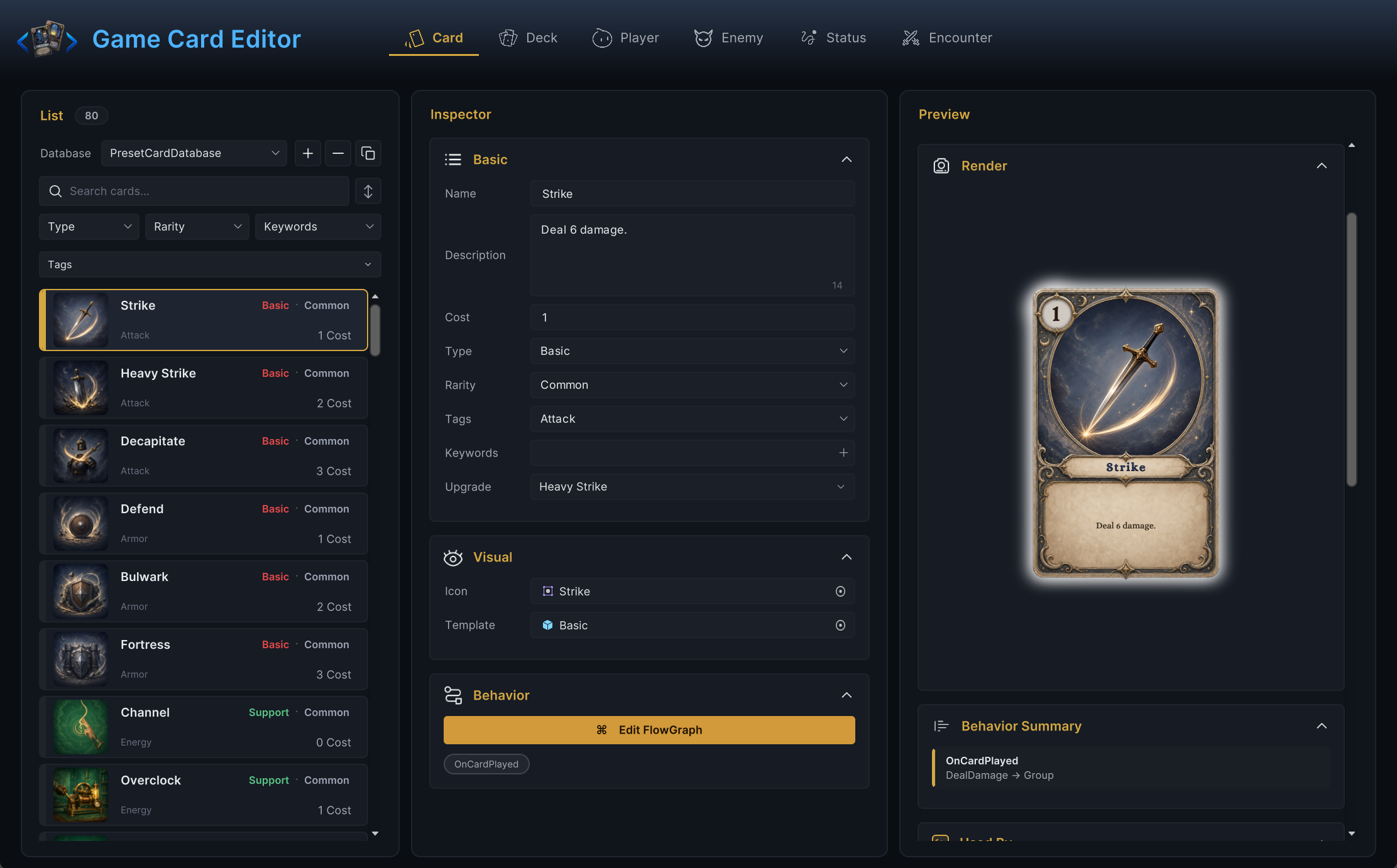
One window, three columns
Every mode shares the same layout, so the window feels familiar whether you are editing a single card or a full encounter:
| Column | What lives there |
|---|---|
| List | Database picker, search field, filters, and the entries of the active database. |
| Inspector | Every editable field of the selected entry, including the Edit FlowGraph button on entries that own behavior. |
| Preview | A live render of the selection, plus the Used By panel listing everything that references it. |
The badge next to List shows how many entries the active database holds. If a card you just created is missing from that count, you are looking at the wrong database, not at a broken card.
Six modes
The mode tabs run in a fixed order: Card, Deck, Player, Enemy, Status, Encounter.
| Mode | Use it for |
|---|---|
Card | Cost, type, rarity, tags, artwork, description text, and the on-play behavior graph. |
Deck | Starting decks and reward decks built from card definitions, with copy counts. |
Player | Playable units: HP, energy, starting deck, prefab, and class tags. |
Enemy | Enemy units: HP range, tier, tags, prefab, intent preview, and the enemy behavior graph. |
Status | Buffs and debuffs: stack rule, decay rule, max stacks, icon, tags, and the status behavior graph. |
Encounter | A whole battle: player unit, enemy lineup, reward deck, and battle rules. |
Pick the mode by the thing you want to make, not by where the data happens to sit. "My enemy does nothing" starts in Enemy mode, then usually moves into that enemy's FlowGraph.
Card
The page-opening screenshot above shows Card mode: a Common Attack card that costs 2 and reads "Deal 5 damage to target enemy unit". The inspector covers identity (name, description, tags), economy (cost, rarity), artwork, and the behavior graph. The preview column renders the finished card exactly as the player will see it, so typos and layout problems surface before Play Mode.
Deck
A deck is an ordered list of card entries with copy counts. The header of the Cards section reads like 7 cards · 17 copies: seven distinct card definitions, seventeen physical cards once copies are counted. The preview column does real analysis on top of that list: type and rarity distribution, tag totals, and an energy curve bucketed into Low (0 to 1), Mid (2 to 3), and High (4+). An Insights panel calls out curve problems in plain language, like "Cost 1 dominates (71%)" on the Warrior starter deck Iron Resolve.
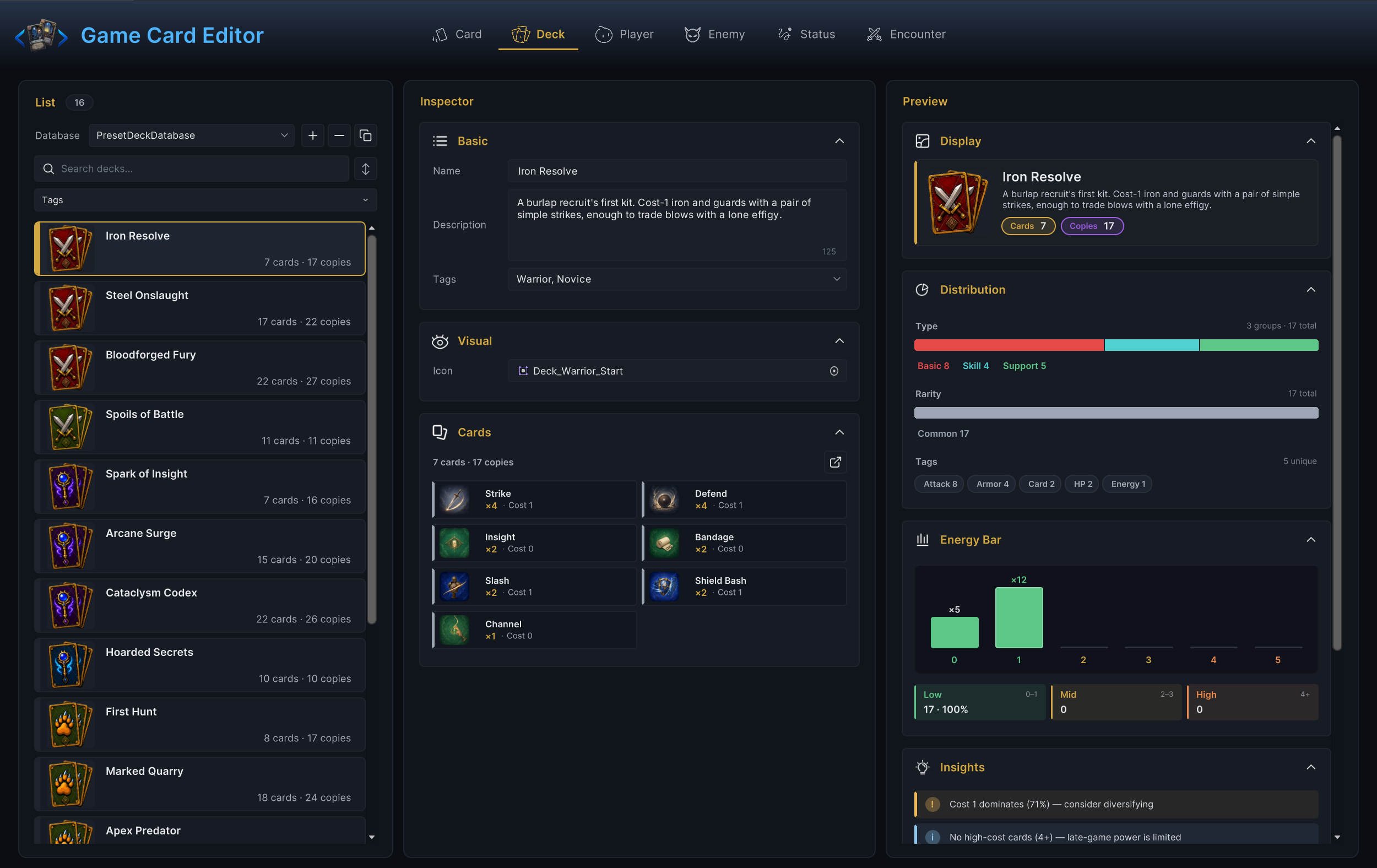
The Insights panel is the fastest sanity check when a new deck feels flat in playtests. A curve that never leaves the Low bucket wins turn one and stalls by turn four.
Player
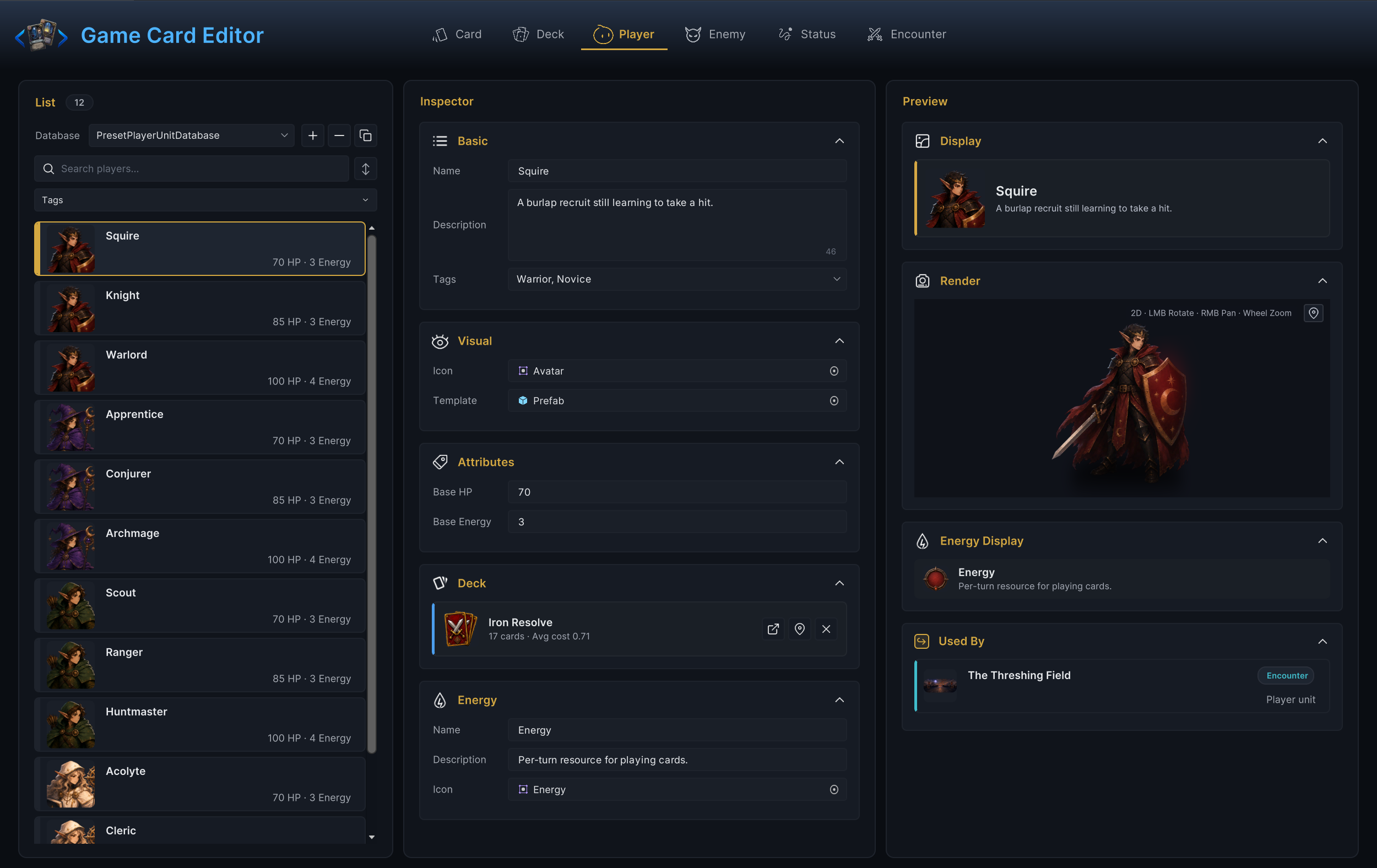
A player unit is the thing the person controls: Base HP, Base Energy, the starting deck, and the prefab that appears in battle. The Deck section links the assigned starting deck with its average cost and a jump button straight into Deck mode. The Energy section names the per-turn resource itself: call it Energy, Mana, or Focus, give it an icon and a one-line description, and the battle HUD follows. The preview renders the actual prefab with rotate, pan, and zoom, and Used By lists every encounter that fields this unit.
Enemy
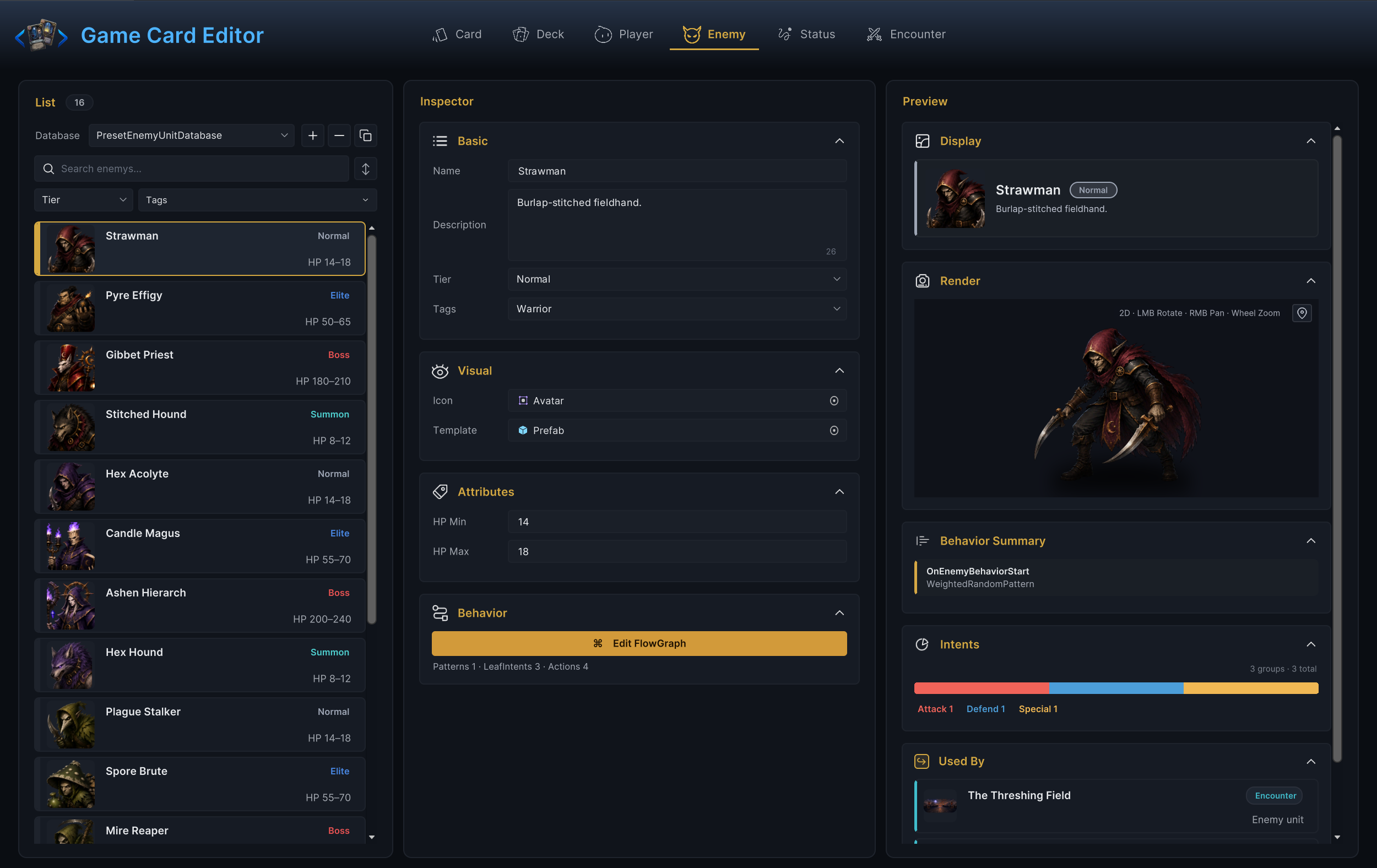
Enemy mode is where the intent-driven side of a battle lives. The inspector holds the unit's HP range and tier next to its behavior graph, so you can read "what this enemy is" and "what this enemy does" in one place:
Status
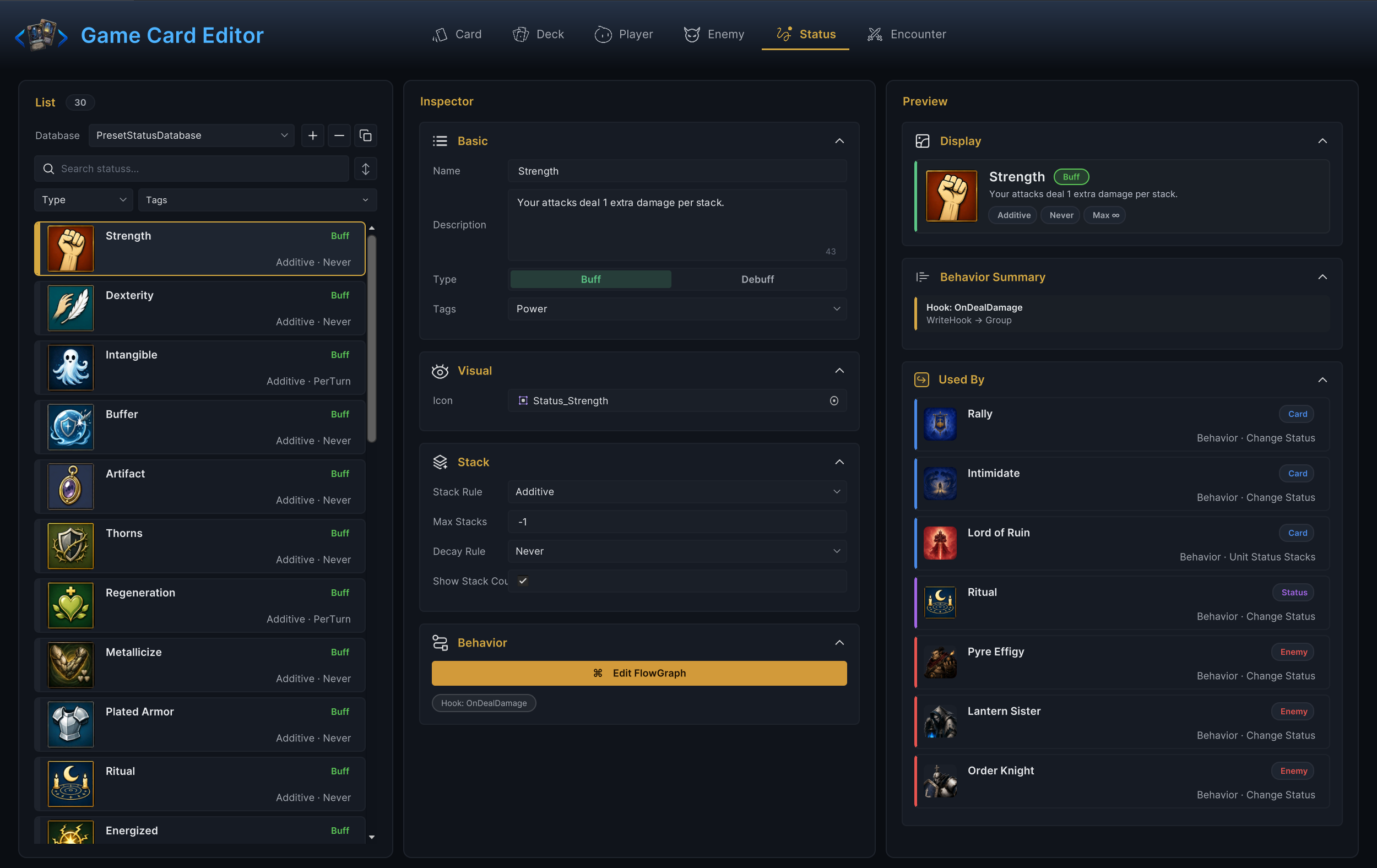
A status is identity plus stacking math plus behavior. The Type toggle decides buff or debuff, which also drives icon coloring in battle. The Stack panel answers the questions players will ask: Stack Rule controls what a second application does, Max Stacks caps the pile (-1 means unlimited), and Decay Rule controls whether stacks fall off per turn or stay until removed. The demo buff Strength reads "Your attacks deal 1 extra damage per stack": additive, never decays, no cap. The preview's Behavior Summary reads the attached graph and reports which hooks it registers, and Used By shows every card, status, and enemy that inflicts it.
Encounter
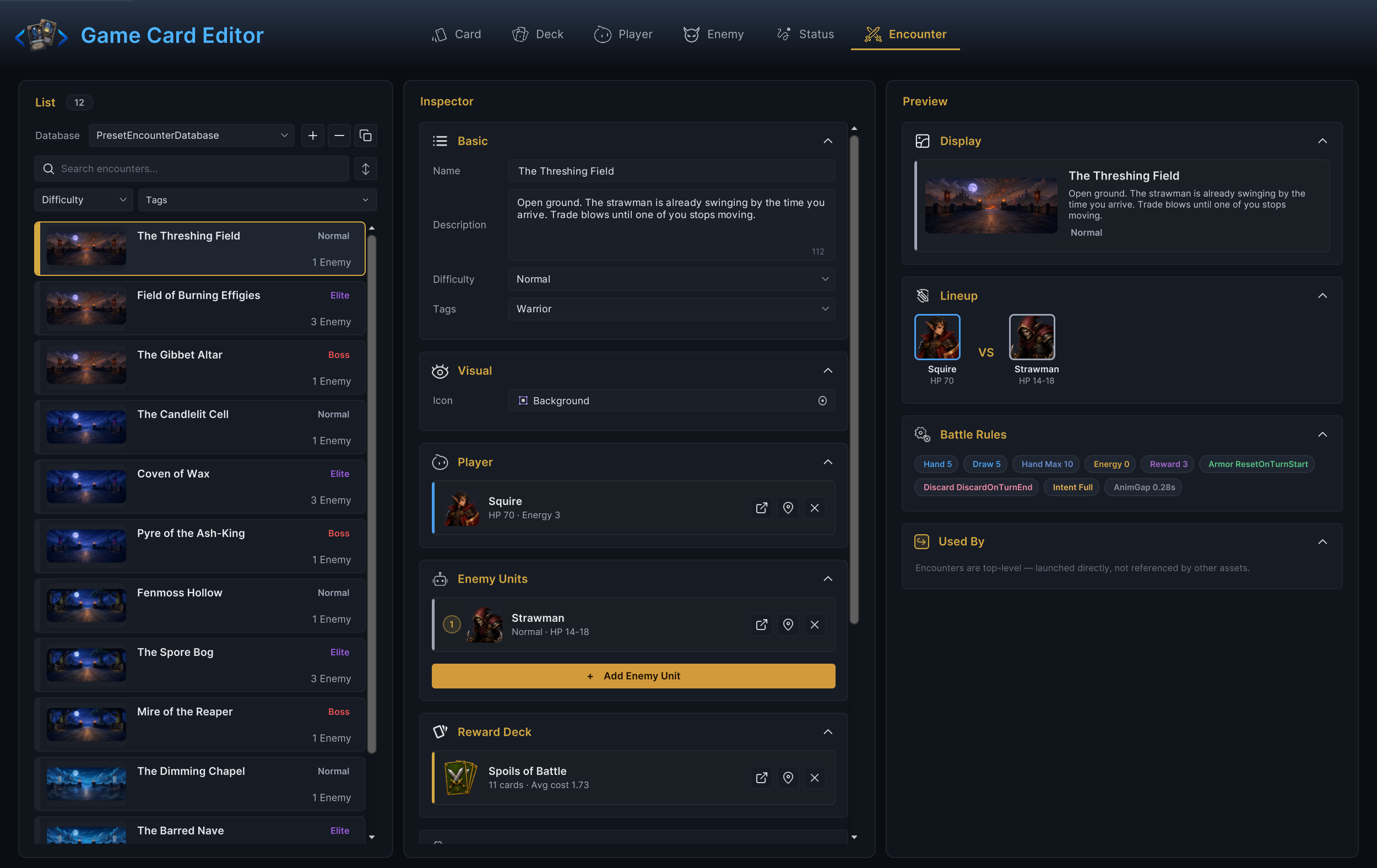
Encounter mode assembles the pieces into a playable battle. Beyond the lineup, this is where battle rules live: starting hand size, cards drawn per turn, hand limit, reward count, armor reset timing, end-of-turn discard, and intent display.
The daily loop
- Select the mode that owns the content.
- Search or filter the list.
- Select an entry, duplicate a working demo entry, or create a new one.
- Edit the fields in the inspector.
- Use pickers and link buttons for referenced assets. Never type IDs by hand.
- Fix validation errors before entering Play Mode.
- Press Edit FlowGraph only when the content needs behavior.
- Test in a small battle scene.
- Confirm the result in the Game Card Monitor.
One card, one status, or one enemy at a time. GCS content references itself heavily, so small steps make it obvious whether a problem lives in the data, the graph, the scene, or the presentation.
Search before you scroll
The demo databases are big enough that search beats scrolling: 80 cards, 30 statuses, 16 enemies, 12 player units, 16 decks, and 12 encounters ship in the preset databases. Useful search terms:
| Search for | Examples |
|---|---|
| Card names | Strike, Poison Arrow, Fire Bolt |
| Class families | Warrior, Mage, Hunter, Priest |
| Card types | Attack, Skill, Support |
| Statuses | Burn, Weak, Holy Shield |
| Encounters | Names from the demo scene list |
Name content after what the player sees. A card called "Poison Arrow" is findable forever; a card called "test_dmg_2" is not.
Inspector fields
The inspector is the source of truth for the selected entry. The fields you touch most often per mode:
| Mode | Frequent fields |
|---|---|
Card | Display name, description, cost, type, rarity, tags, artwork, behavior. |
Deck | Ordered card entries and copy counts. |
Player | HP, energy, starting deck, prefab, class tags. |
Enemy | HP range, tier, tags, prefab, intent display, behavior. |
Status | Buff/debuff identity, stack rule, decay rule, max stacks, icon, tags, behavior. |
Encounter | Player unit, enemy lineup, reward deck, battle rules, tags. |
When a field points at another GCS asset, use the picker or link button. Hand-typed GUIDs belong in serialized-data debugging, nowhere else.
Validation
The window header shows a validation badge whenever the active database has problems. Click the badge to list every issue; click an issue to jump straight to the offending entry and field. FlowGraph issues go one step further and reopen the graph itself.
| Severity | What triggers it |
|---|---|
| Error | An empty name on a card, player, enemy, or status. |
| Error | A deck entry with no card assigned, or with a copy count below 1. |
| Error | An enemy whose HP Min is greater than its HP Max. |
| Error | An encounter with no player unit, or with an empty enemy lineup. |
| Warning | A player unit missing its starting deck or prefab. |
| Warning | A status with Max Stacks set to 0. Use -1 for unlimited or a positive cap. |
| Warning | An encounter missing its reward deck or difficulty. |
| Warning | Any issue inside the entry's behavior graph. |
A card without artwork can still prove its mechanics. An encounter without an enemy lineup cannot prove anything. Clear errors before you start tuning numbers.
Check Used By before you delete
Cards appear in decks, reward pools, starting decks, encounter setups, and behavior graphs. Statuses and units get referenced by nodes. The Used By panel in the Preview column answers "what breaks if I remove this" before you find out the hard way. The demo buff Strength, for instance, is applied by three cards, one status, and three enemies.
A card that looks unused in the current list may still sit in a reward deck or a FlowGraph picker. Check Used By first, delete second.
Hand off to the FlowGraph window
Cards, statuses, and enemies each carry an embedded behavior graph. Open it with Edit FlowGraph from the selected entry (never from a loose asset) so the graph editor stays attached to the right owner.
The division of labor is clean:
| Workbench owns | FlowGraph owns |
|---|---|
| Names, tags, costs, icons, prefabs, database membership. | What happens on play, hooks, enemy actions, delayed triggers, choices, presentation requests. |
If the card text says "Deal 8 damage to the selected enemy", the card's targeting must ask for a single enemy and the graph must act on the selected target. Targeting semantics live on the card definition itself, not in a Workbench field: demo cards ship with their target mode preset, and duplicating a demo card keeps its targeting. A graph that silently hits all enemies while the card text says one target is a bug you wrote on purpose.
When to leave this window
| Need | Open |
|---|---|
| Edit card, deck, player, enemy, status, or encounter data | Stay here. |
| Wire behavior nodes for the selected asset | FlowGraph Window |
| Confirm runtime state during Play Mode | Game Card Monitor |
| Initialize databases and scene objects | Game Card System dashboard |