FlowGraph Window
Every card effect, status trigger, and enemy turn in GCS is a node graph. This window is where you build them.
For content authors wiring up behavior visually. No C# required: the graph is the logic.The FlowGraph window edits the Behavior graph embedded in a card, status, or enemy. There is no menu entry for it: select the asset in the Game Card Editor and press Edit FlowGraph in its inspector. The window header tells you exactly what you are editing, in the form <Asset Name> / FlowGraph.
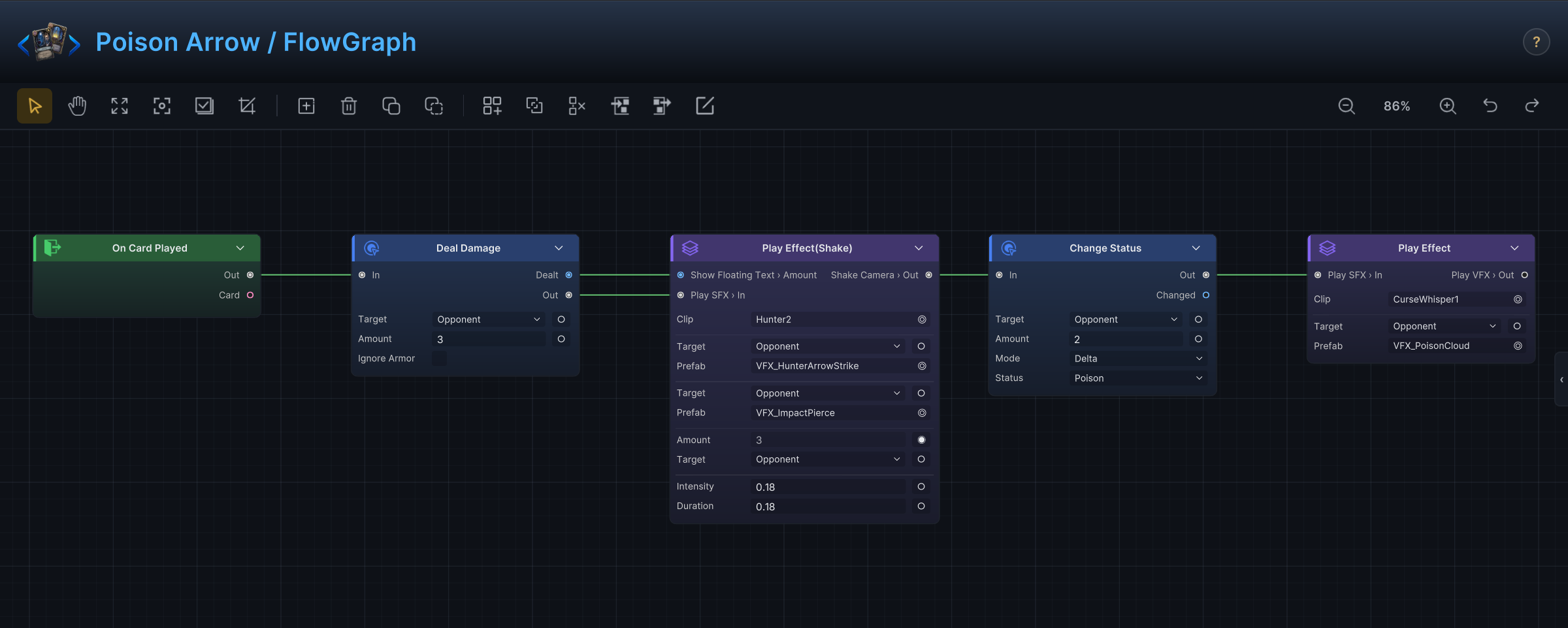
Here is the demo card Poison Arrow. Its whole design reads left to right: an On Card Played entry, a Deal Damage node aimed at the opponent for 3, a Play Effect group that fires the arrow-strike VFX with floating text and a camera shake, a Change Status node that adds 2 Poison, and a closing Play Effect group for the poison cloud.
Who owns a graph
The graph is a GameEffectFlowGraph stored inside the owning asset. There is no separate graph asset to manage or lose.
| Owner | Typical graph |
|---|---|
| Card | On-play behavior, target resolution, card-specific presentation. |
| Status | Apply behavior, triggers, hooks, stack reactions, decay behavior. |
| Enemy | Intent selection, intent preview data, enemy-turn actions. |
A status graph looks structurally identical to a card graph; only the entries differ. Poison, for example, reacts to turn timing instead of a card play:
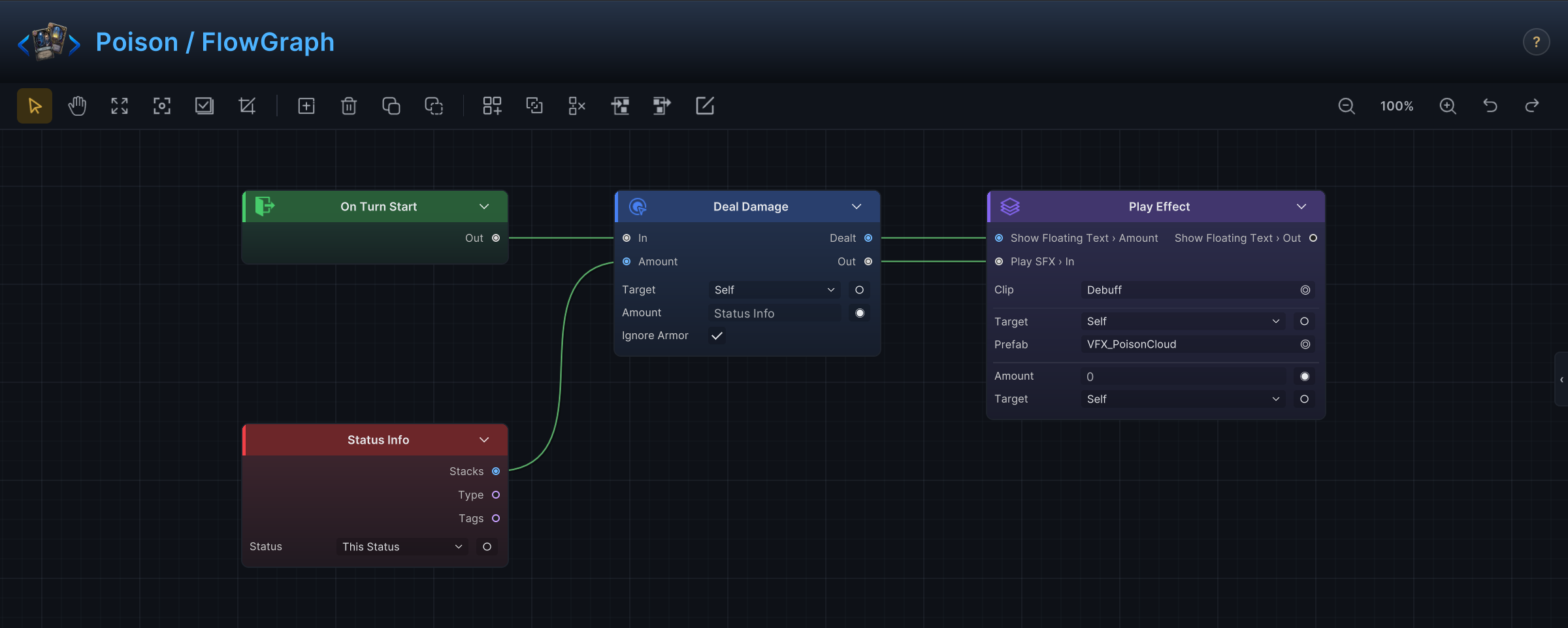
The graph saves with its owning asset. If the runtime behavior does not change, confirm the battle scene uses the database entry you edited. A duplicate entry in another database is a common cause.
Find your way around
The toolbar runs in four clusters, left to right:
| Cluster | Buttons |
|---|---|
| Navigate | Select tool, Pan tool, Frame All, Frame Selection, Select All, grid toggle. |
| Nodes | Create Node, Delete, Copy, Paste. |
| Groups | Create, Unpack, Delete with nodes, Enter, Exit, Rename. |
| View | Zoom out, a zoom readout (double-click it to type an exact value from 25 to 200 percent), zoom in, Undo, Redo. |

Two more controls live in the header. A ⚠ Issues badge appears when validation finds problems: click it to list them, click an entry to jump to the offending node. The ? button opens the shortcut overlay, which documents every gesture in the window.
The right edge hides the node reference drawer. Press Tab or click the ‹ handle to open it, then select any node to read its ports and fields explained in place. Hovering a port in the reference highlights the matching port on the canvas.
| Do this | Press |
|---|---|
| Frame the whole graph | Space |
| Frame the current selection | Ctrl+F |
| Select all nodes | Ctrl+A |
| Copy, paste, cut | Ctrl+C, Ctrl+V, Ctrl+X |
| Group two or more nodes | Ctrl+G |
| Enter or exit a group | Ctrl+→, Ctrl+← |
| Delete a group but keep its nodes | Delete on the group |
| Delete a group with its nodes | Shift+Delete |
| Toggle the reference drawer | Tab |
| Open the shortcut overlay | ? |
| Undo, redo | Ctrl+Z, Ctrl+Y |
Use Cmd wherever Ctrl is shown.
Dragged nodes snap-align to their neighbors, and none of the navigation tools change battle logic. They exist so a fifty-node graph stays readable six months later.
Add Node menu groups
Three gestures open the node menu: double-click empty canvas for the search popup, right-click and choose Create Node for the categorized menu, or use the toolbar button. GCS ships 140+ built-in nodes organized into nine groups. Search by the authoring result you want, not by any C# type name:
| Group | Reach for it when you want to... |
|---|---|
Entry | Start the graph from a battle, turn, card, status, damage, energy, event, or unit moment. |
Hook | Change or cancel a value before GCS commits it. |
Action | Change battle state: damage, HP, armor, energy, cards, statuses, turns, variables, units. |
Get | Read battle state: active unit, target unit, card facts, piles, event args, variables. |
Operator | Compare, calculate, filter, sort, pick, convert, randomize, or combine values. |
Flow | Route execution: Sequence, Branch, Switch, Gate, Loop, While, Foreach, Wait, Choice, Delayed Trigger. |
FX | Request VFX, SFX, animation, floating text, camera shake, unit slide, or flash feedback. |
Intent | Build enemy preview and behavior patterns. |
Event | Raise internal GCS events or optional GES events. |
Group is not in this menu. Select two or more nodes and press Ctrl+G to wrap them in one collapsible Group node.
This documentation uses Add Node menu names throughout. Extension base classes such as MutatorNode or SourceNode only matter when you write custom nodes.
Canvas workflow
| Action | How |
|---|---|
| Add a node | Double-click empty canvas, search, place. |
| Connect control ports | Drag from an output port to an input port to decide execution order. |
| Connect data ports | Same drag; these feed values, targets, cards, statuses, or collections between nodes. |
| Promote an input to a port | Click the socket next to the field, then wire another node into it. |
| Rename a node | Double-click its title. Collapse it with the arrow next to the title. |
| Move and group nodes | Drag; nodes snap-align. Ctrl+G wraps a selection into a group. |
Treat layout as documentation. Entries on the left, the main gameplay actions in the center, presentation on the right, unless a visual genuinely has to land before a mechanical step.
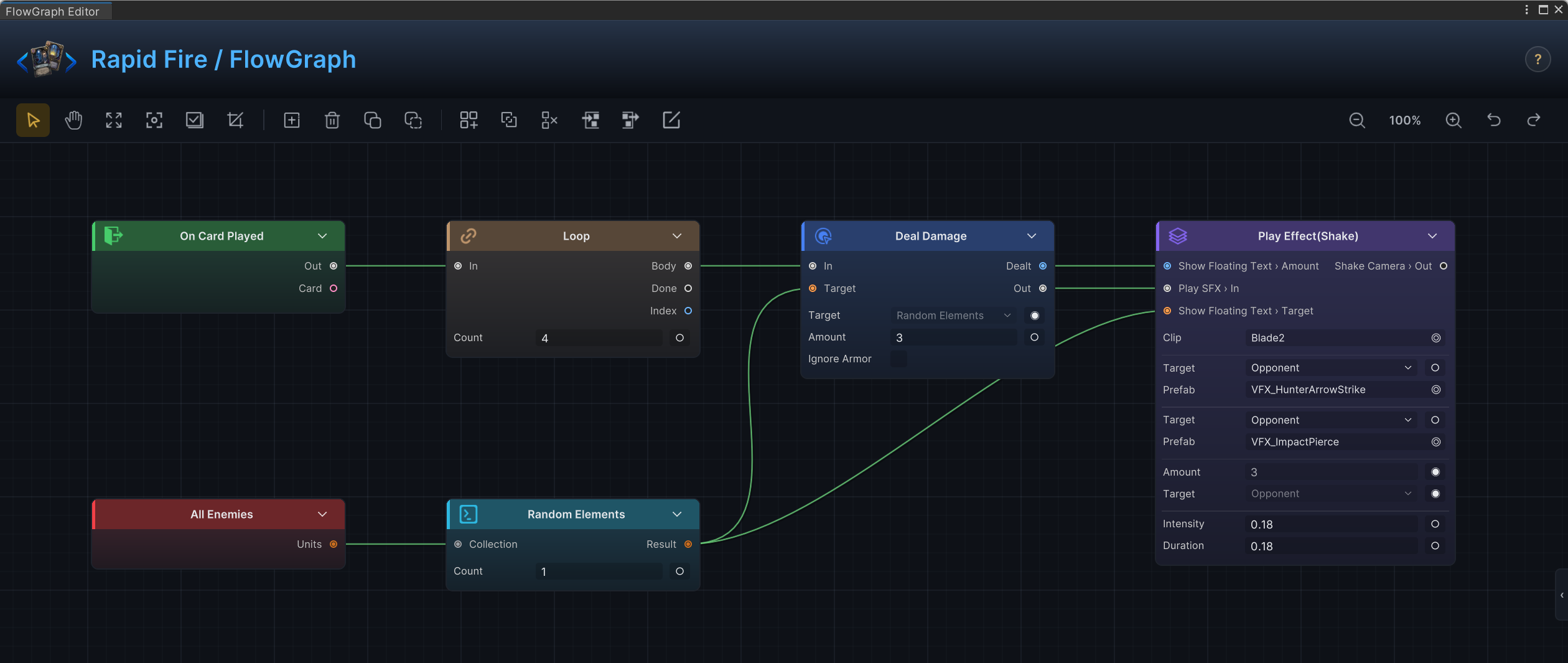
Loops and collections follow the same left-to-right reading. Rapid Fire fires four times, each shot picking one random enemy: an On Card Played entry into a Loop set to 4, whose body deals 3 damage to a target fed by Random Elements drawing from All Enemies.
Fields, ports, and results
Most nodes carry fixed fields plus optional input ports. Keep a value in the field when it is part of the card's design: "deal 8 damage", "draw 2 cards". Promote it to a port when another node should decide it: "deal damage equal to armor", "draw one card per status on the target".
Result ports matter when the visible outcome can differ from the configured value. Floating text should read Deal Damage's Dealt output rather than the configured amount, because armor, hooks, and status rules all get a say in the final number.
Enemy intent graphs
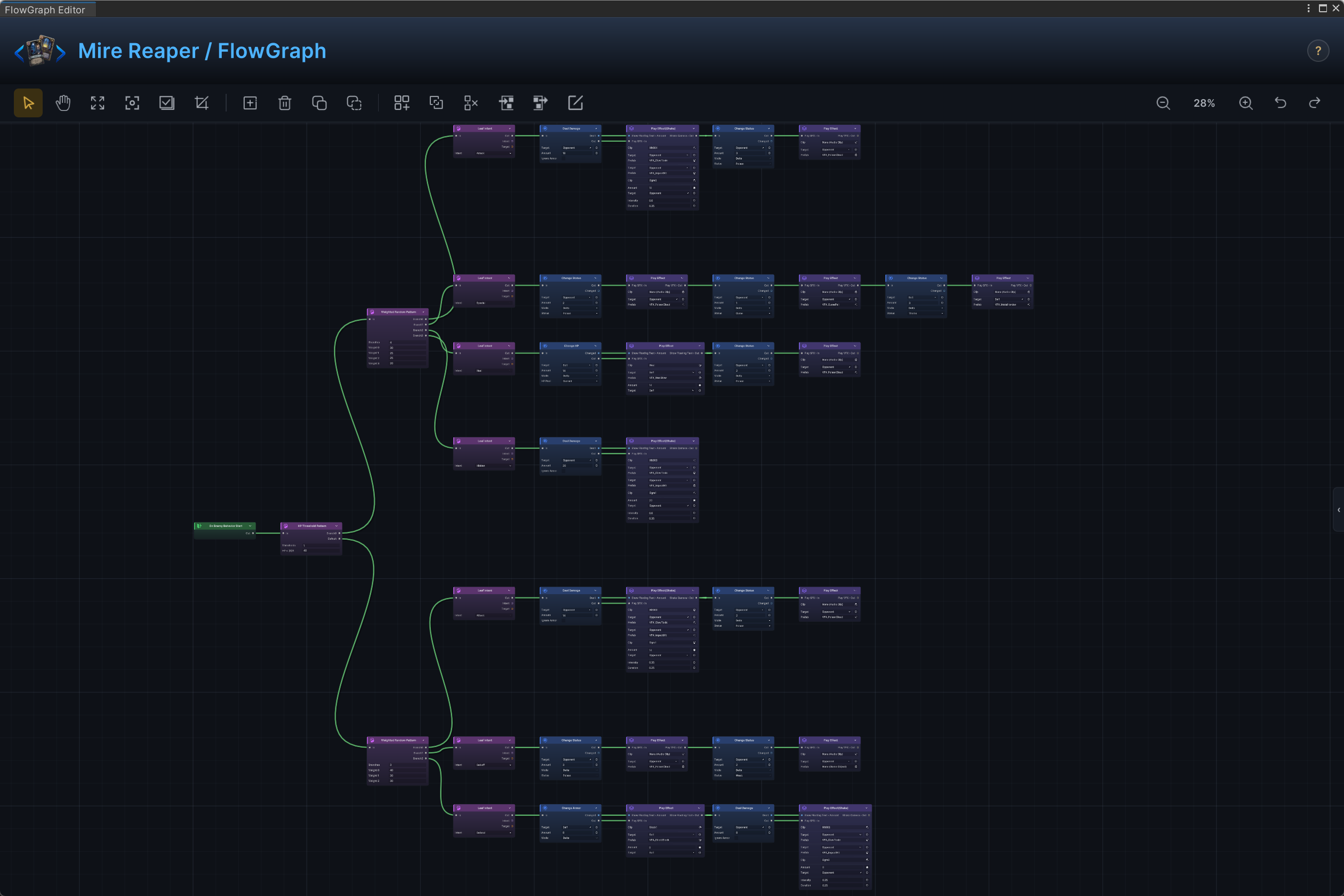
Enemy graphs add the Intent group: pattern nodes such as Sequence Pattern, HP Threshold Pattern, Weighted Random Pattern, Once Per Battle, and Every N Turns decide which Leaf Intent the enemy telegraphs, and each leaf carries the behavior body that runs on the enemy's turn. The Mire Reaper boss shows the shape at full size:
Validation feedback
The ⚠ Issues badge in the header recounts after every edit. It targets authoring mistakes:
- a node the owner cannot run, like a card-only node inside a status graph;
- an internal event entry with no event name, or a GES event entry with no event assigned;
- a connection pointing at a node or port that no longer exists;
- a connection between incompatible ports;
- a custom value node that declares no output port, so nothing can read it.
Click the badge, then click an issue to focus the node it complains about.
A graph with open issues may still run, but a wire that lost its port is a common reason a card underperforms without an error. Clear the issue list before adjusting numbers or presentation.
Save and test
After editing a graph:
- Unity marks the owning asset dirty as you edit, and closing the window saves assets automatically.
Ctrl+Sin between never hurts. - Run the smallest battle that can trigger the graph.
- Keep the Game Card Monitor open on the
Flow,Unit,Pile, orEventtab, depending on what the graph should change. - Only once the runtime state changes correctly, judge the presentation.
Graph shapes that stay readable
| Design need | Clear shape |
|---|---|
| A card deals damage and shows the number | Target source → Deal Damage → floating text fed from Dealt. |
| A card affects every enemy | All Enemies → collection action, or Foreach when each target needs its own presentation. |
| A status changes incoming damage | Hook entry → operator nodes → Write Hook. |
| An enemy rotates predictable moves | Intent pattern → Leaf Intent nodes → behavior body. |
| A rare branch depends on current state | Get node → Condition → Branch or Gate. |
Name graphs, groups, and labels after the player-facing effect. "Burn burst on turn start" survives maintenance; "status handler branch 2" does not.