Enemy Quick Start
Author one enemy unit in Workbench Enemy mode, wire a predictable intent graph, and field it as a controlled test target.
For developers who already have a card or status working and now need an opponent that behaves the same way every run.Cards and statuses are hard to debug against an opponent that acts randomly. This page builds the opposite: an enemy with a narrow HP range and one repeatable action. When a Play Mode run surprises you afterwards, the surprise is in your card, not in the enemy.
Open Enemy mode
Open the Workbench and switch to the Enemy tab:
Tools/TinyGiants/GCS/Game Card Editor
The left column lists enemy units from the enemy databases registered on the scene GameCardManager. With the demo content active you should see 16 entries from PresetEnemyUnitDatabase. An empty list means no enemy unit database is active; fix that on the manager before continuing.
Create the enemy
Create a new enemy, or duplicate a simple demo enemy and edit the copy. The inspector groups its fields into four foldouts:
| Foldout | Field | What it controls |
|---|---|---|
| Basic | Name | Shown in editor lists and battle UI. |
| Basic | Description | A short role note. Useful in the editor even if your game never displays it. |
| Basic | Tier | A grouping label such as Normal, Elite, or Boss. Start with Normal. |
| Basic | Tags | Optional class, biome, or faction labels for filtering. |
| Visual | Icon | The portrait sprite for UI and list rows. |
| Visual | Template | The prefab spawned to represent the unit in battle. Reuse a demo enemy's until final art exists. |
| Attributes | HP Min / HP Max | The range the unit's max HP is rolled from at battle start. |
| Behavior | Edit FlowGraph | The enemy graph that decides intents and executes the enemy turn. |
Each battle rolls the enemy's max HP once, anywhere between HP Min and HP Max with both ends included. Keep the range narrow for a test enemy (18 to 24 works well) so repeated runs stay comparable. The demo Strawman uses 14 to 18 for exactly this reason:
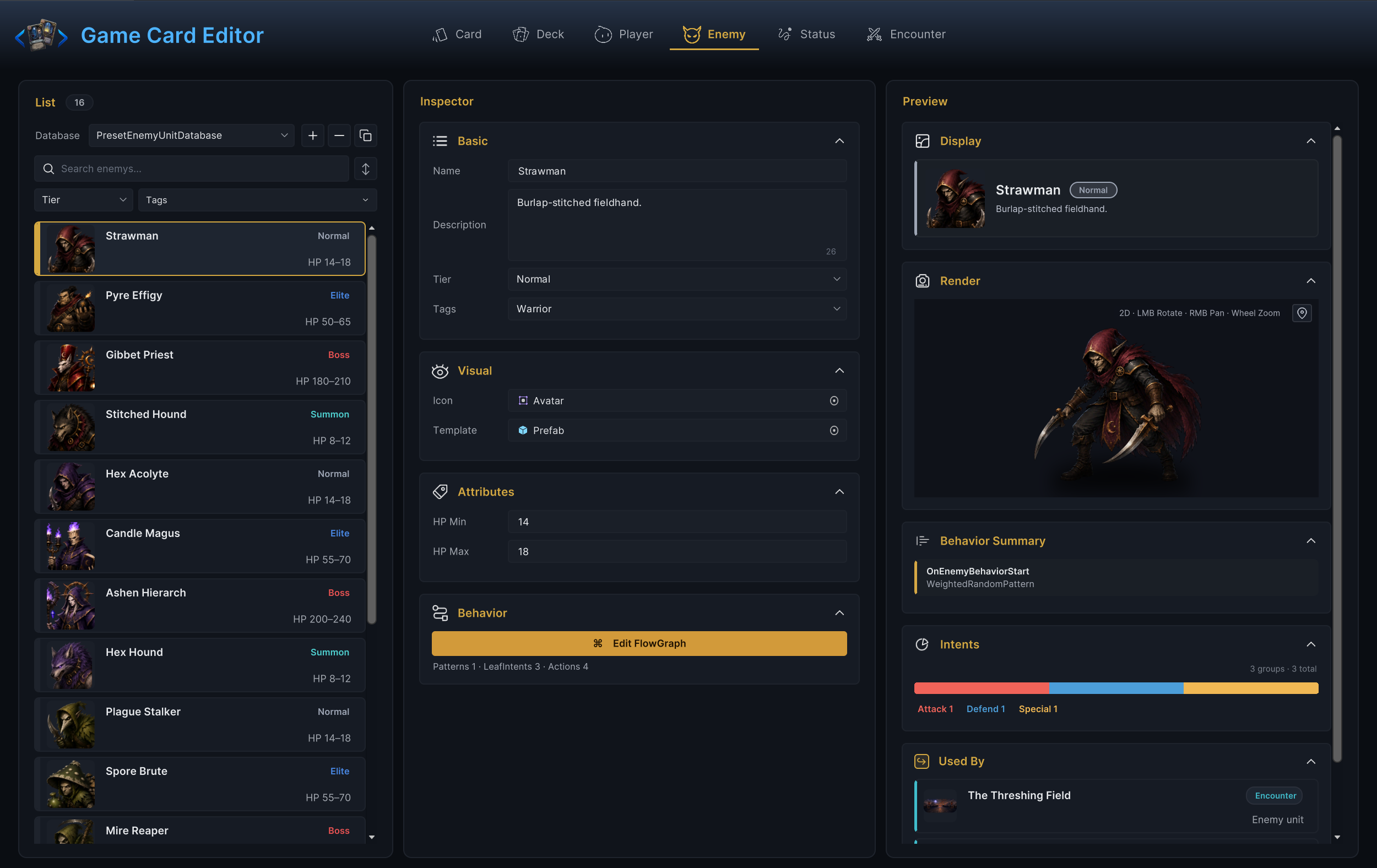
Once the fields are filled, you should see your enemy in the list with its tier chip and HP range, and the Preview column rendering its template.
Give it a predictable intent
Press Edit FlowGraph in the Behavior foldout. The graph window opens with the enemy's name in its title, <Asset Name> / FlowGraph.
An enemy graph answers two questions every round: what the enemy telegraphs (the intent icon players see above the unit), and what actually happens when the enemy acts. GCS resolves the intent at the start of the round, shows it, then executes the same decision during the enemy phase.
For a first enemy, answer both questions with one fixed path:
- Start from the On Enemy Behavior Start entry.
- Add a Leaf Intent node. Its
Intentdropdown already readsAttack, which is the icon players will see. - Follow it with a Deal Damage action and set a small
Amount, such as4. ItsTargetdropdown defaults toOpponent, which on an enemy graph resolves to the player.
Back in the Workbench, the Behavior foldout should now read Patterns 0 · LeafIntents 1 · Actions 1 under the button, and the Preview's Intents panel should show a single Attack group.
The built-in Intent nodes cover the patterns you will want later:
| Node | What it decides |
|---|---|
| Leaf Intent | Declares the intent the unit telegraphs, then runs its action chain. |
| Sequence Pattern | Cycles through its steps in a fixed order across turns. |
| HP Threshold Pattern | Switches branch once the unit's HP percentage drops below a threshold. |
| Weighted Random Pattern | Rolls one branch per turn using weights. |
| Once Per Battle | Runs its body branch the first time, never again. |
| Every N Turns | Runs its body every Nth turn. |
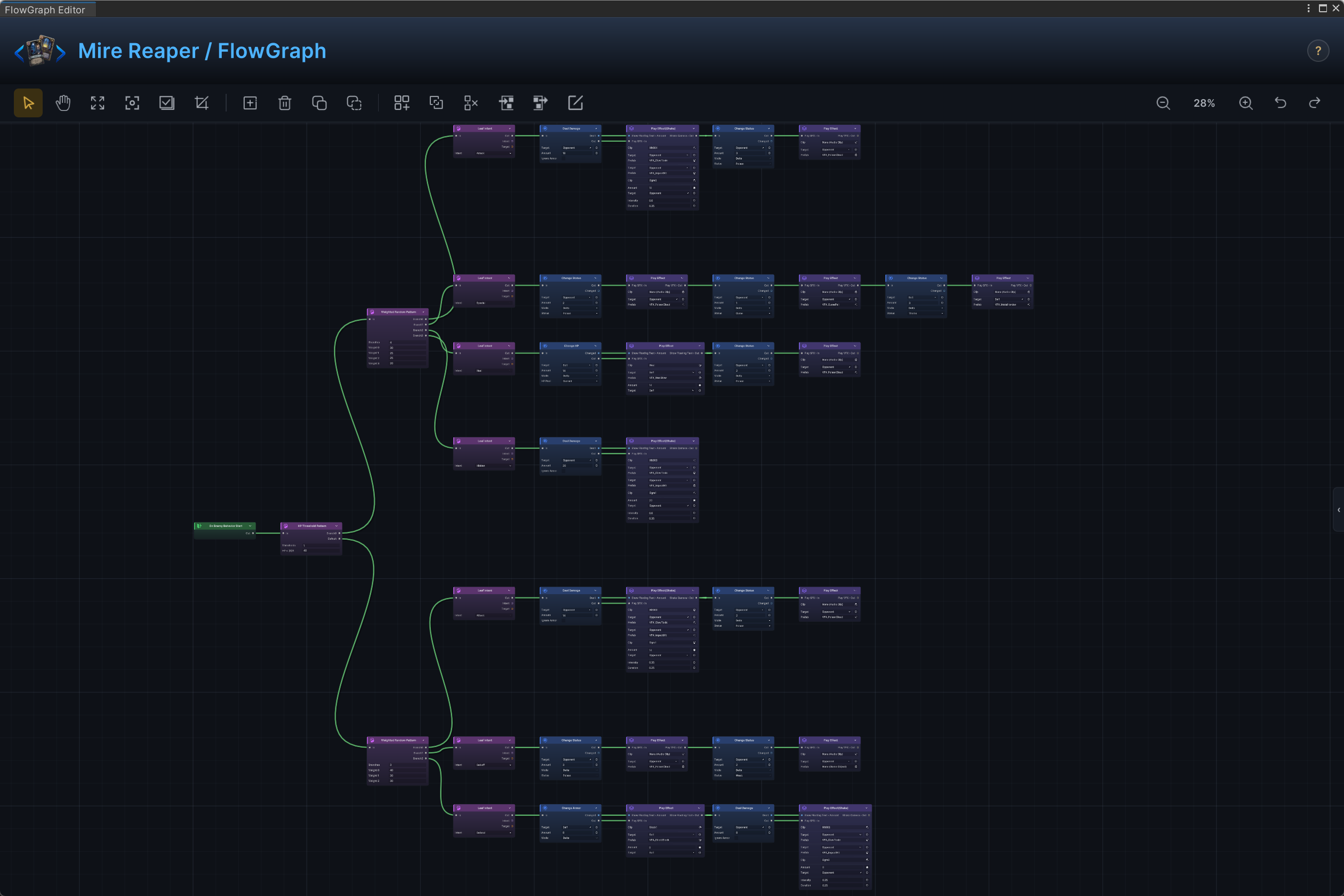
Resist the random and threshold patterns until the flat version works in battle. When you want a reference for a bigger graph, open a demo enemy's Behavior; the Mire Reaper, the boss of the Hunter scene Mire of the Reaper, chains an HP Threshold Pattern into a Weighted Random Pattern before its Leaf Intents:
Put the enemy in an encounter
An enemy definition never enters battle on its own; an encounter has to reference it. Switch to Encounter mode, pick a test encounter or duplicate a small demo one (The Threshing Field fields exactly one enemy), and add your enemy to its Enemy Units list. One enemy is enough for the first run.
You should see your enemy in the Enemy Units foldout with its tier and HP range, and in the Preview's Lineup panel facing the player unit.
Test in battle
Start the encounter in Play Mode and check:
- The enemy spawns at the expected board position.
- Its HP falls inside the configured range.
- The intent icon appears (the encounter's
Enemy Intent Displayrule must not beHidden). - Ending your turn makes the enemy act.
- Player HP or armor changes by the amount your graph deals.
- The enemy dies when its HP reaches zero.
The Game Card Monitor (Tools/TinyGiants/GCS/Game Card Monitor) shows live HP and status stacks in its Unit tab while you play. Watching values there beats squinting at battle UI.
Common mistakes
| Symptom | Likely cause |
|---|---|
| Enemy does not spawn | The encounter does not reference this enemy, or its enemy database is not active. |
| HP varies too much between runs | HP Min and HP Max are far apart. Tighten the range while testing. |
| No intent icon | The graph never reaches a Leaf Intent node, or the encounter rule hides intents. |
| Enemy turn does nothing | There is no connected action path after the intent, so the enemy telegraphs but never acts. |
| Enemy art is missing | Template or Icon is unassigned. |