System Dashboard
The Game Card System window is the setup and navigation dashboard: initialize the active scene, open Workbench and Monitor, check the environment, read release notes, and jump to common folders.
For setup, orientation, and quick troubleshooting. Day-to-day content authoring happens in the Workbench.Open it from:
Tools > TinyGiants > GCS > Game Card System
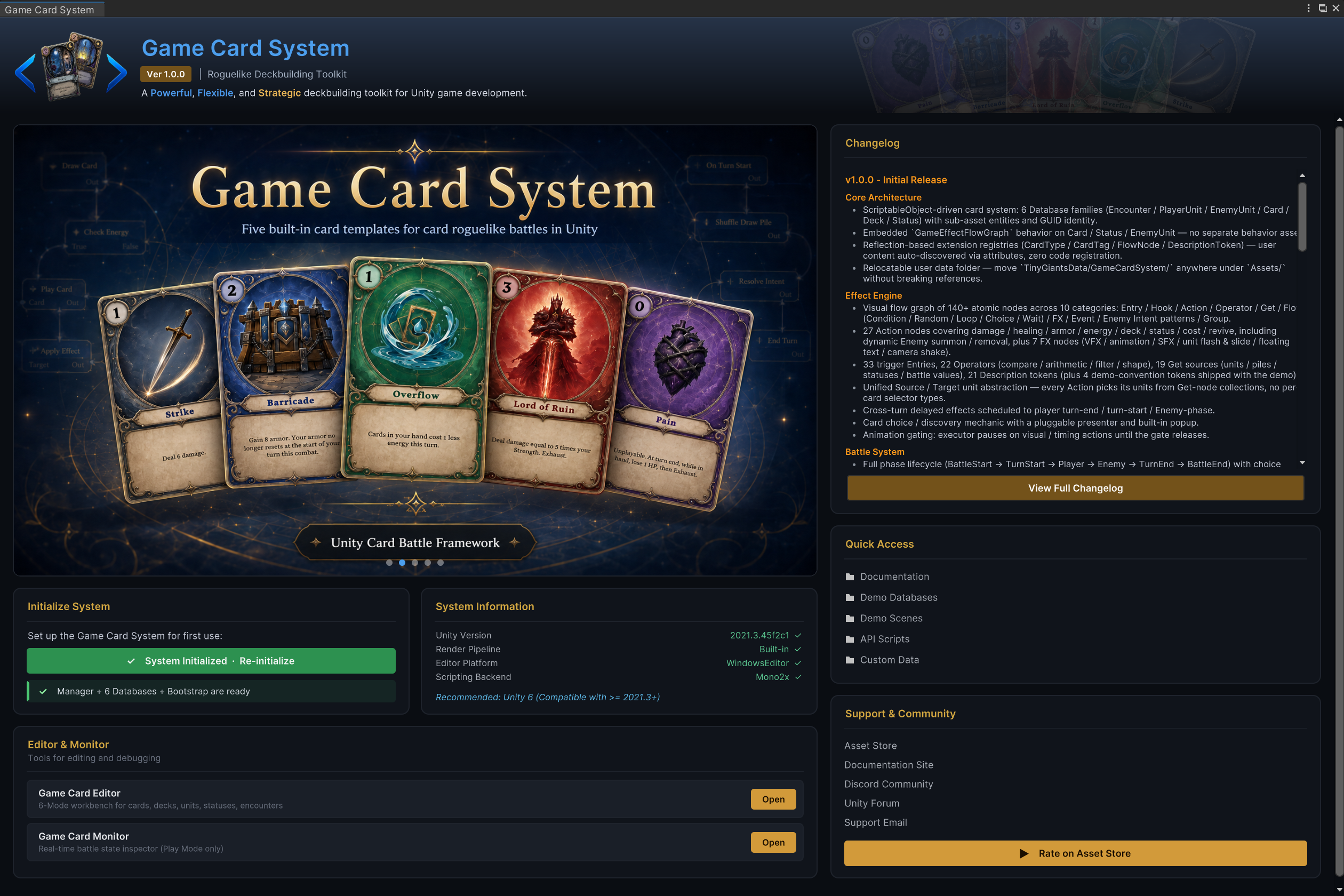
The dashboard is split into two columns. The left column focuses on setup and tools. The right column focuses on release notes, folders, and support links.
Initialize System
This card prepares the active scene. It creates or repairs the GameCardManager, GameCardEncounterBootstrap, preset database registrations, and the minimal battle presentation roots needed for a playable first scene.
Before setup it shows Initialize System. After setup it becomes System Initialized · Re-initialize. Re-running is a repair action: it fills missing pieces, skips already registered preset databases, and leaves custom databases alone.
The full step-by-step flow is in Installation and Initialization.
System Information
This card reports Unity version, render pipeline, editor platform, and scripting backend. Green checks mean the current environment is supported. Use it as the first support snapshot when a setup issue depends on Unity version or render pipeline.
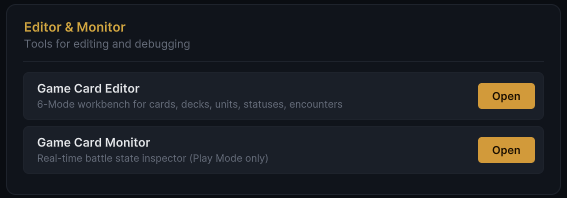
Editor & Monitor
The Editor & Monitor card opens the two daily tools:
| Row | Opens | Use it for |
|---|---|---|
| Game Card Editor | Workbench | Creating and editing cards, decks, units, statuses, and encounters. |
| Game Card Monitor | Live battle inspector | Inspecting Play Mode battle state, piles, units, phases, animation gates, flow runs, and events. |
The rows stay disabled until the scene is initialized, because both tools depend on the manager's active databases.
Changelog
The changelog card shows the current package release notes inside Unity. Use View Full Changelog when you want to open the package Changelog.md file.
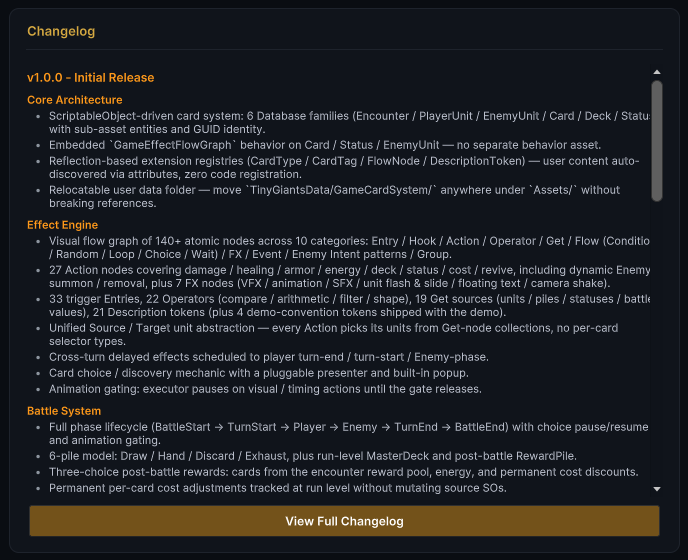
Changelog.md is a release note, not a development log. It summarizes user-facing package changes and keeps the package history readable after updates.
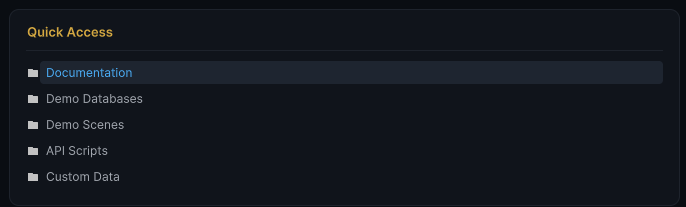
Quick Access
Quick Access opens the folders you need most often during setup and authoring:
| Link | Opens |
|---|---|
| Documentation | The package Docs/ folder. |
| Demo Databases | Demo/Databases/, where the six preset database assets live. |
| Demo Scenes | Demo/Scenes/, the 12 playable battle scenes. |
| API Scripts | Runtime/, including GCS.API.cs. |
| Custom Data | Assets/TinyGiantsData/GameCardSystem/, the recommended root for your own content. |
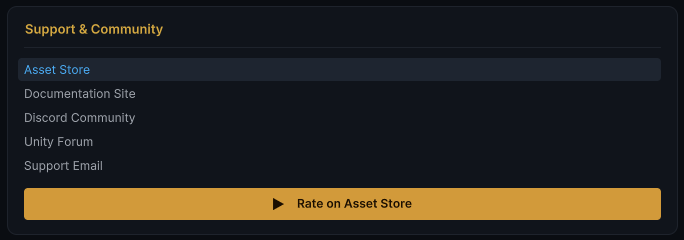
Support & Community
This card groups the external support routes: Asset Store, online documentation, Discord, Unity forum thread, support email, and rating link. Local setup does not depend on these links; use them when the console, Monitor, and docs are not enough.