FlowGraph Editor Workflow
The daily loop in the FlowGraph window: open the graph from its owning asset, wire control before data, and let the Issues badge catch broken graphs early.
For anyone editing card, status, or enemy behavior after the asset itself exists in the Workbench.The FlowGraph window is where behavior authoring actually happens. Create the card, status, or enemy in the Workbench first; the graph editing comes after, from that asset's inspector.
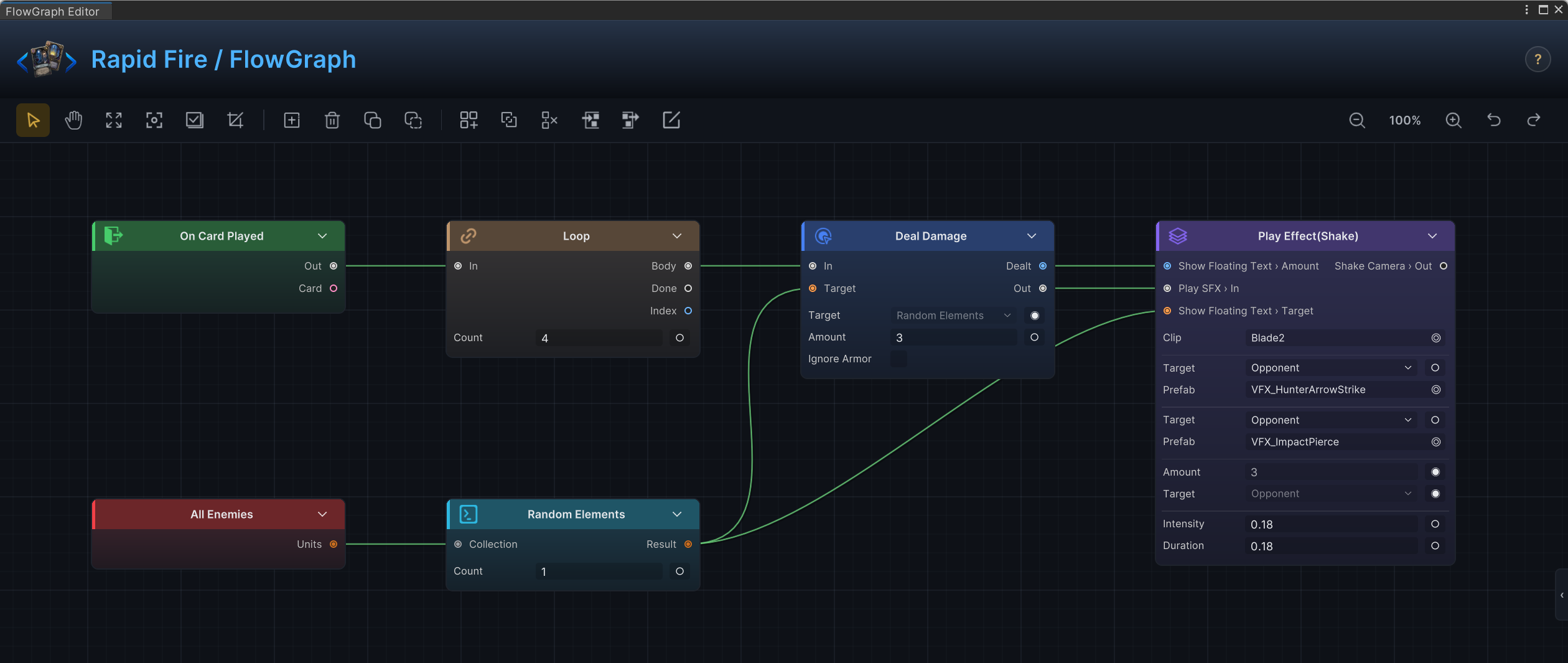
This is the demo's Rapid Fire card. An On Card Played entry starts a Loop set to Count = 4; each pass runs Deal Damage with Amount = 3, and the target is pulled fresh every time from Random Elements fed by All Enemies. The card text reads "Deal 3 damage to a random enemy 4 times", and the graph reads the same sentence.
Open a graph from the Workbench
Select the card, status, or enemy in the Workbench and press the Edit FlowGraph button in its inspector. The window opens on that asset's embedded Behavior graph and its header reads <Asset Name> / FlowGraph, so you always know whose behavior you are editing.
Opening from the owning asset matters because the host decides what the Add Node menu offers. A card graph and a status graph can both use Deal Damage, but only a card graph gets On Card Played and This Card, and only an enemy graph gets the Intent patterns. There is no way to open a graph "in the abstract"; every graph belongs to something.
The toolbar covers the graph housekeeping: select and pan tools, frame all or frame selection, select all, a grid toggle, node create/delete/copy/paste, the group tools, zoom controls, and undo/redo. Esc closes the window when you are done.

Add nodes
Three roads lead to the same Add Node menu:
| Gesture | Where |
|---|---|
| Double-click | Any empty spot on the canvas; the node lands where you clicked. |
| Right-click, then Create Node | Empty canvas. |
| The Create Node toolbar button | Anywhere. |
The menu is a searchable dropdown grouped in a fixed order: Entry, Hook, Flow, Intent, Action, Get, Operator, FX, Event. Type a few letters instead of scrolling; dam finds Deal Damage and the damage hooks.
The list is filtered by the graph's host. Card graphs see the card entries and This Card; enemy graphs are the only ones that list Intent nodes; hooks show up for cards and statuses. If a node you expect is missing, you are in the wrong kind of graph, not a broken window. Entries and Hooks has the full availability map.
Build a graph
- Add one entry node for the moment you care about.
- Add the action, flow, and Get nodes the behavior needs from the Add Node menu.
- Connect control ports left to right until the graph has a complete execution path.
- Connect data ports only where a node must read another node's value.
- Fill the remaining node fields that no data wire drives.
- Check the Issues badge before you move on.
A finished graph should read like a sentence: when this moment happens, pick these targets, apply this change, then show this feedback. If you cannot narrate the graph that way, it usually means the control path has gaps or the entry is wrong.
Read a node card
| Area | Meaning |
|---|---|
| Header | The node name as it appears in the Add Node menu. |
| Fields | Editable settings: amount, target source, pile, duration, clip, condition operator. |
| Left ports | Inputs. Control inputs start the node; data inputs read values from other nodes. |
| Right ports | Outputs. Control outputs continue execution; data outputs feed later nodes. |
| Socket buttons | The ○ / ◉ toggle at the end of a value row. It decides whether that field is an inline value or an input port. |
Most value fields do not show a port until you ask for one. A field that can be driven by a wire carries a small socket button at the end of its row: ○ means the field holds an inline value you type; click it and the field becomes an input port on the node's left edge, the button turns ◉, and the row switches to a read-only display of whatever now drives it. Click ◉ to flip back; the port disappears and any wire into it is removed. Fields you never expose keep the node compact.
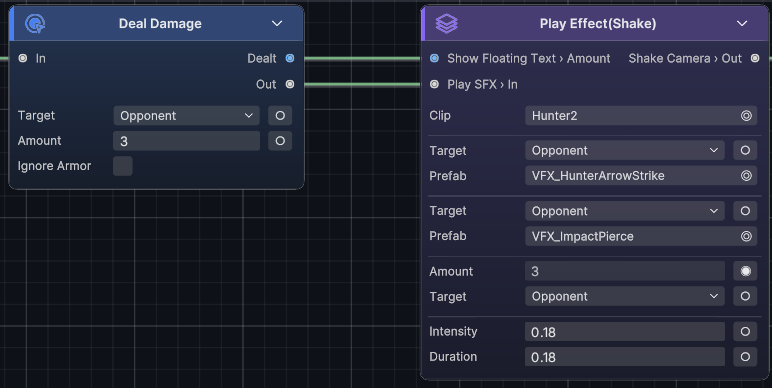
When an exposed port is connected, the connected value wins at runtime and the field becomes the fallback for when the wire is later deleted. Leave the port unexposed whenever a fixed field value says it more clearly.
Connect control first
Control wires describe order. Get the graph running correctly before you add any data wiring. The pattern that holds up in practice:
- Entry
- Target selection
- State-changing action
- Branch or loop, if the design needs one
- Presentation feedback
- Event or cleanup
Keep presentation behind the state change unless the feedback is deliberately a wind-up. A Play VFX sitting in front of a Deal Damage that fails (no target, amount zero) makes the card look like it worked when nothing happened.
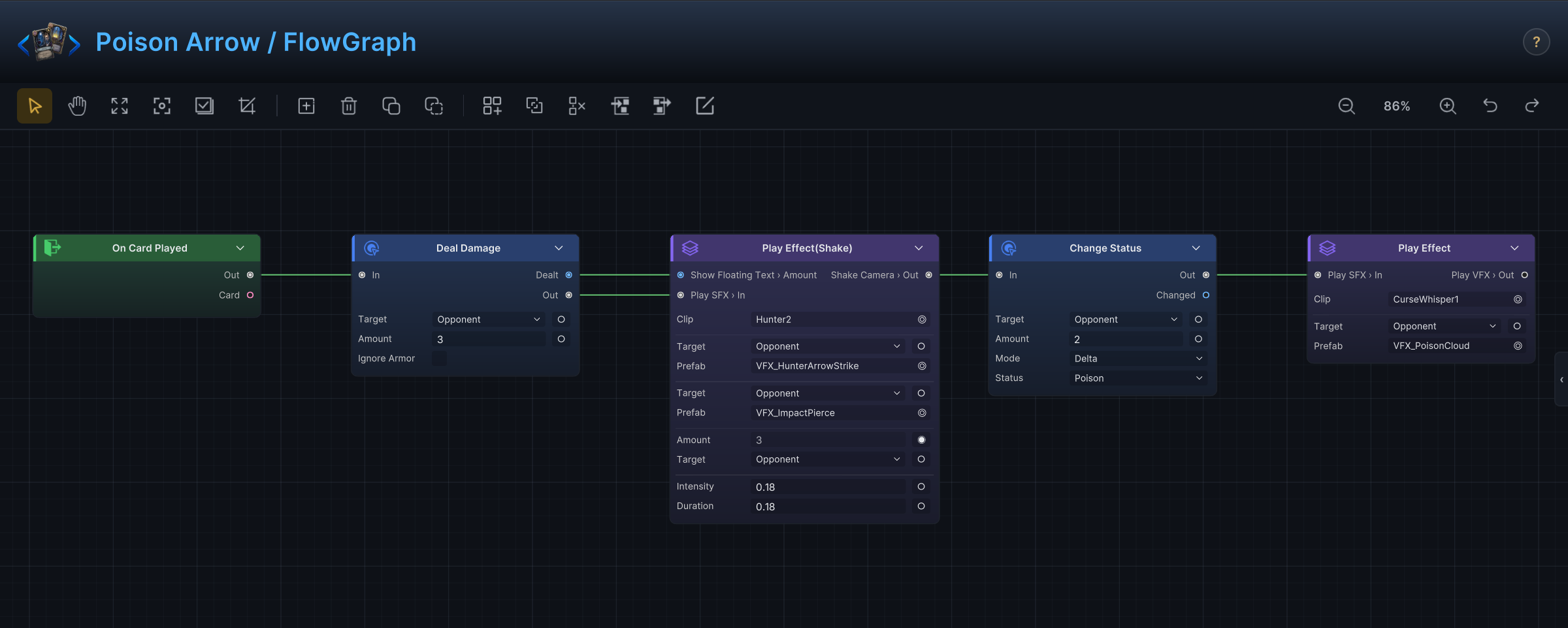
The demo's Poison Arrow follows that order exactly: On Card Played, Deal Damage for 3, Change Status applying 2 Poison, and the camera shake, floating text, and projectile effects grouped after the state changes they announce.
Wiring mechanics, in short:
| Rule | What it means while dragging |
|---|---|
| Drag from any port and release on the other side. | Outputs connect to inputs; the drag preview follows your cursor. |
| One control output feeds one next node. | Nodes that need several continuations have named outputs (True/False, Body/Done, Step0...). |
| A control input accepts many incoming wires. | Several paths can converge on the same action. |
| A data output fans out freely; a data input takes one wire. | Reuse one Unit Info everywhere; each consuming port picks one source. |
| Incompatible data wires are flagged, not silently dropped. | The wire draws as broken with a warning icon at its midpoint; hover it for the reason, such as a text output feeding a number input, and the Issues badge counts it. |
| Press on a connected input port and drag to pick the wire back up. | Re-route without deleting and redrawing. |
Connect data when it clarifies value flow
Data wires earn their keep when the value is dynamic:
| You need | Wire from |
|---|---|
| Current HP or armor | Unit Info |
| Damage that actually landed | Deal Damage output Dealt |
| A card's cost or type | Card Info |
| Current energy | Player Energy |
| The value a hook is deciding | The hook entry's Value output |
| How many things a selector found | Count |
For fixed values, prefer the field. A Deal Damage with Amount = 8 reads faster than a Constant wired into Amount; reach for the wire only when the number is computed or reused.
Reorder, rename, look up
Three smaller tools keep day-to-day editing pleasant:
| Tool | How |
|---|---|
| Reorder ports | Drag a port's label up or down. The other ports slide out of the way, and the new order is saved with the node. Useful when a node's most-wired port sits at the bottom. |
| Rename ports | Double-click a port's label and type. The custom name is a display label for this node only; wiring and behavior are unchanged. In and Out stay fixed. |
| Reference drawer | Press Tab (or the drawer handle on the right edge). Select any node to see what it does, when it runs, its ports, and its parameters without leaving the window. |
Shortcuts
| Shortcut | Action |
|---|---|
| Double-click canvas | Open the Add Node menu at the cursor |
Ctrl+A | Select all nodes |
Ctrl+F | Frame the selection, or everything when nothing is selected |
Space | Frame all nodes |
Ctrl+C / Ctrl+V | Copy / paste the selected nodes |
Ctrl+G | Group the selected nodes |
Ctrl+→ / Ctrl+← | Enter the selected group / step back out |
Delete | Delete the selection; on a selected group, unpack it and keep its nodes |
Shift+Delete | Delete a group together with everything inside it |
Ctrl+Z / Ctrl+Y | Undo / redo |
Tab | Toggle the reference drawer |
Esc | Close the help overlay, then the window |
Watch the Issues badge
The window shows a ⚠ N Issues badge whenever the graph has problems. Click it for the list; each issue jumps to the offending node. The validator catches, among other things:
| Issue | What it means |
|---|---|
| Node is not allowed for this FlowGraph host | A node landed in a graph whose host cannot run it, for example an Intent node outside an enemy graph. |
| Internal event entry requires an event name | An On Internal Event entry has an empty EventName. |
| GES event entry requires a GES event | An On GES Event entry has no event asset assigned. |
| Type mismatch | A data wire connects two ports whose value kinds do not fit, such as text into a number. |
| Connection references a missing node or port | A wire points at something that was deleted or renamed. |
The same checks run from the Workbench validation pass, so a broken behavior graph also surfaces on the asset itself.
When a graph misbehaves at runtime but validates clean, shrink it to the smallest path that proves the timing fires: entry into Show Floating Text. Once you see the popup at the right moment, reconnect the real behavior piece by piece.
Keep graphs readable
Layout is documentation for whoever opens the graph next, including you in three months.
| Habit | Why it helps |
|---|---|
| Keep the main control path horizontal. | The graph scans from entry to result in one sweep. |
| Put data sources above the node that reads them. | Wires stay short and rarely cross. |
| Keep presentation after state changes. | Feedback always matches what really happened. |
| Expose a field as a port only while a wire drives it. | Nodes stay short, and inline values stay editable. |
| Wrap repeated logic in a Group node. | Big graphs stay navigable, and the group is reusable. |
| Name variables by gameplay meaning. | BonusDamage explains itself; Value1 does not. |
Common editing mistakes
| Mistake | Better approach |
|---|---|
| Several entries in one graph with no visual separation. | Give each entry its own clearly separated region, or split the behavior. |
AllUnits as the target when the card only hits enemies. | Use Opponent, AllEnemies, or a Filter on team. |
Set Variable for a value read exactly once. | Wire the output straight into the consumer. |
A Branch placed before its condition exists. | Build the Condition first, then wire it into Branch.Condition. |
A hook graph with no Write Hook. | Add Write Hook, or switch to an entry if no value should change. |