How GCS Redefines Card Roguelike Creation with Visual Content Authoring and FlowGraph

An end-to-end workflow from content authoring and gameplay orchestration to runtime validation
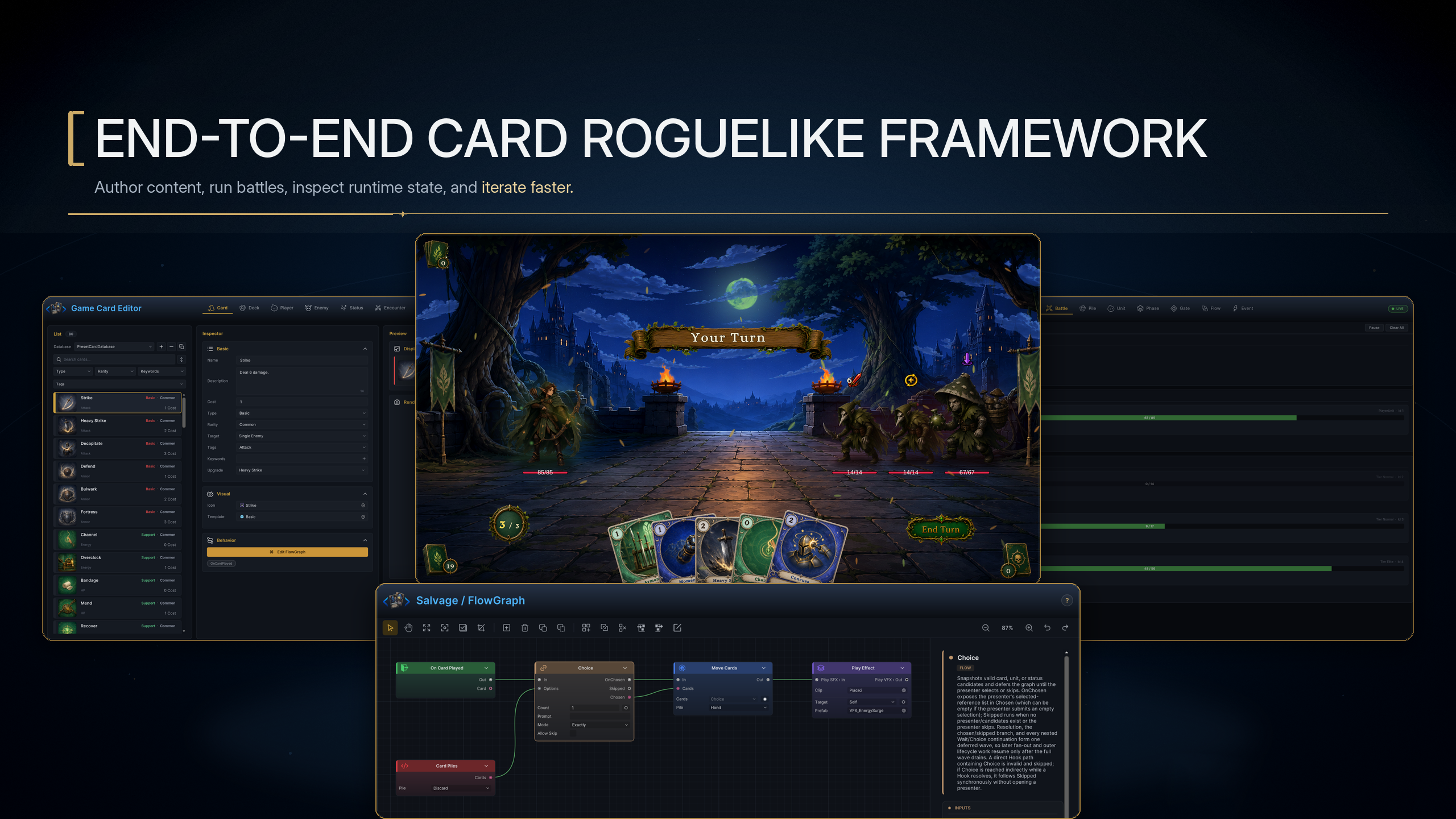
The image above shows the complete workflow for creating a card roguelike with GCS. Start in the Editor on the left, where you create cards, decks, characters, enemies, statuses, and encounters. Use FlowGraph below to orchestrate card effects, status rules, and enemy intent behavior. Then enter Play Mode to run the battle and use the Monitor on the right to inspect battle state and graph execution as you refine the content. Together, these tools form a complete loop from content design to gameplay validation.
FlowGraph is the core of this workflow, while the Editor provides the foundation for six types of content authoring. The Editor defines presentation data, art assets, values, and resource references. FlowGraph determines when cards, statuses, and enemies act in battle, where their data comes from, how rules change, and what feedback the player sees. To keep this logic readable, composable, and directly executable by the runtime, I distilled the triggers, data access, operations, flow control, actions, decisions, and presentation commonly used in card roguelikes into 145 core nodes.
It all starts with visual content authoring
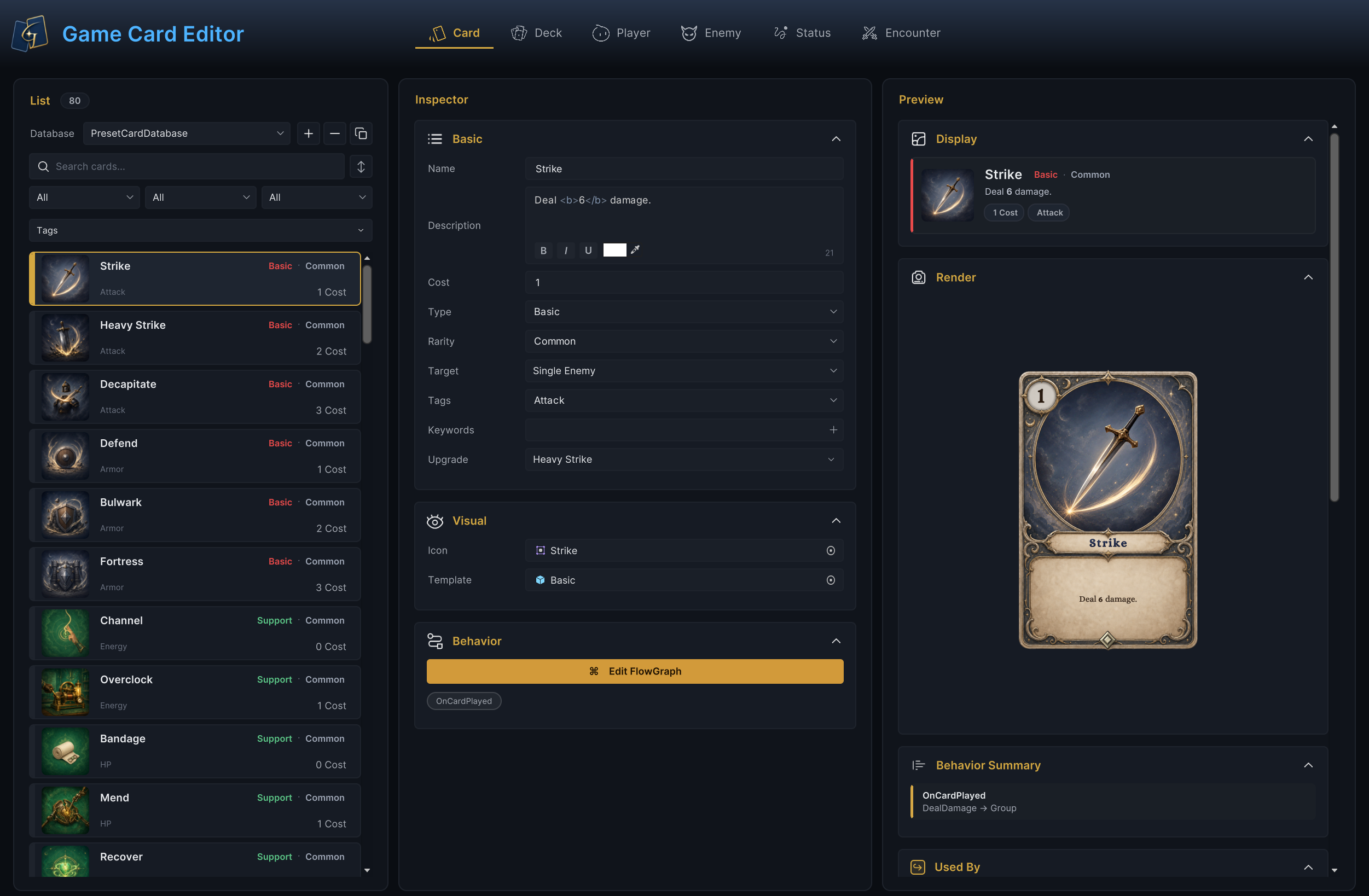
The Editor has six content authoring modes: Card, Deck, Player, Enemy, Status, and Encounter. Every mode is divided into three visual areas. The List on the left manages database entries, the Inspector in the center handles content authoring and configuration, and the Preview on the right updates the visual presentation of cards, characters, and enemies. Everything is brought together in one window, so creators do not need to search through the Project window for individual ScriptableObjects or move back and forth between multiple Inspectors.
| Mode | Content you create |
|---|---|
| Card | Card information, cost, target, tags, upgrades, card visuals, and Behavior |
| Deck | Starting deck, reward pool, card quantities, and deck composition |
| Player | Character stats, base energy, starting deck, battle Prefab, and energy display |
| Enemy | Enemy stats, health range, battle Prefab, Behavior, and Intent summary |
| Status | Status icon, type, stacking, decay rules, stack limit, and Behavior |
| Encounter | Player characters, enemy lineup, reward deck, Intent display, and battle rules |
These six modes cover the primary content needed for a card battle. A project can replace the card Artwork, status icons, and character or enemy Prefabs, while also changing names, descriptions, values, and other battle parameters.
GCS provides the content structure and runtime rules. It does not lock your project into the Demo's art style, class design, or balance.
At this point, visual content authoring defines "what exists in the game." When a card needs to deal damage or restore energy, a status needs to resolve at the start of a turn, or an enemy needs to change actions based on its health, the work moves into "how that content behaves."
Card, Status, and Enemy Behaviors open the same FlowGraph directly from the Editor. This is where gameplay authoring begins.
FlowGraph is the core of gameplay authoring in GCS
I did not design FlowGraph as a selector filled with fixed effects, nor did I rely on a small set of catch-all nodes to cover every behavior. Catch-all nodes may look convenient at first, but as the amount of content grows, they fill up with options that affect one another and become difficult to reuse. GCS instead uses a carefully designed set of atomic nodes. Each node has one clear responsibility, which keeps it flexible and allows complex mechanics to emerge step by step through dynamic parameter ports and connections.
Placing one node from each of the ten categories on a single canvas makes the responsibilities in FlowGraph easy to read. Color identifies the category, the title states the purpose, and the Group node exposes frequently used parameters from its subgraph, including Volume, Clip, Lifetime, and Prefab.
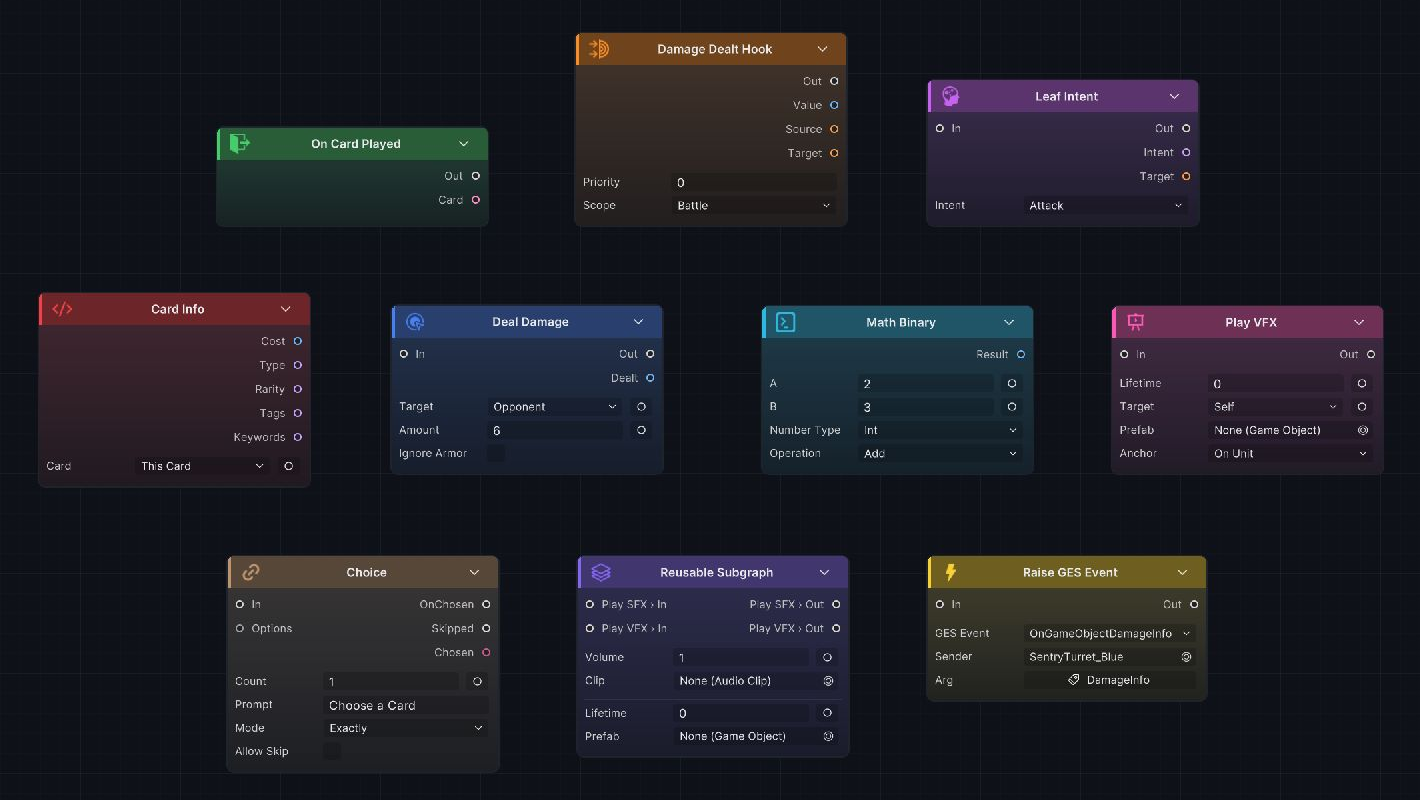
GCS currently includes 145 core nodes: 144 runtime-registered nodes and one Group node for organizing subgraphs.
| Category | Count | Responsibility |
|---|---|---|
| Entry | 33 | Start rules from card play, turns, battles, statuses, units, events, and other timings |
| Hook | 18 | Read and modify candidate values before damage, armor, cost, draw, status, and other results are committed |
| Get | 19 | Read data from units, cards, statuses, piles, energy, variables, and events |
| Operator | 22 | Perform math, comparisons, Boolean logic, randomness, collection operations, and data conversion |
| Flow | 10 | Organize branches, sequences, loops, choices, waits, delays, and Gates |
| Action | 27 | Modify health, armor, energy, cards, piles, statuses, turns, and units |
| Intent | 6 | Build enemy actions, weighted random choices, health thresholds, fixed sequences, and usage limits |
| Event | 2 | Raise internal GCS events or optional GES events |
| FX | 7 | Request SFX, VFX, animation, floating text, movement, and camera feedback |
| Group | 1 | Encapsulate multiple nodes in a named, navigable, and nestable subgraph |
| Total | 145 | Cover the complete card roguelike gameplay language from trigger to feedback |
These 145 nodes are not 145 preset card effects. Entry and Hook decide when a rule runs. Get and Operator prepare data. Flow organizes the execution path. Action, Intent, Event, and FX deliver the result. Group adds nested structure to complex graphs. Because the nodes are atomic, the same Change HP node can handle healing, health costs, or health exchange, while the same Change Energy node can restore energy, spend it, or control turn resources. There is no need to create a dedicated node for every card effect.
How FlowGraph builds a gameplay rule
A basic card Behavior can be very short. Take the included Poison Arrow card as an example. It starts at On Card Played, uses Deal Damage to deal damage, plays hit feedback, applies Poison through Change Status, and then plays the matching poison effect. The control line from left to right defines the resolution order, while the damage value, target, Status, and presentation assets remain on their corresponding nodes.
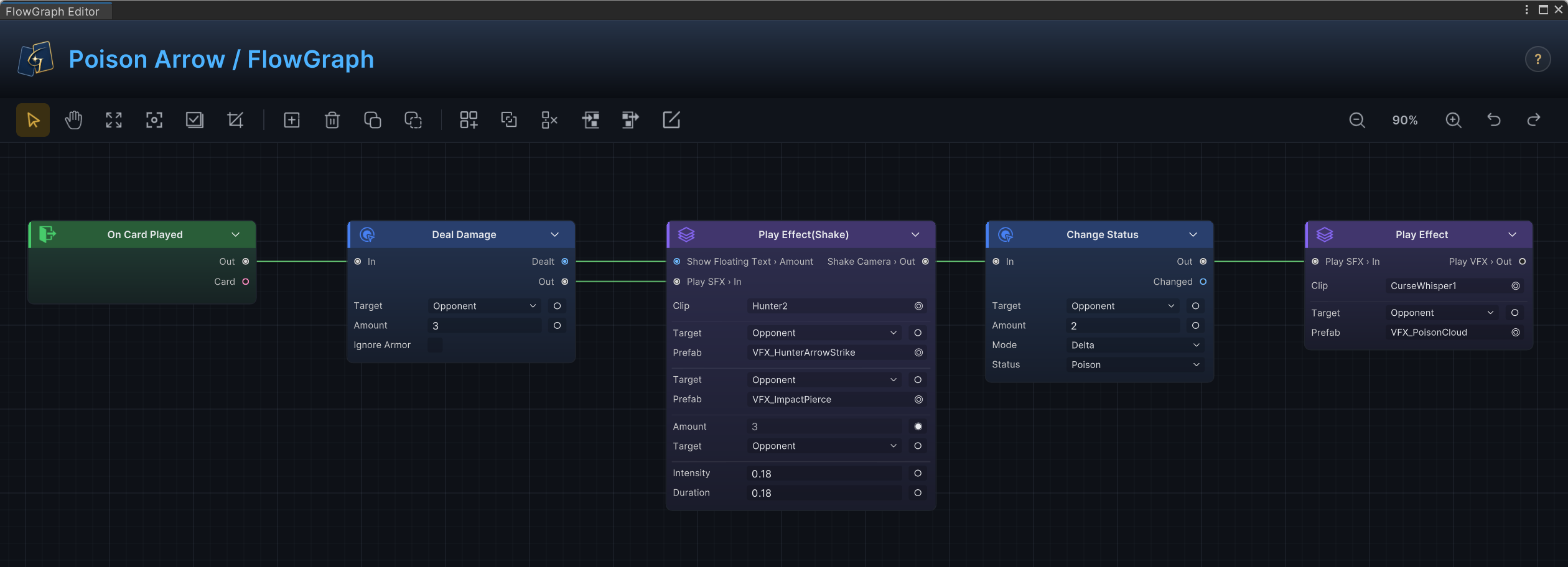
This graph keeps logic and presentation on the same readable path. Changing the damage does not require entering the poison logic, and replacing VFX or SFX does not affect numerical resolution. You can add nodes freely and rearrange their order, which makes the authoring process both flexible and enjoyable.
In this graph, Deal Damage runs the standard damage pipeline, while Poison is a status whose periodic damage belongs to the Status Behavior itself. The Card graph only controls the act of applying that status. Other cards can therefore apply the same Status and reuse its ongoing rules without duplicating them.
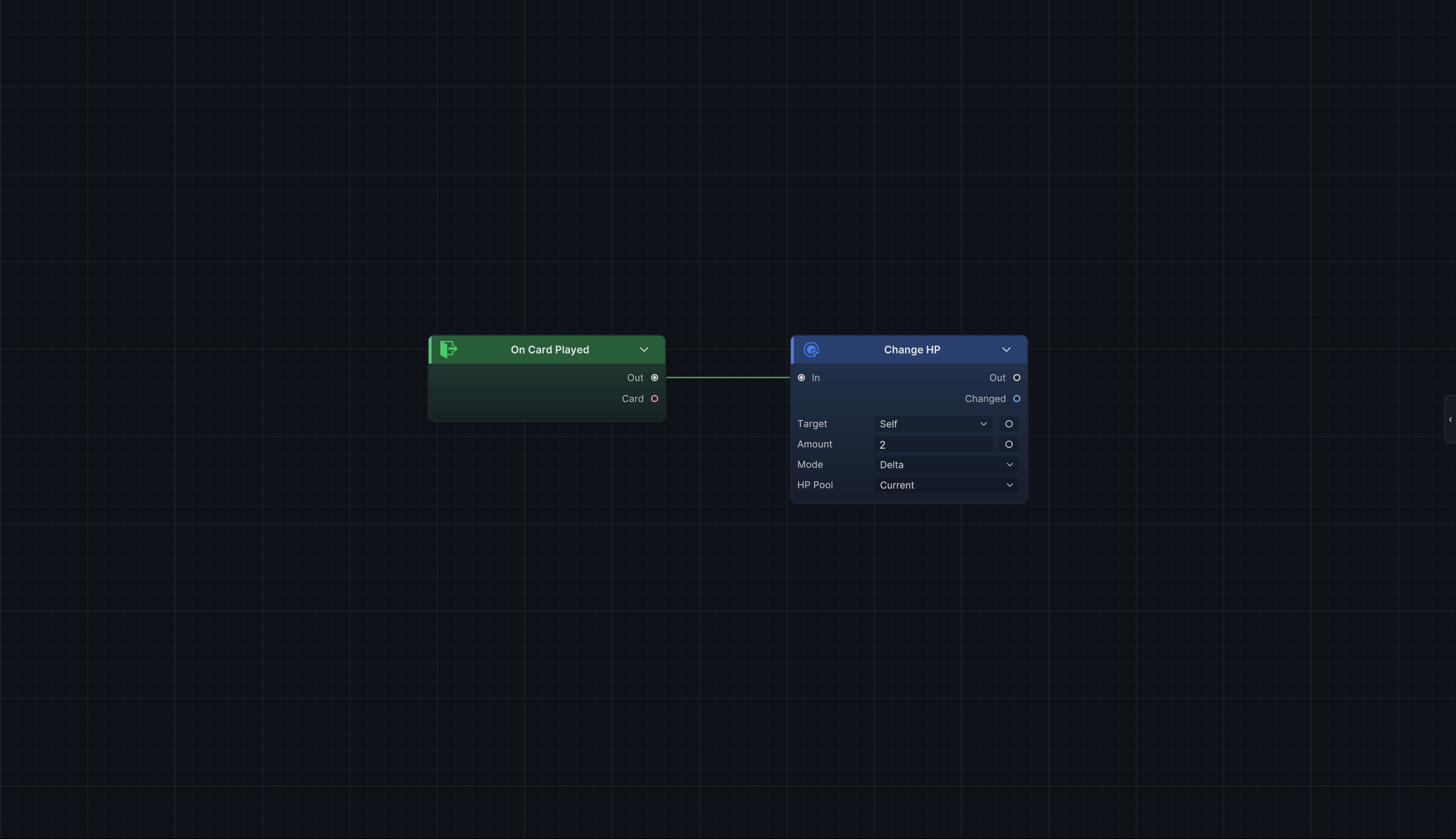
Healing health or restoring energy uses the same family of nodes. The shortest healing graph only needs to connect On Card Played to Change HP, set the target to Self, and enter a positive value. The same node expresses a health cost when the value is negative.
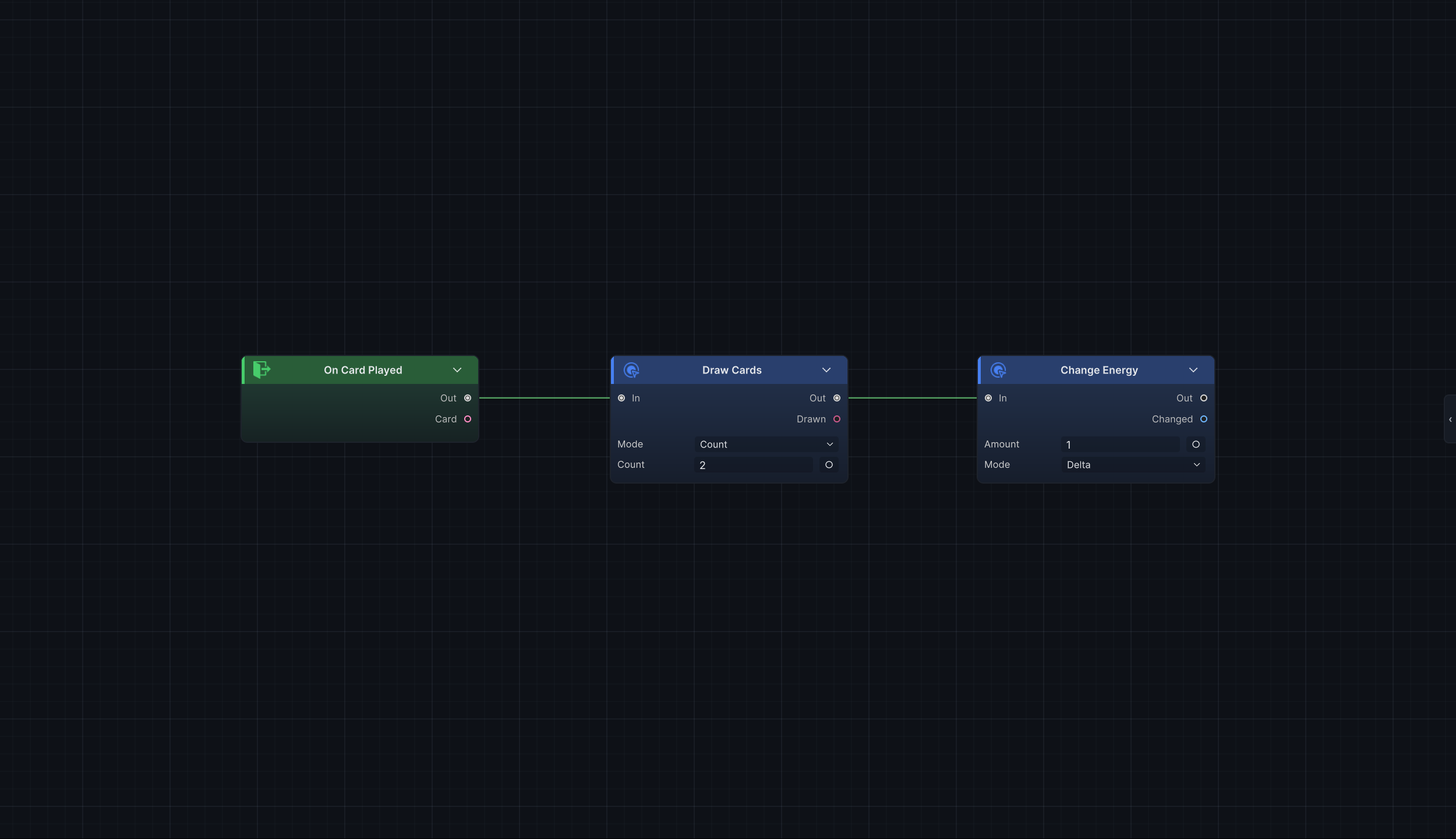
Resource combinations follow the same method. Change Energy adjusts current energy. Connect Draw Cards and Change Energy on the same control path, and the graph now means "draw two cards and gain one energy." The nodes do not need to know whether the final card is named Supply, Meditation, or Tactical Preparation. They only describe what actually happens.
Once an effect begins reading battle state, a fixed action becomes a dynamic mechanic. Creators can read current health, armor, energy, status stacks, pile counts, card tags, battle variables, and other data. Operators can calculate, compare, or filter those values before passing the result into an Action. Branch can choose a path based on a condition, Foreach can resolve each target in a collection, Choice can hand candidates to the player, and Delayed Trigger can schedule a later action for a specific turn.
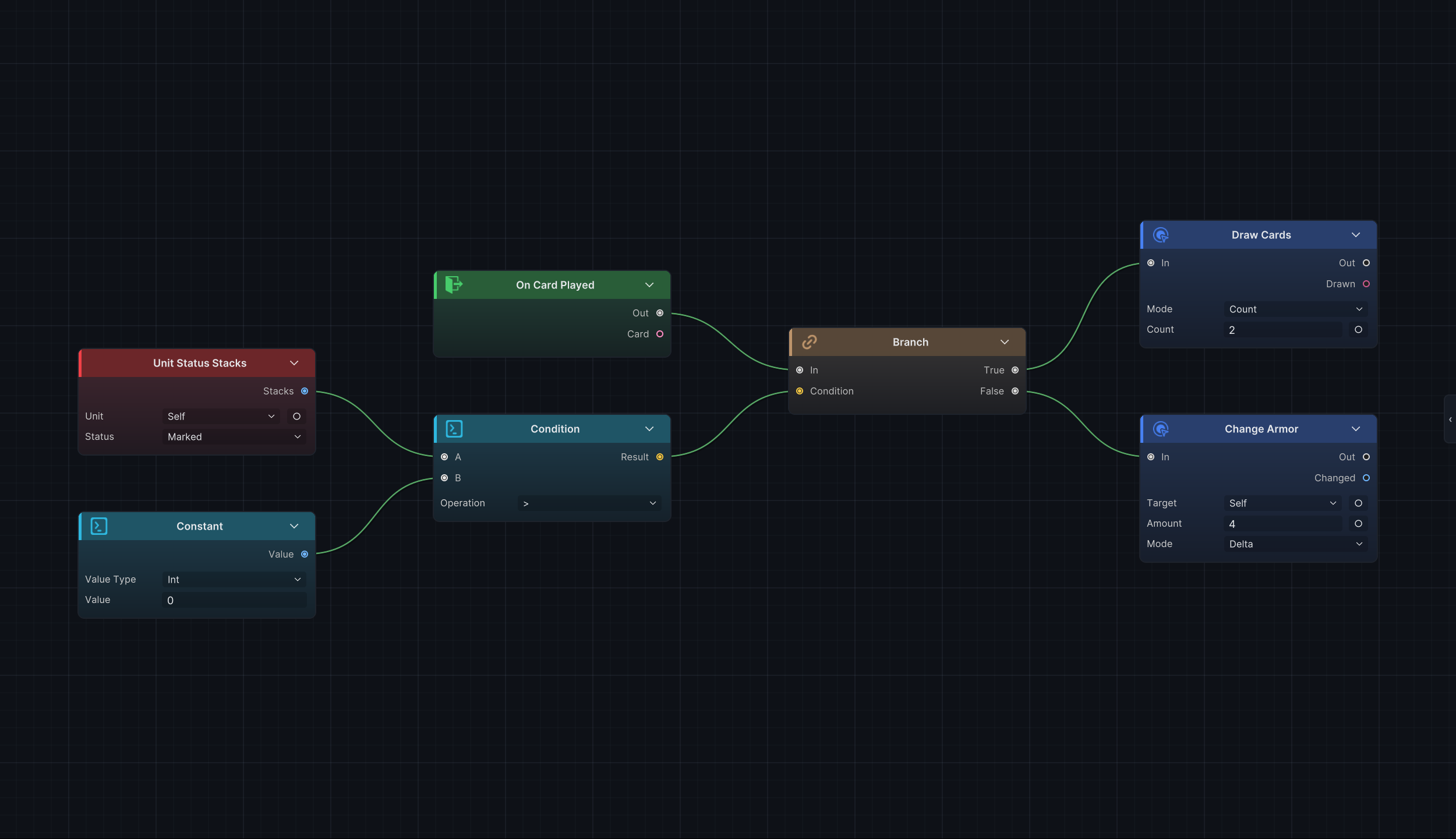
The graph above uses Unit Status Stacks to read the Marked stacks on Self. Condition compares that value with the constant 0, then passes the Boolean result into Branch. When the condition is true, it runs Draw Cards; otherwise, it runs Change Armor. Get, Operator, Flow, and Action respectively read the data, evaluate it, choose the path, and commit the result. This is how a fixed action becomes a state-driven mechanic.
A mechanic can therefore grow from "deal 6 damage" into "find enemies with a specified status, calculate damage from their status stacks, resolve a different amount against the remaining enemies, then trigger status and presentation feedback on hit." Every added step appears as a node that can be inspected and adjusted independently. With this graph-driven approach, creators can drag in new nodes, change connections, replace data sources, or insert a branch into an existing path without rebuilding the entire card.
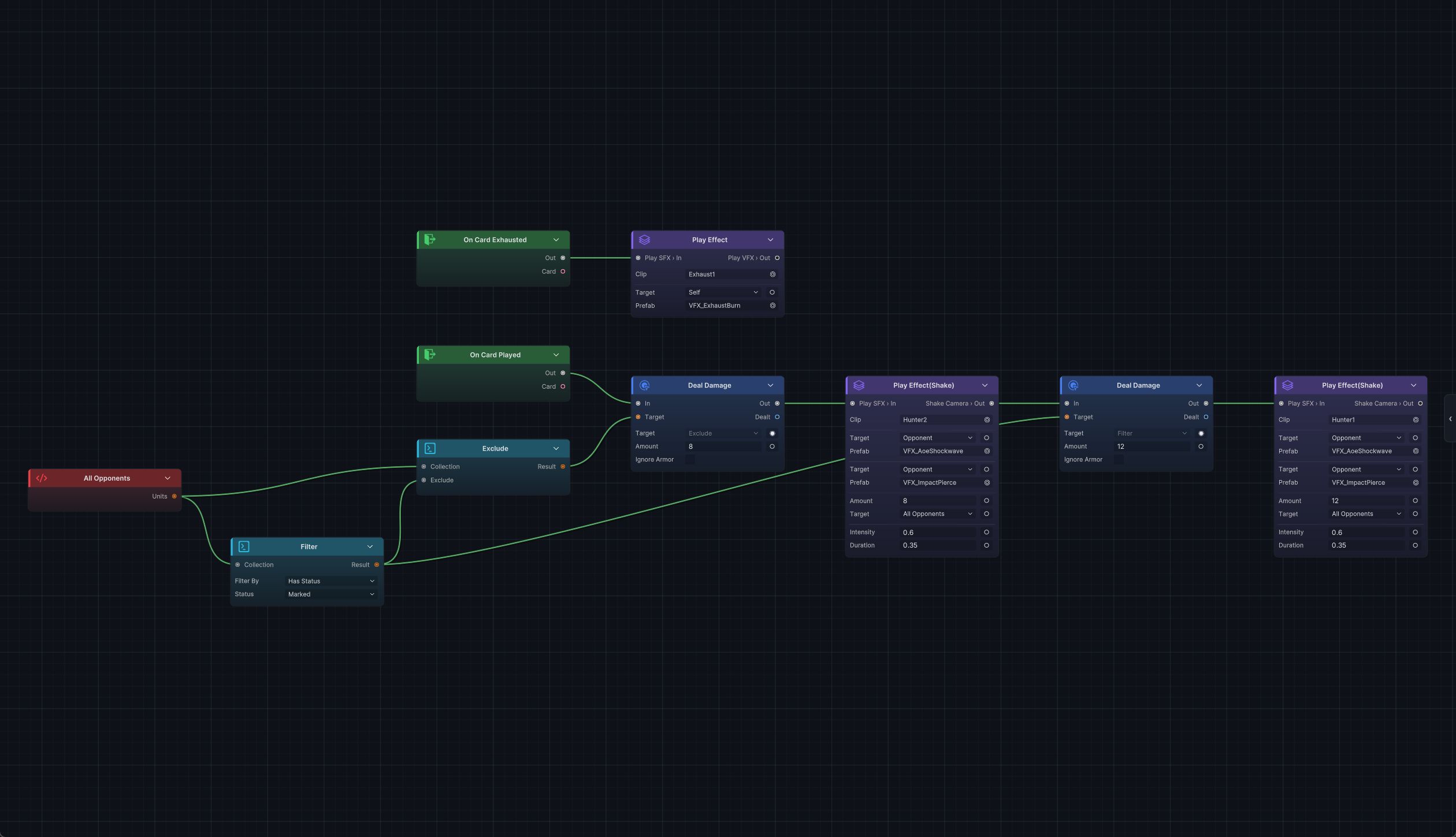
The graph above gets every enemy from All Opponents. Filter selects targets with Marked, while Exclude returns the rest. The two groups feed into 12 damage and 8 damage respectively, extending a basic area attack into differentiated resolution. To scale damage by status stacks or add status, VFX, and SFX after the hit, simply connect the corresponding data and action nodes while leaving the existing target selection and resolution paths intact.
Hook and Intent extend the boundaries of FlowGraph
A regular Entry is well suited to describing "what happens after something occurs." Strength, Vulnerable, cost modifiers, hand-size limits, and status immunity must instead act before a result is committed. GCS provides 18 specialized Hook nodes for these rules. The runtime first supplies a candidate value. The Hook reads the current value and context, calculations are applied, and Write Hook writes the result back. A rule can also cancel the current operation explicitly when needed.
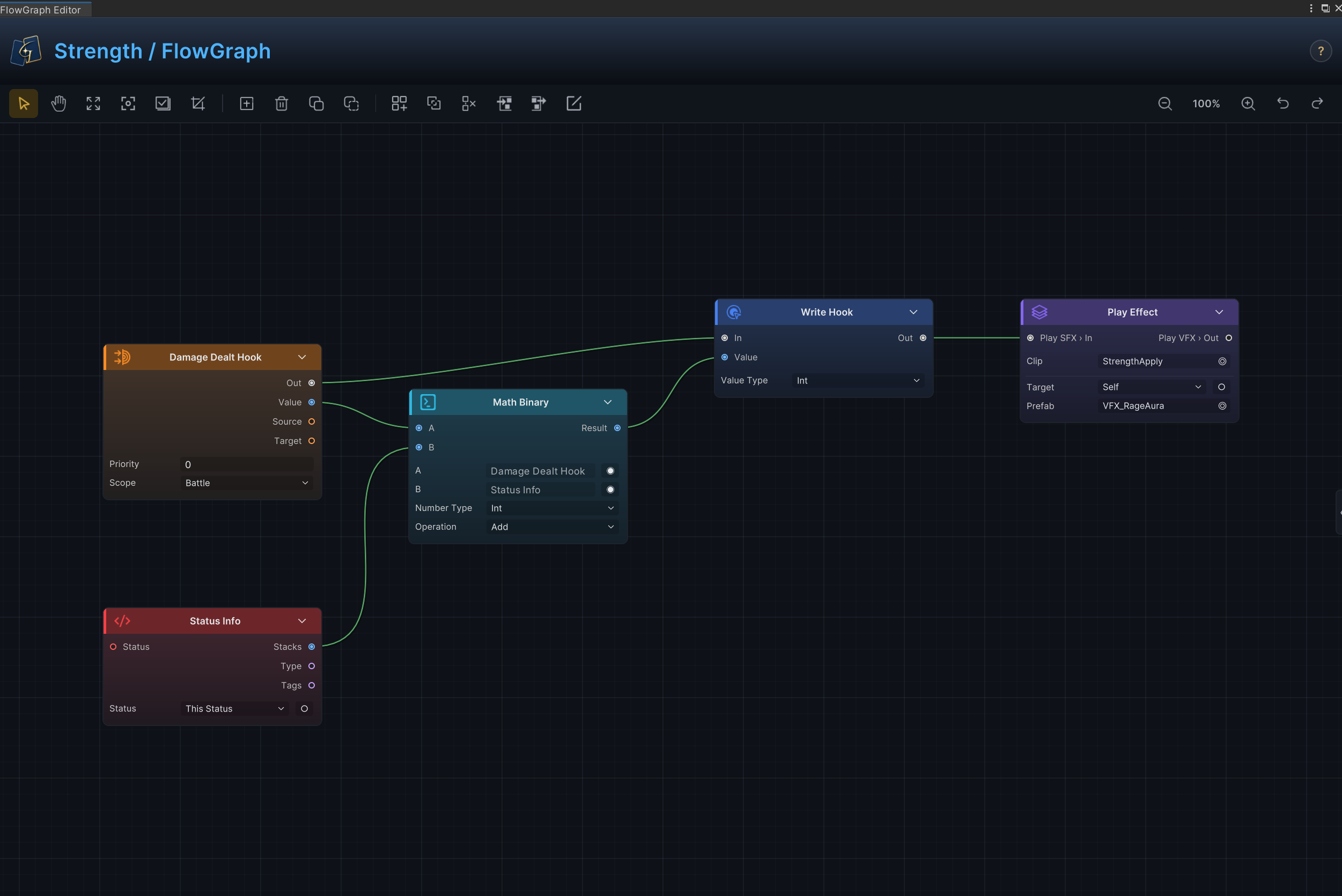
Strength is a typical Hook-based status. Damage Dealt Hook reads the candidate damage, Status Info reads the current Strength stacks, Math Binary adds them together, and Write Hook writes the result back. Every card and enemy Intent that passes through the standard damage pipeline receives the same result, without requiring each card to query Strength on its own.
With Hook covered, let's turn to Intent. Intent controls how an enemy chooses, previews, and executes an action. The six Intent nodes can be combined into fixed actions, weighted random choices, health thresholds, action sequences, per-battle use limits, periodic behavior, and more.
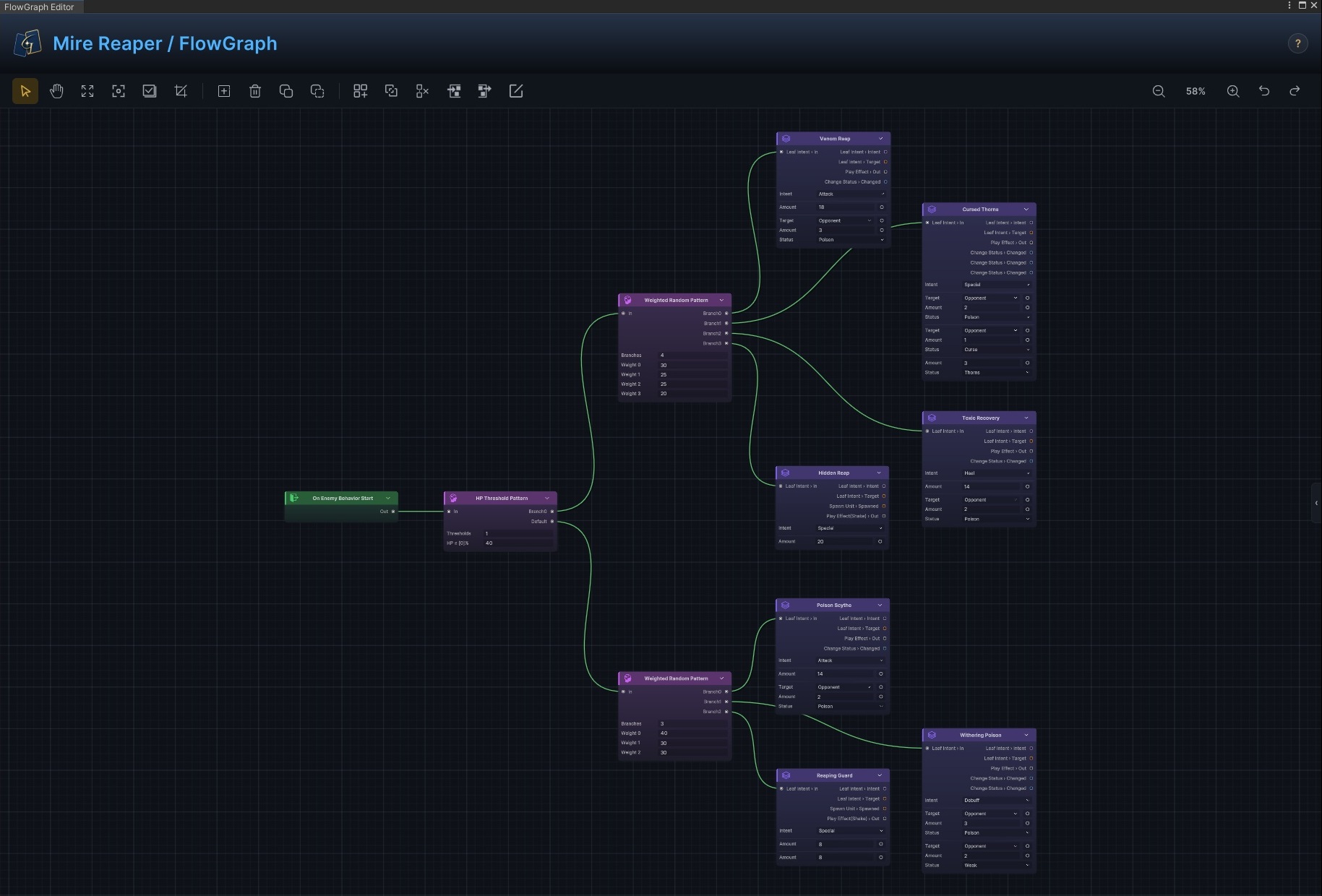
The outer graph for Mire Reaper first switches phases at a 40% health threshold, then enters a separate weighted selection for each phase. Multi-phase Boss encounters commonly use this structure. Each candidate action is organized as a Group, leaving only the decision structure on the outer canvas and making its logic easier to follow.
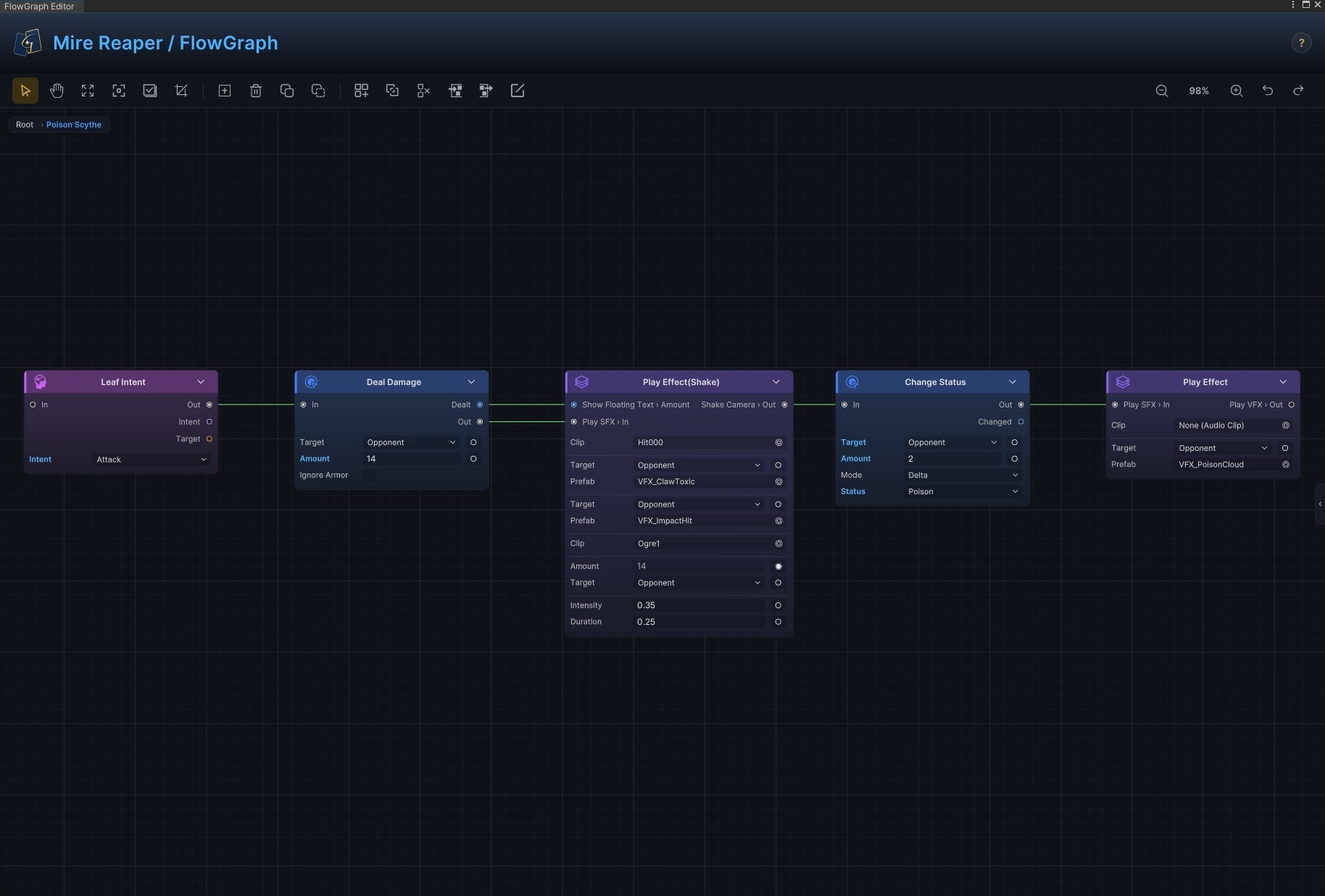
Double-click Poison Scythe to enter the Group and reveal its full action subgraph. Leaf Intent defines the attack preview shown to the player: deal 14 damage, request hit feedback, apply 2 Poison, and play the poison effect. This nested graph structure keeps complex logic readable and maintainable.
FX nodes give combat its presentation
After a card deals damage, restores health, or applies a status, animation, effects, audio, and floating text make the result clear to the player. The FX family includes Play SFX, Play VFX, Play Animation, Show Floating Text, Flash Unit, Slide Unit, and Shake Camera. They share the same control path as damage, healing, statuses, and Intent, so creators can decide exactly when audio plays, which unit receives a particle effect, which resolved value appears in floating text, and how long the camera shake lasts.
Combine 145 built-in nodes into hundreds of millions of gameplay mechanics
The value of these nodes comes from composition. Placing 145 core nodes into only four ordered positions already produces more than 440 million theoretical arrangements. A real FlowGraph also includes parameters, data sources, targets, branches, loops, Hook, Intent, and Group nesting. The system filters out connections whose port types or owner contexts do not match, so 440 million is not a count of "usable gameplay mechanics." It is a simple measure of composition scale, and it already shows that atomic nodes can express far more than any list of preset effects.
Most common battle rules can be built directly from the included nodes without writing new ones. The GCS online documentation contains 103 FlowGraph recipes: 52 card recipes, 30 status recipes, and 21 enemy recipes. They cover mechanics ranging from card selection and draw or discard behavior to costs, status interactions, damage modifiers, extra turns, revival, Boss phases, summoning, pile disruption, and cross-graph events. The collection also includes concrete graph references for familiar mechanics from card roguelikes such as Slay the Spire and Night of the Full Moon.
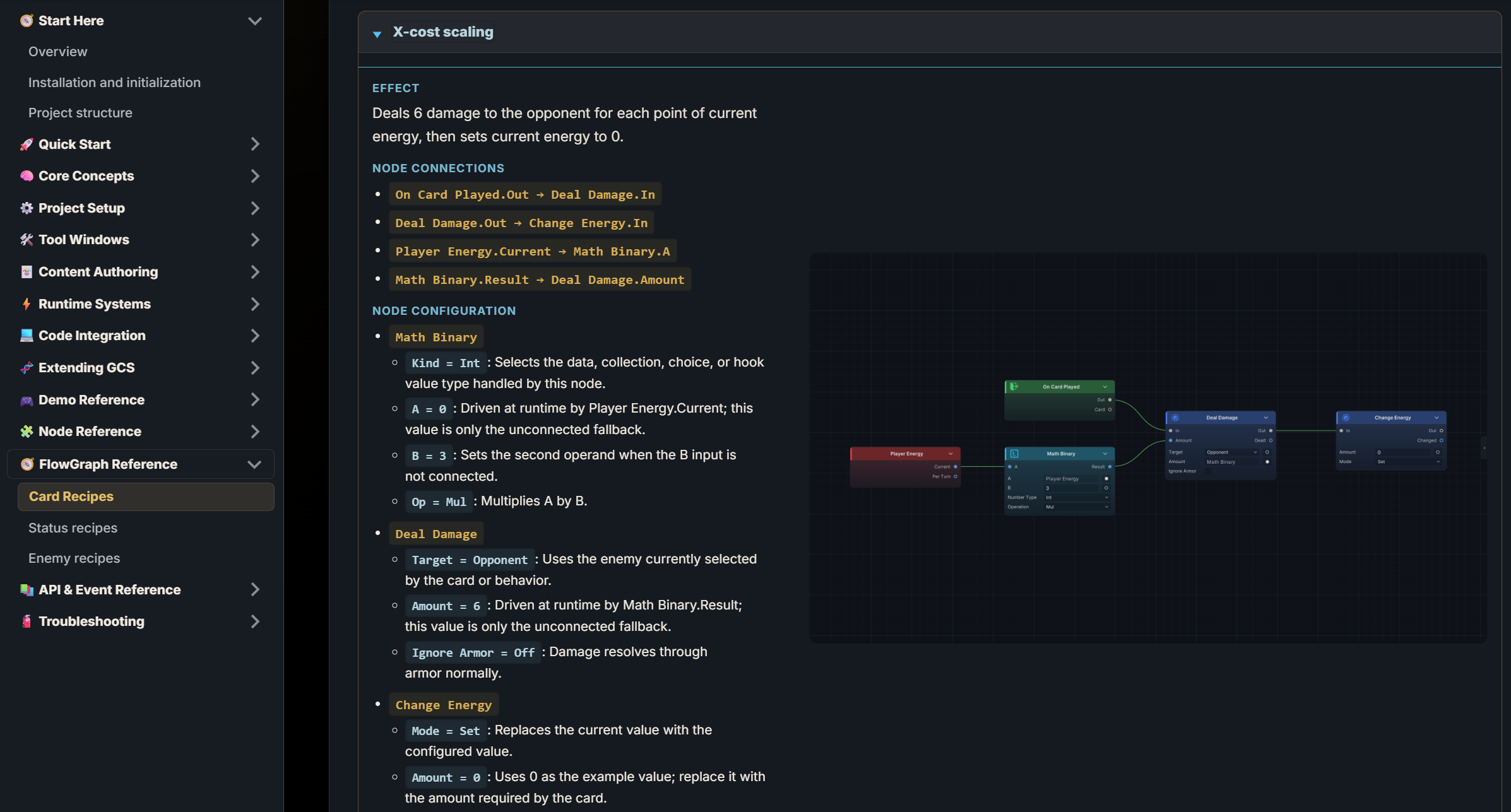
Every recipe lists the graph effect, node connections, and parameter configuration. Creators can see how it works, then replace targets, values, statuses, resources, and branches to build their own mechanic library. Frankly, the 145 built-in nodes are enough for most projects. When a game truly needs a project-specific rule, developers can still register custom FlowGraph nodes and keep using the same ports, execution context, and Editor workflow.
Refining every detail of the FlowGraph authoring experience
Node fields are ideal for values already known during content authoring, such as 6 damage, 2 Poison, or a specific VFX Prefab. When a value must be calculated at runtime, fields that support dynamic input can expose themselves as input ports through the switch on the right.
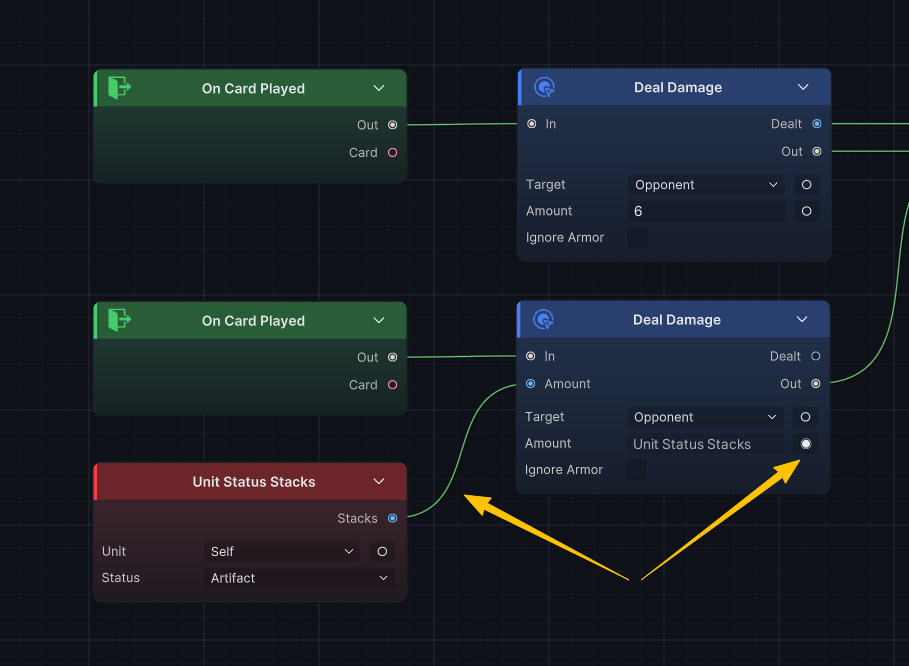
As shown above, an unconnected field continues to use the value saved on the node. Once upstream data is connected, the current execution reads the port result instead. For example, Deal Damage.Amount can receive Strength stacks, current armor, energy spent, or pile size. Fixed and dynamic damage still use the same node; only the source of the value changes. Dynamic parameter ports expand a field from static configuration to live battle data without adding unnecessary connections to basic cards.
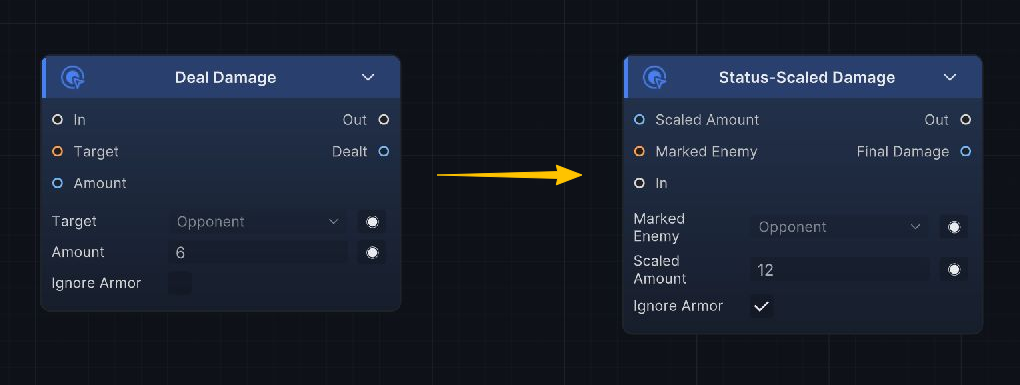
As a graph grows, its connections become more complex and can begin crossing one another, making the canvas harder to read. I designed node, field, and port display names to be renamed with a double-click. Creators can use terminology that matches the current mechanic. Ports can also be reordered by dragging them vertically along the same side of the node, which greatly reduces crossed data connections.
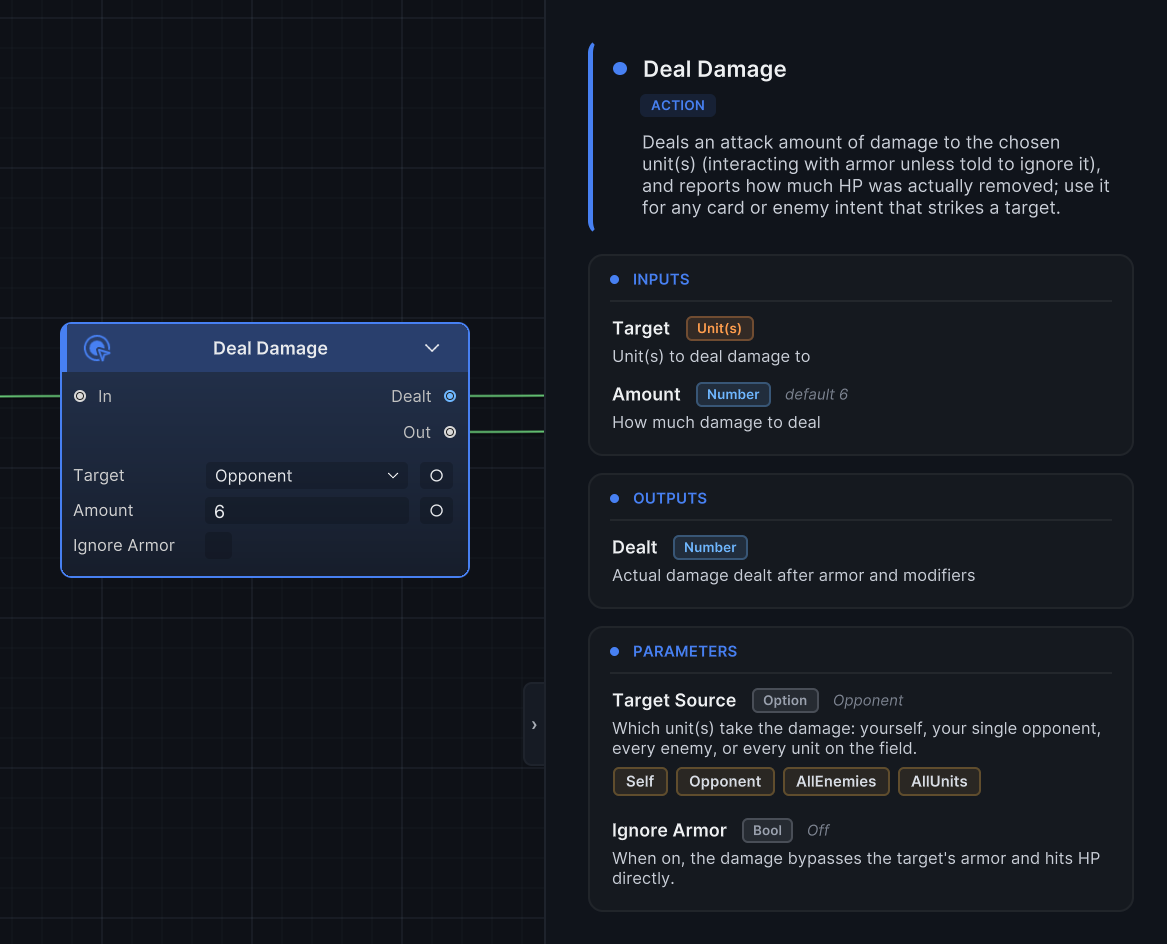
Creators do not need to memorize the inputs, outputs, and parameters of every node. Press Tab to open the node reference panel on the right. Selecting any node displays its purpose, input and output ports, parameter meanings, defaults, and relevant runtime timing. When using Deal Damage, Hook, Intent, or another node for the first time, you can check the details inside the current Behavior window without leaving the canvas for the online documentation.
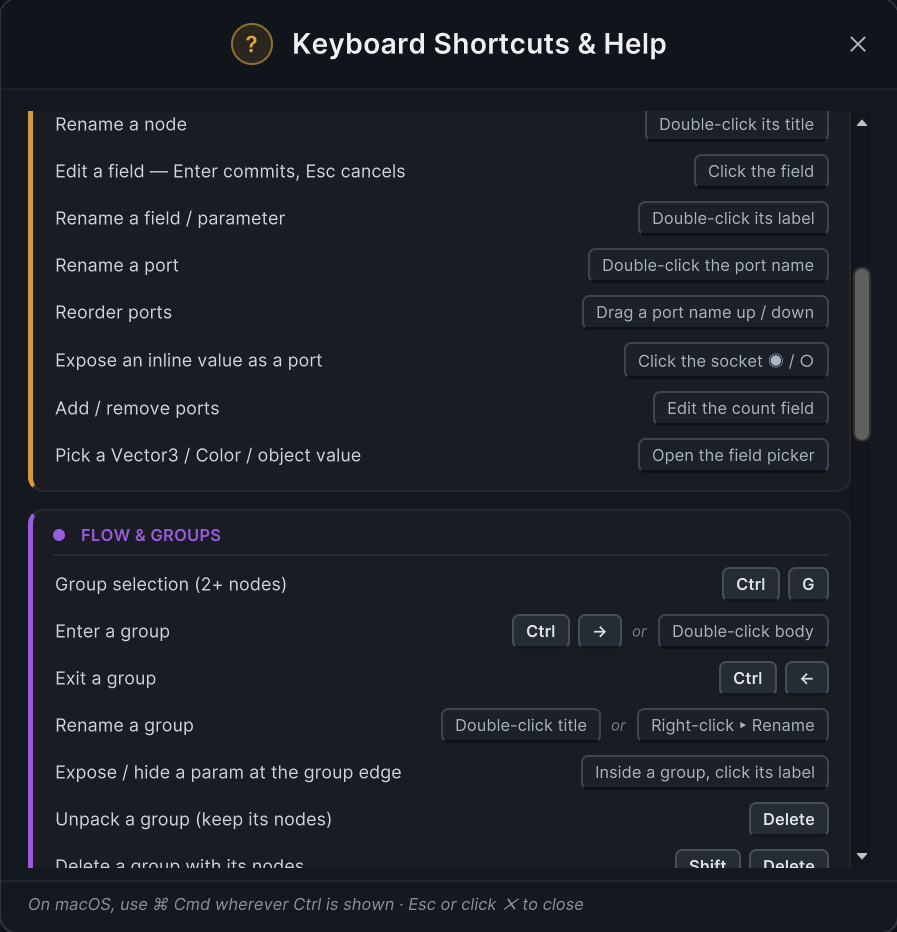
The ? button on the right side of the toolbar opens the complete list of FlowGraph shortcuts, so creators can work faster without interrupting the current graph.
Group keeps complex graphs clear and readable
As the node library grows, graphs need a reliable hierarchy. In GCS, selecting any two or more nodes lets you encapsulate them in a Group. Inputs and outputs that cross the selection become Group boundary ports automatically, and the original execution relationships remain intact. There is no need to reconnect the graph by hand after creating the Group.
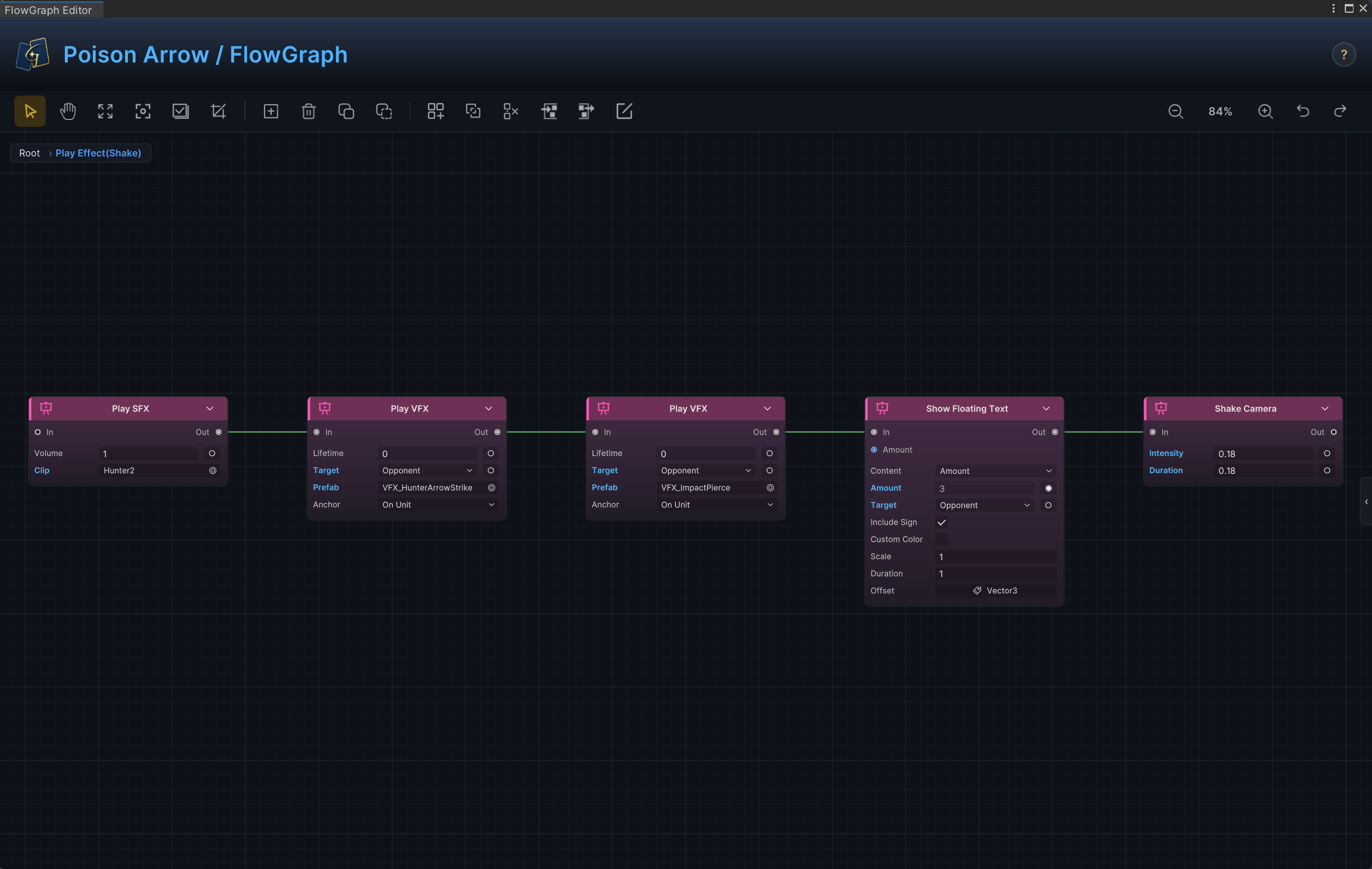
The Mire Reaper example above and the Play Effect(Shake) block used for combat presentation are both Groups. The latter contains Play SFX, two Play VFX nodes, Show Floating Text, and Shake Camera in its subgraph, while the parent graph only exposes the controls and inputs it needs. You can move back and forth between parent and child graphs. Existing Groups can be combined into another Group, and I placed no fixed limit on nesting depth. Large Behaviors can therefore be organized layer by layer around battle phases, mechanic modules, and individual actions.
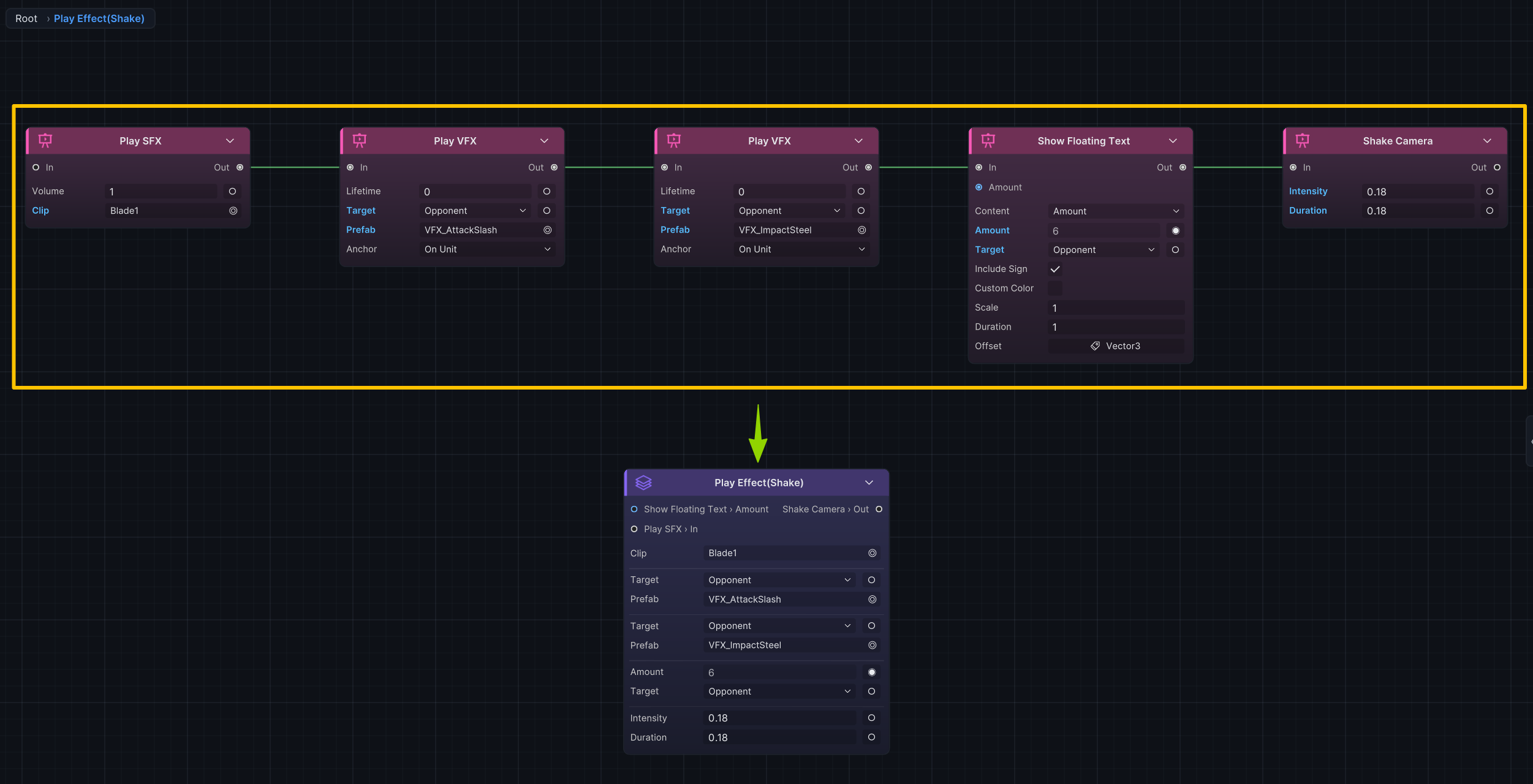
A Group remains configurable from the outside. Ports left unconnected inside the subgraph become boundary ports, and creators can choose which parameters appear on the face of the Group. Frequently adjusted values such as damage, status stacks, VFX, SFX, Prefabs, or duration can remain exposed, while system parameters used only by the internal structure stay hidden. This reduces noise on the parent graph and avoids entering the subgraph every time a common value needs to change. For creators who want control over graph nesting, that flexibility makes a significant difference.
Monitor makes runtime state traceable
Once the FlowGraph is configured, creators can enter Play Mode and use the Monitor to inspect how those rules behave in a real battle. Monitor has seven pages: Battle, Pile, Unit, Phase, Gate, Flow, and Event. Together they show battle snapshots, pile changes, unit state, phase progression, pending work, Behavior execution, and event records.
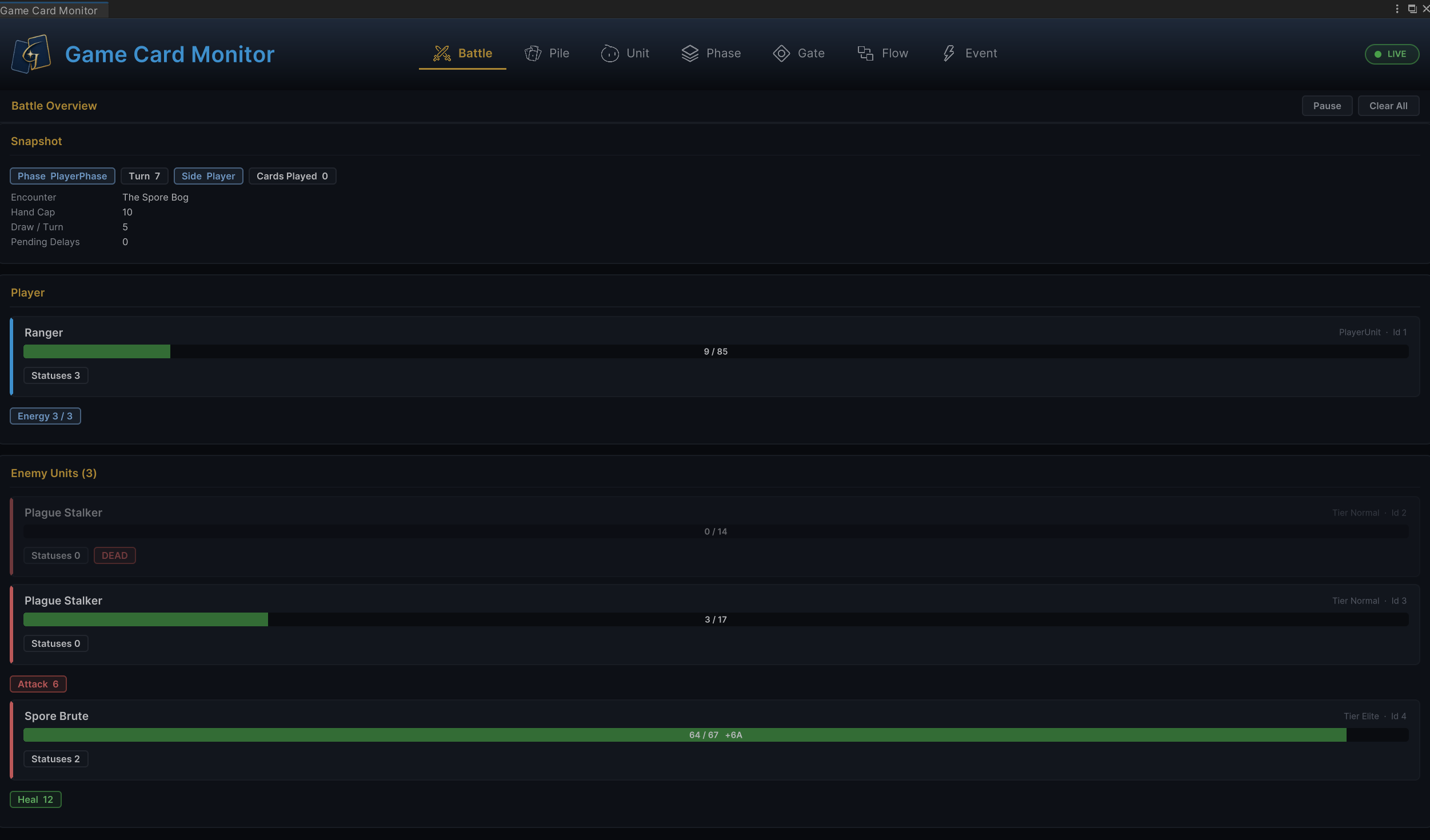
The image above uses the Battle page as an example. The current phase, turn, Encounter, cards played, player health and energy, enemy health, statuses, and the latest attack and healing results all appear in one place. Creators can confirm how much damage a card actually dealt, how many turns a status lasted, whether an enemy's action strength matches the design, and whether resource use across the battle feels reasonable.
When a result differs from the design, switch to Pile, Unit, Phase, Gate, Flow, or Event to check card movement, status changes, phase waits, Behavior entries, and event dispatch. Return to the Editor and FlowGraph to adjust card costs, damage, healing, armor, status stacks, enemy health, or action strength, then run the battle again and compare the result. This loop grounds balance, combat pacing, and difficulty curves in the game's actual runtime behavior, while shortening the time spent debugging and tuning mechanics.
This is how GCS redefines the creation workflow
The Editor gives cards, decks, characters, enemies, statuses, and encounters a unified visual content authoring entry point. FlowGraph breaks gameplay mechanics into a readable and composable language built from 145 included nodes. The built-in runtime executes the same Behavior, while Monitor presents runtime state, value changes, and execution records. Together, these four parts create the end-to-end card roguelike authoring experience in GCS.
FlowGraph is the system I spent the most time designing and refining in GCS. It gives creators direct ownership of the strategy mechanics and rule combinations that matter most in a card roguelike. Nodes connect freely, parameters accept dynamic data, names and ports can follow the project's terminology, complex logic can move into nested Groups, and completed mechanics remain observable and adjustable through Monitor.
After you use it to build a few cards, a persistent status, or a multi-phase enemy, the workflow becomes much easier to understand. Start with simple damage and healing, then add status interactions, Hook, enemy decisions, presentation feedback, and mechanics unique to your project. The same workflow can carry that content through authoring, validation, and adjustment until it becomes part of a commercially releasable card roguelike.
Going further, the GCS + AI Agent development model may offer a new kind of authoring experience. Content and graphs in GCS are structured, executable assets that can be validated, allowing an AI Agent to participate within explicit boundaries and accelerate content generation, rule orchestration, and gameplay iteration. If this workflow interests you, or if you want to learn more about how GCS is designed, join the official TinyGiants Discord community and take part in the discussion!
TG Official Links
Official Website: https://tinygiants.tech
Documentation: https://tinygiants.tech/docs/gcs
Asset Store: https://tinygiants.tech/gcs
Discord: https://tinygiants.tech/discord/gcs
YouTube: https://tinygiants.tech/youtube/gcs
Unity Forum: https://tinygiants.tech/forum/gcs