Escape if-else Hell: Visual Conditional Logic That Scales

Every game is basically a giant pile of conditions. "Only deal fire damage if the enemy isn't immune AND the player has a fire buff AND a random crit check passes." When you're prototyping, you throw an if-statement into a callback and move on. Thirty seconds. Works. You feel productive.
Then the prototype ships into production. Those thirty-second if-statements start breeding. One becomes five. Five becomes fifty. Fifty becomes "where the hell is the condition that controls the loot drop rate for the second boss?" And now your designer is standing behind you asking if they can change a damage threshold from 0.3 to 0.25, and you're explaining that it'll take a recompile.
Welcome to if-else hell. Population: every Unity project that lasted more than three months.
Why if-else Doesn't Scale in Games
Let me paint a picture that's probably uncomfortably familiar. You've got a combat system. Damage events fire when something takes a hit. You want to add a condition: "only play the stagger animation if the damage exceeds 30% of the target's max health." Easy:
public void OnDamageReceived(DamageInfo info)
{
    float threshold = info.target.GetComponent<Health>().maxHP * 0.3f;
    if (info.damage > threshold)
    {
        PlayStaggerAnimation(info.target);
    }
}
Done. Ship it. Move on.
Two weeks later, the designer stops by. "Can we also check if the target isn't blocking? And if they're not already staggered? Oh, and bosses should be immune to stagger entirely."
public void OnDamageReceived(DamageInfo info)
{
    float threshold = info.target.GetComponent<Health>().maxHP * 0.3f;
    var combat = info.target.GetComponent<CombatState>();
    var enemyData = info.target.GetComponent<EnemyData>();

    if (info.damage > threshold &&
        !combat.isBlocking &&
        !combat.isStaggered &&
        enemyData.rank != EnemyRank.Boss)
    {
        PlayStaggerAnimation(info.target);
    }
}
Three new component dependencies. A method that used to need a DamageInfo now reaches into Health, CombatState, and EnemyData. Refactor any of those components and this breaks. And when the designer wants to change 0.3 to 0.25? Open IDE, find the file, change the literal, recompile, test, commit. For a number change.
That's one condition on one event. A real game has dozens. A big game has hundreds.
The Data Source Problem
Here's where conditions get genuinely complex, beyond just too many if-statements. Real game conditions pull data from multiple independent sources:
Event payload data. The damage amount, the damage type, the attacker reference — data carried by the event itself. You need to drill into this: damageInfo.attacker.stats.critChance. That's three levels of property access from the event argument.
Scene object state. The player's current health, whether a door is locked, the game difficulty setting. This data lives on GameObjects in the scene, completely independent of any event payload. Your condition needs to reach out and grab it.
Random values. "30% chance to trigger." "Pick a random element from this loot table." Probability and randomness are everywhere in game conditions.
Fixed thresholds. The magic number 0.3 from the stagger example. The level requirement for a quest. The enum value you're comparing against. Constants that designers need to tweak.
A single real-world condition might need data from ALL of these sources. "If the event's damage type is Fire (event payload) AND the target's fire resistance is below 50 (scene object) AND a random roll beats 0.7 (random) AND the difficulty is Hard or higher (scene object compared against a constant)."
In code, that means your condition handler has tentacles reaching into the event arguments, multiple scene components, a Random call, and hardcoded constants. Every tentacle is a coupling point. Every coupling point is a potential break during refactoring.
The Deep Property Access Problem
Scene objects in Unity are component-based. Getting to the data you actually need often requires navigating through multiple levels:
// What you want: the enemy's current defense stat
float defense = info.target.GetComponent<EnemyController>()
    .statsManager
    .defenseStat
    .currentValue;
Three levels deep from the GameObject. In a visual tool, how do you let someone specify "the current value of the defense stat of the stats manager of the enemy controller on this target"? Most visual scripting tools either don't support this depth or require ugly workarounds.
And then there's the enum problem. Enums are everywhere in game code — DamageType.Fire, EnemyRank.Boss, GameDifficulty.Hard. A visual condition tool needs to know about your project's enums, show proper dropdowns, and handle type safety. Comparing a DamageType against a string should be a visible error, not a runtime surprise.
The Iteration Tax
The cost that really stings isn't writing the conditions. It's changing them.
Designer says: "Can we change the stagger threshold from 30% to 25%?" Workflow:
- Designer asks programmer
- Programmer opens IDE, finds the right file
- Changes one number
- Waits for recompilation
- Tests
- Commits and pushes
For a number change. Now multiply this by every threshold, every probability, every enum comparison in the game. The designer has ideas. The programmer has a build queue. The iteration speed is bottlenecked by the compilation cycle.
And structural changes are worse. "Instead of requiring NOT blocking, I want an OR: either they're not blocking OR the damage type is Piercing." That's not a value change — it's a logic restructure. The designer can't even describe it precisely without understanding boolean logic notation, and the programmer has to restructure nested if-statements while making sure the parentheses are right.
Other industries solved this. Database admins use visual query builders. Marketing teams use drag-and-drop condition builders. Unreal has Blueprint branches. Unity has... the C# compiler.
Visual Condition Tree: Boolean Logic Without Code
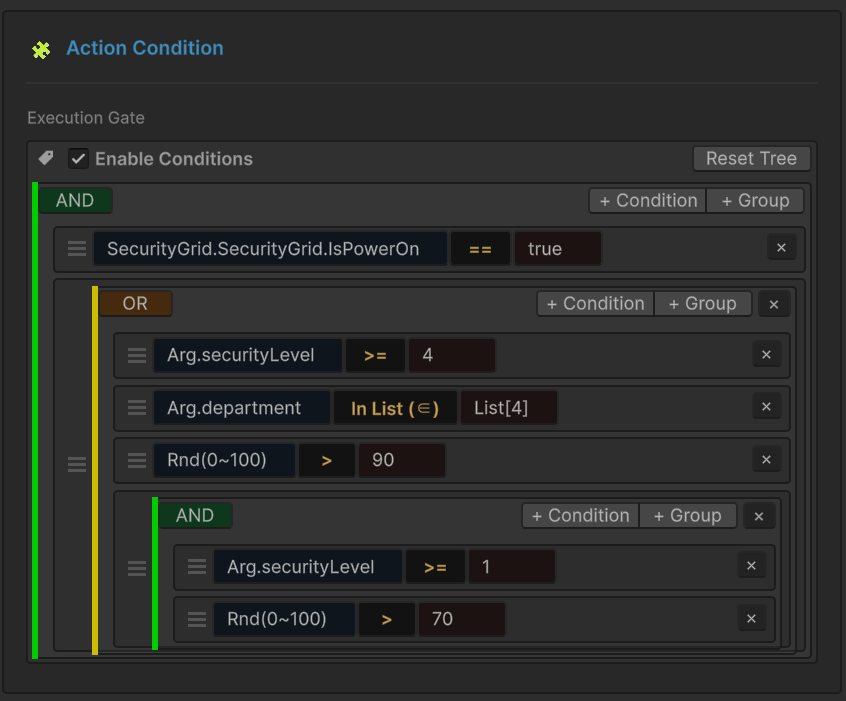
GES includes a Visual Condition Tree — a no-code boolean logic builder that lives inside the Behavior Window. Instead of writing if-else chains in C#, you build condition trees visually using AND/OR groups and comparison nodes.
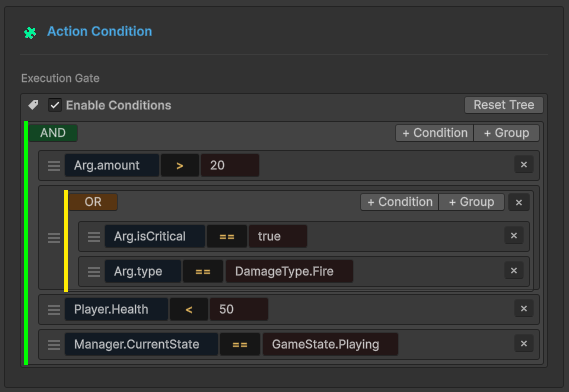
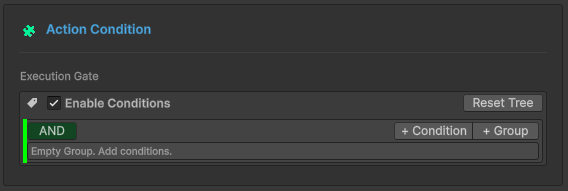
Every Event Action in the Behavior Window can have an optional condition tree. When the event fires, the tree evaluates first. If it returns true, the action executes. If false, it's skipped. The entire condition is configured visually — no code, no recompilation, no asking a programmer to change a number.
AND/OR Groups: Unlimited Nesting
The condition tree uses two group node types:
- AND Group: All children must be
true. Classic&&logic. - OR Group: At least one child must be
true. Classic||logic.
Groups nest inside other groups with unlimited depth. This means you can represent any boolean expression:
AND
├── HP < 50%
├── OR
│   ├── isCritical == true
│   └── damageType == "Fire"
└── targetTag == "Enemy"
That reads: "HP below 50% AND (critical hit OR fire damage) AND target is an Enemy." Try expressing that cleanly in a single if-statement. Now try explaining it to a designer who doesn't write C#.
With the visual tree, the AND/OR hierarchy maps to how humans naturally think about compound conditions. No parentheses to track, no operator precedence to remember, no nesting mistakes.
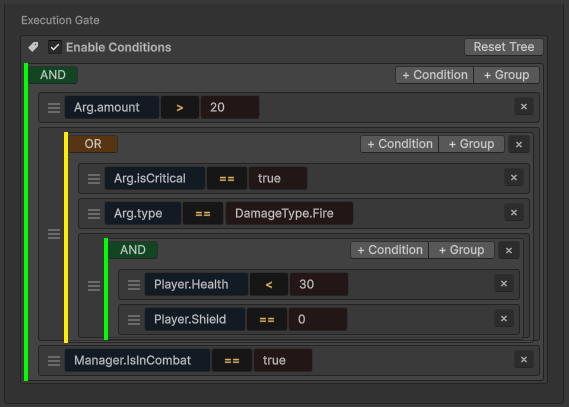
Comparison Nodes: Source, Operator, Target
Each leaf node in the tree is a comparison with three parts:
Source → Operator → Target
Both the Source and Target independently support four data source types. The Operator adapts based on the types being compared. This three-part structure is simple enough to understand immediately but flexible enough to express any comparison.
The Four Data Source Types
This is where the condition tree goes from "nice visual tool" to "genuinely powerful system." Each comparison node can pull values from four distinct source types, and you can mix them freely on either side of the comparison.
1. Event Argument: Data From the Event Payload
The most common source type. For an Int32GameEvent, the event argument is the integer value. For a SingleGameEvent, it's the float. For custom payload types like DamageInfo, you can drill into nested properties.
The key feature here is 5-level deep property access. Starting from the event argument, you can navigate through nested objects:
damageInfo → attacker → stats → critChance → value
Level 1: damageInfo (the event payload)
Level 2: attacker (a property on DamageInfo)
Level 3: stats (a property on the attacker)
Level 4: critChance (a property on stats)
Level 5: value (the actual float)
The editor shows you a chain of dropdowns, each populated with the available properties at that level. The type system follows along, so after selecting critChance (which is a FloatStat), the next dropdown only shows properties available on FloatStat.
This solves the "deep property access" problem from earlier. The visual interface makes the navigation explicit and type-safe, while the dropdown chain prevents you from accessing properties that don't exist.
2. Scene Type: References to Objects in the Scene
For conditions that need data from the scene rather than the event payload. Drag a GameObject or Component into the reference field, then navigate its public properties using the same dropdown chain.
Public properties are browsable: health.currentHP, combatState.isBlocking, gameManager.difficulty.
Bool methods (parameter-less methods returning bool) also appear: inventory.HasItem(), achievementManager.IsUnlocked(). This means you can call simple query methods from the condition tree without writing adapter code.
Scene Type is perfect for conditions like "check the player's health" or "is the door unlocked" — data that exists on scene objects independently of any event.
3. Random: Probability and Random Selection
Two modes for random data:
Range mode. Generates a random value between a min and max. Compare Random(0.0, 1.0) < 0.3 to create a "30% chance to trigger" condition. No Random.value calls in code.

List mode. Picks a random element from a predefined list. Useful for "randomly select one of these damage types" or "pick a random spawn weight." The list is configured directly in the condition node.
4. Constant: Fixed Values and Enum Dropdowns
The simplest source type, but it handles more than just raw numbers.
Single values. Type a number, a string, a boolean. The threshold 0.5 from the stagger example. The expected tag "Enemy".
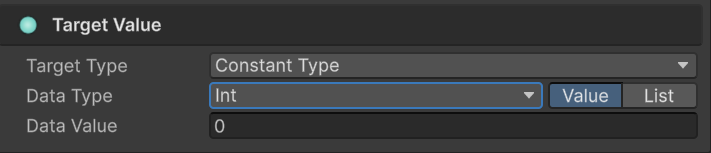
Lists. Define a set of values for use with the In List operator. Instead of enemyType == Boss || enemyType == Elite, you write enemyType In List [Boss, Elite]. Cleaner, and the designer can add MiniBoss to the list without restructuring the logic.
Enum dropdowns. When the other side of the comparison is an enum type, the Constant source automatically shows a proper enum dropdown. No string comparisons, no magic numbers. You see DamageType.Fire in a dropdown, not the string "Fire" that might have a typo.
The Operator System: 10+ Comparison Types
The available operators depend on the types being compared. The system automatically determines which operators are valid, so you can't create nonsensical comparisons.
Numeric operators (6): ==, !=, >, <, >=, <=
Works on int, float, double, and any IComparable numeric type.
String operators (5): ==, !=, StartsWith, EndsWith, Contains
Case-sensitive by default. String comparisons are straightforward — no regex, no globbing, just the operations that game conditions actually need.
Enum operators: ==, !=, In List
Enum comparisons are type-safe. Comparing a DamageType against a WeaponType produces a visible error in the editor, not a runtime surprise.
In List operator: Works with any type. Checks if the source value exists in the target list (or vice versa). Replaces chains of || comparisons with a single clean check.
Real-Time Type Validation
This is the safety net that makes visual condition building practical. The editor validates types at configuration time, not runtime.
Red warning indicators appear immediately when types don't match. If you try to compare a string against a float, the comparison node highlights in red with an explanation. If you change a Scene Type reference and the property chain becomes invalid (because someone refactored the component), the affected nodes show red warnings.
No more "the condition worked in the editor but throws a cast exception at runtime." The visual feedback catches type mismatches before you ever hit Play.
Expression Tree Compilation: Why This Isn't Slow
A visual condition tree sounds like it could be a performance concern. Tree traversal, reflection, dictionary lookups on every event fire? That would be a legitimate problem.
GES doesn't interpret the tree at runtime. At initialization, the entire visual tree compiles down to a .NET Expression Tree, which becomes a native delegate — essentially the same compiled code you'd get from writing the if-statement by hand.
One-time compilation cost: typically under 2ms per tree. Per-evaluation cost: approximately 0.001ms — effectively identical to hand-written C#.
No reflection during gameplay. No dictionary lookups. No interpretation overhead. The visual tree is a design-time abstraction that compiles away to native code.
Optimization: Evaluation Order Matters
Even with compiled expression trees, the ORDER of conditions affects performance. Two tips:
OR groups short-circuit. If the first child of an OR group is true, the remaining children aren't evaluated. Put the cheapest or most-likely-true check first.
AND groups also short-circuit. If the first child is false, the rest are skipped. Put the cheapest or most-likely-false check first.
In practice:
AND
├── Constant comparison (near-zero cost)     ← check this first
├── Event Argument property access (cheap)   ← then this
├── Scene Type deep property chain (moderate) ← then this
└── Random comparison (cheap but unnecessary if above failed)
You can drag-and-drop to reorder nodes within groups. Put cheap checks that frequently short-circuit at the top.
Before and After: Real Patterns
Loot Drop Condition
Before (code):
public void OnEnemyKilled(EnemyDeathInfo info)
{
    if (info.enemy.enemyType == EnemyType.Boss ||
        info.enemy.enemyType == EnemyType.Elite)
    {
        if (info.killer.GetComponent<PlayerStats>().luckModifier > 0.5f ||
            GameManager.Instance.currentDifficulty >= Difficulty.Hard)
        {
            DropRareLoot(info.enemy.lootTable);
        }
    }
}
After (visual tree):
AND
├── Event Argument: enemy.enemyType In List Constant: [Boss, Elite]
└── OR
    ├── Scene Type: playerStats.luckModifier > Constant: 0.5
    └── Scene Type: gameManager.currentDifficulty >= Constant: Hard
Same logic. But the designer can add MiniBoss to the enemy type list or tweak the luck threshold without opening an IDE.
Tutorial Gate
Before:
public void OnPlayerAction(PlayerActionInfo action)
{
    if (!tutorialComplete && currentStep == TutorialStep.Movement &&
        action.actionType == ActionType.Move && action.duration > 1.0f)
    {
        AdvanceTutorial();
    }
}
After:
AND
├── Scene Type: tutorialManager.tutorialComplete == Constant: false
├── Scene Type: tutorialManager.currentStep == Constant: Movement
├── Event Argument: action.actionType == Constant: Move
└── Event Argument: action.duration > Constant: 1.0
Four clean, readable checks. The designer can disable the duration check for faster testing, or change the required step — no code, no recompile.
Achievement Trigger
Before:
public void OnScoreChanged(int newScore)
{
    if (newScore >= 10000 && !AchievementManager.HasAchievement("score_master"))
    {
        if (GameTimer.ElapsedTime < 300f)
        {
            UnlockAchievement("speed_scorer");
        }
        UnlockAchievement("score_master");
    }
}
After (two separate Event Actions, each with its own condition tree):
Score Master:
AND
├── Event Argument: newScore >= Constant: 10000
└── Scene Type: achievementManager.HasAchievement("score_master") == Constant: false
Speed Scorer:
AND
├── Event Argument: newScore >= Constant: 10000
├── Scene Type: achievementManager.HasAchievement("speed_scorer") == Constant: false
└── Scene Type: gameTimer.elapsedTime < Constant: 300
Each achievement is independently configurable. Thresholds, time limits, prerequisites — all designer-accessible.
Fire Damage With Full Source Mixing
Here's a condition that uses all four source types in one tree:
AND
├── Event Argument: damageInfo.damageType == Constant: DamageType.Fire
├── Scene Type: enemy.stats.fireResistance < Constant: 50
├── Scene Type: gameSettings.difficulty >= Constant: Difficulty.Hard
└── Random(0.0, 1.0) < Constant: 0.3
"Apply fire bonus if damage type is Fire AND enemy's fire resistance is below 50 AND difficulty is Hard or higher AND a 30% random check passes." Four different data sources, one visual tree, zero lines of code.
Editing Features That Matter in Practice
The condition tree isn't a static configuration panel. It's a proper editing tool with features that matter during real development:
Drag-and-drop reordering. Rearrange nodes within groups to optimize short-circuit evaluation. Put cheap checks first.
Enable/disable individual nodes. Toggle any condition on or off without deleting it. Testing whether the stagger check works without the boss immunity? Disable that node. No code changes, no commenting out lines, no risk of forgetting to uncomment.
Collapsed vs expanded views. Expanded view shows full configuration details — source types, operators, values, nested structure. Collapsed view compresses each comparison into a single-line summary. Collapse verified sub-groups to keep top-level logic visible.
Reset to defaults. Been experimenting and made a mess? Reset any node to its default state.
When Visual Trees Make Sense (And When They Don't)
Condition trees are specifically designed for event-level gating — "should this Event Action run when this event fires?"
Use the visual condition tree when:
- The condition gates an Event Action's execution
- Designers need to see or modify the conditions
- The logic is comparisons and boolean operators (not algorithms)
- You want iteration without recompilation
Use code when:
- The logic involves complex calculations (pathfinding, physics, multi-step algorithms)
- The condition depends on state accumulated over time
- It's purely a programmer concern that designers never touch
- You need fine-grained control on a performance-critical hot path
In practice, roughly 70-80% of event conditions in a typical game are the "visual tree" kind — threshold checks, type comparisons, state flags, probability rolls. The remaining 20-30% are genuinely complex logic that belongs in code. The condition tree handles the common cases so your programmers can focus on the interesting ones.
🚀 Global Developer Service Matrix
🇨🇳 China Developer Community
- 🛒 Unity China Asset Store
- 🎥 Bilibili Video Tutorials
- 📘 Technical Documentation
- 💬 QQ Group (1071507578)
🌐 Global Developer Community
📧 Support & Collaboration