Databases
Six database types, one rule: content that is not in an active database on the GameCardManager is invisible to the Workbench and to runtime lookups.
For anyone whose card exists on disk but refuses to show up in a picker, a search, or a battle.Databases are how GCS finds your content. The Workbench reads the active databases from the scene's GameCardManager, and runtime lookups walk the same lists. An asset that sits on disk but belongs to no active database is invisible to both, which is why most "my content does not show up" reports end here.
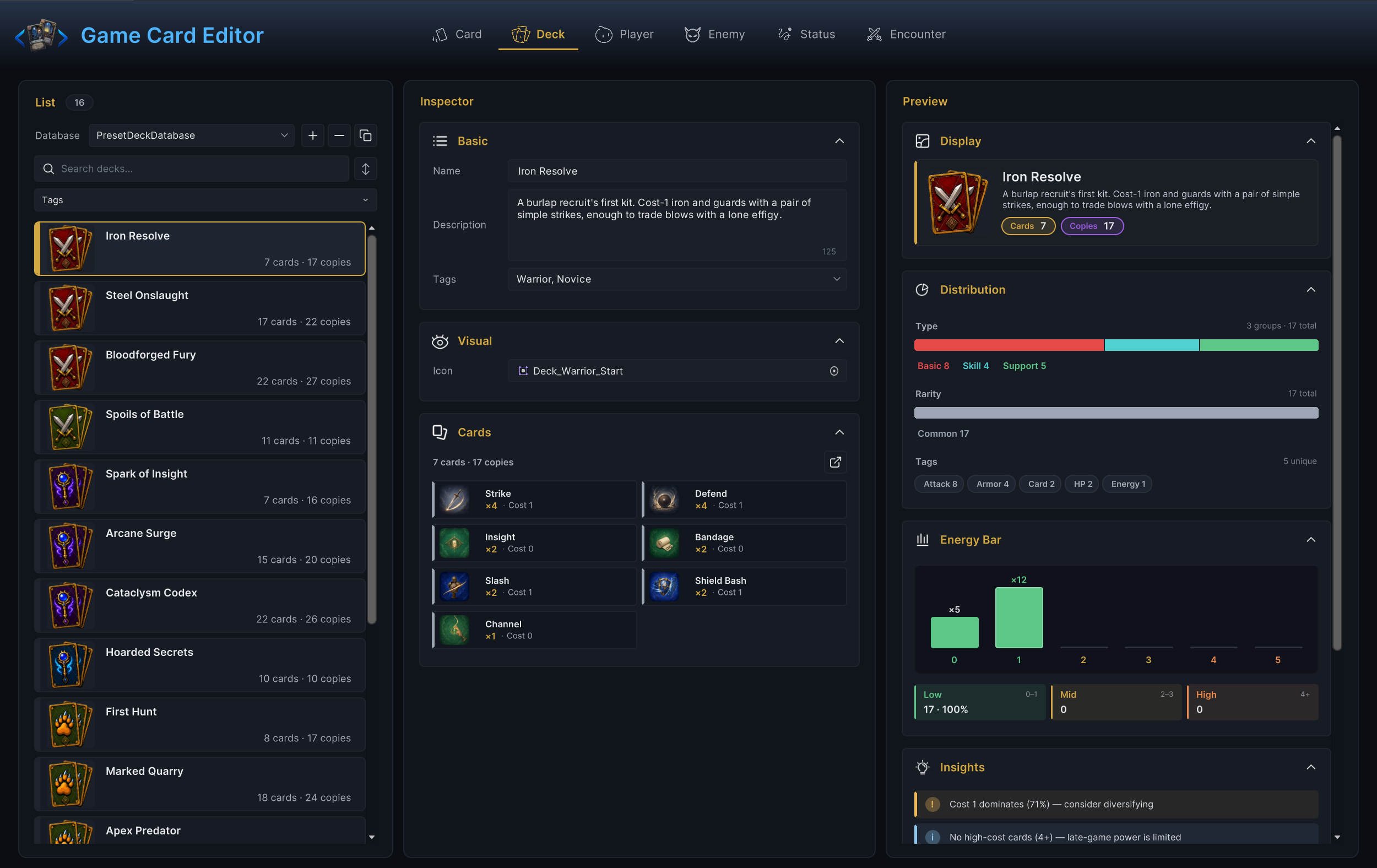
Six database types
| Database | Holds |
|---|---|
GameCardDatabase | GameCard assets |
GameDeckDatabase | GameDeck assets |
GamePlayerUnitDatabase | GamePlayerUnit assets |
GameEnemyUnitDatabase | GameEnemyUnit assets |
GameStatusDatabase | GameStatus assets |
GameEncounterDatabase | GameEncounter assets |
Each Workbench mode lists the entries of the active databases of its type: Card mode reads card databases, Deck mode reads deck databases, and so on.
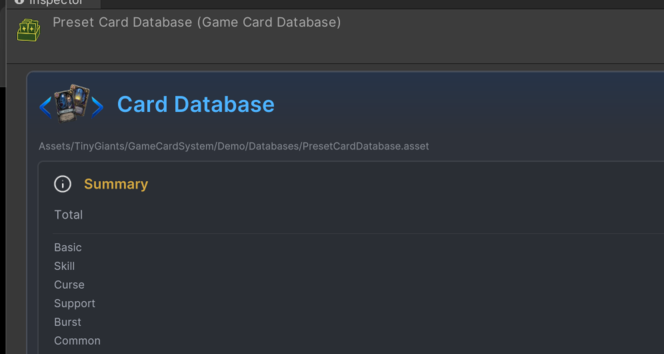
Each database asset also carries its own Inspector. It shows a Summary of what the database holds, counted by type and rarity, plus an Open in Card Mode shortcut into the Workbench:
Registration and the active toggle
Select the scene's GameCardManager to register databases. Its Inspector lists six sections, one per type, in this order: Card, Deck, Player Unit, Enemy Unit, Status, Encounter. Each section registers databases three ways:
| Control | What it does |
|---|---|
| + Add | Opens a dropdown of every database asset of that type not yet registered. Pick one and it is registered and active. |
| + New | Creates a fresh database asset in the GCS user-data folder and registers it active in one step. |
| Drag and drop | Drop one or more database assets from the Project window onto the section. |
Every registered database appears as a row with an Active toggle, a locate button that pings the asset, and a remove button. Removing a database only unregisters it from this manager; the asset stays on disk and can be re-added later. Double-click a row's name to rename the asset in place.
Only active databases feed the Workbench and runtime lookups. A database that is registered but inactive hides its content the same way as one that was never registered. The section header shows how many registered databases are active and how many entries they contribute, so 1/2 Active means one database is inactive.

For a normal battle test the manager needs an active database of all six types. The System Dashboard fills them in one click by registering the six preset databases from Demo/Databases/; the Manager and Bootstrap page walks through what that button creates.
When a battle starts, the state machine binds the first active status, card, and enemy-unit database for its in-battle lookups. If you keep several databases of the same type active, put the one your battles depend on first in the manager's list.
Organize with multiple databases
Splitting content across databases is an authoring choice, not a requirement. Common splits:
| Split by | Example |
|---|---|
| Ownership | Demo card database kept separate from your project card database |
| Class | Warrior cards, Mage cards, Hunter cards, Priest cards |
| Act or chapter | Act 1 enemies, Act 2 enemies, boss encounters |
| Testing scope | Small test decks and encounters isolated from production content |
Keep the active set intentional. Activating every experimental database in every scene makes search noisy and hides mistakes, because a broken reference can silently resolve against content you never meant to ship.
Read active content from code
GCSApi exposes both the active database lists and the flattened content across them:
using TinyGiants.GCS.Runtime;

// Active database lists (never null)
var cardDbs   = GCSApi.ActiveCardDatabases();
var deckDbs   = GCSApi.ActiveDeckDatabases();
var statusDbs = GCSApi.ActiveStatusDatabases();

// Every entry across the active databases of a type
var cards      = GCSApi.Cards();
var decks      = GCSApi.Decks();
var statuses   = GCSApi.Statuses();
var encounters = GCSApi.Encounters();
var players    = GCSApi.PlayerUnits();
var enemies    = GCSApi.EnemyUnits();
Each content call allocates a fresh list by walking the active databases, so cache the result if you read it every frame or on every UI refresh.
Symptoms of a missing registration
| Symptom | Likely gap |
|---|---|
| Workbench Card mode is empty | No active card database |
| A new card is never drawable | Card or deck database missing, or the card is not in the deck |
| A status fails to apply | No active status database, or it lacks that status |
| The encounter picker offers nothing | No active encounter database |
| An enemy is missing from pickers | No active enemy-unit database |
| The player-unit picker is empty | No active player-unit database |
Own your production databases
Do not grow your game inside the demo databases. Create project-owned databases and leave the presets untouched. Two ways to create one:
- The manager's + New button, which puts the asset in the GCS user-data folder (
Assets/TinyGiantsData/GameCardSystem/by default; the folder can be moved anywhere underAssets/without breaking references). - The Unity asset menu, which creates the asset wherever you are standing in the Project window:
Assets > Create > TinyGiants > GCS > Card Database
The same menu offers all six database types. Register your own databases on your game scenes and keep the presets as a known-good reference: when a custom setup misbehaves, comparing it against the preset registration usually reveals the difference in minutes.
Checklist before testing an encounter
- The encounter is in an active encounter database.
- Its player unit is in an active player-unit database.
- The player unit's starting deck is in an active deck database.
- Every card in that deck is in an active card database.
- Every status applied by cards or enemies is in an active status database.
- Every enemy in the encounter is in an active enemy-unit database.
Most "content exists but does not show up" problems are registration problems, and this list finds them faster than Play Mode does.