Save and restore
Save your Run and battle progress after the current effects resolve. Continue later with the saved hand, unit states, enemy Intents, and pending rewards.
Add GCSSaveController to connect Save, Save and Quit, and Continue buttons to a local slot. If your game already handles saves, call GCSApi.BeginSaveAsync and store its GcsCheckpoint in the same record as the player's map progress and currency.
Choose a save point
A save request blocks new player actions, then waits for the current effects to finish and any explicit Gates to release before capturing a checkpoint. The Save Session keeps GCS input locked until you release it, either after the record commits for a regular save or after leaving the battle scene for Save and Quit.
| State when the save is requested | Save behavior |
|---|---|
| Manual player action phase with completed resolution | Captures the battle and Run |
| Waiting for a reward after victory | Captures the existing reward candidates and resumes the same selection |
| A settled victory or defeat result | Preserves the completed result without granting rewards again |
| Initialized Manager without an active battle | Captures the Master Deck and Run energy bonus |
| Resolving an effect or waiting on an explicit Gate | Waits for the battle to settle and returns Timeout if it is still unsettled after 30 seconds |
| An effect is waiting for a player Choice or reaction | Returns NeedsPlayerInput. Finish the choice or reaction, then save again |
| Automatic party activation is running | Returns Busy. Save after the automatic action finishes |
| Runtime state cannot be represented as a stable checkpoint | Returns UnsupportedState without writing a partial save |
Effects scheduled for later turns can be saved with the current checkpoint. When play resumes, they retain their remaining turn counts and execution context. Coroutine positions, animation progress, and unfinished selections are outside the checkpoint's scope.
Configure local save and continue
Add TinyGiants > GCS > Save Controller through the Add Component menu in both the battle scene and the main menu, then include both scenes in the build. Under Local Save, give both controllers the same Save Slot so the menu reads the slot the battle scene writes to.
| Setting | Battle scene | Main menu |
|---|---|---|
Save Slot | slot-1. Use 1–64 ASCII letters, digits, hyphens, or underscores | slot-1 |
Current Scene Key | battle-party, identifying the current gameplay location | Can be empty when only continuing |
After Saving & Quitting | Main Menu or Quit Application | Unused when only continuing |
Main Menu | Select GCS Web Demo | Select the same menu as the fallback if restore fails |
Continue Destinations | If the battle scene also has a Continue button, map the saved scenes it can load | Click + Add Scene, set Scene Key to battle-party, and select Party Showcase in Gameplay Scene |
Restore Timeout Seconds | 30 seconds by default | 30 seconds by default |
In the Demo setup below, saving writes the scene key battle-party to slot-1. When the player continues from GCS Web Demo, Continue Destinations maps that key to Party Showcase.
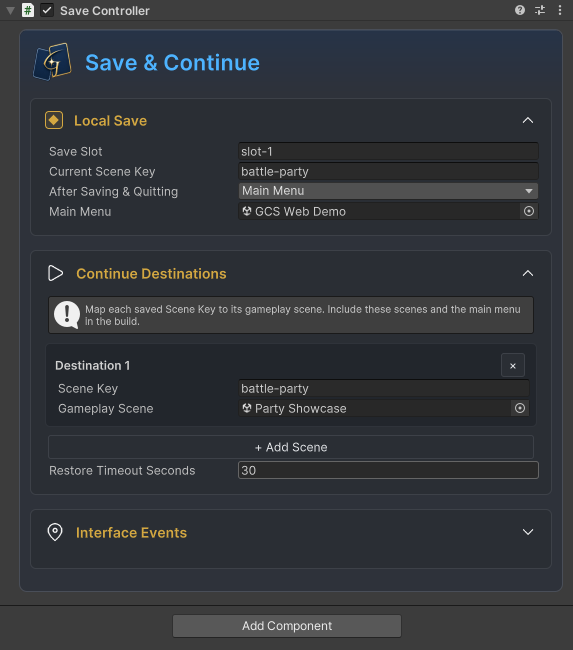
Saved records identify the player's location by scene key. If you move or rename a scene, keep its key and update the scene asset in the Inspector so existing saves can still find it. With the mapping in place, bind each button's On Click to the corresponding controller method.
| Button | Method | Result |
|---|---|---|
| Save | SaveGame() | Commits the save and resumes the current game |
| Save and Quit | SaveAndQuit() | Commits the save before returning to the menu or quitting |
| Continue | ContinueGame() | Reads the same slot, loads its mapped scene, and restores the checkpoint |
| Cancel | CancelOperation() | Requests cancellation. Any committed record stays in the slot |
Under Interface Events, use On Busy Changed to show a waiting overlay and disable the buttons while the operation runs. Repeated calls return Busy during a save or restore. Use On Error to show the failure message. On Saved fires once the record commits, and On Continued fires when the full restore flow completes.
To drive the same operations from code, add these members to a project component and assign its SaveController reference.
using System.Threading;
using System.Threading.Tasks;
using TinyGiants.GCS.Runtime;

public GCSSaveController SaveController;

public Task<GcsSaveResult> SaveAndExitAsync(CancellationToken ct)
    => SaveController.SaveAndQuitAsync(ct);

public Task<GcsSaveResult> ContinueAsync(CancellationToken ct)
    => SaveController.ContinueGameAsync(ct);
After awaiting the operation, check Success. If it is false, use Error.Code to choose the UI response and display Error.Message. A failed write leaves the player in the current game. If the record commits and the menu fails to load, the message confirms that progress was saved.
The file store flushes a temporary file before replacing TinyGiants/GCS/Saves/<slotId>.json under Application.persistentDataPath. WebGL waits for the IndexedDB write transaction to commit. Both stores accept records up to 32 MiB and validate the checksum on read.
WebGL slots belong to the current site and browser profile, so clearing site data removes them. The browser determines the available quota and how long data is kept in private browsing. Storage failures return IoError. For account-based or cloud saves, pass the checkpoint to your game's save system.
Checkpoint contents
Each local record holds the scene key, save time, format version, and GcsCheckpoint. Keep the full checkpoint when integrating your own save system. It contains the state needed to resume the Run and battle, including an object table that preserves shared references such as a status pointing to the unit that applied it.
| Data | Preserved state |
|---|---|
| Run | Master Deck cards, upgrades, cost changes, and Run energy bonus |
| Battle and actions | Encounter, rules, turn, phase, active unit, available members, and policy progress |
| Units | Identity, team, slot, HP, armor, energy, death state, status stacks, and appliers |
| Cards and piles | Instance identity, upgrades, cost changes, all four pile orders, turn records, and play context |
| Persistent rules | Cost rules, Hooks, status decay progress, and delayed cross-turn execution contexts |
| Enemies | Planned targets, Intents, Pattern counters, and behavior paths |
| Rewards | Existing candidates and pending selection state |
| Other runtime data | Battle variables, supported extension state, GCS gameplay random state, and content compatibility data |
On restore, GCS loads the saved hand, Intents, and reward choices directly. It skips the opening draw and the battle-start and turn-start effects. UI, audio, animation, event subscriptions, and runtime caches are rebuilt from the restored state.
Integrate an existing save system
Add a GcsCheckpoint field to the save type in your project's runtime assembly. In AdventureSave, save Gold, MapNode, and Gcs together so they reflect the same point in play. Your existing save system still handles the file location, encoding, accounts, cloud sync, and commit policy.
using System;
using TinyGiants.GCS.Runtime;

[Serializable]
public sealed class AdventureSave
{
    public int Version = 1;
    public string SceneKey;
    public int Gold;
    public string MapNode;
    public GcsCheckpoint Gcs;
}
Before calling GCSApi.BeginSaveAsync, have your save coordinator pause purchases, map progression, and any other changes to project state. Once the checkpoint is ready, captureWorld reads project state synchronously, commit writes the complete record, and leave exits the scene after the commit succeeds.
using System;
using System.Threading;
using System.Threading.Tasks;
using TinyGiants.GCS.Runtime;

public static class AdventurePersistence
{
    public static async Task<GcsSaveResult> SaveAndLeaveAsync(
        string sceneKey,
        Func<AdventureSave> captureWorld,
        Func<AdventureSave, CancellationToken, Task> commit,
        Func<CancellationToken, Task> leave,
        CancellationToken ct)
    {
        var begin = await GCSApi.BeginSaveAsync(ct);
        if (!begin.Success) return begin;

        using (var session = begin.Value)
        {
            bool saved = false;
            try
            {
                var record = captureWorld();
                record.SceneKey = sceneKey;
                record.Gcs = session.Checkpoint;
                await commit(record, ct);
                saved = true;
                ct.ThrowIfCancellationRequested();
                await leave(ct);
                return GcsSaveResult.Ok();
            }
            catch (OperationCanceledException)
            {
                return GcsSaveResult.Fail(GcsSaveErrorCode.Cancelled,
                    saved ? "Progress saved; leaving cancelled."
                          : "Save cancelled before completion.");
            }
            catch (Exception error)
            {
                return GcsSaveResult.Fail(
                    saved ? GcsSaveErrorCode.SceneLoadFailed
                          : GcsSaveErrorCode.IoError,
                    saved ? "Progress saved; leaving failed: " + error.Message
                          : error.Message);
            }
        }
    }
}
Keep captureWorld synchronous and leave battle state untouched so the checkpoint and project data describe the same moment. Have commit report success only after the complete record is durable, and preserve the previous valid save if the write fails. The Save Session locks GCS input while your coordinator handles pausing and resuming project systems.
To continue, have your coordinator read AdventureSave and validate the project fields. Pass the record's Gcs and SceneKey to GCSSaveController.RestoreGameAsync on a controller with the scene mapping configured, along with a callback that applies project state.
public static Task<GcsSaveResult> RestoreExistingAsync(
    GCSSaveController controller,
    AdventureSave record,
    Action<AdventureSave> applyPreparedWorld,
    CancellationToken ct)
{
    return controller.RestoreGameAsync(
        record.Gcs,
        record.SceneKey,
        () => applyPreparedWorld(record),
        ct);
}
Once the destination scene loads, GCS validates the checkpoint and calls applyPreparedWorld to apply the prepared project data synchronously. When the callback succeeds, GCS publishes the restored state and sends the restore notification. Input becomes available after the presentation layer finishes binding. If the callback fails, the controller attempts to return to the configured main menu, and your project is responsible for rolling back any external writes the callback already made.
Restore scenes and custom UI
GCSSaveController creates a GcsRestoreContext before loading the destination. The destination's Bootstrap and Demo splash use it to skip starting a new battle and wait for the checkpoint. Scope the cancellation token to the entire operation. A token tied to the source menu's destruction would cancel Continue during a normal scene change.
Subscribe to GCSApi.OnCheckpointRestored in your custom UI. In the callback, discard old object references and rebuild the hand, units, and pending rewards from the restored state. For a Run-only checkpoint, GCSApi.Battle is null. Clear the battle view and read Run data through GCSApi.
You can refresh the UI synchronously in the callback. If presentation objects need asynchronous setup, acquire a handle from GcsRestoreContext.HoldPresentation() in the callback and dispose it when those objects are ready. Continue completes after the last handle is released.
If your project loads scenes itself, call GcsRestoreContext.Begin(scenePath) before loading so the destination can recognize a restore. Wait for its GameCardManager, databases, and project extensions to initialize, then call GCSApi.RestoreCheckpointAsync. Await WaitForPresentationAsync before disposing the context. If restore fails, clean up the destination scene and keep the save.
Handle errors and content updates
When a save or restore fails, use Error.Code to decide whether the player can retry or which part of the project configuration needs attention.
| Error | Handling |
|---|---|
NotFound | Show that the slot is empty without starting a new battle |
NotReady | Initialize the destination Manager and content databases |
Busy | Wait for the active save or restore operation |
NeedsPlayerInput | Let the player finish the current Choice or reaction, then save again |
Timeout | Inspect unreleased Gates, presentation holds, or scene initialization |
MissingContent | Restore the required content and database configuration |
IncompatibleVersion | Use compatible content and format, or provide an explicit migration |
UnsupportedState | Check the current phase and custom value or policy save support |
InvalidData | Report the invalid or damaged record and retain it for recovery |
IoError | Show the failure and allow retry without leaving the game |
Cancelled | End the wait. Any committed record remains valid |
SceneLoadFailed | Check mappings and build scenes. Keep the record if the error confirms that progress was saved |
For MissingContent or IncompatibleVersion, check whether the destination scene's databases still contain the content the save depends on. GCS checks the format version and the fingerprint of registered content. If assets are removed or renamed, or rules change, your project must define how older records map to the new content. Test existing saves with the updated databases before publishing.
If a custom battle variable or policy uses a type GCS cannot save by default, implement IGcsSaveValueCodec and register it with GcsSaveValueCodecs.Register using a stable identifier and version. Encode enough state to reconstruct the original value, and keep decoding free of changes to the live game. Arbitrary Unity scene objects, delegates, and coroutines are outside the supported data model.
The API reference lists signatures and lifecycle details. Custom UI integration covers binding the restored state to your views.